

How to Record Your Screen Effortlessly with Pixtel
Record, Annotate, and Share—All in One Place
Pixtel makes screen recording simple and efficient. Whether you’re creating tutorials, demos, or capturing walkthroughs, Pixtel lets you record your screen, camera, or both—and share instantly. No need for multiple tools; everything you need is built right in.
Watch the tutorial: https://youtu.be/EapQhldANSE
How to Start Video Recording Using Pixtel
Step 1: Access Video Capture
- Open Pixtel.
- Click the Video Recording option from the Home bar and navigate to the website or app you want to record.
Step 2: Select Capture Area
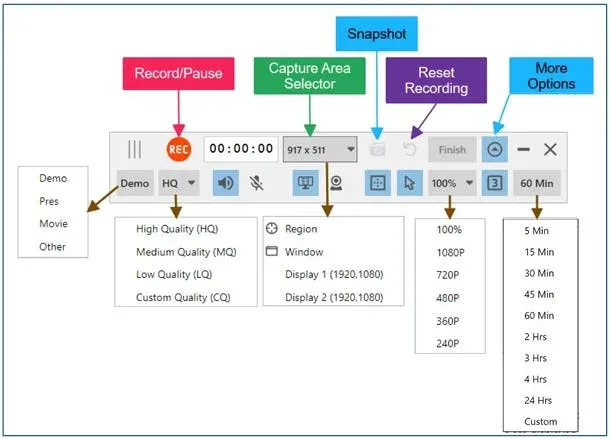
- Choose what you want to record: full screen, window, or a custom region.
- The selected area appears green and turns red when recording starts.
Step 3: Control Recording
- Use the control panel to start, pause, or reset.
- Shortcut: Press Ctrl + / to start or pause anytime.
Step 4: Capture Snapshots
- Take snapshots while recording using the camera icon or Ctrl + PrtScr.
- Each snapshot opens in its own tab.
- The first snapshot automatically becomes the video thumbnail.
Step 5: Finish and Review
- Click Finish to stop recording.
- Preview the video in Pixtel’s built-in player and export or share it
How to Adjust Recording Area, Timing, and Controls?
Pixtel gives you total flexibility:
- Record Screen + Camera: Perfect for tutorials and demos.
- Countdown Timer: Adds a 3-second countdown before recording starts.
- Reset Instantly: Stop and restart a recording anytime.
- Time Limit: Set automatic stop duration or end manually with Finish.
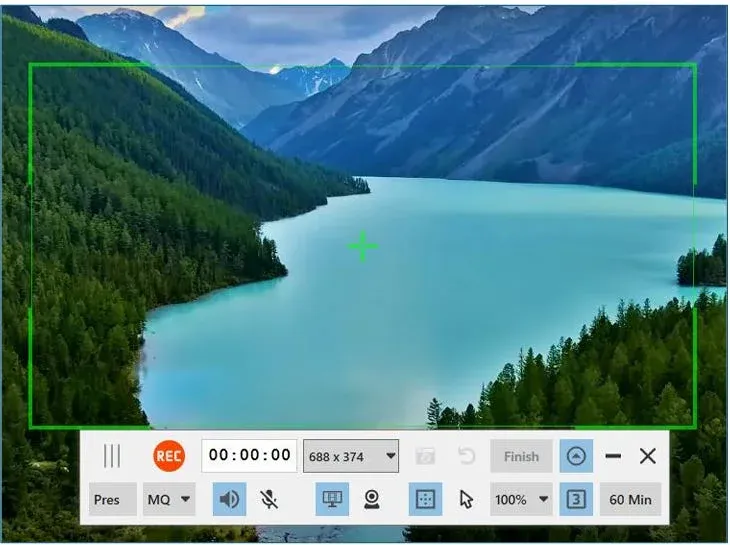
Manage Audio, Cursor, and Sharing Options
- Audio Controls: Toggle microphone or system sound on/off.
- Screen & Camera Toggles: Capture both or either.
- Cursor Effects: Highlight clicks and movements for clarity.
- Export & Share: Upload directly to YouTube, Vimeo, or cloud drives, or save locally.
Adjust Recording Quality and Resolution
Pixtel ensures top-notch recording quality while keeping files optimized:
- Preset Modes: Choose from Demo, Presentation, Movie, and more.
- Quality Settings: Adjust video clarity as needed.
- Resolution Control: Default is 100% (native screen resolution).
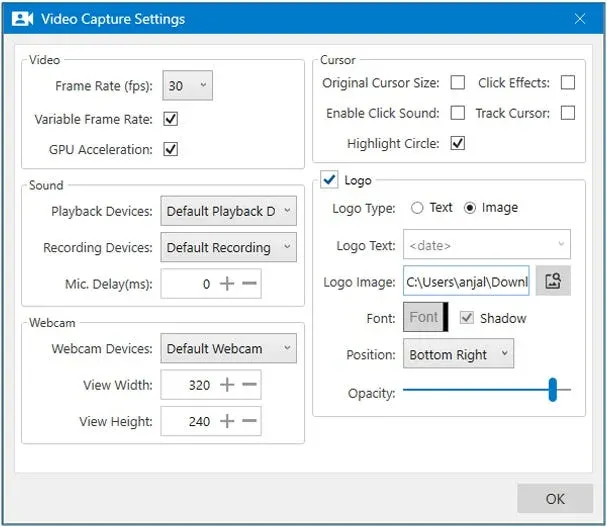
Manage Video Capture Preferences
Customize Pixtel to match your workflow:
- Frame Rate Control: Balance smoothness and file size.
- Logo Insertion: Add a company logo or watermark.
- Cursor Effects: Customize highlight colors and click animations.
Access all these under User Preferences → Capture → Video Capture Settings.
Pixtel offers everything you need for professional-quality screen and camera recording—without switching between tools. From capturing to editing to sharing, it’s all seamless and powerful.
✨ Capture once. Use it forever. It isn’t just a tool—it’s Pixtel.
🎯 Try Pixtel today and simplify your screen recording workflow.
Call-to-Action
Download Pixtel · Watch the Full Tutorial on YouTube · Read Detailed Documentation
Related reading:
'%3e%3cpath%20d='M6.49988%200.862305L0.380969%206.98121C-0.127315%207.4895%20-0.127315%208.31107%200.380969%208.81936C0.889253%209.32764%201.71083%209.32764%202.21911%208.81936L5.19992%205.83855V15.7C5.19992%2016.4176%205.781%2017%206.49988%2017C7.21875%2017%207.79984%2016.4176%207.79984%2015.7V5.83855L10.7806%208.81936C11.0341%209.07285%2011.3669%209.20024%2011.6997%209.20024C12.0325%209.20024%2012.3653%209.07285%2012.6188%208.81936C13.1271%208.31107%2013.1271%207.4895%2012.6188%206.98121L6.49988%200.862305Z'%20fill='white'/%3e%3c/g%3e%3cdefs%3e%3cclipPath%20id='clip0_1_2'%3e%3crect%20width='13.0002'%20height='16.8995'%20fill='white'%20transform='translate(-0.000244141%200.100533)'/%3e%3c/clipPath%3e%3c/defs%3e%3c/svg%3e)