

Upload Videos to YouTube Directly from Pixtel
Publishing videos on YouTube doesn’t have to involve switching between apps or juggling uploads. With Pixtel, you can record, manage, and upload videos to YouTube — all from one platform. Whether it’s a single clip or multiple videos at once, Pixtel streamlines the entire workflow.
How to Upload a Single Video to YouTube Using Pixtel
Follow these simple steps to upload a video directly to YouTube:
Record or Import Your Video
- Capture a video using Pixtel’s video capture feature, or
- Import an existing video from your computer.
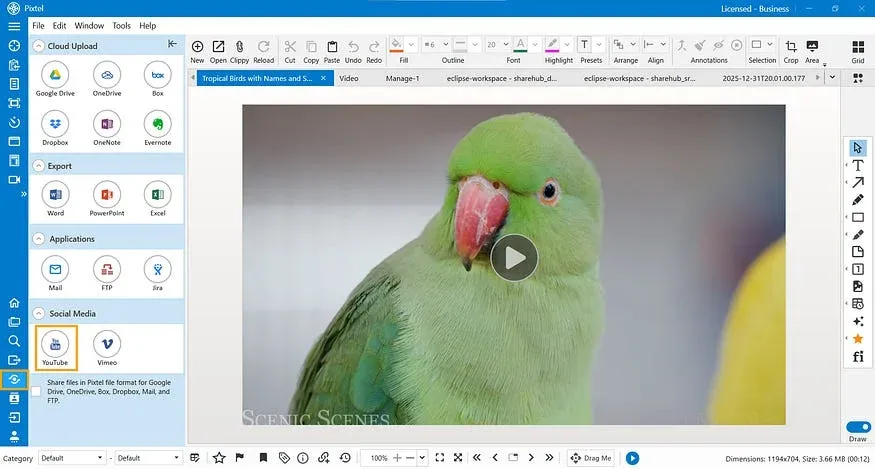
Click Share
- From Social Media sharing Options, choose YouTube
- The current**(active tab)** is automatically treated as a video file and is ready for upload
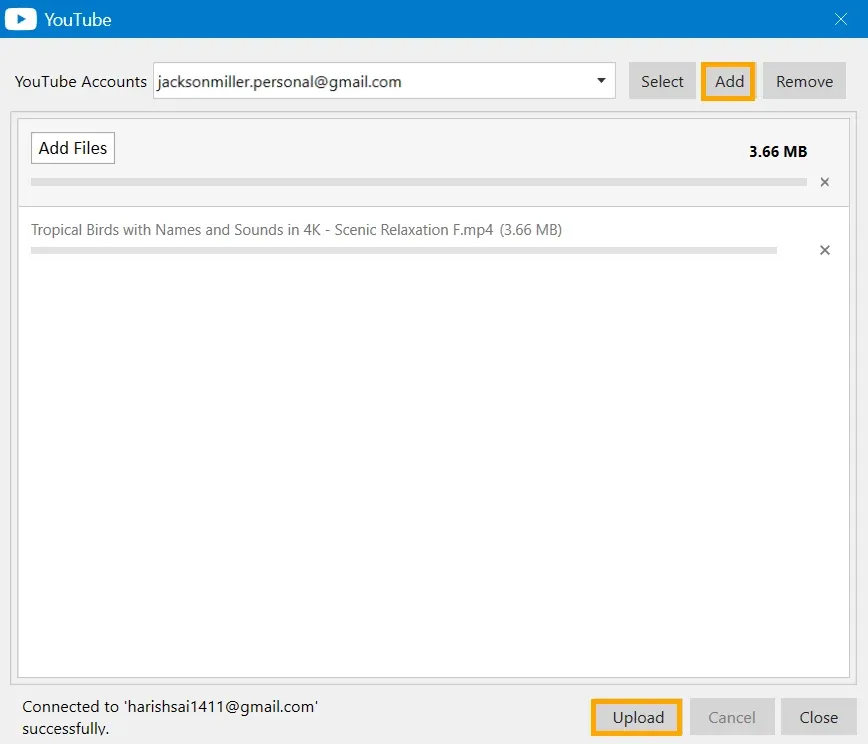
Add Your YouTube Account (First Time Only)
- Click Add and select your email.
- Grant permission so Pixtel can access your YouTube account.
- Once linked, your account is ready for future uploads.
Upload the Video
- Click Upload to publish the video directly to your YouTube channel from Pixtel.
How to Upload Multiple Videos at Once
Need to upload several videos together? Pixtel makes bulk uploads easy:
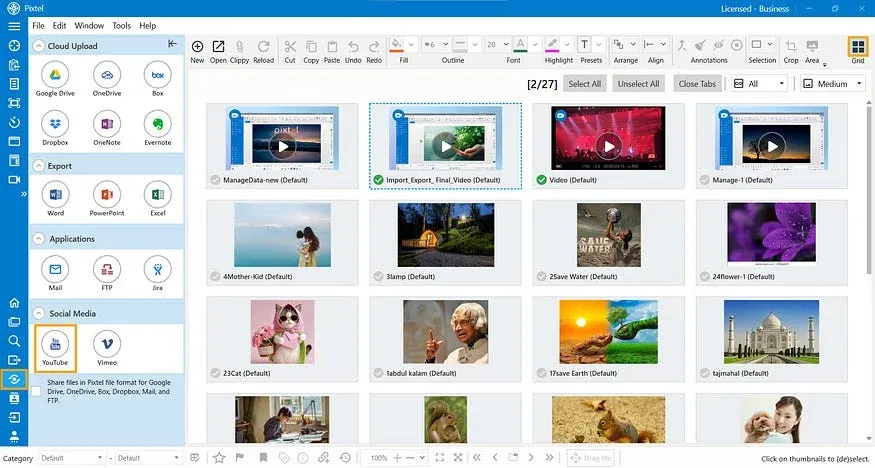
Switch to Grid View
- Open Grid View to see all your captured and imported videos in one place.
Select Multiple Videos
- Choose all the videos you want to upload.
Share to YouTube
- Click Share → YouTube.
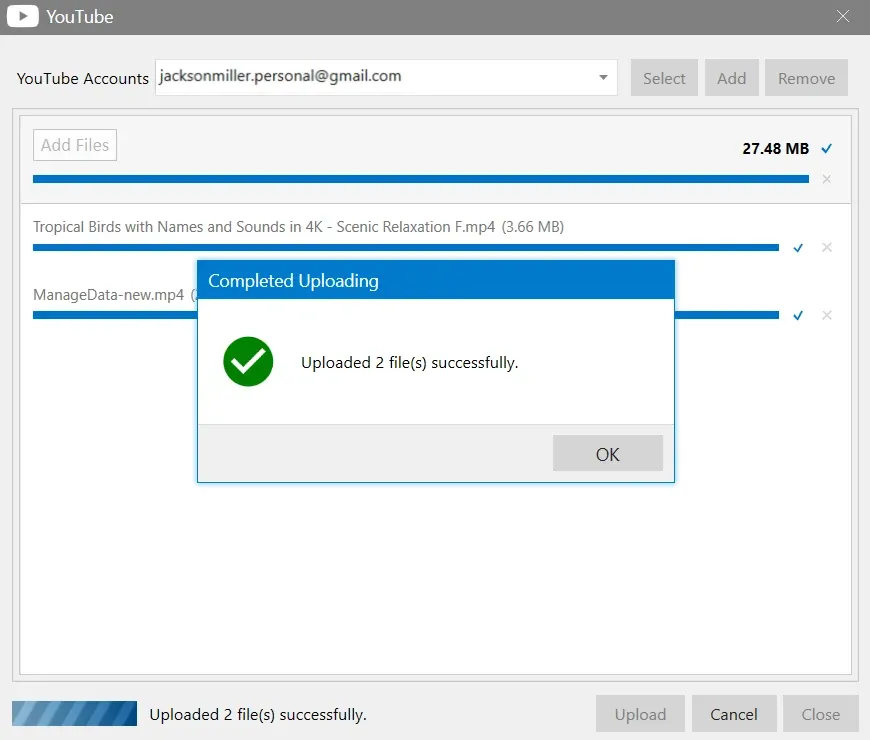
- Select your linked YouTube account and click Upload.
All selected videos will be uploaded in one go — no repeated steps, no app switching.
Pixtel makes uploading videos to YouTube quick and easy. You can record or import videos, select them, and upload directly to YouTube without switching apps. Whether it’s one video or many, Pixtel saves time and simplifies the entire process.
Related reading:
- A Simple Way to Share Videos to Vimeo from One Platform →
- How to Record Your Screen Effortlessly with Pixtel →
- Pixtel Audio Capture: Record High-Quality Audio →
Capture once and use it forever. It isn’t just a tool — it’s Pixtel.
👉 Download Pixtel · 🎥 Follow us on YouTube · 📘 Read Detailed Documentation
'%3e%3cpath%20d='M6.49988%200.862305L0.380969%206.98121C-0.127315%207.4895%20-0.127315%208.31107%200.380969%208.81936C0.889253%209.32764%201.71083%209.32764%202.21911%208.81936L5.19992%205.83855V15.7C5.19992%2016.4176%205.781%2017%206.49988%2017C7.21875%2017%207.79984%2016.4176%207.79984%2015.7V5.83855L10.7806%208.81936C11.0341%209.07285%2011.3669%209.20024%2011.6997%209.20024C12.0325%209.20024%2012.3653%209.07285%2012.6188%208.81936C13.1271%208.31107%2013.1271%207.4895%2012.6188%206.98121L6.49988%200.862305Z'%20fill='white'/%3e%3c/g%3e%3cdefs%3e%3cclipPath%20id='clip0_1_2'%3e%3crect%20width='13.0002'%20height='16.8995'%20fill='white'%20transform='translate(-0.000244141%200.100533)'/%3e%3c/clipPath%3e%3c/defs%3e%3c/svg%3e)