
Use Pixtel in Dark Mode
Easy on the Eyes, Day or Night
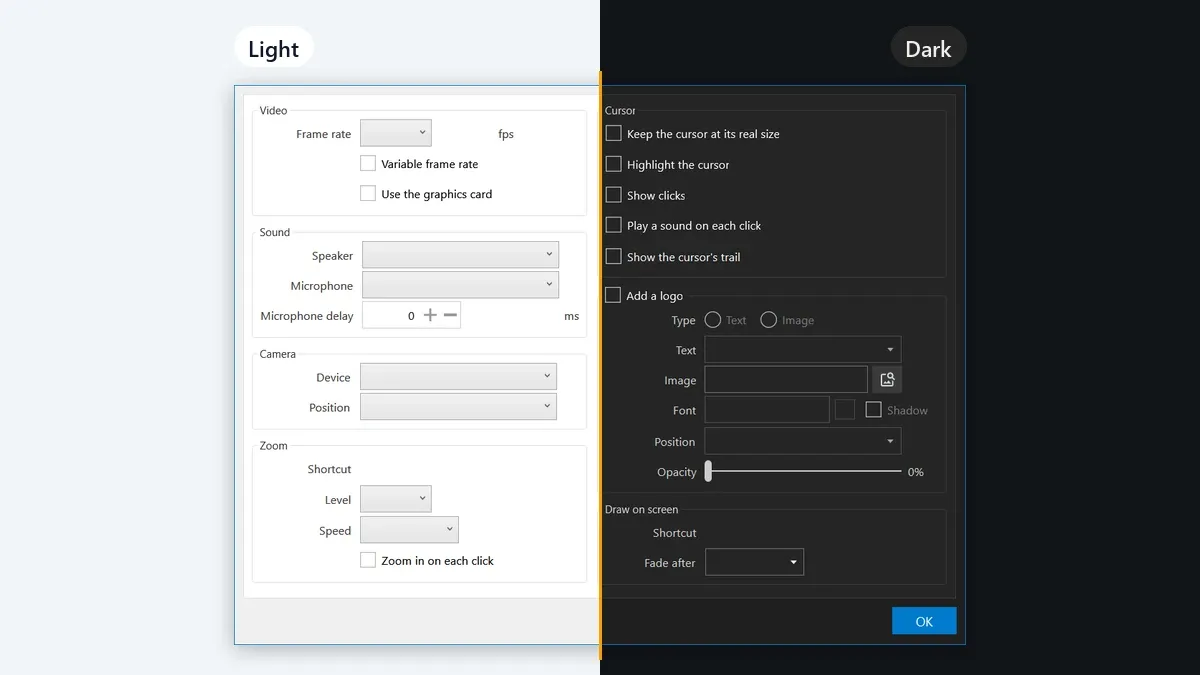
If you work in Windows' dark mode, a bright white app window is the first thing you notice. Pixtel now has a dark mode: its windows, dialogs, menus and panels turn dark, and by default Pixtel simply follows Windows. When Windows is dark, Pixtel is dark; when Windows is light, Pixtel is light.
How to Choose Light or Dark
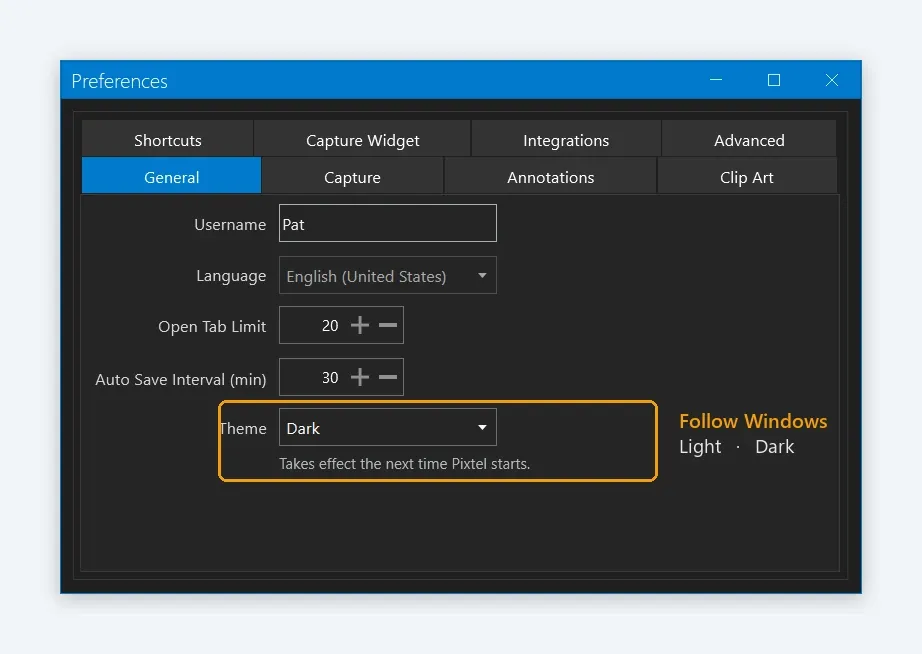
Pixtel follows Windows out of the box, so most people never need to change anything. To choose for yourself:
Step 1: Open Preferences
- Choose Window > User Preferences, or click User Preferences on the left menu bar.
- Stay on the General tab.
Step 2: Pick a theme
- Follow Windows (the default): Pixtel uses the mode set in Windows.
- Light: always light, whatever Windows uses.
- Dark: always dark, whatever Windows uses.
Step 3: Restart Pixtel
- The new theme takes effect the next time Pixtel starts. Pixtel reminds you of this under the setting.
Where Windows Sets Its Mode
With Follow Windows, Pixtel uses the mode you choose in Windows:
- Open Windows Settings > Personalization > Colors.
- Under Choose your mode, pick Light or Dark (or Custom, where Pixtel follows Choose your default app mode).
If you switch Windows between light and dark while Pixtel is open, Pixtel shows a short message: restart Pixtel to match it.
What Turns Dark
| Area | In dark mode |
|---|---|
| Main window and editor | Toolbars, the tool rail, panels, tabs and the space around your image |
| Dialogs and settings | Preferences, Video Capture Settings, effects, export and print windows |
| Menus and pop-ups | Right-click menus, drop-down lists, tooltips and the recorder's tray menu |
| Library | The thumbnail grid, image details, search and the Recycle Bin |
| Sharing | The share windows and their file lists; sign-in pages that offer a dark look |
| Step Guide | The review window where you edit your steps |
What Keeps Its Own Colors
Dark mode changes how Pixtel looks, never what you create:
- Your captures and recordings are exactly what was on your screen.
- Annotations keep the colors you chose: a black arrow stays black, a yellow highlight stays yellow.
- Exports (PDF, Word, PowerPoint, GIF, Step Guide documents) look the same in either theme.
- Web Capture shows a website the way its visitors normally see it, following Windows' mode rather than Pixtel's.
- The recording controls and capture widget float over whatever you are capturing, so they stay dark in both themes.
Contrast Themes and Stronger Contrast
- If you use a Windows contrast theme (Settings > Accessibility > Contrast themes), it always comes first: Pixtel uses the contrast theme's colors, light or dark.
- Stronger contrast (Preferences > Advanced) gives text boxes, drop-downs and lists clearer edges. It works in both themes: darker edges in light mode, lighter edges in dark mode.
Tips
- Leave the theme on Follow Windows if you switch Windows between light and dark during the day; Pixtel matches it the next time it starts.
- Choose Light if you capture screenshots of a light app and want Pixtel's windows to match while you annotate.
✨ Capture once. Use it forever. It isn't just a tool—it's Pixtel.
🎯 Try Pixtel today and work the way that's comfortable for you.
Call-to-Action
Download Pixtel · Read Detailed Documentation
Related reading:
'%3e%3cpath%20d='M6.49988%200.862305L0.380969%206.98121C-0.127315%207.4895%20-0.127315%208.31107%200.380969%208.81936C0.889253%209.32764%201.71083%209.32764%202.21911%208.81936L5.19992%205.83855V15.7C5.19992%2016.4176%205.781%2017%206.49988%2017C7.21875%2017%207.79984%2016.4176%207.79984%2015.7V5.83855L10.7806%208.81936C11.0341%209.07285%2011.3669%209.20024%2011.6997%209.20024C12.0325%209.20024%2012.3653%209.07285%2012.6188%208.81936C13.1271%208.31107%2013.1271%207.4895%2012.6188%206.98121L6.49988%200.862305Z'%20fill='white'/%3e%3c/g%3e%3cdefs%3e%3cclipPath%20id='clip0_1_2'%3e%3crect%20width='13.0002'%20height='16.8995'%20fill='white'%20transform='translate(-0.000244141%200.100533)'/%3e%3c/clipPath%3e%3c/defs%3e%3c/svg%3e)