

Pixtel Audio Capture: Record High-Quality Audio Easily and Professionally
Audio recording plays a crucial role in tutorials, product demos, meetings, podcasts, and presentations. However, most tools make audio capture complicated — limited quality options, confusing device selection, and fixed time limits often interrupt productivity. Pixtel Audio Capture eliminates these challenges by offering a simple, flexible, and powerful way to record audio
How Pixtel Audio Capture Makes Recording Simple?
With Pixtel, you get full control over audio quality, duration, and input sources, all in one clean interface. You can even capture images during recording to add visual context to your audio files.
How to Record Audio Using Pixtel?
Step 1: Open Audio Capture
- Click on the Pixtel menu bar
- Select Audio
- The Audio Capture pop-up opens with all recording options
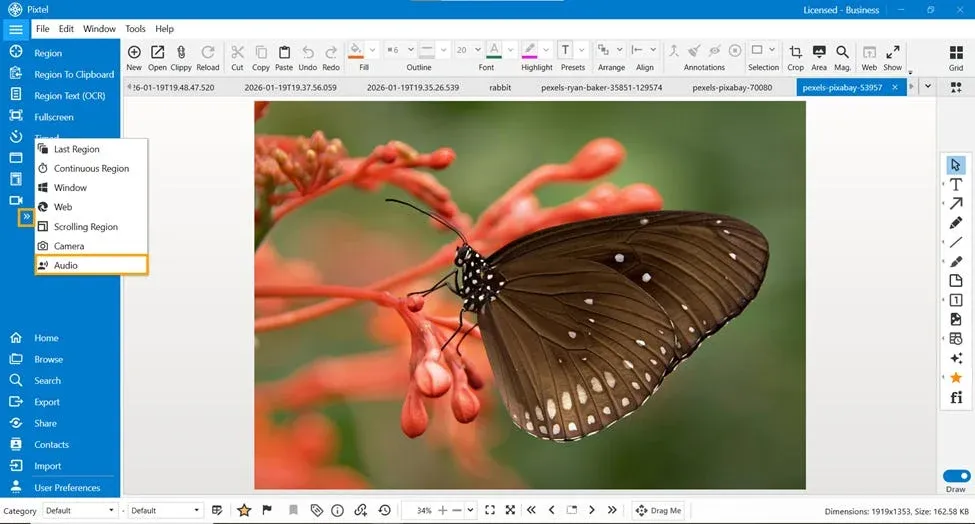
Step 2: Select Audio Quality
Pixtel offers multiple quality levels so you can balance clarity and file size:
- Low Quality (LQ)
- Medium Quality (MQ)
- High Quality (HQ)
- Lossless (LC)
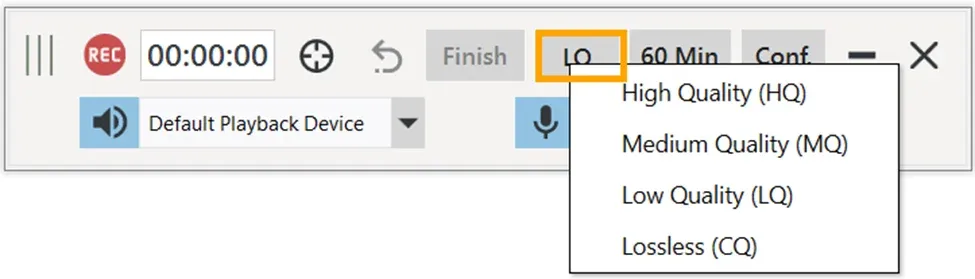
Step 3: Set Recording Time Limit
- Pixtel provides a default time limit for audio recording
- You can fully customize the duration by setting hours, minutes, and seconds
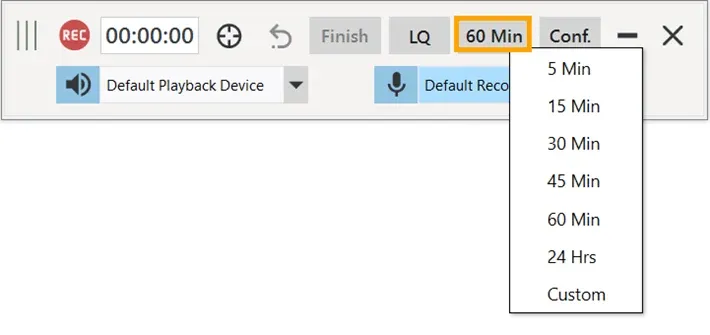
Step 4: Configure Audio Input Settings
You can choose what audio Pixtel should record:
- Voice (Microphone)
- Music (System Playback)
- Conference Calls (mic+ playback)
- Others (mic + playback)
From the dropdown, Pixtel displays all available audio devices, allowing precise device selection.
Smart Audio Modes:
- Voice Mode→ Microphone enabled, playback audio disabled
- Music Mode → Playback enabled, microphone disabled
- Conference Calls → Allows manual control of microphone and playback audio, recordedin Low Quality (LQ)
- Others Mode → Allows manual control of microphone and playback audio, recordedin Medium Quality (MQ)
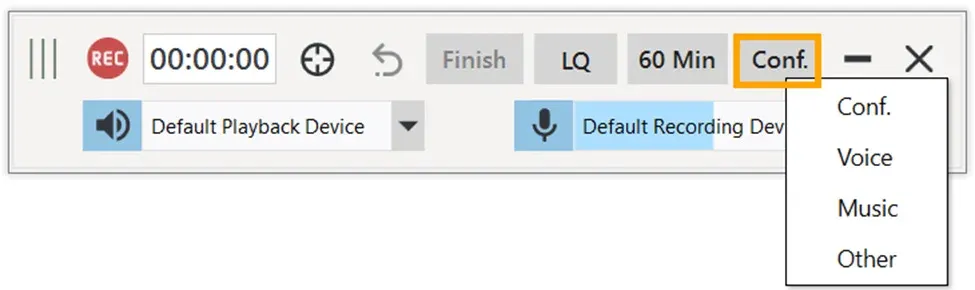
Step 5: Capture Images While Recording
- You can capture images during audio recording
- The last captured image is automatically set as the audio thumbnail
- Helps add visual context for presentations and documentation

Step 6: Control Your Recording
- Click Record to start audio capture
- Use Pause anytime during recording
- Click Reset to clear the recording and start over

Key Benefits of Pixtel Audio Capture
- All-in-one audio recording solution
- Flexible quality and duration controls
- Easy microphone and system audio selection
- Smart modes for voice and music recording
- Visual thumbnails for better organization
Pixtel Audio Capture makes professional audio recording effortless. Whether you’re recording voice, system audio, or both, Pixtel provides the flexibility, clarity, and control you need — without complexity. With customizable quality levels, smart audio modes, and seamless controls, Pixtel ensures your audio recordings are always clear, organized, and ready to share.
Related reading:
- How to Record Your Screen Effortlessly with Pixtel →
- Upload Videos to YouTube Directly from Pixtel →
- A Simple Way to Share Videos to Vimeo from One Platform →
Capture once and use it forever. It isn’t just a tool — it’s Pixtel.
👉 Download Pixtel · 🎥 Follow us on YouTube · 📘 Read Detailed Documentation
'%3e%3cpath%20d='M6.49988%200.862305L0.380969%206.98121C-0.127315%207.4895%20-0.127315%208.31107%200.380969%208.81936C0.889253%209.32764%201.71083%209.32764%202.21911%208.81936L5.19992%205.83855V15.7C5.19992%2016.4176%205.781%2017%206.49988%2017C7.21875%2017%207.79984%2016.4176%207.79984%2015.7V5.83855L10.7806%208.81936C11.0341%209.07285%2011.3669%209.20024%2011.6997%209.20024C12.0325%209.20024%2012.3653%209.07285%2012.6188%208.81936C13.1271%208.31107%2013.1271%207.4895%2012.6188%206.98121L6.49988%200.862305Z'%20fill='white'/%3e%3c/g%3e%3cdefs%3e%3cclipPath%20id='clip0_1_2'%3e%3crect%20width='13.0002'%20height='16.8995'%20fill='white'%20transform='translate(-0.000244141%200.100533)'/%3e%3c/clipPath%3e%3c/defs%3e%3c/svg%3e)