

Zoom In While Recording Your Screen with Pixtel
Show the Detail, Not Just the Whole Screen
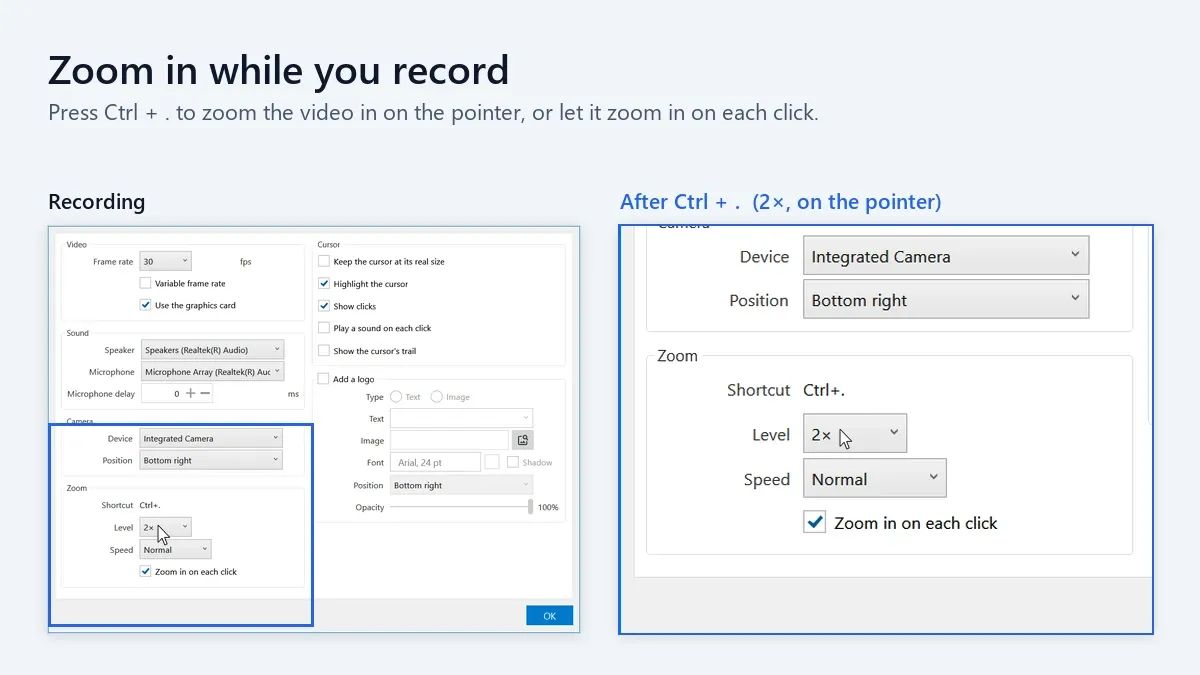
When you record a tutorial or a demo, the part that matters is often small: a menu item, a field, a line of text. In the finished video, especially one recorded on a large screen, viewers can easily miss it. Pixtel lets you zoom the recording in on your pointer with one key, and back out with the same key, without stopping the recording. Or let Pixtel zoom in automatically wherever you click.
How to Zoom While Recording
Step 1: Start a recording
- Click the Video Recording option from the Home bar and choose the area to record.
- Click Record, or press Ctrl + /.
Step 2: Point at what you want to show
- Move the pointer over the detail you want viewers to see.
Step 3: Press Ctrl + .
- Hold Ctrl and press the period (.) key.
- The video zooms in smoothly, centred on your pointer.
Step 4: Keep working
- Move the pointer, click and type as usual.
- The zoomed view follows your pointer and stops at the edges of the recorded area.
Step 5: Press Ctrl + . again to zoom back out
- The video moves back out to show the whole recorded area.
You can zoom in and out as often as you like during a recording.
Good to Know
- Only the video zooms. Your screen stays as it is, so you can keep working normally.
- The shortcut works only during a recording. Before you start and after you finish, Ctrl + . works as usual in your other apps.
- You can zoom while paused. The video continues zoomed in when you resume.
- Snapshots match the video. A snapshot taken while zoomed in captures the zoomed view.
- Every recording starts at normal size. If you finish while zoomed in, the video ends zoomed in, and your next recording starts at normal size.
- The camera bubble zooms too. Pixtel records the camera bubble as part of your screen, so zooming in enlarges it along with everything else, or leaves it out of view.
Zoom In Automatically on Each Click
Rather not press a key? Pixtel can zoom in for you every time you click.
Turn it on
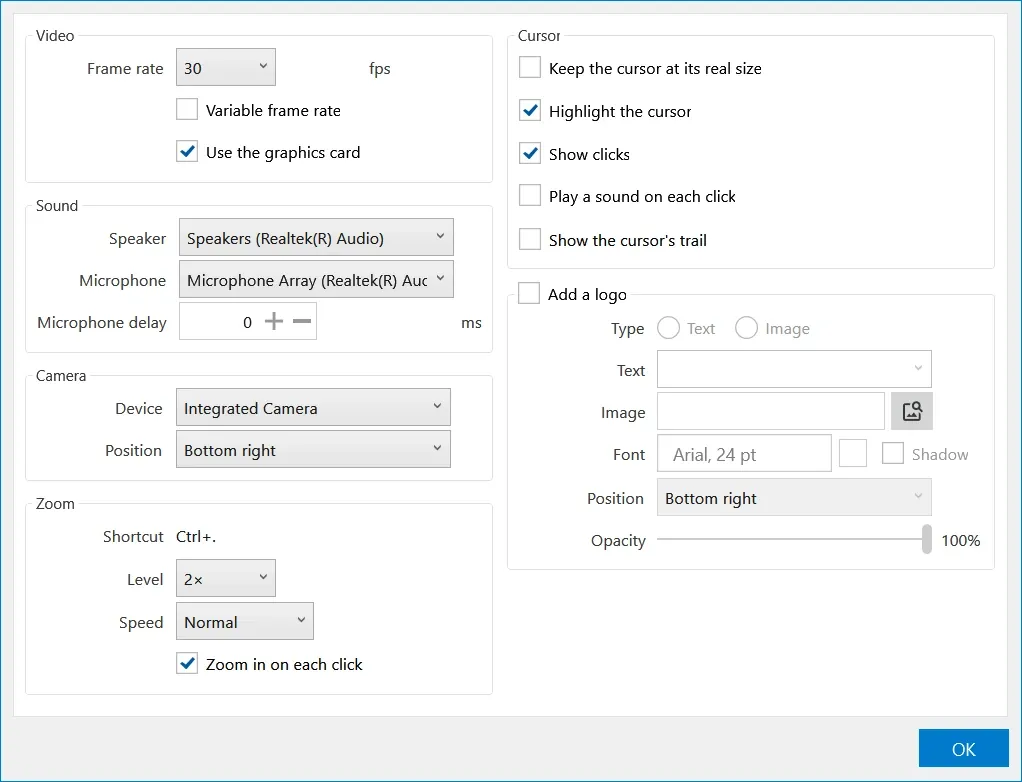
- Open Video Capture Settings (see below).
- In the Zoom section, select Zoom in on each click.
How it works
- Click inside the recorded area, and the video zooms in on the spot you clicked.
- It stays zoomed in while you keep clicking, typing or scrolling.
- After 3 seconds without clicks, typing or scrolling, it zooms back out to the whole area.
- Holding the mouse button down, for example while dragging or selecting text, keeps the zoom until you let go.
- When you click while already zoomed in, the zoom stays. The view follows your pointer, so what you click stays in view.
- Clicks outside the recorded area, and on Pixtel's recording panel, its menus and the camera bubble, don't zoom the video.
Working with the shortcut
- Press Ctrl + . during a click zoom to zoom out right away.
- While you're zoomed in with Ctrl + ., clicks don't change the zoom.
- Pausing the recording ends a click zoom. A zoom you started with Ctrl + . stays in place through a pause.
Choose How Far and How Fast It Zooms
Open Video Capture Settings: click the settings (gear) button on the recording panel, or go to User Preferences → Capture → Video Capture Settings.
In the Zoom section:
- Shortcut shows the key that zooms in and out.
- Level sets how far the video zooms in: 1.5×, 2× (the default), 2.5×, 3× or 4×.
- Speed sets how quickly it zooms: Slow, Normal (the default), Fast, or Instant, which cuts straight to the new view.
- Zoom in on each click turns on automatic zoom when you click.
Level and Speed apply to both the shortcut and click zoom. Changes apply the next time the video zooms, even in the middle of a recording.
Change the Shortcut
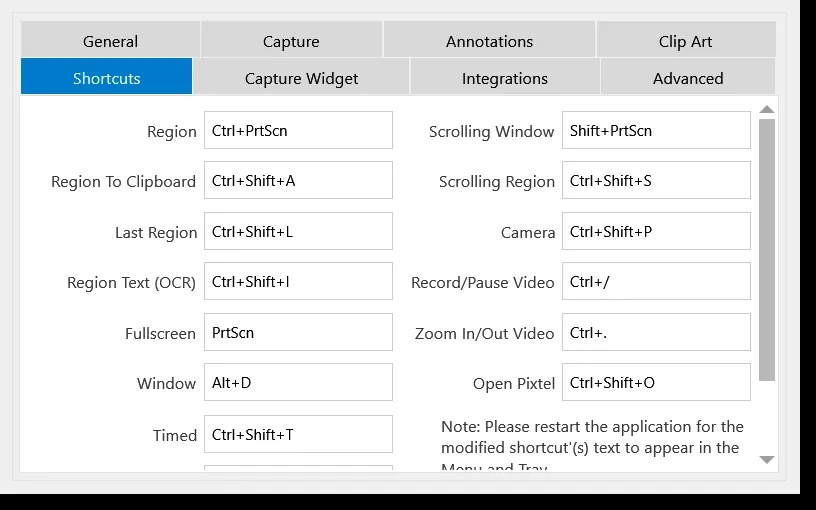
- Open User Preferences and select the Shortcuts tab.
- Click the box next to Zoom In/Out Video.
- Press the key combination you want to use.
The new shortcut takes effect the next time you open the video recorder.
During a recording, Pixtel uses this key for zooming, so pick one that the apps you record don't need. For example, Ctrl + . is also Quick Fix in Visual Studio Code.
Tips for Clear Zoomed Videos
- Point, zoom, then act. Move to the control first, press Ctrl + ., then click or type, so viewers see exactly what you do.
- Pick the mode that fits the demo. Click zoom suits step-by-step walkthroughs; the shortcut is better when you want to decide exactly when the video zooms.
- Move slowly while zoomed in. The view follows your pointer, so steady movements are easier to watch.
- Match the level to the detail. Use a higher level for small text and a lower one when you only need to draw attention to an area.
- Zoom out to show the result. Seeing the whole screen again helps viewers understand where the change happened.
Zooming keeps your viewers' eyes on what matters, without editing the video afterwards.
✨ Capture once. Use it forever. It isn’t just a tool—it’s Pixtel.
🎯 Try Pixtel today and make every detail in your recordings easy to see.
Call-to-Action
Download Pixtel · Learn How to Record Your Screen with Pixtel
Related reading:
'%3e%3cpath%20d='M6.49988%200.862305L0.380969%206.98121C-0.127315%207.4895%20-0.127315%208.31107%200.380969%208.81936C0.889253%209.32764%201.71083%209.32764%202.21911%208.81936L5.19992%205.83855V15.7C5.19992%2016.4176%205.781%2017%206.49988%2017C7.21875%2017%207.79984%2016.4176%207.79984%2015.7V5.83855L10.7806%208.81936C11.0341%209.07285%2011.3669%209.20024%2011.6997%209.20024C12.0325%209.20024%2012.3653%209.07285%2012.6188%208.81936C13.1271%208.31107%2013.1271%207.4895%2012.6188%206.98121L6.49988%200.862305Z'%20fill='white'/%3e%3c/g%3e%3cdefs%3e%3cclipPath%20id='clip0_1_2'%3e%3crect%20width='13.0002'%20height='16.8995'%20fill='white'%20transform='translate(-0.000244141%200.100533)'/%3e%3c/clipPath%3e%3c/defs%3e%3c/svg%3e)