

Draw on Your Screen While Recording with Pixtel
Point Things Out While You Talk
When you explain something in a recording, words alone are often not enough. "Click the second button from the left" is much easier to follow with an arrow pointing at it. Pixtel lets you draw on your screen while you record: arrows, lines, shapes, highlights and numbered steps appear in the video, then fade away on their own, so your screen stays clear for the next point.
How to Draw While Recording
Step 1: Start a recording
- Click the Video Recording option from the Home bar and choose the area to record.
- Click Record, or press Ctrl + /.
Step 2: Press Ctrl + Shift + D
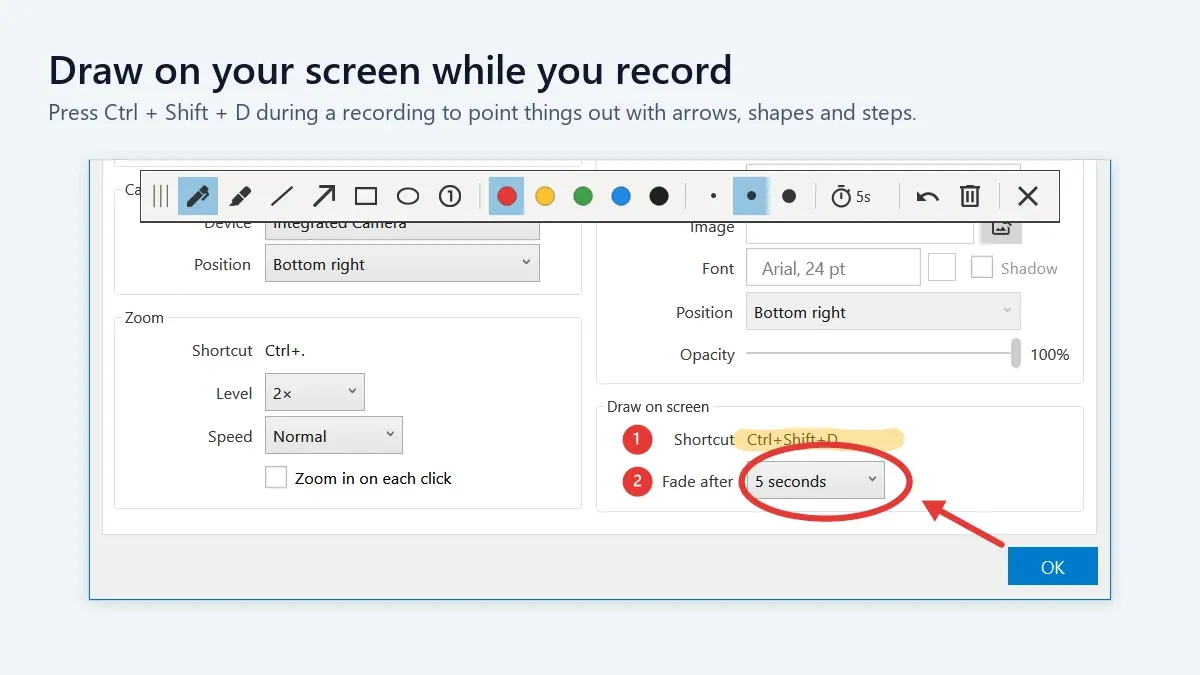
- The drawing toolbar appears at the top of the recorded area.
- You can also right-click Pixtel's recorder icon in the notification area (system tray) and choose Draw on screen.
Step 3: Pick a tool and draw
- Click a tool on the toolbar, or press its key, for example A for the arrow.
- Drag inside the recorded area to draw. For numbered steps, click where each number should go.
Step 4: Keep talking
- Each drawing fades away 5 seconds after you draw it, so you can keep drawing without clearing the screen.
Step 5: Press Esc to stop drawing
- You can also press Ctrl + Shift + D again, or click X on the toolbar.
- Your clicks go back to the app you're recording. Drawings still on screen keep fading as usual.
The Drawing Tools
| Tool | Key | Use it to |
|---|---|---|
| Pen | P | Draw freehand. Lines are smoothed as you draw, so they look neat. |
| Highlighter | H | Mark text with a wide, see-through stroke. |
| Line | L | Underline or connect things with a straight line. |
| Arrow | A | Point at exactly what you're talking about. |
| Rectangle | R | Frame an area. |
| Ellipse | E | Circle a button, a field or a word. |
| Numbered steps | 1 | Click to place 1, 2, 3 and so on. Press 1 again to start over from 1. |
The toolbar also has:
- Colors: red, yellow, green, blue or black.
- Widths: thin, medium or thick.
- Fade time: the timer button shows how long drawings stay (see below).
- Undo (Ctrl + Z) removes the last drawing, and Clear all (Delete) removes them all.
- X (Esc) stops drawing.
Hold Shift while you drag to keep a line or arrow level, upright or at 45°, to make a rectangle a square, or to make an ellipse a perfect circle.
Pixtel remembers the tool, color, width and fade time you used last.
Choose How Long Drawings Stay
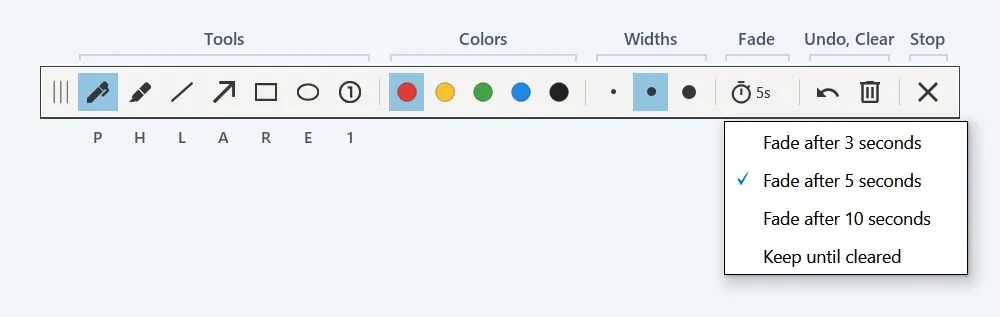
Click the timer button on the toolbar and choose:
- Fade after 3 seconds: for quick pointers while you click through an app.
- Fade after 5 seconds (the default): time to explain each drawing.
- Fade after 10 seconds: for slower explanations.
- Keep until cleared: build up a diagram or a set of steps, then clear it with Delete while drawing is on.
The new time applies right away, including to drawings already on screen. If you switch from Keep until cleared to a time, the drawings on screen start counting down from that moment.
Good to Know
- Drawings are part of the video. They appear in your recording, and in any snapshot you take while they're on screen. The toolbar and its menu don't.
- The app you're recording stays active. While drawing is on, clicks inside the recorded area draw instead of reaching the app, but the mouse wheel still scrolls it.
- Your keyboard keeps working. While drawing is on, Pixtel takes only its drawing keys (P, H, L, A, R, E, 1, Ctrl + Z, Delete, Backspace and Esc); other keys reach your app as usual. When drawing is off, every key goes to your app.
- The shortcut works only during a recording. Before you start and after you finish, Ctrl + Shift + D works as usual in your other apps. You can also draw while the recording is paused.
- You can move the toolbar. Drag it by its handle or background. It stays where you put it until you close the recorder.
- Every recording starts clean. When you finish a recording, drawing turns off and all drawings are cleared.
Change the Shortcut or Fade Time
In Video Capture Settings
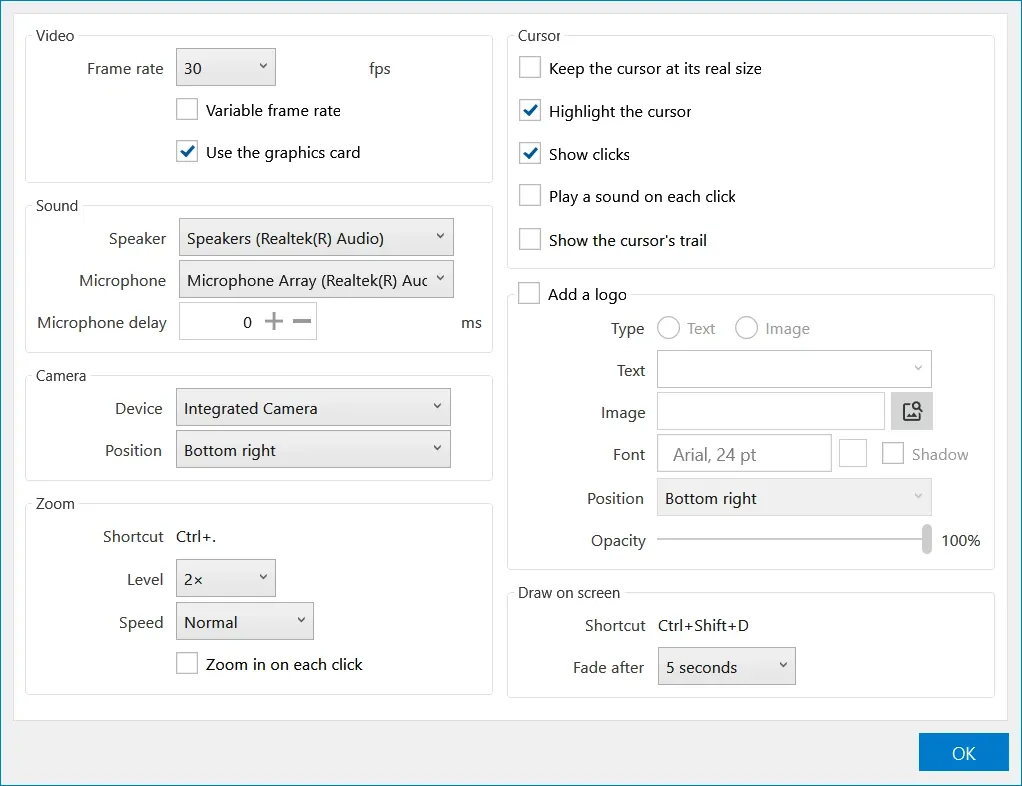
Click the settings (gear) button on the recording panel, or go to User Preferences → Capture → Video Capture Settings. In the Draw on screen section:
- Shortcut shows the key that turns drawing on and off.
- Fade after sets how long drawings stay: 3, 5 or 10 seconds, or Never to keep them until you clear them. This is the same setting as the toolbar's timer.
In the Shortcuts tab
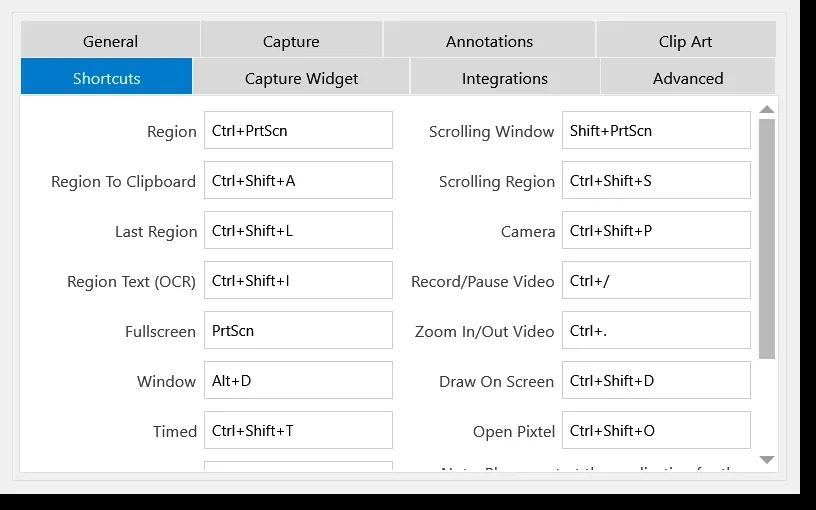
- Open User Preferences and select the Shortcuts tab.
- Click the box next to Draw On Screen.
- Press the key combination you want to use.
The new shortcut takes effect the next time you open the video recorder.
During a recording, Pixtel uses this key for drawing, so pick one that the apps you record don't need. For example, Ctrl + Shift + D also opens Run and Debug in Visual Studio Code.
Tips for Clear Drawings
- Draw, then pause. Give viewers a moment to see each drawing before you move on.
- Number the steps. Place 1, 2, 3 on the controls in the order you'll use them.
- Underline with Shift. Hold Shift with the Line tool for a perfectly level underline.
- Highlight words, circle controls. The highlighter suits text; the ellipse suits buttons and fields.
- Stop drawing to click. Press Esc before you click in your app, and Ctrl + Shift + D to draw again.
- Combine with zoom. Zoom in with Ctrl + ., then draw, to point at small details.
Drawing keeps your viewers' eyes on what you're talking about, without editing the video afterwards.
✨ Capture once. Use it forever. It isn’t just a tool—it’s Pixtel.
🎯 Try Pixtel today and make every step in your recordings easy to follow.
Call-to-Action
Download Pixtel · Learn How to Record Your Screen with Pixtel
Related reading:
'%3e%3cpath%20d='M6.49988%200.862305L0.380969%206.98121C-0.127315%207.4895%20-0.127315%208.31107%200.380969%208.81936C0.889253%209.32764%201.71083%209.32764%202.21911%208.81936L5.19992%205.83855V15.7C5.19992%2016.4176%205.781%2017%206.49988%2017C7.21875%2017%207.79984%2016.4176%207.79984%2015.7V5.83855L10.7806%208.81936C11.0341%209.07285%2011.3669%209.20024%2011.6997%209.20024C12.0325%209.20024%2012.3653%209.07285%2012.6188%208.81936C13.1271%208.31107%2013.1271%207.4895%2012.6188%206.98121L6.49988%200.862305Z'%20fill='white'/%3e%3c/g%3e%3cdefs%3e%3cclipPath%20id='clip0_1_2'%3e%3crect%20width='13.0002'%20height='16.8995'%20fill='white'%20transform='translate(-0.000244141%200.100533)'/%3e%3c/clipPath%3e%3c/defs%3e%3c/svg%3e)