

Customize Your Workflow with Pixtel User Preferences Tab
In our day-to-day work, we use various types of captures — region capture, fullscreen capture, scrolling window, text capture (OCR), and more.
Every time opening the application and manually selecting the required capture option can feel tedious. On top of that, some default shortcuts may conflict with other applications installed on your system.
What if you could manage everything in one place?
With Pixtel, you can easily customize your preferences, control open tab limits, and modify shortcut keys according to your workflow — all from the User Management tab.
Accessing the User Preferences Tab:
- Open Pixtel
- Go to the Home Bar
- Select User Preferences
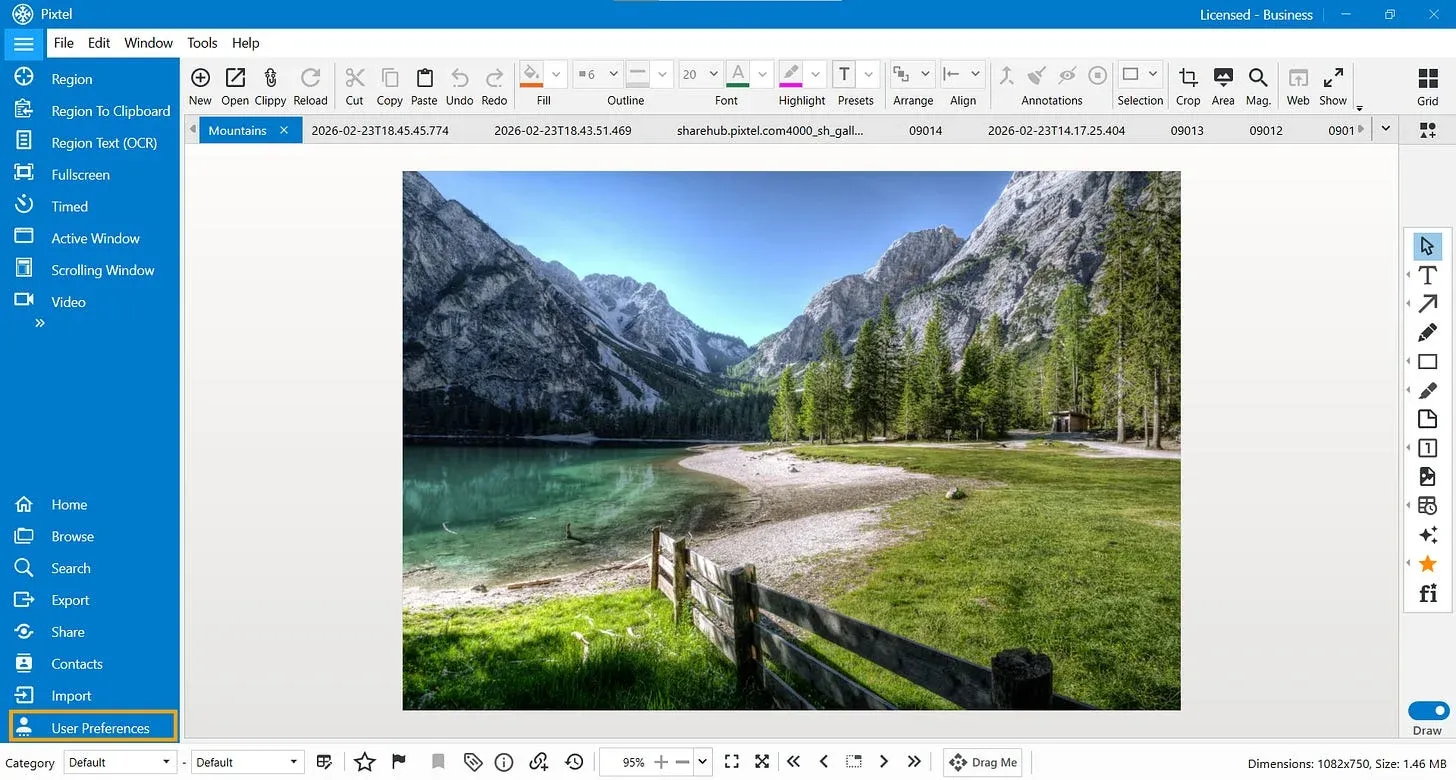
This section allows you to personalize Pixtel according to your needs.
General Tab — Manage Basic Preferences
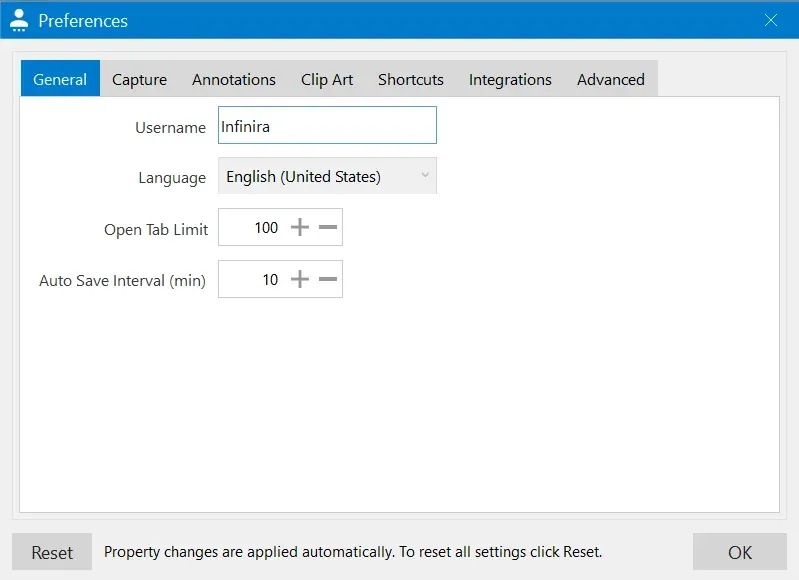
Inside User Preferences, navigate to the General tab.
Here you can customize:
- Username — Update your display name.
- Open Tab Limit — Control how many capture tabs can remain open at once.
- Auto Save Limit — Define how many captures should be saved automatically.
- Interval Time Limit — Set the time duration for timed captures.
Why Set an Open Tab Limit?
If you frequently capture screenshots, multiple tabs can quickly accumulate. Setting an open tab limit helps you:
- Avoid clutter
- Improve performance
- Maintain organized workflow
Once you adjust the values, the changes are applied smoothly.
Customizing Capture Shortcuts
One of the most powerful features in Pixtel is the ability to customize shortcut keys.
Sometimes default shortcuts may:
- Clash with other applications
- Not suit your workflow
- Feel inconvenient
Pixtel allows you to change them easily.
How to Change Shortcuts
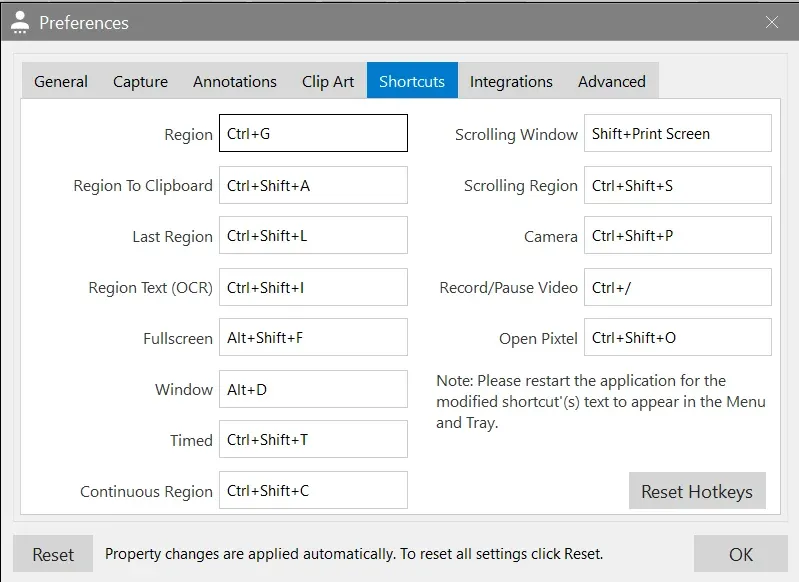
- Navigate to the Shortcuts section inside User Preferences.
- Locate the capture action you want to modify (e.g., Region, Fullscreen, Scrolling Window, OCR, etc.).
- Double-click on the shortcut field.
- Press your desired key combination.
- Click OK to save changes.
That’s it — your new shortcut is ready to use.
Resetting Shortcuts
If you ever want to revert back:
- Click the Reset Hotkeys button to restore default shortcuts.
- Or click Reset to restore all settings.
Changes are applied automatically, but in some cases, you may need to restart the application for the updated shortcuts to reflect in the menu and system tray.
Why Customize?
Customizing your preferences in Pixtel helps you:
- Work faster
- Avoid shortcut conflicts
- Keep your capture workspace organized
- Improve productivity
- Reduce repetitive manual actions
Instead of adjusting your workflow to match the tool, Pixtel allows the tool to match your workflow.
The User Preference tab in Pixtel helps you work smarter and faster. By setting the open tab limit, adjusting auto-save options, and customizing shortcut keys, you can organize your captures and avoid shortcut conflicts with other applications.
With just a few simple changes, Pixtel adapts to your workflow — making your daily capturing experience smooth and efficient.
Related reading:
- Pixtel Home Option: Your Complete Dashboard at a Glance →
- Quick Access to All Home Bar Options from the Menu Bar →
- How to Customize Capture Options in Pixtel →
Capture once and use it forever. It isn’t just a tool — it’s Pixtel.
👉 Download Pixtel · 🎥 Follow us on YouTube · 📘 Read Detailed Documentation
'%3e%3cpath%20d='M6.49988%200.862305L0.380969%206.98121C-0.127315%207.4895%20-0.127315%208.31107%200.380969%208.81936C0.889253%209.32764%201.71083%209.32764%202.21911%208.81936L5.19992%205.83855V15.7C5.19992%2016.4176%205.781%2017%206.49988%2017C7.21875%2017%207.79984%2016.4176%207.79984%2015.7V5.83855L10.7806%208.81936C11.0341%209.07285%2011.3669%209.20024%2011.6997%209.20024C12.0325%209.20024%2012.3653%209.07285%2012.6188%208.81936C13.1271%208.31107%2013.1271%207.4895%2012.6188%206.98121L6.49988%200.862305Z'%20fill='white'/%3e%3c/g%3e%3cdefs%3e%3cclipPath%20id='clip0_1_2'%3e%3crect%20width='13.0002'%20height='16.8995'%20fill='white'%20transform='translate(-0.000244141%200.100533)'/%3e%3c/clipPath%3e%3c/defs%3e%3c/svg%3e)