

Access Pixtel Quickly from the System Tray Options
If you use Pixtel frequently for capturing screenshots and organizing images, the System Tray provides a faster way to access its features without opening the main application every time. Here's how you can make the most of the Pixtel tray options.
Accessing Pixtel from the System Tray
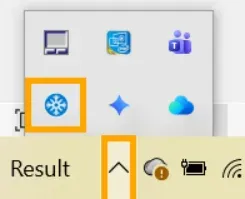
Once Pixtel is launched, it remains available in the Windows System Tray (notification area) near the clock.
To Open Pixtel
- Locate the Pixtel icon in the system tray.
- Double-click the icon to open the Pixtel application.
- If Pixtel was previously closed or minimized, you can quickly reopen it from here.
Accessing Capture Options Directly from the Tray
Instead of opening Pixtel and then selecting a capture mode, you can perform captures directly from the tray.
How to Access Capture Options
- Find the Pixtel icon in the system tray.
- Right-click the icon.
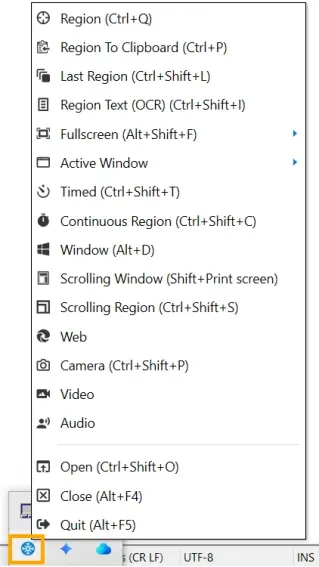
- A menu will appear displaying all available capture options.
Available Capture Options
Based on the tray menu, you can quickly access:
- Region — Capture a selected area of the screen.
- Region to Clipboard — Capture a region and copy it directly to the clipboard.
- Last Region — Recapture the previously selected area.
- Region Text (OCR) — Extract text from a selected screen area.
- Fullscreen — Capture the entire screen.
- Active Window — Capture the currently active window.
- Timed Capture — Capture after a specified delay.
- Continuous Region — Continuously capture a selected region.
- Window Capture — Capture a specific application window.
- Scrolling Window — Capture an entire scrolling window.
- Scrolling Region — Capture a scrolling area within a selected region.
- Web Capture — Capture web content.
- Camera — Capture images using a connected camera.
- Video — Record screen activity as video.
- Audio — Record audio.
This allows you to start captures instantly without opening the main Pixtel window.
Capture Completion Notification
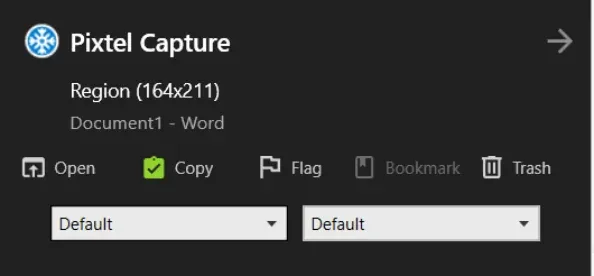
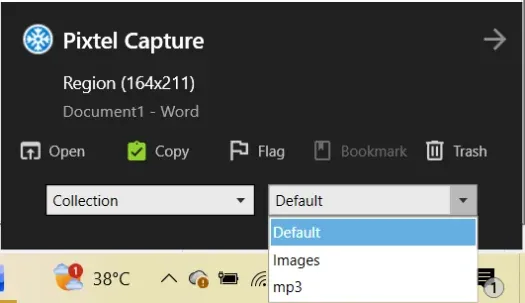
After a capture is completed, Pixtel displays a notification popup with quick actions, allowing you to manage the capture immediately.
Actions Available from the Notification
You can:
- Open the captured image in Pixtel.
- Copy the image to the clipboard.
- Flag the capture for easy identification.
- Bookmark important captures.
- Delete unwanted captures.
Organize Captures Instantly
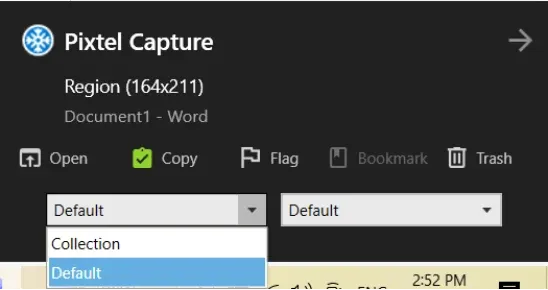
Pixtel also helps keep your captures organized right after they are created.
From the notification popup, you can:
- Select a Category.
- Select a Subcategory.
- Save captures in the appropriate location for easier management.
This makes it simple to organize screenshots as soon as they are captured, ensuring they are easy to find later within Pixtel.
Why Use the Tray Options?
Using the Pixtel tray options helps you:
- Capture screens faster
- Avoid opening the application repeatedly
- Access all capture modes instantly
- Manage captures immediately after creation
- Organize images with categories and subcategories
- Improve productivity and workflow
Conclusion
The Pixtel System Tray is designed to provide quick access to all major capture functions. Whether you need a simple screenshot, OCR text extraction, scrolling capture, video recording, or image organization, everything is available with just a right-click on the Pixtel tray icon. By using the tray options, you can capture, manage, and organize content more efficiently without interrupting your workflow.
Related reading:
- 4 Easy Ways to Capture Screenshots in Pixtel →
- Quick Access to All Home Bar Options from the Menu Bar in Pixtel →
- How to Customize Capture Options in Pixtel →
Capture once and use it forever. It isn't just a tool — it's Pixtel.
'%3e%3cpath%20d='M6.49988%200.862305L0.380969%206.98121C-0.127315%207.4895%20-0.127315%208.31107%200.380969%208.81936C0.889253%209.32764%201.71083%209.32764%202.21911%208.81936L5.19992%205.83855V15.7C5.19992%2016.4176%205.781%2017%206.49988%2017C7.21875%2017%207.79984%2016.4176%207.79984%2015.7V5.83855L10.7806%208.81936C11.0341%209.07285%2011.3669%209.20024%2011.6997%209.20024C12.0325%209.20024%2012.3653%209.07285%2012.6188%208.81936C13.1271%208.31107%2013.1271%207.4895%2012.6188%206.98121L6.49988%200.862305Z'%20fill='white'/%3e%3c/g%3e%3cdefs%3e%3cclipPath%20id='clip0_1_2'%3e%3crect%20width='13.0002'%20height='16.8995'%20fill='white'%20transform='translate(-0.000244141%200.100533)'/%3e%3c/clipPath%3e%3c/defs%3e%3c/svg%3e)