

Work Faster with Pixtel's Tabbed Approach
When you’re capturing multiple screenshots or working on different visuals at the same time, switching back and forth between files can slow you down. That’s where Pixtel’s Tabbed Approach makes your workflow smooth, organized, and efficient.
Capture and Instantly Open in a New Tab
Pixtel provides multiple ways to capture screenshots.
Whenever you capture a screenshot using Pixtel, the captured image is automatically saved without any manual action required.
Once the capture is completed:
- The image is auto-saved securely
- It immediately opens in a new Pixtel tab
- You can start editing or working on it right away
- You can continue capturing more screenshots without interrupting your current work
- Each capture stays organized in its own workspace.
This makes it easy to work on multiple screenshots simultaneously.
Switch Between Tabs
Working with multiple images? No problem.
- Simply click on any tab to switch instantly
- Each tab holds a separate screenshot or imported image
- You can work independently on different files without confusion
This is especially useful during testing, documentation, or reporting activities.
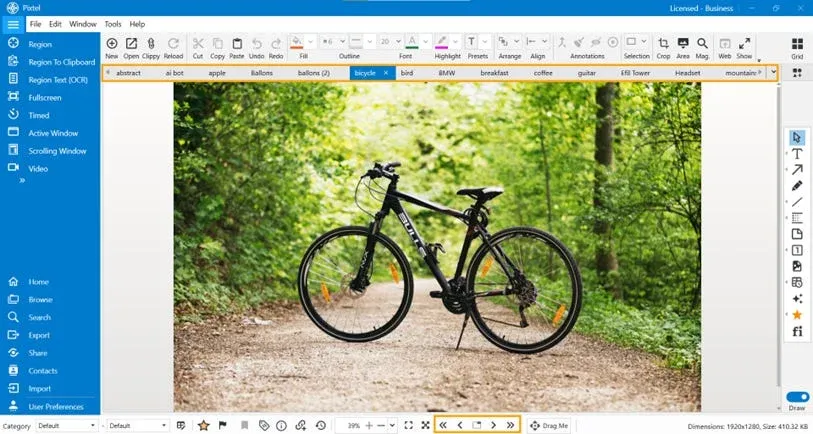
Page Navigation from Status Bar
Pixtel also provides page navigation options in the status bar, allowing you to:
- Move between pages (if working with multi-page content)
- Quickly navigate without interrupting your editing flow
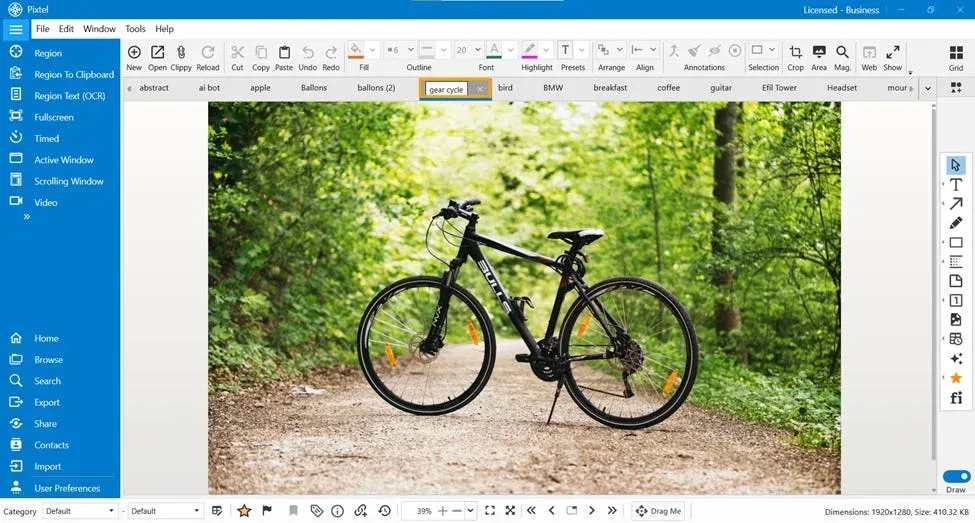
Rename Tabs for Better Organization
To keep things clear and structured:
- Double-click on the tab name
- Enter your preferred name
- Press Enter
Renaming tabs helps you quickly identify screenshots — especially when working with multiple captures.
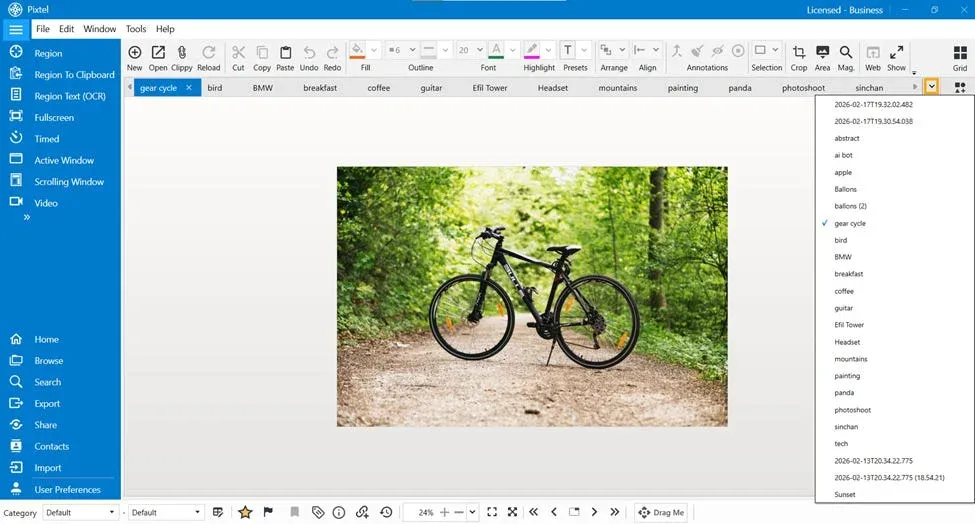
View Hidden Tabs Using the Dropdown Option
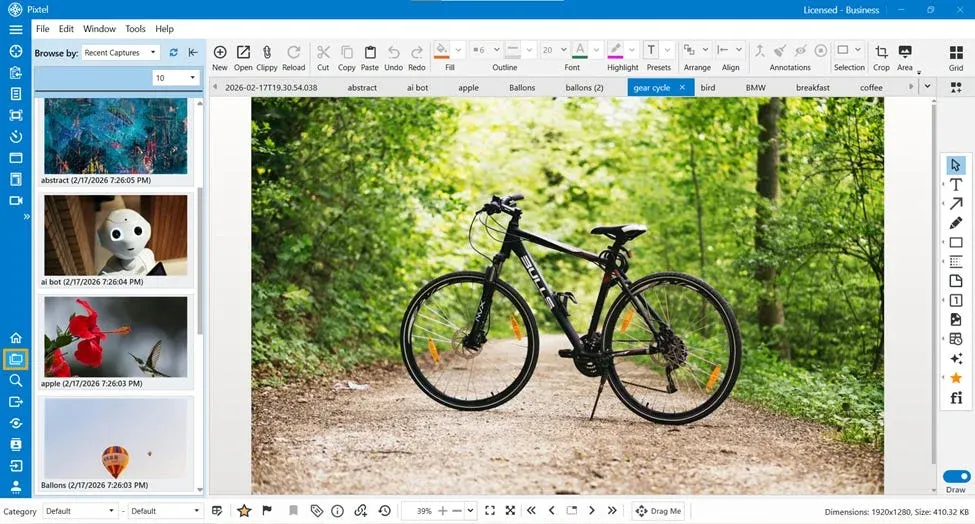
When you open multiple tabs, sometimes they may not all fit in the visible tab bar.
In such cases, Pixtel provides a Tab Dropdown option to help you access the hidden tabs.
You can:
- Click on the dropdown icon near the tab section
- View the list of all open tabs
- Select any tab from the list to switch instantly
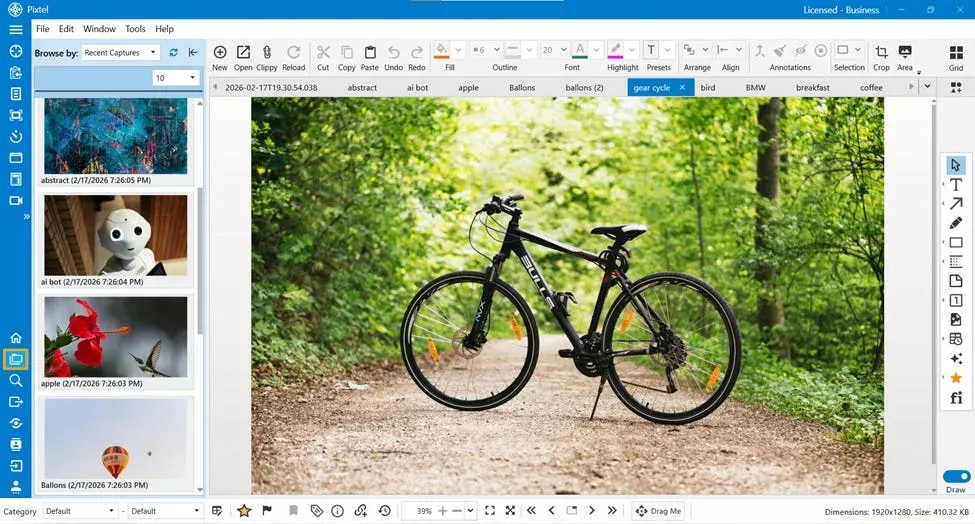
Recover Closed Tabs Easily
Accidentally closed a tab? Don’t worry.
You can restore it:
- Go to the Home Bar
- Open the Browse option
- View the recently closed files
- Right-click the file
- Select Open in Tabs
Your file will reopen in a new tab instantly.
Tab Right-Click Options
Pixtel provides several powerful options when you right-click on a tab:
Here are the available options:
- New Tab — Open a fresh workspace
- Rename — Rename the current tab
- Reload Original — Restore the original captured image
- Duplicate — Create a copy of the current file
- Delete — Remove the tab/file
- Close Tab — Close only the current tab
- Close Other Tabs — Close all tabs except the current one
- Close Tabs to Right — Close all tabs on the right side
These options give you complete control over your workspace.
Why Use the Tabbed Approach?
The tabbed approach helps you:
- Work on multiple screenshots simultaneously
- Organize files clearly
- Avoid confusion between images
- Quickly recover accidentally closed tabs
- Improve overall productivity
Customize Maximum Tab Limit
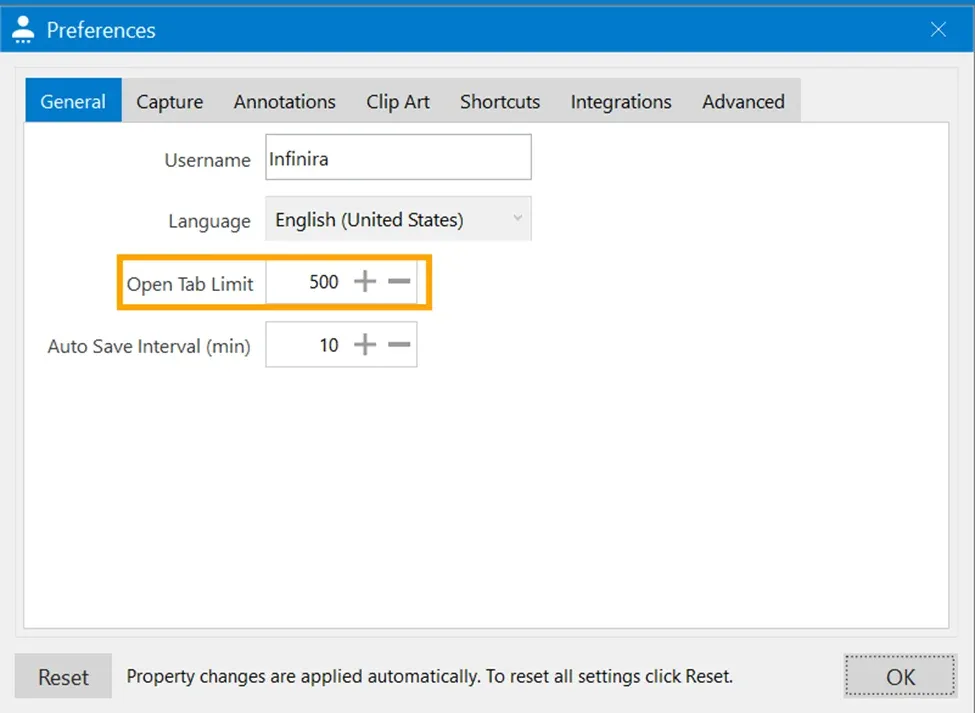
Pixtel also gives you flexibility to control how many tabs can be opened at once.
If you want to customize the number of tabs:
- Go to User Preferences
- In general tab, Navigate to the Tab Settings
- Set the Maximum Tab Limit
- You can configure it up to 500 tabs
Pixtel’s Tabbed Approach is designed to make your workflow faster and more organized. Whether you’re capturing screenshots, importing images, or editing multiple files, tabs allow you to manage everything effortlessly.
Instead of opening separate windows or losing track of files, simply use tabs — switch, rename, duplicate, reload, or close — all with ease.
Start using the tabbed approach today and experience smoother, smarter screenshot management with
Related reading:
- Browse Option in Pixtel: Easily Find Your Captures Anytime →
- How to Manage Multiple Screenshots Effortlessly in One Place →
- Pixtel Home Option: Your Complete Dashboard at a Glance →
Capture once and use it forever. It isn’t just a tool — it’s Pixtel.
👉 Download Pixtel · 🎥 Follow us on YouTube · 📘 Read Detailed Documentation
'%3e%3cpath%20d='M6.49988%200.862305L0.380969%206.98121C-0.127315%207.4895%20-0.127315%208.31107%200.380969%208.81936C0.889253%209.32764%201.71083%209.32764%202.21911%208.81936L5.19992%205.83855V15.7C5.19992%2016.4176%205.781%2017%206.49988%2017C7.21875%2017%207.79984%2016.4176%207.79984%2015.7V5.83855L10.7806%208.81936C11.0341%209.07285%2011.3669%209.20024%2011.6997%209.20024C12.0325%209.20024%2012.3653%209.07285%2012.6188%208.81936C13.1271%208.31107%2013.1271%207.4895%2012.6188%206.98121L6.49988%200.862305Z'%20fill='white'/%3e%3c/g%3e%3cdefs%3e%3cclipPath%20id='clip0_1_2'%3e%3crect%20width='13.0002'%20height='16.8995'%20fill='white'%20transform='translate(-0.000244141%200.100533)'/%3e%3c/clipPath%3e%3c/defs%3e%3c/svg%3e)