

Window Capture in Pixtel: Capture Only What You're Working On
Sometimes you don’t want everything on your screen.You just want the exact window you’re working on — without headers, taskbars, or unnecessary background clutter.
That’s where Window Capture in Pixtel makes it easier
How to Use Window Capture in Pixtel
Using Window Capture is super simple:
- Open Pixtel on your system.
- Navigate to the Menu Bar.
- Click on Window Capture.
- From the screen, select the window you want to capture.
- Pixtel will automatically capture the window, excluding headers, taskbars, and background elements.
- The captured screenshot will open instantly in a new Pixtel tab for further actions.
No need to crop or remove unwanted areas — Pixtel does it for you.
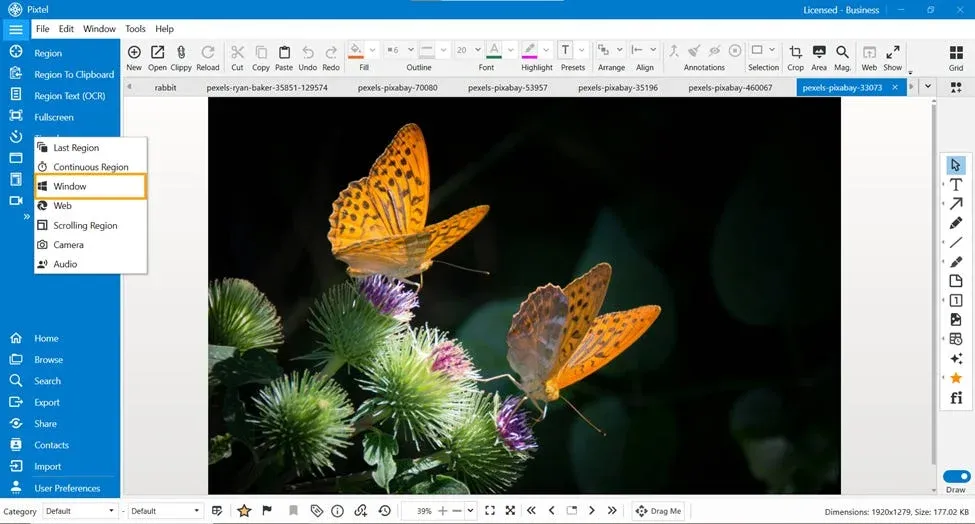
Use the Default Shortcut
If you prefer keyboard shortcuts,
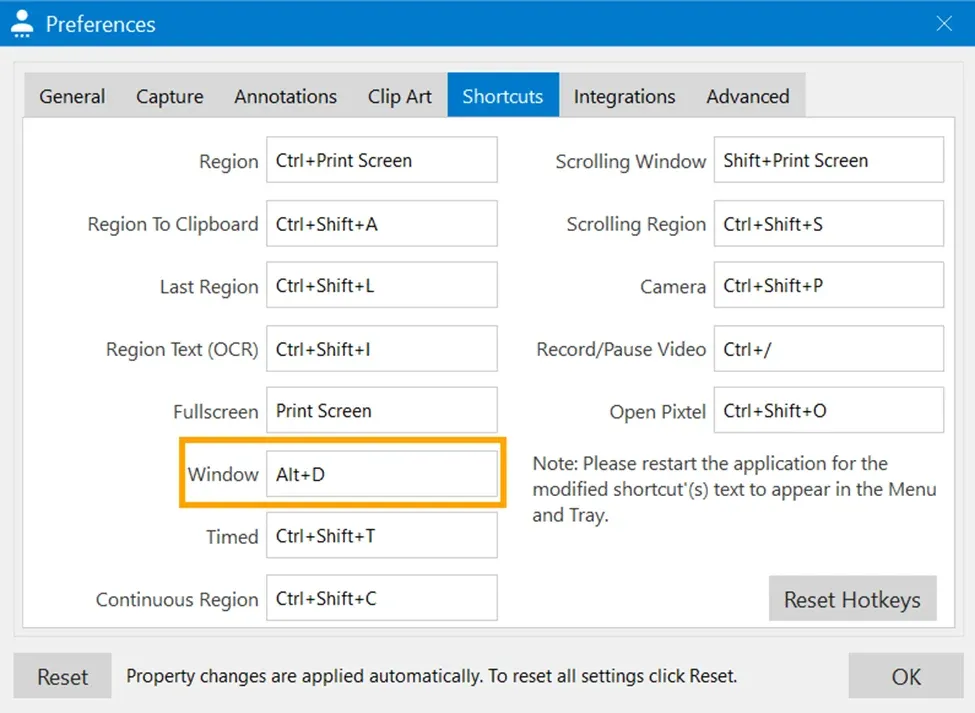
- Default Shortcut: Alt + D
- Pressing this instantly activates Window Capture
Customize Window Capture Shortcuts
Want a shortcut that fits your workflow? You can customize it easily:
- Open User Preferences
- Navigate to Shortcuts
- Select Window Capture
- Set the shortcut you desire
- Click Ok
Now Pixtel works exactly the way you want it to.
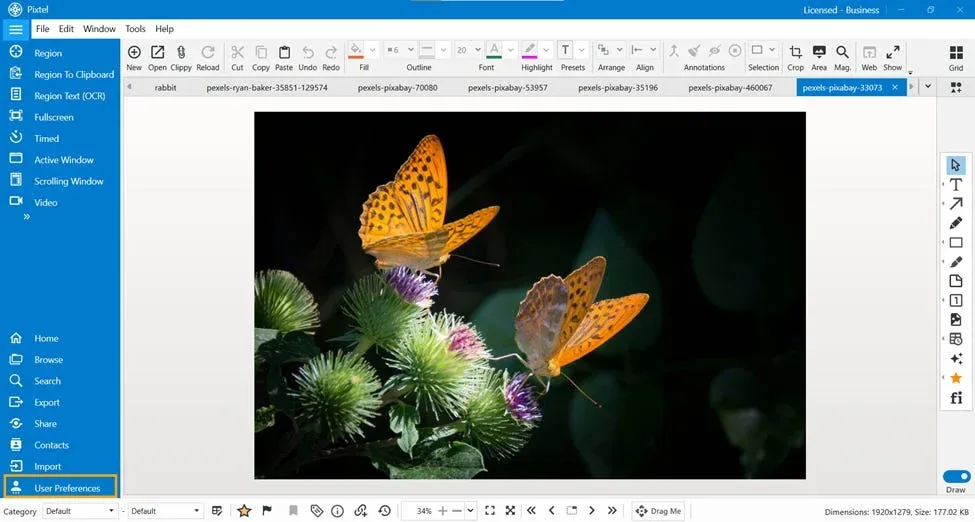
Why Use Window Capture?
- Captures only the required window
- Removes distractions automatically
- Faster than manual cropping
- Fully customizable shortcuts
With Window Capture in Pixtel, capturing your working window is quick, clean, and hassle-free.Whether you use the Menu Bar or the default shortcut (Alt + D), Pixtel ensures your captures stay focused and professional.
Try it once — and you’ll never go back to full-screen captures again
Related reading:
- Capture Any Active Window Instantly with Pixtel →
- Full Screen Capture in Pixtel: Capture More, Do Less →
- 4 Easy Ways to Capture Screenshots in Pixtel →
Capture once and use it forever. It isn’t just a tool — it’s Pixtel.
👉 Download Pixtel · 🎥 Follow us on YouTube · 📘 Read Detailed Documentation
'%3e%3cpath%20d='M6.49988%200.862305L0.380969%206.98121C-0.127315%207.4895%20-0.127315%208.31107%200.380969%208.81936C0.889253%209.32764%201.71083%209.32764%202.21911%208.81936L5.19992%205.83855V15.7C5.19992%2016.4176%205.781%2017%206.49988%2017C7.21875%2017%207.79984%2016.4176%207.79984%2015.7V5.83855L10.7806%208.81936C11.0341%209.07285%2011.3669%209.20024%2011.6997%209.20024C12.0325%209.20024%2012.3653%209.07285%2012.6188%208.81936C13.1271%208.31107%2013.1271%207.4895%2012.6188%206.98121L6.49988%200.862305Z'%20fill='white'/%3e%3c/g%3e%3cdefs%3e%3cclipPath%20id='clip0_1_2'%3e%3crect%20width='13.0002'%20height='16.8995'%20fill='white'%20transform='translate(-0.000244141%200.100533)'/%3e%3c/clipPath%3e%3c/defs%3e%3c/svg%3e)