

Browse Option in Pixtel - Easily Find Your Captures Anytime
In our day-to-day work, we capture dozens of screenshots — tutorials, bug reports, references, designs, and more. But what happens if you accidentally close a tab? Or import more than 10 images and struggle to find the one you need?
That’s where the Browse option in Pixtel becomes your lifesaver. Instead of searching manually, you can quickly filter and locate your images in just a few clicks.
Let’s explore how it works.
What is the Browse Option in Pixtel?
The Browse feature in Pixtel helps you organize and retrieve your screenshots efficiently. Whether you’ve captured images recently, updated older ones, or categorized them earlier — everything can be accessed systematically.
If you:
- Accidentally closed a working tab
- Imported multiple images at once
- Need to find an old screenshot
- Want to filter based on date or category
👉 Browse makes it simple.
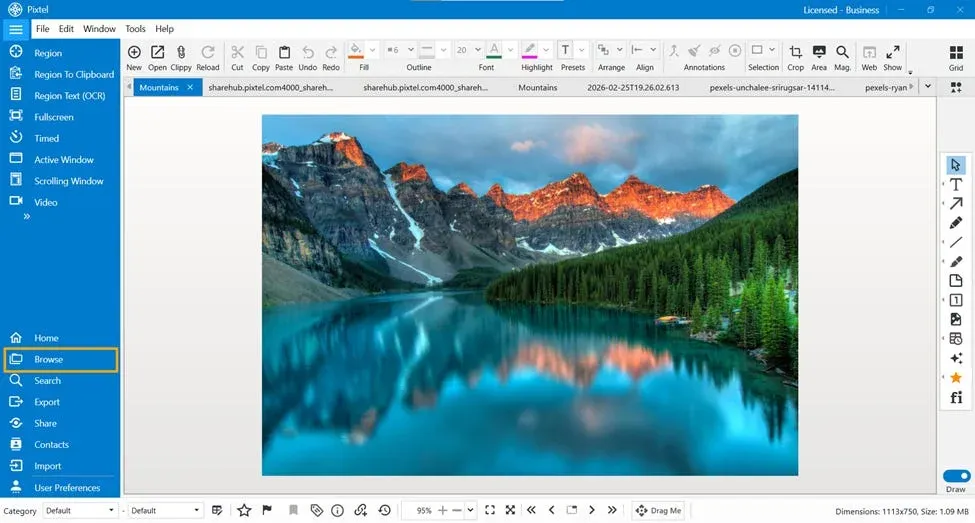
Browse Options Available in Pixtel
1️⃣ Recent Captures
The Recent Captures option displays all the screenshots you’ve captured recently.
✅ Perfect when:
- You just closed a tab unexpectedly
- You want to quickly reopen your latest work
- You need to review today’s captures
It gives instant access to your most recent screenshots without searching manually.
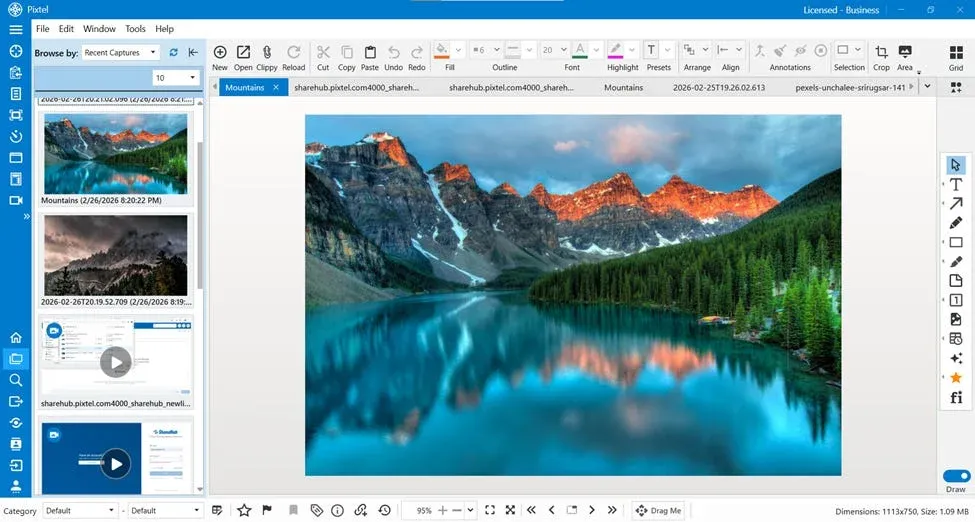
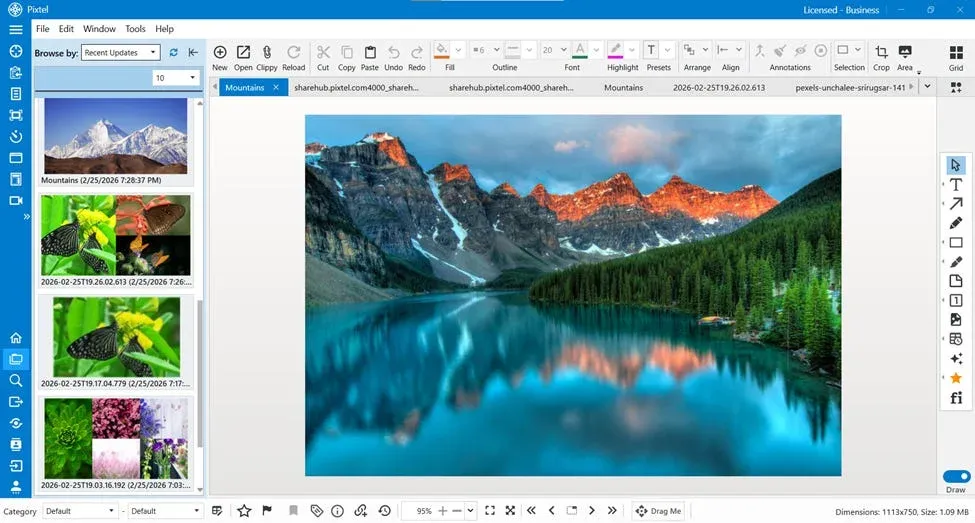
2️⃣ Recent Updates
The Recent Updates section shows screenshots that were recently edited or modified.
✅ Useful when:
- You updated annotations
- You edited text or highlights
- You want to continue working on a modified image
Instead of remembering filenames, just open Recent Updates and continue your work.
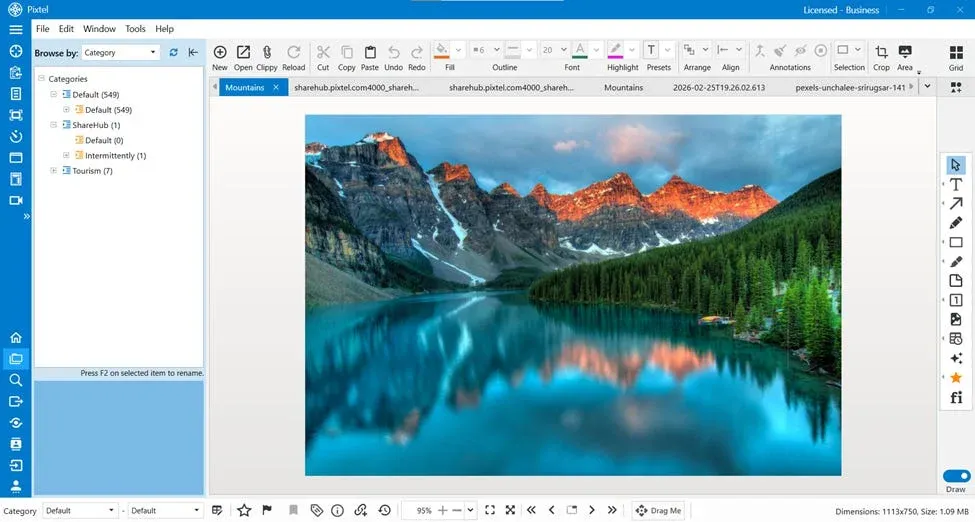
3️⃣ Browse Category
The Category option displays all the categories you’ve created.
You can:
- View images under specific labels
- Organize screenshots by project
- Separate personal and professional captures
This helps in structured organization and quick retrieval.
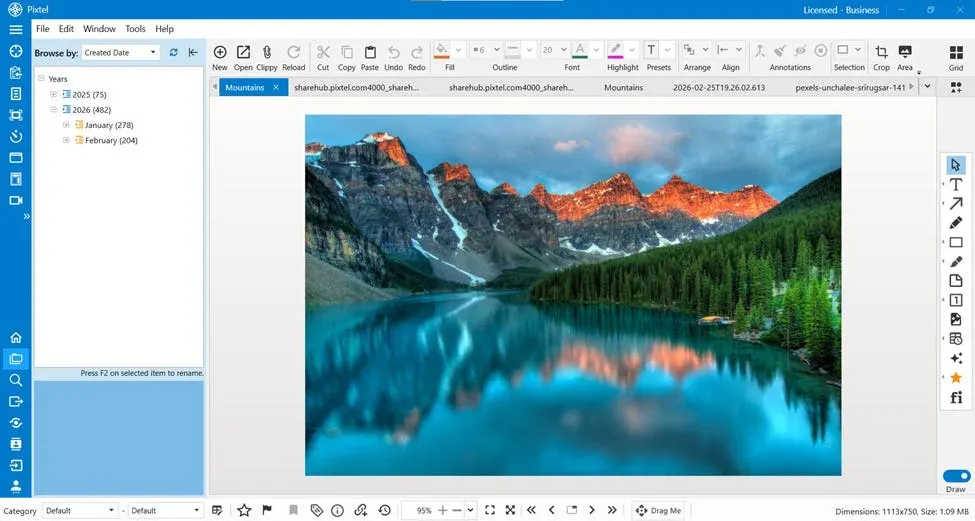
4️⃣ Browse Date
The Browse Date option organizes screenshots by:
- 📅 Year
- 📅 Month
This makes it easy to:
- Find older screenshots
- Track work done in a specific period
- Review historical captures
Instead of scrolling endlessly, just select the year and month to locate your files instantly.
Refresh Option
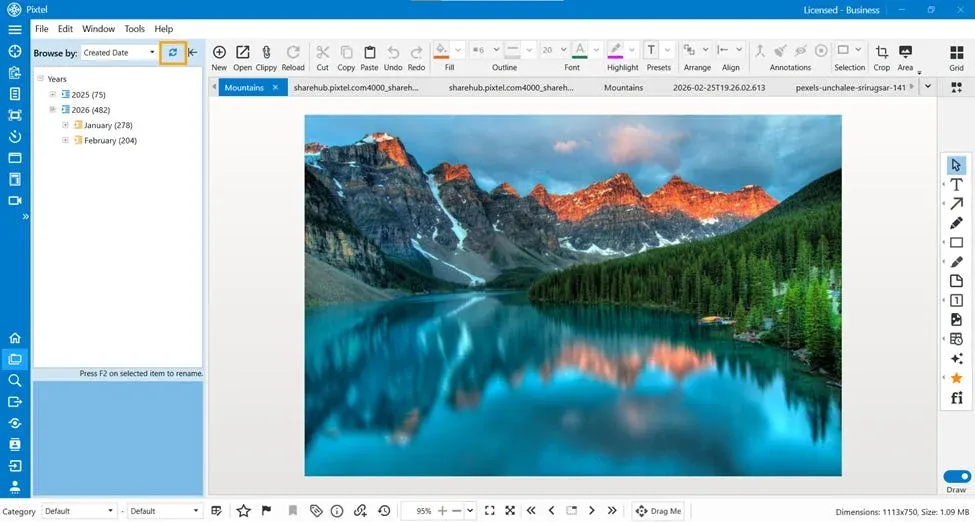
Along with browsing filters, Pixtel also provides a Refresh option.
If:
- You recently imported images
- You captured new screenshots
- The list is not updated
Simply click Refresh to update the view and display the latest files.
Why Browse is Important in Daily Workflow
When working with multiple screenshots daily, managing them becomes crucial. The Browse feature in Pixtel:
- Saves time
- Improves productivity
- Avoids confusion
- Prevents duplicate captures
- Makes image retrieval effortless
Whether you are a tester, designer, developer, or content creator, this feature ensures your screenshots are always organized and accessible.
Unexpected tab closure? Imported too many images? Searching for an old capture?
With the Browse option in Pixtel, you don’t have to worry anymore. From Recent Captures and Recent Updates to Category and Date-based browsing, everything is designed to make screenshot management simple and efficient.
Start using Browse today and experience smarter screenshot organization with Pixtel.
Related reading:
- How to Manage Multiple Screenshots Effortlessly in One Place →
- Work Faster with Pixtel's Tabbed Approach →
- Pixtel Home Option: Your Complete Dashboard at a Glance →
Capture once and use it forever. It isn’t just a tool — it’s Pixtel.
👉 Download Pixtel · 🎥 Follow us on YouTube · 📘 Read Detailed Documentation
'%3e%3cpath%20d='M6.49988%200.862305L0.380969%206.98121C-0.127315%207.4895%20-0.127315%208.31107%200.380969%208.81936C0.889253%209.32764%201.71083%209.32764%202.21911%208.81936L5.19992%205.83855V15.7C5.19992%2016.4176%205.781%2017%206.49988%2017C7.21875%2017%207.79984%2016.4176%207.79984%2015.7V5.83855L10.7806%208.81936C11.0341%209.07285%2011.3669%209.20024%2011.6997%209.20024C12.0325%209.20024%2012.3653%209.07285%2012.6188%208.81936C13.1271%208.31107%2013.1271%207.4895%2012.6188%206.98121L6.49988%200.862305Z'%20fill='white'/%3e%3c/g%3e%3cdefs%3e%3cclipPath%20id='clip0_1_2'%3e%3crect%20width='13.0002'%20height='16.8995'%20fill='white'%20transform='translate(-0.000244141%200.100533)'/%3e%3c/clipPath%3e%3c/defs%3e%3c/svg%3e)