

How to Manage Multiple Screenshots Effortlessly in One Place with Pixtel
Managing multiple screenshots or media files can get messy—unless you have a clean, visual way to see and organize everything at once.With Pixtel’s Thumbnail (Grid) View, you can easily:
- View all your screenshots, images, videos, or audio files in one place.
- Filter by media type for better focus and workflow.
- Perform bulk actions like sharing, tagging, collaging, or exporting to Microsoft Office.
- Save time by batch-processing multiple captures with a few clicks.
Pixtel’s Grid View turns screenshot management into a smooth, visual experience—perfect for professionals who work with multiple captures daily.
Watch the Tutorial:
Watch the tutorial: https://youtu.be/EqMVtx06Lkg
How to Open Grid View in Pixtel?
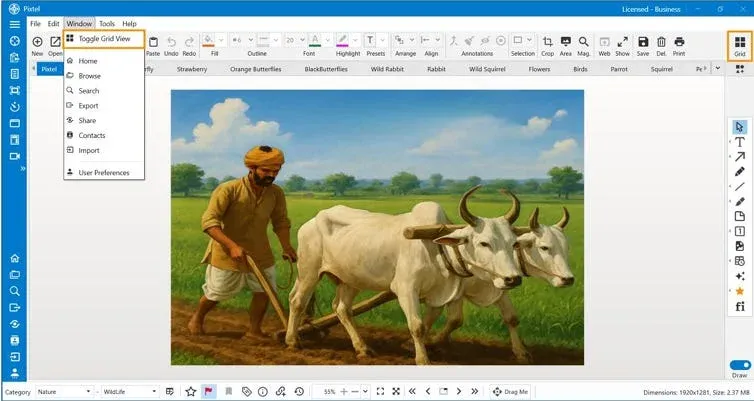
Step 1: Open Media Tabs Open Pixtel and ensure you have multiple images or media files loaded in tabs.
Step 2: Access Grid View via Toolbar Click the Grid View icon on the toolbar to open the thumbnail layout.
Step 3: Use the Menu Option (Alternative) Go to ** Window → Toggle Grid View from the top menu.
Step 4: Browse Media Visually Once enabled, Pixtel displays all your open files—images, videos, and audio—in a visual grid.It’s perfect for quick comparisons, selections, and exports.
How to Filter and Customize Thumbnails?
Pixtel gives you full control over how your thumbnails appear in Grid View.
- Media Type Filter: Choose to view only Images, Videos, or Audio—or display all files together.
- Thumbnail Size: Adjust between Small, Medium, or Large to suit your preference or screen size.
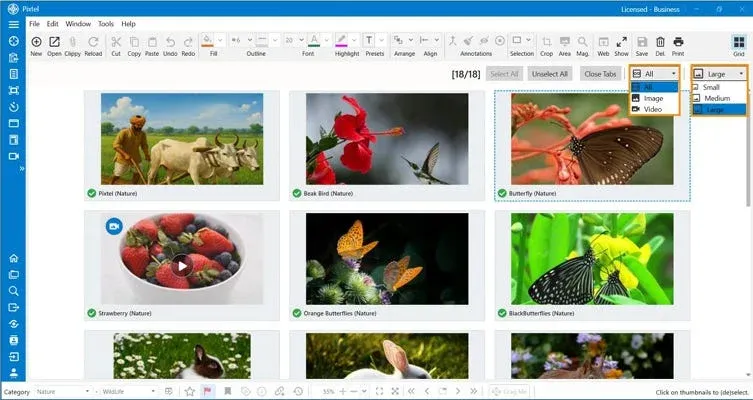
With these options, you can instantly focus on what matters most without scrolling endlessly.
How to Perform Bulk Actions from Grid View?
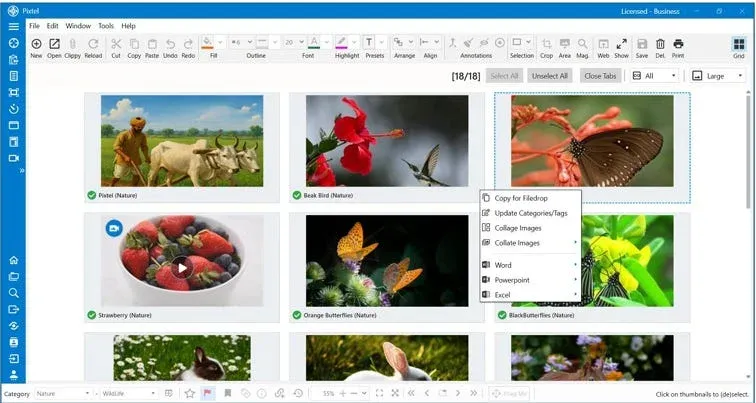
Right-click any thumbnail in Grid View to access powerful batch operations.
Copy for Filedrop
- Automatically processes selected files with annotations burned in.
- Use Drag Me to drop them directly into apps, folders, or chats.
Update Categories/Tags
- Assign categories or tags to multiple files in one go—perfect for organizing by project, topic, or client.
Collage Images
- Instantly combine selected images into a beautifully arranged collage.
- Pixtel auto-optimizes layout and saves the collage as a new image.
Collate Images
- Creates a new canvas and embeds selected images as movable annotations.
- You can choose to collate in a new tab or the current tab.
Export to Word, PowerPoint, or Excel
- Export multiple screenshots directly into Microsoft Office formats.
- Ideal for generating reports, presentations, or documentation instantly.
Why does Grid View Make Screenshot Management Easier?
Pixtel’s Grid View transforms the way you handle screenshots and media:
- Visual Organization: See all captures at a glance.
- Faster Workflow: Manage, filter, and export in bulk.
- One-Click Exports: Instantly send to Office apps or other tools.
- Smart Filtering: Quickly switch between images, videos, and audio.
Everything you need to stay productive—without juggling multiple windows or folders.
Pixtel’s Grid View is the ultimate way to manage multiple captures in one unified workspace. From organizing and filtering to batch exporting, Pixtel helps you capture once and use forever.
✨ Organize. Filter. Export. Just Pixtel It. It isn’t just a tool—it’s Pixtel.
Call to Action
Download Pixtel Now · Watch the Full Tutorial on YouTube · Read the Documentation
Related reading:
'%3e%3cpath%20d='M6.49988%200.862305L0.380969%206.98121C-0.127315%207.4895%20-0.127315%208.31107%200.380969%208.81936C0.889253%209.32764%201.71083%209.32764%202.21911%208.81936L5.19992%205.83855V15.7C5.19992%2016.4176%205.781%2017%206.49988%2017C7.21875%2017%207.79984%2016.4176%207.79984%2015.7V5.83855L10.7806%208.81936C11.0341%209.07285%2011.3669%209.20024%2011.6997%209.20024C12.0325%209.20024%2012.3653%209.07285%2012.6188%208.81936C13.1271%208.31107%2013.1271%207.4895%2012.6188%206.98121L6.49988%200.862305Z'%20fill='white'/%3e%3c/g%3e%3cdefs%3e%3cclipPath%20id='clip0_1_2'%3e%3crect%20width='13.0002'%20height='16.8995'%20fill='white'%20transform='translate(-0.000244141%200.100533)'/%3e%3c/clipPath%3e%3c/defs%3e%3c/svg%3e)