

Complete Guide to File Options in Pixtel Image Editor
The File menu in Pixtel gives quick and easy access to important image management features. From creating new images to saving, printing, and closing files, all options are available in one place to improve your editing workflow.
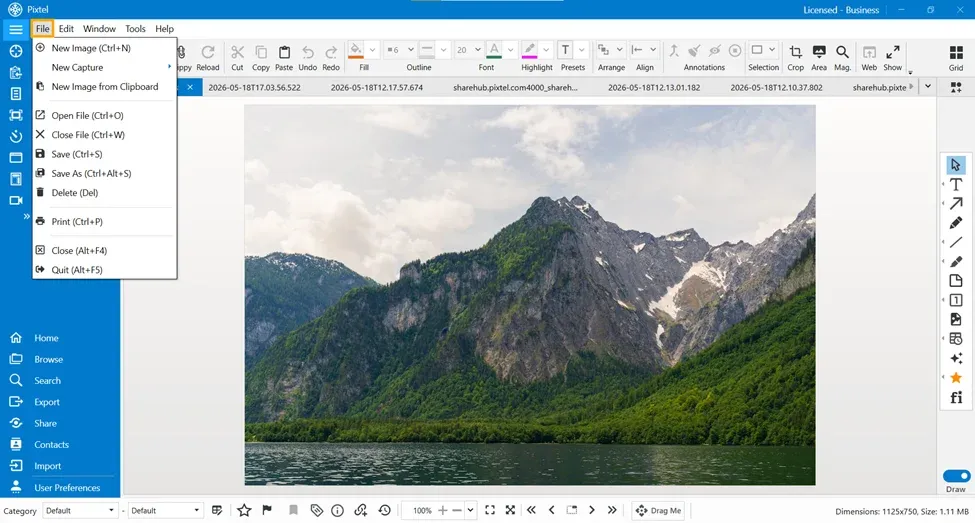
Easily Create a New Image
You can quickly start a fresh project using the New Image option available in the File menu.
- Go to File → New Image
- Shortcut: Ctrl + N
This helps users begin editing instantly without any delay.
Access Multiple Screenshot Capture Options
Pixtel provides multiple screenshot capture options directly from the File menu. Users can capture screens and immediately start editing or annotating them inside Pixtel.
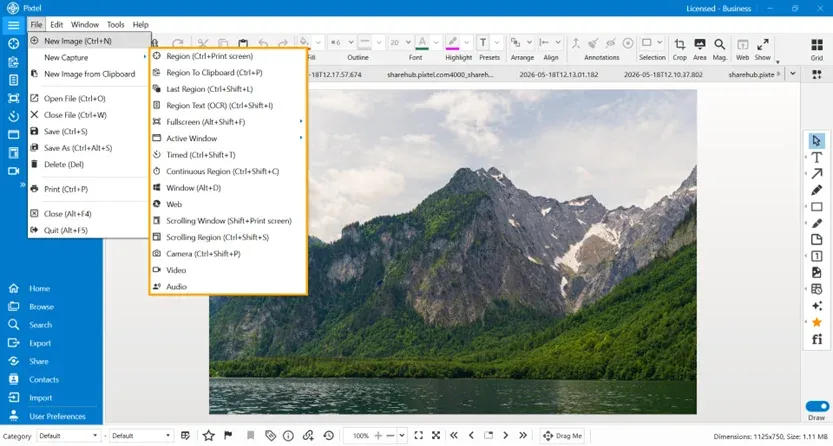
This is useful for:
- Tutorials
- Bug reporting
- Documentation
- Quick sharing
Open Images Directly from Clipboard
If you already captured a screenshot, Pixtel makes it easy to access and edit it using the New Image from Clipboard feature.
Simply:
- Copy the screenshot
- Open File → New Image from Clipboard
The image will instantly open inside Pixtel for editing.
Open Existing Files Easily
You can access saved images anytime using the Open File option.
- Go to File → Open File
- Shortcut: Ctrl + O
This allows users to continue editing previously saved projects quickly.
Close the Current File
To close the currently opened image tab:
- Go to File → Close File
- Shortcut: Ctrl + W
This helps manage multiple opened files smoothly.
Save Your Image Quickly
Pixtel provides an easy save option to protect your work.
- Go to File → Save
- Shortcut: Ctrl + S
Your edits and annotations will be saved instantly.
Save As for Multiple Versions
If you want to save the image with another name or format:
- Go to File → Save As
- Shortcut: Ctrl + Alt + S
This is useful for creating backup copies or edited versions.
Delete Unwanted Files
Users can remove files directly using the Delete option.
- Go to File → Delete
- Shortcut: Del
This keeps the workspace clean and organized.
Print Images Directly
Pixtel allows direct printing without using additional software.
- Go to File → Print
- Shortcut: Ctrl + P
Useful for reports, presentations, and documentation.
Close or Quit Pixtel Easily
To close the Pixtel window:
- File → Close
- Shortcut: Alt + F4
To completely quit the application:
- File → Quit
- Shortcut: Alt + F5
Conclusion
The File menu in Pixtel provides easy access to all essential image management features. Whether you want to create a new image, open screenshots from the clipboard, save edits, print files, or close the application, everything is available in one convenient location. These handy options help users work faster and manage images efficiently.
Related reading:
- Getting Started with Pixtel: First 10 Minutes →
- Edit Features in Pixtel: Simplify Image Editing and Annotation Management →
- Customize Your Workflow with Pixtel User Preferences Tab →
Capture once and use it forever. It isn't just a tool — it's Pixtel.
'%3e%3cpath%20d='M6.49988%200.862305L0.380969%206.98121C-0.127315%207.4895%20-0.127315%208.31107%200.380969%208.81936C0.889253%209.32764%201.71083%209.32764%202.21911%208.81936L5.19992%205.83855V15.7C5.19992%2016.4176%205.781%2017%206.49988%2017C7.21875%2017%207.79984%2016.4176%207.79984%2015.7V5.83855L10.7806%208.81936C11.0341%209.07285%2011.3669%209.20024%2011.6997%209.20024C12.0325%209.20024%2012.3653%209.07285%2012.6188%208.81936C13.1271%208.31107%2013.1271%207.4895%2012.6188%206.98121L6.49988%200.862305Z'%20fill='white'/%3e%3c/g%3e%3cdefs%3e%3cclipPath%20id='clip0_1_2'%3e%3crect%20width='13.0002'%20height='16.8995'%20fill='white'%20transform='translate(-0.000244141%200.100533)'/%3e%3c/clipPath%3e%3c/defs%3e%3c/svg%3e)