

Full Screen Capture in Pixtel - Capture More, Do Less
Capturing a full screen should be fast and hassle-free, but many tools make it complicated by capturing unwanted areas like the taskbar or requiring repeated screenshots. This often slows down workflows and creates unnecessary rework.
Pixtel makes full screen capture simple and flexible. With Full Screen Capture, users can capture a single display or all connected displays, choose to include or exclude the taskbar, and work seamlessly across multi-monitor setups. Every captured screen opens instantly in a new Pixtel tab, making it easy to edit, annotate, or share without breaking focus.
How to Capture Using Full Screen Capture
Pixtel offers multiple ways to capture the full screen, making it easy for both new and power users.
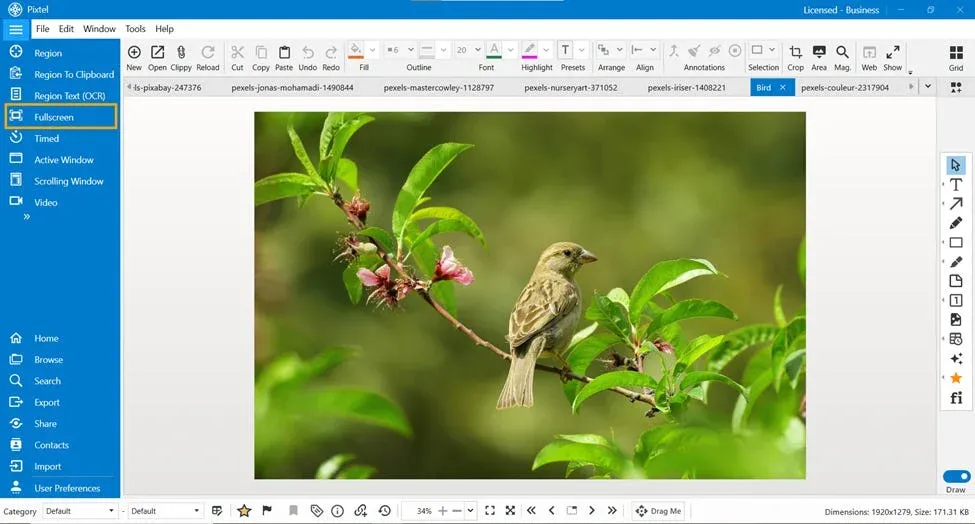
Capture from the Menu Bar
- Open Pixtel.
- Navigate to the Menu Bar.
- Select Full Screen Capture.
- Pixtel will automatically:
- Detect the active application or browser window
- Capture the full active region
- Exclude the taskbar for a clean screenshot
The captured screen opens immediately in a new Pixtel tab, ready for annotation or sharing.
Capture Using Keyboard Shortcut
If you prefer faster access:
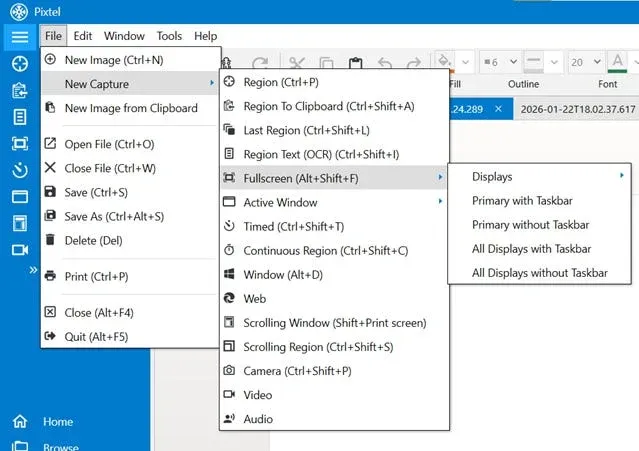
- Press Alt + Shift + F
- Pixtel instantly captures the active full screen region
- The screenshot opens in a new Pixtel tab without any manual selection
FullScreen Capture Explained
Supports multiple capture choices:
· Display (Single Display Capture)
· Primary display with taskbar
· Primary display without taskbar
· All displays with taskbar
· All displays without taskbar
Best for users with multiple monitors who want to capture only one specific screen.
Primary with Taskbar
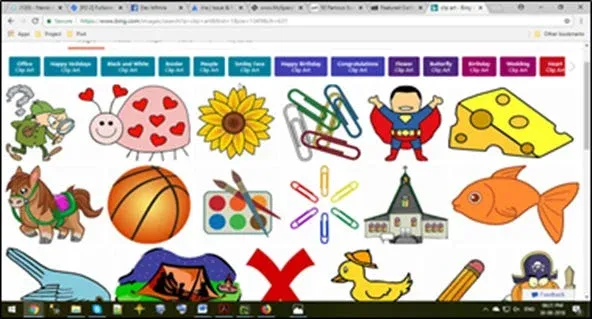
- Captures the primary display along with the taskbar
- Useful for showing system notifications, running apps, or system tray details
Primary without Taskbar
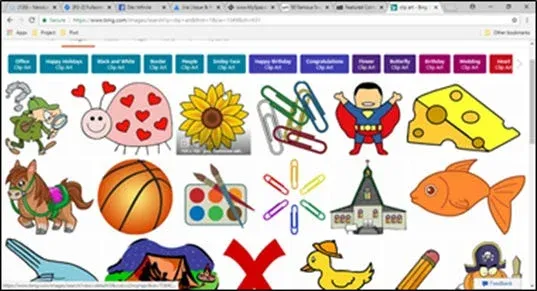
- Captures the primary display without the taskbar
- Ideal for clean and distraction-free screenshots
All Displays with Taskbar
- Captures all connected monitors, including taskbars
- Best for users working with multiple screens
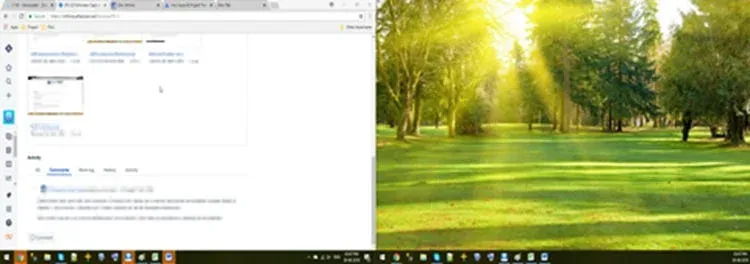
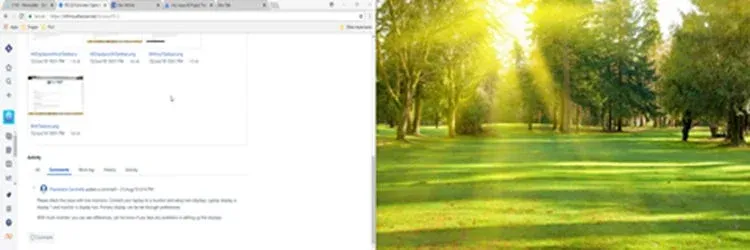
All Displays without Taskbar
- Captures all connected monitors, excluding taskbars
- Best for users working with multiple screens
Primary Display Settings
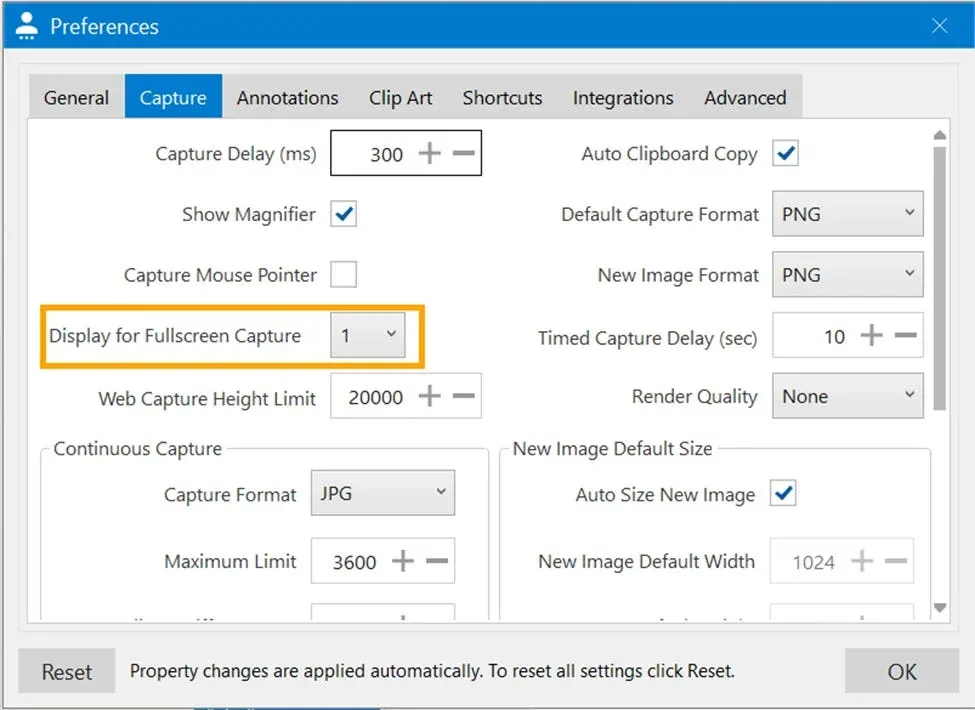
By default, the primary display is set as Display 1 in Windows display settings.You can change the primary display in User Preferences if needed.
Steps to Set a Configure Display:
- Open User Preferences in Pixtel.
- Navigate to the Capturetab.
- Locate Display for Full screen Capture
Pixtel’s Full Screen Capture makes screen capturing simple and efficient. Whether you need to capture a single display or all displays, with or without the taskbar, Pixtel gives you the flexibility to get the exact screenshot you need. With instant preview in a new tab and no need for manual cropping or rework, Pixtel helps you save time and create clean, professional screenshots effortlessly.
Related reading:
- 4 Easy Ways to Capture Screenshots in Pixtel →
- Window Capture in Pixtel: Capture Only What You're Working On →
- How to Snip Only What You Need — Pixtel Screen Capture Tutorial →
Capture once and use it forever. It isn’t just a tool — it’s Pixtel.
👉 Download Pixtel · 🎥 Follow us on YouTube · 📘 Read Detailed Documentation
'%3e%3cpath%20d='M6.49988%200.862305L0.380969%206.98121C-0.127315%207.4895%20-0.127315%208.31107%200.380969%208.81936C0.889253%209.32764%201.71083%209.32764%202.21911%208.81936L5.19992%205.83855V15.7C5.19992%2016.4176%205.781%2017%206.49988%2017C7.21875%2017%207.79984%2016.4176%207.79984%2015.7V5.83855L10.7806%208.81936C11.0341%209.07285%2011.3669%209.20024%2011.6997%209.20024C12.0325%209.20024%2012.3653%209.07285%2012.6188%208.81936C13.1271%208.31107%2013.1271%207.4895%2012.6188%206.98121L6.49988%200.862305Z'%20fill='white'/%3e%3c/g%3e%3cdefs%3e%3cclipPath%20id='clip0_1_2'%3e%3crect%20width='13.0002'%20height='16.8995'%20fill='white'%20transform='translate(-0.000244141%200.100533)'/%3e%3c/clipPath%3e%3c/defs%3e%3c/svg%3e)