

Capture Any Active Window Instantly with Pixtel
When multiple applications are open, capturing a specific window can slow you down.Usually, you need to switch between taskbar windows, bring the required screen to focus, and then take a screenshot.
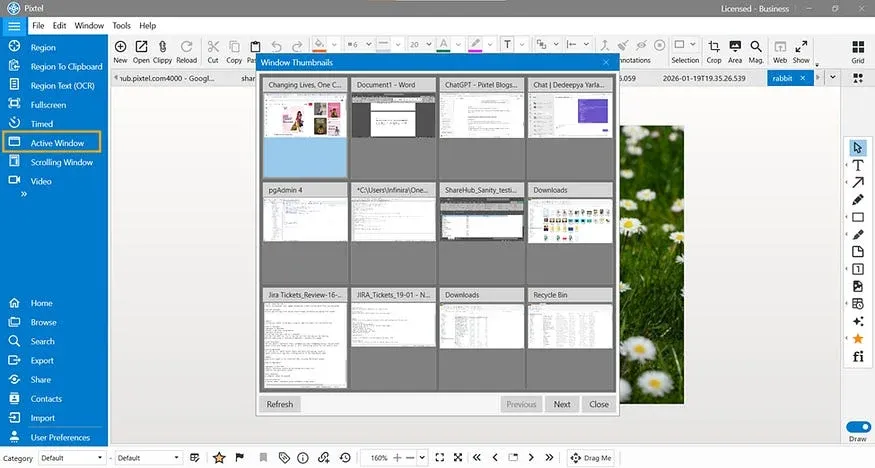
With Pixtel, this hassle is removed.The Active Window Capture feature shows all active windows from the taskbar in one place, allowing you to select the exact window you want — and Pixtel captures it instantly.
How to Use Active Window Capture in Pixtel?
Step 1: Click Active Window from the Menu Bar
In Pixtel’s menu bar, click on the Active Window option.Pixtel will immediately display all currently active windows available in the taskbar.
Step 2: View All Active Windows
All open applications are shown in a clear, selectable view.You don’t need to manually switch between taskbar tabs or bring a window to the front.
Step 3: Select the Window You Want to Capture
Click on the window you need from the list of active windows.
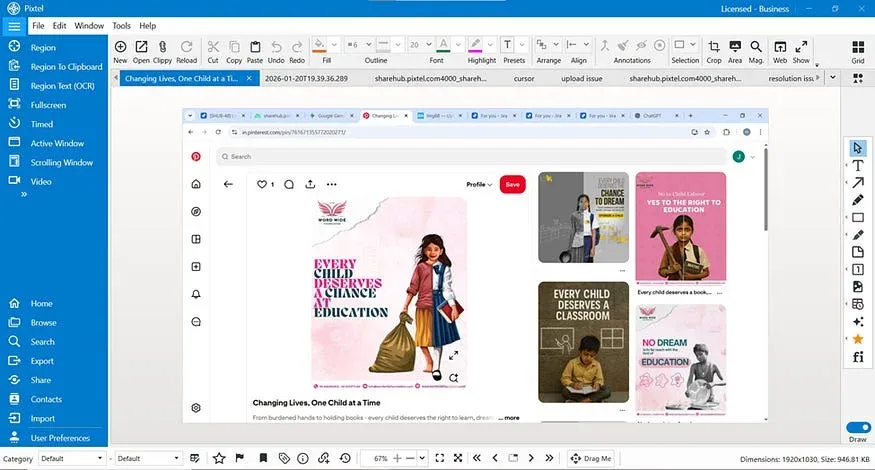
Step 4: Automatic Capture in a New Pixtel Tab
As soon as you select the window:
- Pixtel captures it automatically
- The captured window opens in a new Pixtel tab
Step 5: Annotate and Share with Ease
Once captured, you can:
- Annotate the screenshot
- Highlight important areas
- Share it instantly with your team
Pixtel’s Active Window Capture simplifies screenshot workflows by eliminating unnecessary steps. Instead of switching between taskbar windows and retaking screenshots, you can select any active window directly from the menu bar and capture it instantly.
Related reading:
- Window Capture in Pixtel: Capture Only What You're Working On →
- Full Screen Capture in Pixtel: Capture More, Do Less →
- 4 Easy Ways to Capture Screenshots in Pixtel →
Capture once and use it forever. It isn’t just a tool — it’s Pixtel.
👉 Download Pixtel · 🎥 Follow us on YouTube · 📘 Read Detailed Documentation
'%3e%3cpath%20d='M6.49988%200.862305L0.380969%206.98121C-0.127315%207.4895%20-0.127315%208.31107%200.380969%208.81936C0.889253%209.32764%201.71083%209.32764%202.21911%208.81936L5.19992%205.83855V15.7C5.19992%2016.4176%205.781%2017%206.49988%2017C7.21875%2017%207.79984%2016.4176%207.79984%2015.7V5.83855L10.7806%208.81936C11.0341%209.07285%2011.3669%209.20024%2011.6997%209.20024C12.0325%209.20024%2012.3653%209.07285%2012.6188%208.81936C13.1271%208.31107%2013.1271%207.4895%2012.6188%206.98121L6.49988%200.862305Z'%20fill='white'/%3e%3c/g%3e%3cdefs%3e%3cclipPath%20id='clip0_1_2'%3e%3crect%20width='13.0002'%20height='16.8995'%20fill='white'%20transform='translate(-0.000244141%200.100533)'/%3e%3c/clipPath%3e%3c/defs%3e%3c/svg%3e)