

Understanding the Help Menu in Pixtel
In any well-designed application, the Help menu quietly carries a lot of responsibility. In Pixtel, it serves as a central place where you manage your account, explore features, and keep the software up to date. Whether you are just getting started or looking to unlock advanced capabilities, this section brings everything together in a simple and accessible way.
A Quick Look at the Help Options
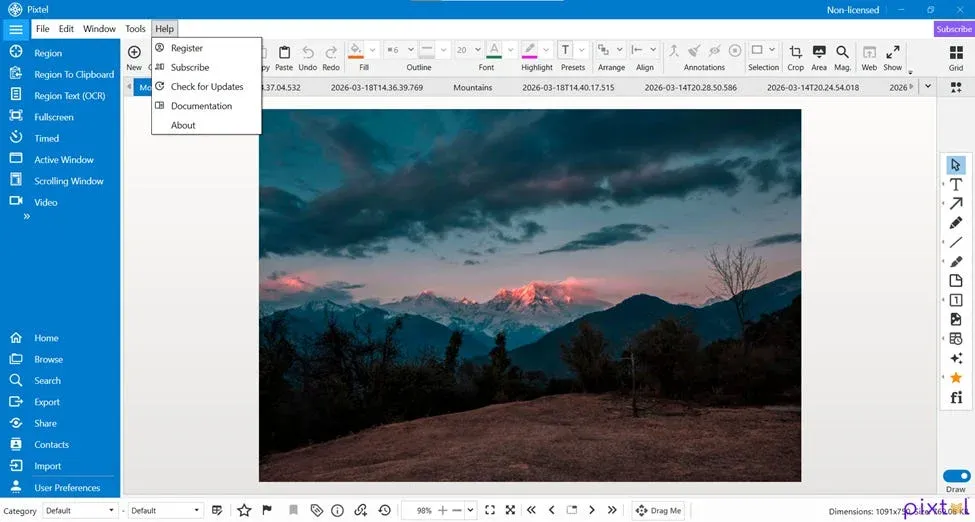
The Help menu in Pixtel includes:
- Register
- Subscribe
- Check for Updates
- Documentation
- About
Each of these options is designed to guide you through a specific part of your experience with the application.
Register: Creating or Managing Your Account
The Register option allows you to create a new account or manage your existing license.
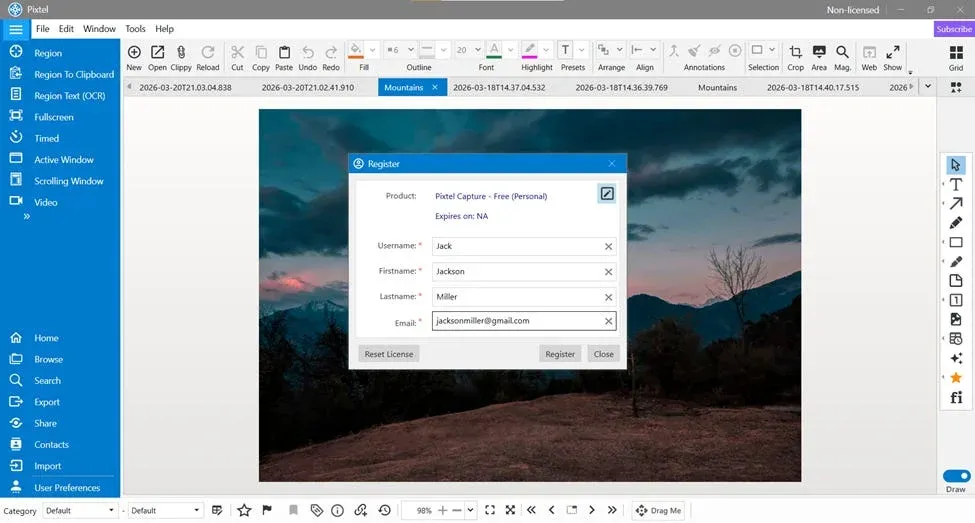
When you click on Register from the Help menu, a registration window opens where you can enter your details:
- Username
- First Name
- Last Name
- Email Address
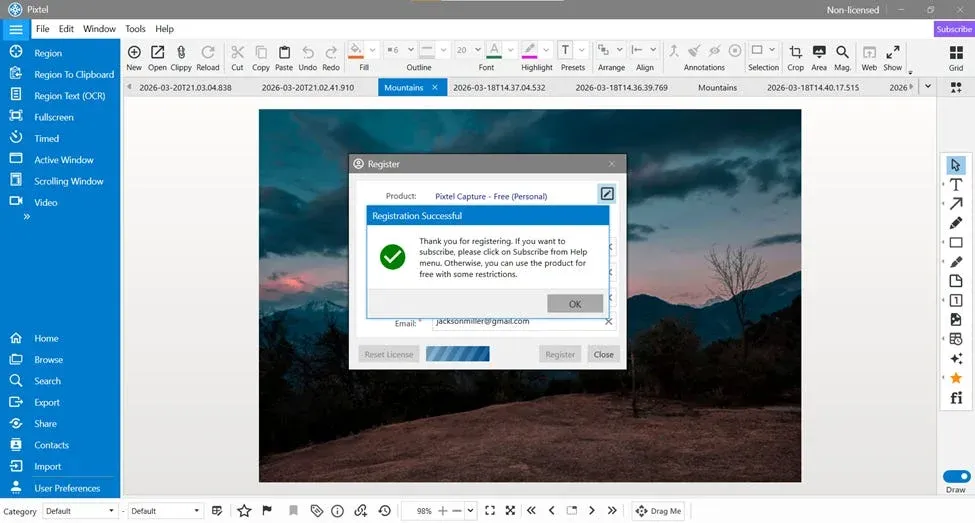
If you are a new user, simply fill in these details and click Register to complete the process.
For existing users, Pixtel also provides a Reset License option. This is useful if you want to clear your current license and register again. If you decide not to proceed, you can click Close to exit the window.
This simple flow ensures that both new and returning users can manage their access without confusion.
Subscribe: Unlocking Advanced Features
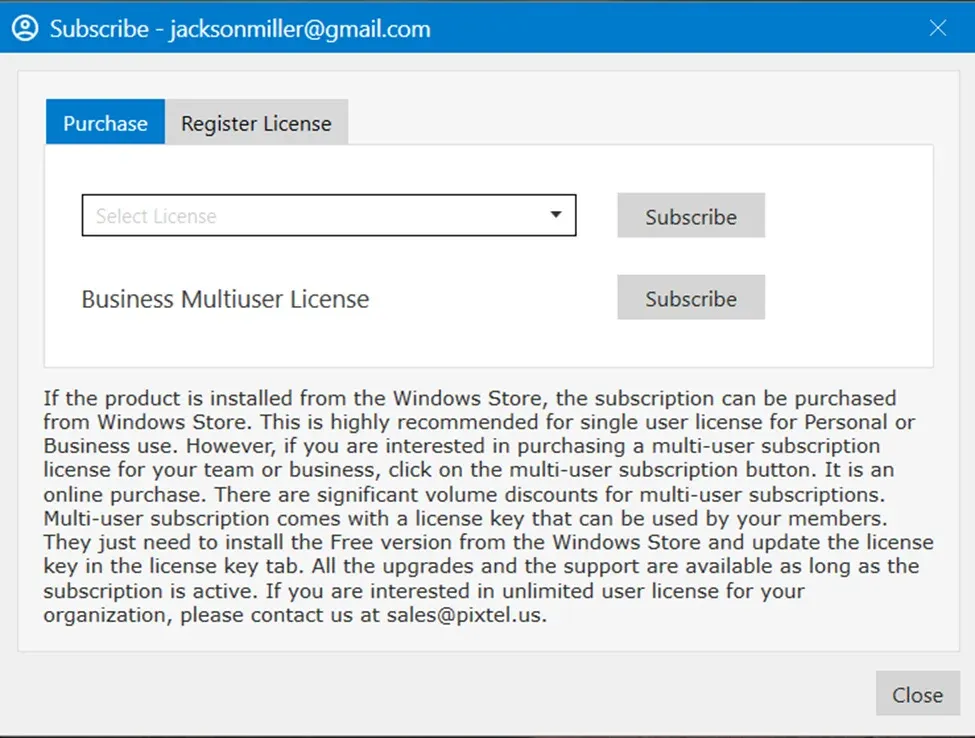
Once you are registered, the next step is subscription.
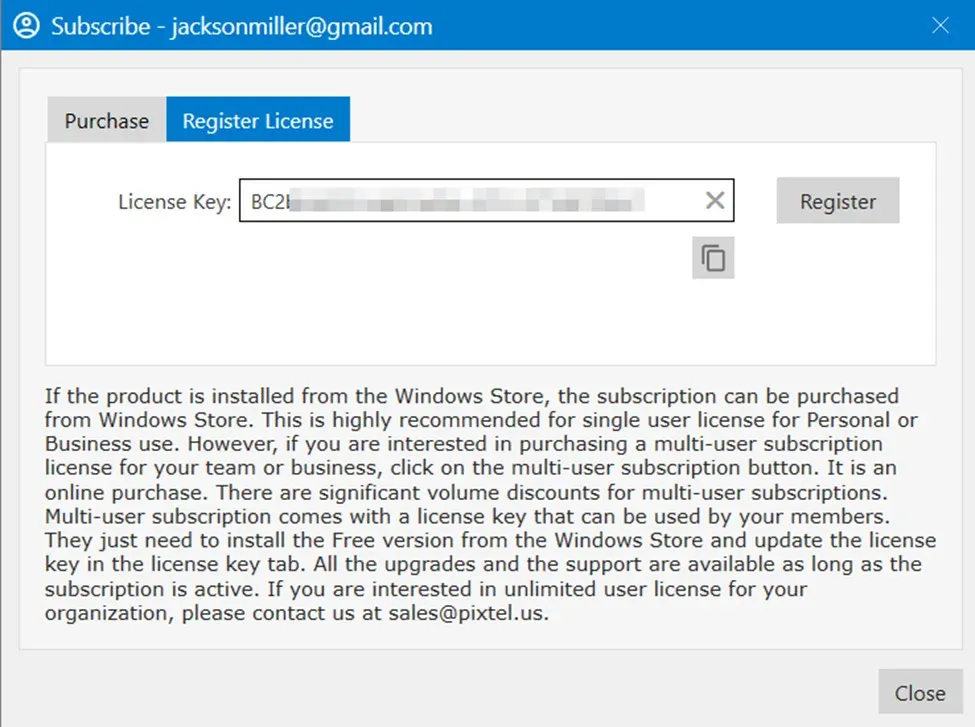
The Subscribe option allows you to choose a license plan based on your needs. From here, you can:
- Select a suitable subscription plan
- Enter your license key
- Activate advanced features of Pixtel
This is where Pixtel moves from a basic tool to a more powerful productivity solution, giving you access to its full capabilities.
Check for Updates: Staying Current
Keeping your software updated is essential for performance and security.
With the Check for Updates option, Pixtel makes this effortless. When you click on it, you are redirected to the Microsoft Store, where you can:
- Check for the latest version
- Download updates
- Ensure you are using the most stable release
This helps you stay aligned with new features and improvements without needing to search manually.
Documentation: Learn as You Go
Sometimes, you need a little guidance — and that’s where Documentation comes in.
Clicking on this option opens Pixtel’s official documentation, where you can explore:
- Detailed feature explanations
- Step-by-step guides
- Tips for better productivity
It’s especially useful for new users or anyone looking to explore advanced functionality in depth.
About: Know Your Software
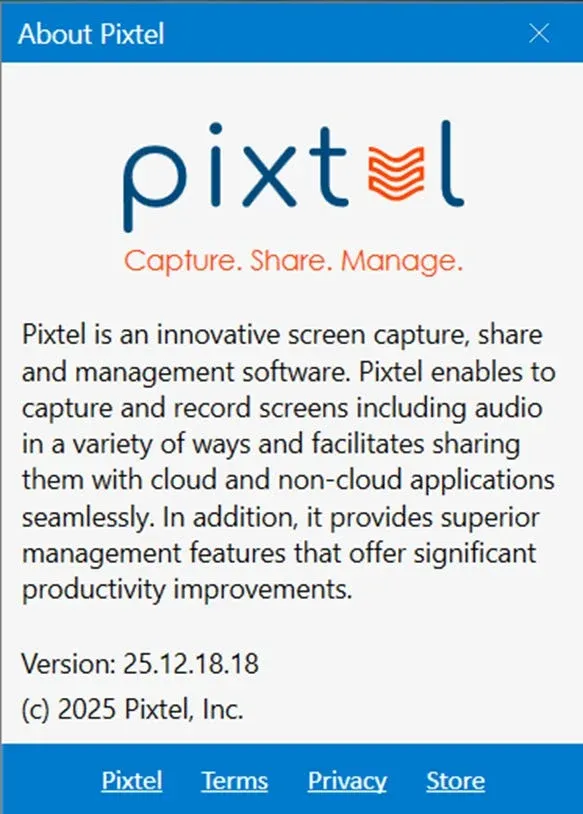
The About section gives you a quick overview of Pixtel itself.
Here, you can find:
- Product information
- Version details
- Company information
This section is helpful when you want to verify your current version or simply learn more about the software you’re using.
Bringing It All Together
The Help menu in Pixtel is thoughtfully designed to support both beginners and experienced users. From registering your account to activating premium features, checking updates, and accessing documentation, everything is just a few clicks away.
Rather than being just a support section, it acts as a control center for managing your Pixtel experience — keeping you informed, updated, and ready to make the most of the tool.
Related reading:
- Pixtel Home Option: Your Complete Dashboard at a Glance →
- Quick Access to All Home Bar Options from the Menu Bar →
- Customize Your Workflow with Pixtel User Preferences →
Capture once and use it forever. It isn’t just a tool — it’s Pixtel.
👉 Download Pixtel · 🎥 Follow us on YouTube · 📘 Read Detailed Documentation
'%3e%3cpath%20d='M6.49988%200.862305L0.380969%206.98121C-0.127315%207.4895%20-0.127315%208.31107%200.380969%208.81936C0.889253%209.32764%201.71083%209.32764%202.21911%208.81936L5.19992%205.83855V15.7C5.19992%2016.4176%205.781%2017%206.49988%2017C7.21875%2017%207.79984%2016.4176%207.79984%2015.7V5.83855L10.7806%208.81936C11.0341%209.07285%2011.3669%209.20024%2011.6997%209.20024C12.0325%209.20024%2012.3653%209.07285%2012.6188%208.81936C13.1271%208.31107%2013.1271%207.4895%2012.6188%206.98121L6.49988%200.862305Z'%20fill='white'/%3e%3c/g%3e%3cdefs%3e%3cclipPath%20id='clip0_1_2'%3e%3crect%20width='13.0002'%20height='16.8995'%20fill='white'%20transform='translate(-0.000244141%200.100533)'/%3e%3c/clipPath%3e%3c/defs%3e%3c/svg%3e)