

Sticky Notes in Pixtel: A Simple Way to Add Quick Reminders to Your Images
When you’re working with screenshots or images, it’s often helpful to leave quick notes — whether for reminders, feedback, or highlighting key points. Instead of switching between tools, Pixtel lets you add sticky notes directly onto your image. This makes your workflow faster, cleaner, and much more intuitive, especially when you’re reviewing or sharing visuals.
Import Options in Pixtel
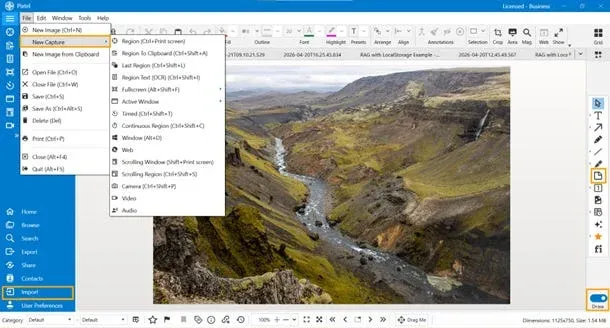
Getting started is straightforward. Pixtel gives you multiple ways to bring your image into the workspace:
- You can capture a screenshot using the available screenshot tools
- Or import an existing image using the import option
Once the image is uploaded, it automatically opens in a new Pixtel tab, ready for editing.
Switching to Draw Mode
After your image is loaded:
- Toggle to Draw Mode
- This is where all annotation tools become available
- Look for the Sticky Notes tool in the toolbar
This is your entry point for adding quick notes on top of your image.
Adding and Customizing Sticky Notes
Using sticky notes in Pixtel is simple and flexible:
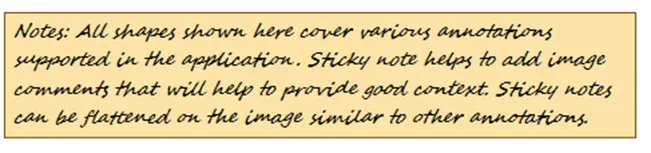
- Apply sticky note onto your image
- Resize it based on your requirement
- Place it anywhere to highlight important sections
This is especially useful for:
- Quick reminders
- Feedback notes
- Visual explanations
Advanced Options with Right-Click
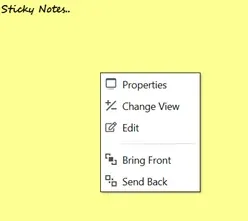
For more control, right-click on the sticky note. You’ll see options like:
- Edit — Modify the text inside the sticky note
- Properties — Customize the appearance
- Bring Front / Send Back — Adjust layering of notes
These options give you better control over how your notes look and behave.
Understanding Properties Panel
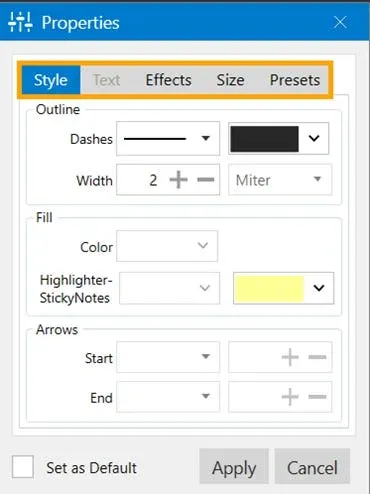
When you click on Properties, a detailed panel opens with several customization options:
Style
- Adjust outline style, including dashes and width
- Change border color for better visibility
Fill
- Customize the background color of the sticky note
- Use highlight-style colors to match your theme
Text
- Edit how the text appears inside the note
Effects & Size
- Add subtle visual effects
- Control dimensions precisely
Presets
- Save your preferred styles for reuse
These settings help you create notes that are not just functional, but also visually clear and consistent.
Sticky notes in Pixtel make it incredibly easy to add quick context, reminders, or feedback directly onto your images. From simple drag-and-drop usage to advanced customization through the properties panel, everything is designed to keep your workflow smooth and efficient.
Whether you’re annotating screenshots, reviewing designs, or preparing presentations, Pixtel’s sticky notes feature ensures your ideas stay right where they matter — on the image itself.
Related reading:
- How to Annotate Images in Pixtel →
- Draw Mode in Pixtel: Timestamps, Stamps, and Clickable Links →
- Pixtel Callouts: Complete Guide →
Capture once and use it forever. It isn’t just a tool — it’s Pixtel.
👉 Download Pixtel · 🎥 Follow us on YouTube · 📘 Read Detailed Documentation
'%3e%3cpath%20d='M6.49988%200.862305L0.380969%206.98121C-0.127315%207.4895%20-0.127315%208.31107%200.380969%208.81936C0.889253%209.32764%201.71083%209.32764%202.21911%208.81936L5.19992%205.83855V15.7C5.19992%2016.4176%205.781%2017%206.49988%2017C7.21875%2017%207.79984%2016.4176%207.79984%2015.7V5.83855L10.7806%208.81936C11.0341%209.07285%2011.3669%209.20024%2011.6997%209.20024C12.0325%209.20024%2012.3653%209.07285%2012.6188%208.81936C13.1271%208.31107%2013.1271%207.4895%2012.6188%206.98121L6.49988%200.862305Z'%20fill='white'/%3e%3c/g%3e%3cdefs%3e%3cclipPath%20id='clip0_1_2'%3e%3crect%20width='13.0002'%20height='16.8995'%20fill='white'%20transform='translate(-0.000244141%200.100533)'/%3e%3c/clipPath%3e%3c/defs%3e%3c/svg%3e)