

Quick Access to All Home Bar Options from the Menu Bar in Pixtel
In everyday work, we constantly switch between tasks — capturing screenshots, browsing files, searching for images, exporting, or sharing them. Repeating the same navigation steps can slow things down.
Pixtel simplifies this experience by allowing you to access all Home Bar options directly from the Menu Bar, helping you work faster and more efficiently.
A Smarter Way to Access Everything
Instead of navigating through multiple screens, Pixtel provides a quick shortcut:
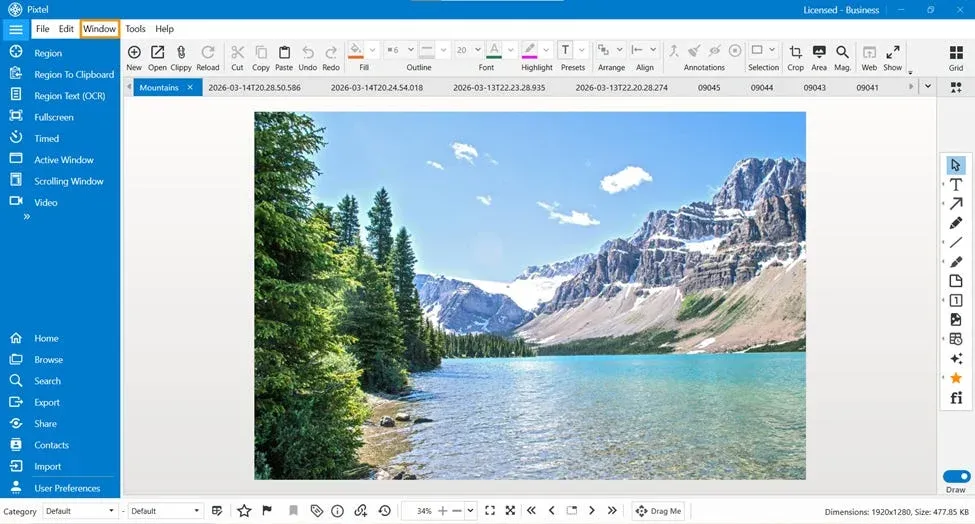
- Go to the File tab
- Click on Window
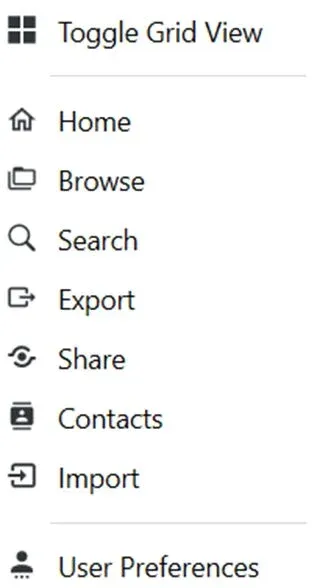
- Instantly access all major tools and features
This acts as a central hub, giving you immediate access to everything you need.
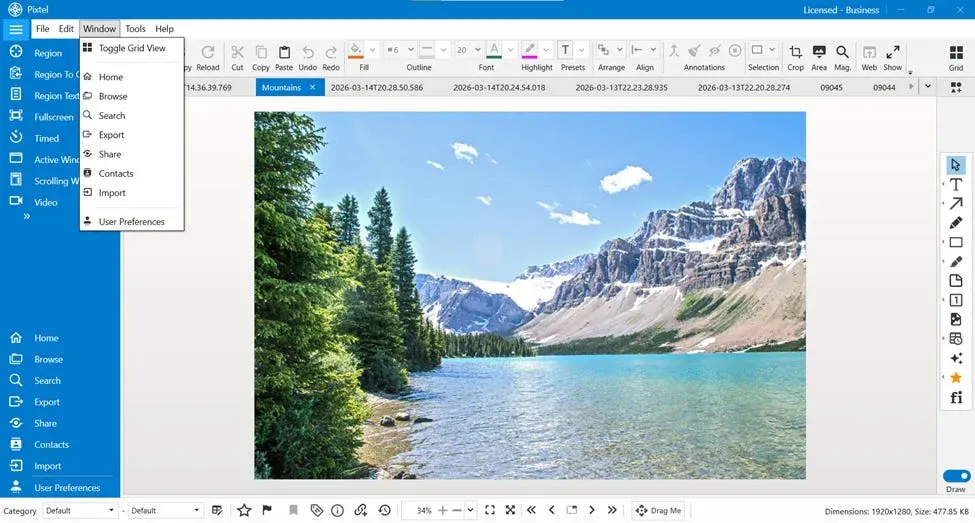
Grid View
The Grid View allows you to toggle and view images in a structured layout. This is especially useful when you want a quick visual overview of multiple files.
All Home Bar Options You Can Access
Home Bar
The Home Bar is your main dashboard. It brings together all essential tools and gives you a complete overview of your workspace.
Browser
The Browser allows you to explore your files in an organized way. You can browse using:
- Recent captures
- Updates
- Categories
- Created date
This makes it easy to navigate through your content without confusion.
Search — Advanced and Precise Filtering
The Search feature in Pixtel is a powerful tool designed to help you locate files quickly and accurately. It goes beyond basic search and provides multiple filtering options.
You can search using:
- View By — Sort results (e.g., Created Date, A–Z)
- Duration — Filter based on time range
- Category & Subcategory — Narrow down files within structured groups
- Tags — Search using assigned tags
- Name — Find files by display name
- Size — Filter based on file size
- ID — Direct search using document ID
- Favorites / Bookmarks — Access important or marked files
- Media Filters — Filter by image, video, or other formats
With these combined filters, you can quickly pinpoint exactly what you’re looking for — even in large collections.
Export
Using Export, you can save images to your desired folder on your system. It ensures your files are easily accessible outside Pixtel.
Share
The Share option allows you to distribute images across multiple platforms:
- Cloud uploads
- Applications
- Social media
This makes sharing quick and seamless.
Import
The Import feature allows you to bring images from your local system into Pixtel. It helps you work with both captured and external files in one place.
Contacts
The Contacts option helps you manage recipient details such as:
- Email addresses
- First and last names
- Nicknames
This makes sharing easier, as you can quickly select contacts without entering details every time.
User Preferences
With User Preferences, you can update and customize your settings. It allows you to control how Pixtel works according to your needs.
Why is this Feature Important?
Having all Home Bar options accessible from one place:
- Saves time
- Reduces unnecessary navigation
- Improves productivity
- Keeps your workflow smooth and uninterrupted
Pixtel’s Menu Bar, especially the Windows option, provides a simple yet powerful way to access all Home Bar features instantly. Whether you want to browse, search, import, export, or manage users, everything is just a click away.
By using these shortcuts, you can make your workflow faster, more organized, and highly efficient.
Related reading:
- Pixtel Home Option: Your Complete Dashboard at a Glance →
- 4 Easy Ways to Capture Screenshots in Pixtel →
- Customize Your Workflow with Pixtel User Preferences →
Capture once and use it forever. It isn’t just a tool — it’s Pixtel.
👉 Download Pixtel · 🎥 Follow us on YouTube · 📘 Read Detailed Documentation
'%3e%3cpath%20d='M6.49988%200.862305L0.380969%206.98121C-0.127315%207.4895%20-0.127315%208.31107%200.380969%208.81936C0.889253%209.32764%201.71083%209.32764%202.21911%208.81936L5.19992%205.83855V15.7C5.19992%2016.4176%205.781%2017%206.49988%2017C7.21875%2017%207.79984%2016.4176%207.79984%2015.7V5.83855L10.7806%208.81936C11.0341%209.07285%2011.3669%209.20024%2011.6997%209.20024C12.0325%209.20024%2012.3653%209.07285%2012.6188%208.81936C13.1271%208.31107%2013.1271%207.4895%2012.6188%206.98121L6.49988%200.862305Z'%20fill='white'/%3e%3c/g%3e%3cdefs%3e%3cclipPath%20id='clip0_1_2'%3e%3crect%20width='13.0002'%20height='16.8995'%20fill='white'%20transform='translate(-0.000244141%200.100533)'/%3e%3c/clipPath%3e%3c/defs%3e%3c/svg%3e)