

Upload Media Files to Box Using Pixtel
Once you have captured a screenshot or imported images into Pixtel, you can easily edit and share them using cloud platforms. Pixtel provides multiple cloud upload options to help you share files quickly and securely.In this blog, we’ll walk through how to upload your screenshots and images to Box using Pixtel.
Steps to Upload Files to Box
Step 1: Capture or Import Your File
- Capture a screenshot using any Pixtel capture mode
- Or import images from your local system
- You can edit the image before sharing, if required
Step 2: Open the Share Option
- Click on the Share option from the Menu Bar
- From Cloud Uploads, select Box
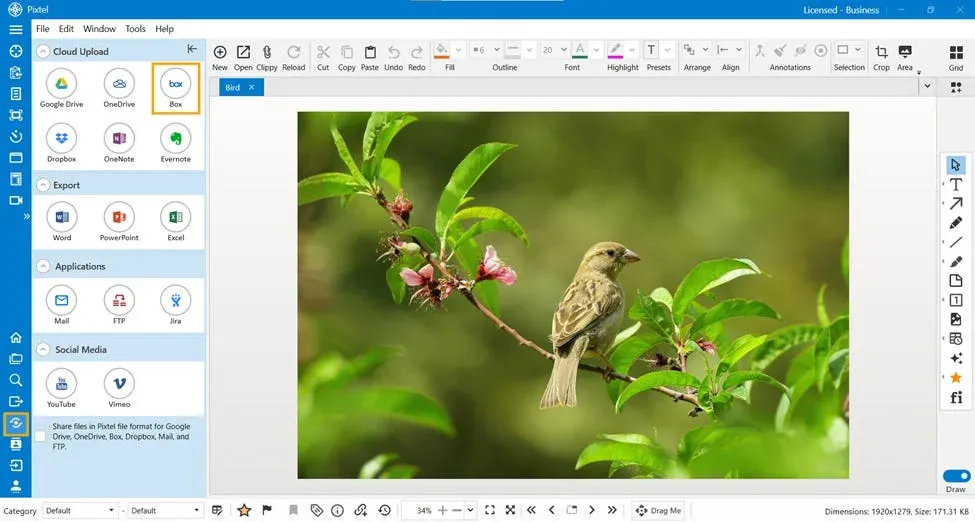
Step 3: Select or Add a Box Account
- If you already have a Box account added, select it from the dropdown
- If you are a new user:
- Click Add
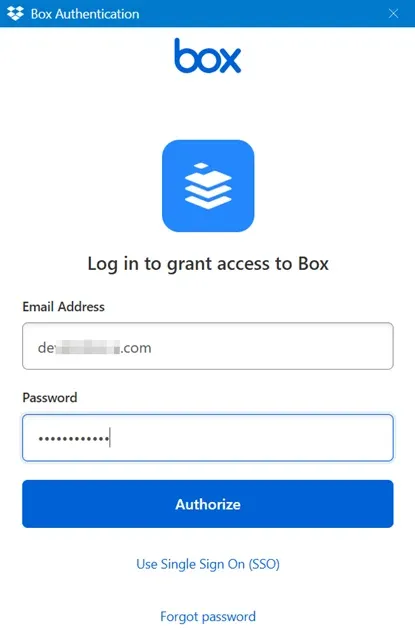
- Enter your Box credentials
- Click Authenticate
- Once authentication is completed, your account will be added to Pixtel
You can add multiple Box accounts and manage them easily.
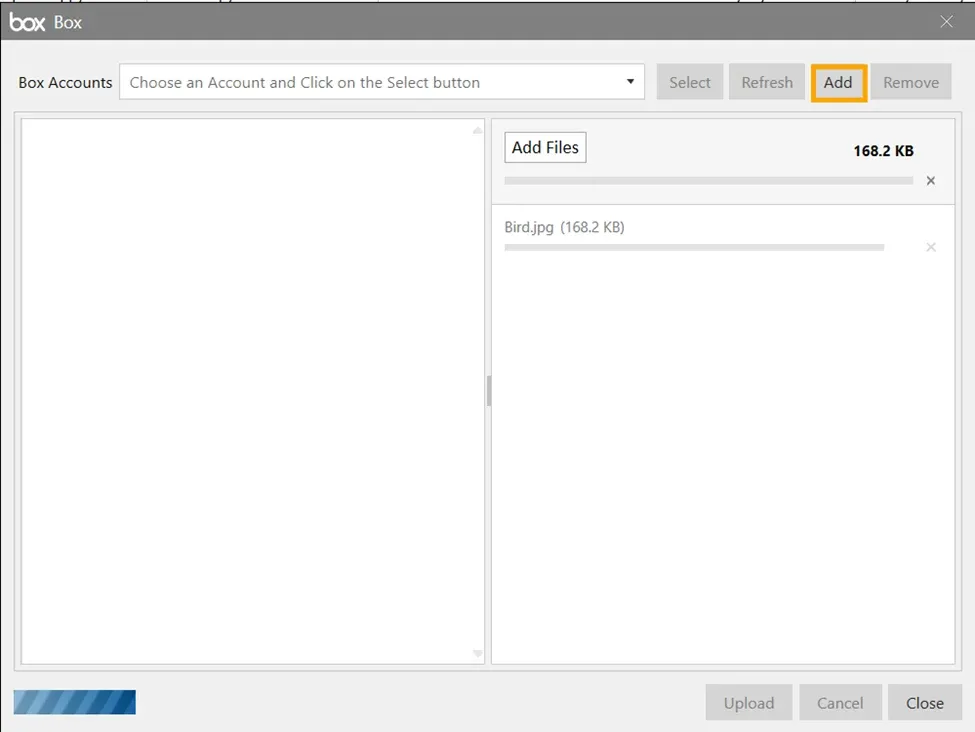
Step 4: Select the Account
- Choose the required Box account
- Click Select to continue
Step 5: Prepare Files for Upload
- The current Pixtel tab media file will be ready for upload by default
- To add more files:
- Click Add Files
- Choose files from your local folder
Step 6: Choose the Destination Folder
- Pixtel will display all available folders from your Box account
- Select the folder where you want to upload the files
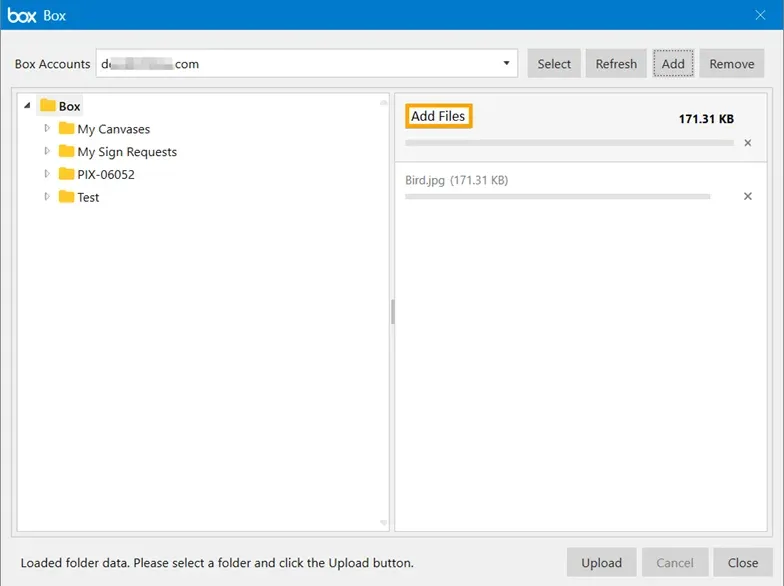
Step 7: Upload the Files
- Click Upload
- All selected files will be uploaded to your Box account
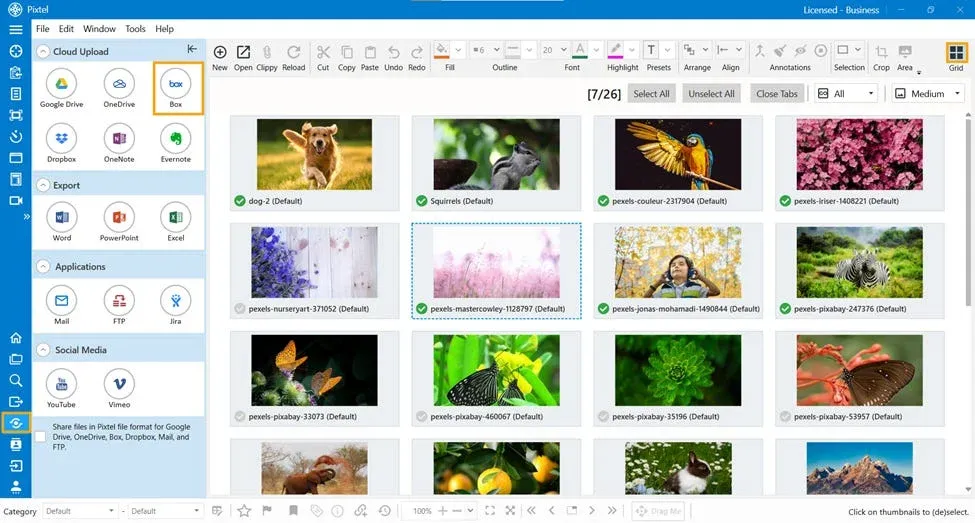
Upload Multiple Images at Once
- Switch to Grid View
- Select all the images you want to share
- From the Menu Bar, click Share
- All selected files will be shown and ready for upload
- Choose the desired Box folder and click Upload
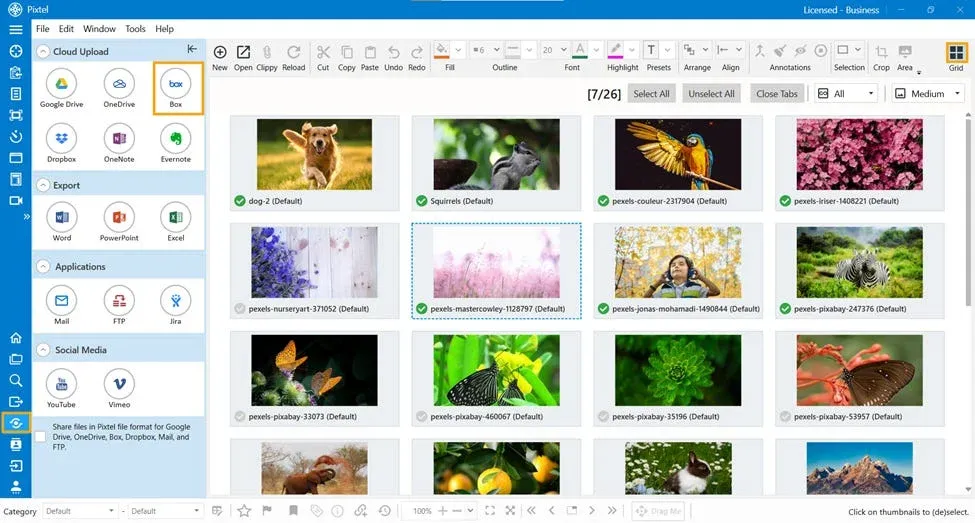
Manage Your Box Account
- Remove Account: Select the account and click the Remove button
- Refresh Account: Click the Refresh button to update your account and folders
Uploading screenshots and images to Box using Pixtel is quick and simple. Whether you’re sharing a single edited screenshot or multiple images at once, Pixtel makes cloud uploads easy with flexible account management and folder selection. This helps you stay organized and share your work securely without leaving the app.
Related reading:
- From Screenshot to Cloud: Uploading to Dropbox with Pixtel →
- Upload Media Files to Google Drive Seamlessly Using Pixtel →
- Upload Screenshots & Media to OneDrive Without Switching Apps →
Capture once and use it forever. It isn’t just a tool — it’s Pixtel.
👉 Download Pixtel · 🎥 Follow us on YouTube · 📘 Read Detailed Documentation
'%3e%3cpath%20d='M6.49988%200.862305L0.380969%206.98121C-0.127315%207.4895%20-0.127315%208.31107%200.380969%208.81936C0.889253%209.32764%201.71083%209.32764%202.21911%208.81936L5.19992%205.83855V15.7C5.19992%2016.4176%205.781%2017%206.49988%2017C7.21875%2017%207.79984%2016.4176%207.79984%2015.7V5.83855L10.7806%208.81936C11.0341%209.07285%2011.3669%209.20024%2011.6997%209.20024C12.0325%209.20024%2012.3653%209.07285%2012.6188%208.81936C13.1271%208.31107%2013.1271%207.4895%2012.6188%206.98121L6.49988%200.862305Z'%20fill='white'/%3e%3c/g%3e%3cdefs%3e%3cclipPath%20id='clip0_1_2'%3e%3crect%20width='13.0002'%20height='16.8995'%20fill='white'%20transform='translate(-0.000244141%200.100533)'/%3e%3c/clipPath%3e%3c/defs%3e%3c/svg%3e)