

Share Your Screenshots Directly to OneNote Using Pixtel
After capturing screenshots or completing edits, the next step is usually sharing or organizing your work. Copying files, switching apps, and manually uploading content can interrupt your workflow.
With Pixtel, sharing your work to Microsoft OneNote is simple and seamless. Whether it’s a single screenshot or multiple images, Pixtel lets you upload your content directly to OneNote in just a few clicks.
How to Share Screenshots to OneNote Using Pixtel
Step 1: Capture or Import Your Image
- Capture a screenshot using any Pixtel capture mode
- Or import images from your local system
- You can quickly edit, annotate, or make changes before sharing
Step 2: Open the Share Option from the Home Bar
From Pixtel’s home bar, click on the Share option and choose OneNote.
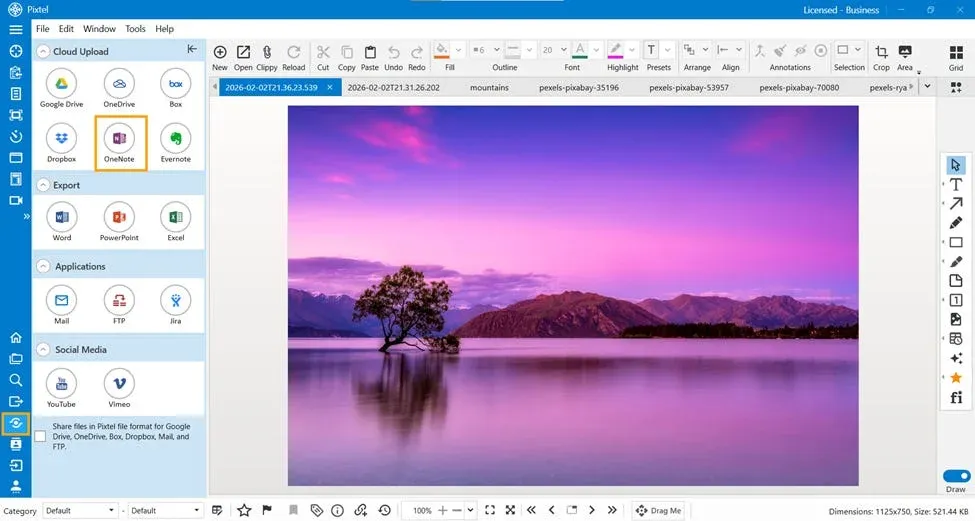
Step 3: Add Your OneNote Account (First-Time Users)
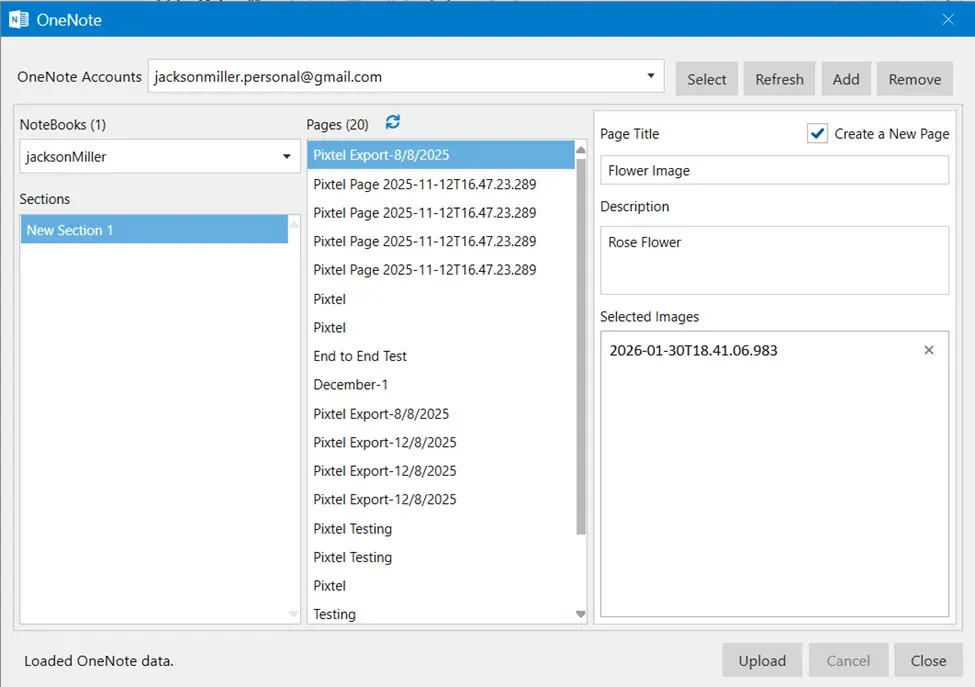
If you are a new user:
- Click on Add Account
- Select and sign in to your OneNote accountOnce added, your account will be saved for future use.
Step 4: View Sections and Pages
After selecting your account:
- All available notebooks, sections, and pages will be displayed
- You can choose where you want to upload the content
Step 5: Upload the Current Tab
By default, the current Pixtel tab is added to OneNote.If needed, you can:
- Create a new page
- Add a page title
- Add a descriptionThen click Upload to share the content.
Managing Multiple OneNote Accounts
- You can add multiple OneNote accounts
- Easily switch between accounts using the dropdown
- To remove an account, simply select it and click Remove
This makes it easy to manage work and personal notebooks separately.
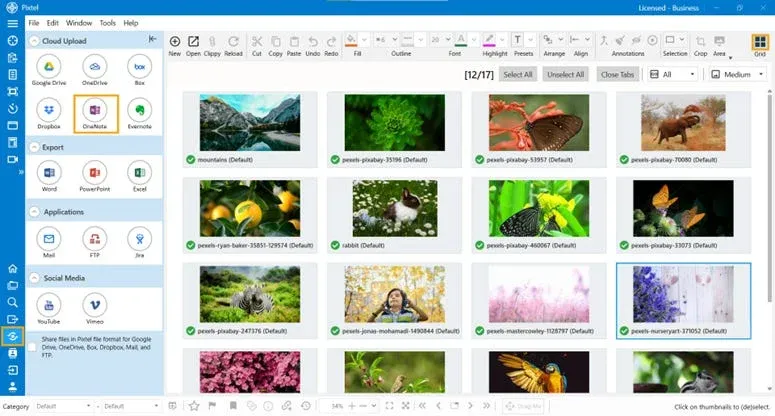
Upload Multiple Images Using Grid View
If you want to upload multiple screenshots at once:
- Switch to Grid View in Pixtel
- Select multiple images
- Click Share and choose OneNote
- Select your account, notebook, section, and page
- (Optional) Create a new page with a title and description
- Click Upload to upload all selected images together
Pixtel makes sharing content to OneNote fast and effortless. Whether you’re uploading a single edited screenshot or multiple images at once, you can organize your work directly inside your OneNote notebooks without leaving Pixtel.
With features like account management, page creation, and bulk uploads, Pixtel helps you stay productive and keep your documentation organized.
Related reading:
- How to Share Screenshots to Evernote Using Pixtel →
- How to Share Captures Effortlessly with Pixtel →
- Email Integration in Pixtel: Complete Guide →
Capture once and use it forever. It isn’t just a tool — it’s Pixtel.
👉 Download Pixtel · 🎥 Follow us on YouTube · 📘 Read Detailed Documentation
'%3e%3cpath%20d='M6.49988%200.862305L0.380969%206.98121C-0.127315%207.4895%20-0.127315%208.31107%200.380969%208.81936C0.889253%209.32764%201.71083%209.32764%202.21911%208.81936L5.19992%205.83855V15.7C5.19992%2016.4176%205.781%2017%206.49988%2017C7.21875%2017%207.79984%2016.4176%207.79984%2015.7V5.83855L10.7806%208.81936C11.0341%209.07285%2011.3669%209.20024%2011.6997%209.20024C12.0325%209.20024%2012.3653%209.07285%2012.6188%208.81936C13.1271%208.31107%2013.1271%207.4895%2012.6188%206.98121L6.49988%200.862305Z'%20fill='white'/%3e%3c/g%3e%3cdefs%3e%3cclipPath%20id='clip0_1_2'%3e%3crect%20width='13.0002'%20height='16.8995'%20fill='white'%20transform='translate(-0.000244141%200.100533)'/%3e%3c/clipPath%3e%3c/defs%3e%3c/svg%3e)