

How to Share Screenshots to Evernote Using Pixtel
After capturing screenshots or finishing edits, the next step is usually saving or organizing your content. Switching between apps, downloading files, and manually uploading them can slow you down and break your workflow.
With Pixtel, you can share your screenshots and images directly to Evernote in just a few clicks. Whether it’s a single capture or multiple images, Pixtel helps you store and organize everything instantly.
How to Share Screenshots to Evernote Using Pixtel?
Step 1: Capture or Import Your Image
- Capture a screenshot using any Pixtel capture mode
- Or import images from your local system
- Edit, annotate, or modify your images before sharing
Step 2: Open the Share Option from the Home Bar
- From Pixtel’s home bar, click on the Share option
- Select Evernote from the available platforms
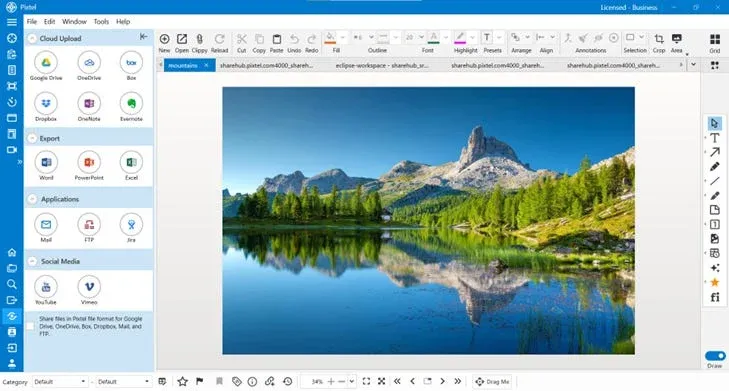
Step 3: Add Your Evernote Account (First-Time Users)
If you are a new user:
- Click on Add Account
- Sign in using your Evernote credentials
- Once added, the account will be saved for future uploads
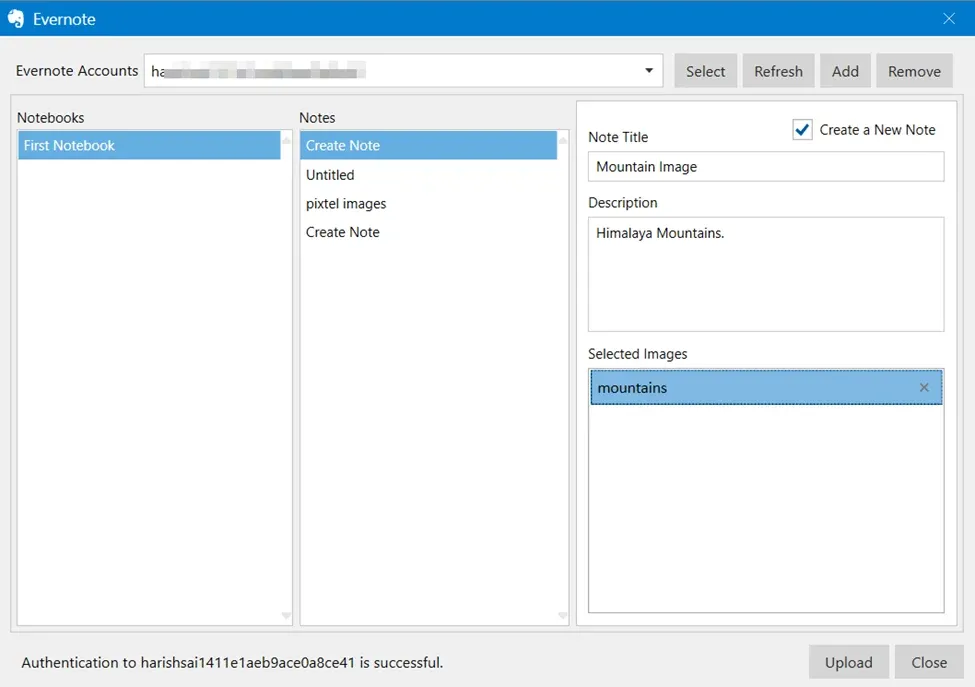
Step 4: Choose Your Notebook and Note
After selecting your account:
- All available notebooks will be displayed
- Choose the notebook where you want to upload the content
- Select an existing note or create a new one
Step 5: Upload the Current Tab
- By default, the currently active Pixtel tab is selected
- You can:
- Create a new note
- Add a note title
- Add a description
- Click Upload to share the content to Evernote
Managing Multiple Evernote Accounts
- Add multiple Evernote accounts if needed
- Switch between accounts using the dropdown
- Remove an account anytime with the Remove option
This makes it easy to manage personal notes and work documentation separately.
Upload Multiple Images Using Grid View
To upload multiple screenshots at once:
- Switch to Grid View in Pixtel
- Select multiple images
- Click Share and choose Evernote
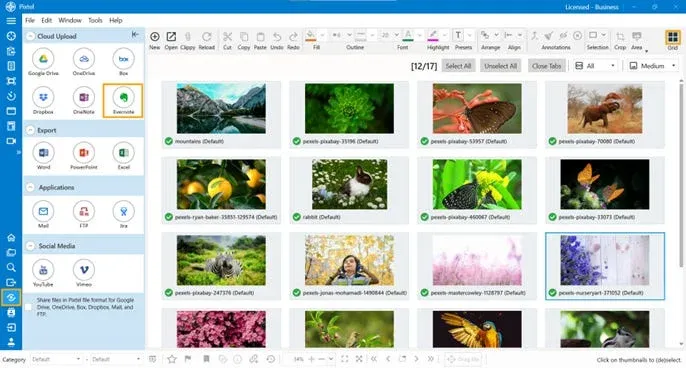
- Select your account and notebook
- (Optional) Create a new note with a title and description
- Click Upload to upload all selected images together
Pixtel makes sharing content to Evernote quick and effortless. Whether it’s a single edited screenshot or multiple images, you can organize everything directly inside your Evernote notebooks without leaving Pixtel.
Related reading:
- Share Your Screenshots Directly to OneNote Using Pixtel →
- How to Share Captures Effortlessly with Pixtel →
- How to Share Images Using Share Link in Pixtel →
Capture once and use it forever. It isn’t just a tool — it’s Pixtel.
👉 Download Pixtel · 🎥 Follow us on YouTube · 📘 Read Detailed Documentation
'%3e%3cpath%20d='M6.49988%200.862305L0.380969%206.98121C-0.127315%207.4895%20-0.127315%208.31107%200.380969%208.81936C0.889253%209.32764%201.71083%209.32764%202.21911%208.81936L5.19992%205.83855V15.7C5.19992%2016.4176%205.781%2017%206.49988%2017C7.21875%2017%207.79984%2016.4176%207.79984%2015.7V5.83855L10.7806%208.81936C11.0341%209.07285%2011.3669%209.20024%2011.6997%209.20024C12.0325%209.20024%2012.3653%209.07285%2012.6188%208.81936C13.1271%208.31107%2013.1271%207.4895%2012.6188%206.98121L6.49988%200.862305Z'%20fill='white'/%3e%3c/g%3e%3cdefs%3e%3cclipPath%20id='clip0_1_2'%3e%3crect%20width='13.0002'%20height='16.8995'%20fill='white'%20transform='translate(-0.000244141%200.100533)'/%3e%3c/clipPath%3e%3c/defs%3e%3c/svg%3e)