

How to Share Captures Effortlessly with Pixtel
Sharing screenshots shouldn’t mean juggling between apps.With Pixtel, you can capture, annotate, and share — all from one place.Whether it’s a single image or an entire collection, Pixtel lets you upload to the cloud, export to Office, or share via email, Jira, and more — all in just a few clicks.
Let’s explore how you can share your captures effortlessly using Pixtel.
Watch the tutorial: https://youtu.be/ng5BGLAWehg
Accessing Sharing Options
- Open an Image Launch Pixtel and open the image you want to share in a tab.Add annotations or edits if needed.
- Click “Share” Navigate to the Home bar and click the Share button to open all available sharing options.
- Choose a Sharing CategorySelect the destination that fits your workflow:
🌩️ Cloud Uploads
📄 Office Export
🧩 Applications
📢 Social Media
Pixtel’s sharing panel keeps everything in one organized place — no window switching required.
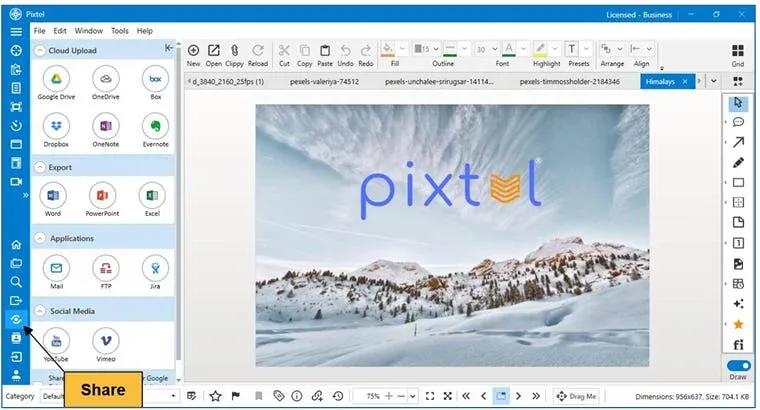
Cloud Uploads — Share Instantly to Cloud
Upload captures to your favorite cloud storage platforms:
- Google Drive
- OneDrive
- Dropbox
- Box
Just log in once, authorize your account, and Pixtel automatically handles uploads with organized folder structures and file naming conventions.
Perfect for storing or sharing captures across your team or devices
OneNote & Evernote Integration
Seamlessly send annotated captures to:
- Microsoft OneNote (Online)
- Evernote (Online)
These integrations are ideal for:
- Keeping visual project notes
- Tracking feedback and revisions
- Maintaining visual documentation in your daily workflow
Office Export — From Screenshots to Documents
Transform visuals into professional Office files directly from Pixtel:
- Word: Insert screenshots into formatted documents.
- PowerPoint: Create slide decks for presentations.
- Excel: Export charts or tabular visuals neatly.
Watch the tutorial: https://youtu.be/g8RdZMfdaEA
This is especially useful for reporting, presentations, or documentation workflows where visuals matter.
Application Sharing — Collaborate Instantly
Share captures directly through your favorite work apps:
- Email: Automatically attach captures in a new email window.
- Jira: Create or update issues with attached screenshots.
- FTP: Upload files to configured FTP servers.
No more downloading and reattaching — Pixtel automates it all for faster communication and collaboration.
Social Media & Video Sharing
Pixtel isn’t limited to static screenshots. You can also share video captures directly to:
- YouTube — Upload walkthroughs or demos.
- Vimeo — Share clean, high-quality videos for professional content.
Perfect for educators, marketers, or content creators who want to publish quickly without extra tools.
Share Multiple Images via Grid View
When working with multiple screenshots:
- Click the Grid View icon in the toolbar (or go to Window → Toggle Grid View).
- Select multiple thumbnails.
- Click Share in the Home bar to upload or export them together.
This feature helps when you’re sharing project snapshots, process steps, or presentation slides in bulk.
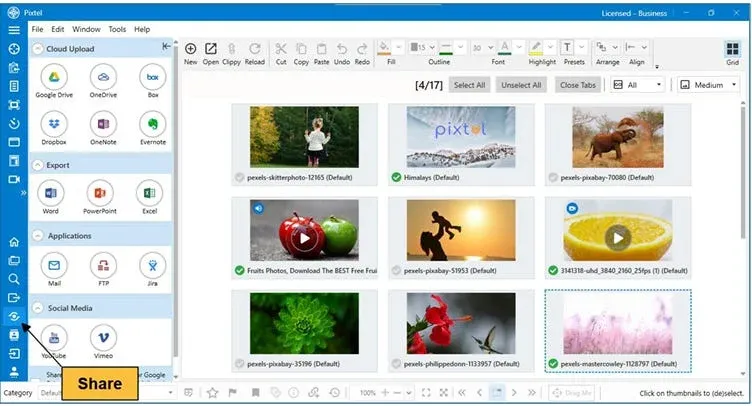
Pixtel streamlines your entire sharing process — no switching tools, no wasted time.From cloud uploads to Office exports and project integrations, everything happens in one seamless flow.
Related reading:
- How to Share Images Using Share Link in Pixtel →
- Instantly Share Screenshots Without Saving Using Pixtel's Drag Me Option →
- How to Share Screenshots to Evernote Using Pixtel →
Capture once and use it forever. It isn’t just a tool — it’s Pixtel.
Download Pixtel · Watch the Full Tutorial on YouTube · Read Detailed Documentation
'%3e%3cpath%20d='M6.49988%200.862305L0.380969%206.98121C-0.127315%207.4895%20-0.127315%208.31107%200.380969%208.81936C0.889253%209.32764%201.71083%209.32764%202.21911%208.81936L5.19992%205.83855V15.7C5.19992%2016.4176%205.781%2017%206.49988%2017C7.21875%2017%207.79984%2016.4176%207.79984%2015.7V5.83855L10.7806%208.81936C11.0341%209.07285%2011.3669%209.20024%2011.6997%209.20024C12.0325%209.20024%2012.3653%209.07285%2012.6188%208.81936C13.1271%208.31107%2013.1271%207.4895%2012.6188%206.98121L6.49988%200.862305Z'%20fill='white'/%3e%3c/g%3e%3cdefs%3e%3cclipPath%20id='clip0_1_2'%3e%3crect%20width='13.0002'%20height='16.8995'%20fill='white'%20transform='translate(-0.000244141%200.100533)'/%3e%3c/clipPath%3e%3c/defs%3e%3c/svg%3e)