

Pixtel Annotation Guide: Edit, Remove, and Clear All Annotations Effortlessly
When working with screenshots, adding annotations is often essential to highlight key details, explain workflows, or provide visual guidance. However, there are times when you may want to view the original image without any annotations or remove all edits instantly.
With Pixtel, managing annotations is simple, flexible, and efficient.
Why Annotations Matter
Annotations help you communicate visually by adding elements like text, arrows, highlights, and shapes. Whether you are creating tutorials, reporting issues, or sharing feedback, annotations make your screenshots more meaningful and easy to understand.
At the same time, flexibility is equally important. You may need to:
- View the image without annotations
- Remove all annotations at once
- Keep the original image intact without undoing each step
Pixtel provides all these options seamlessly.
How to Add Annotations in Pixtel
Getting started with annotations in Pixtel is straightforward:
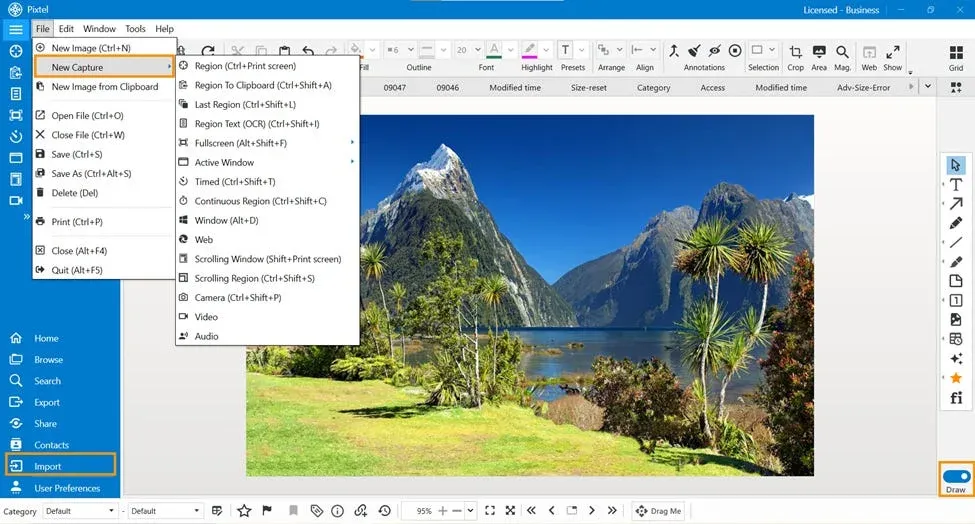
- Capture a screenshot using Pixtel’s capture options or import an existing image
- Open the image in the Pixtel editor
- Toggle to Draw Mode
- Start adding annotations such as text, arrows, shapes, or highlights based on your needs
This allows you to customize your image exactly the way you want.
Managing Annotations Efficiently
Once you have added annotations, Pixtel gives you full control over them:
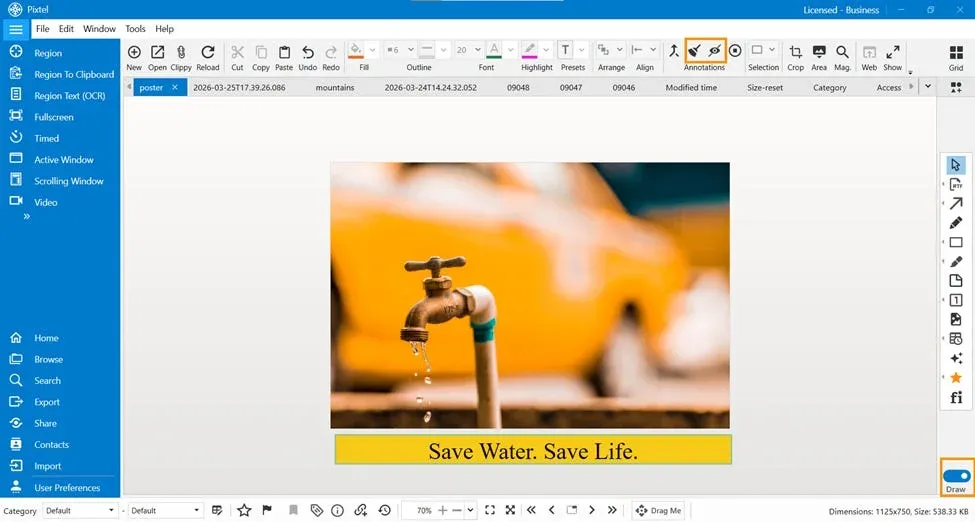
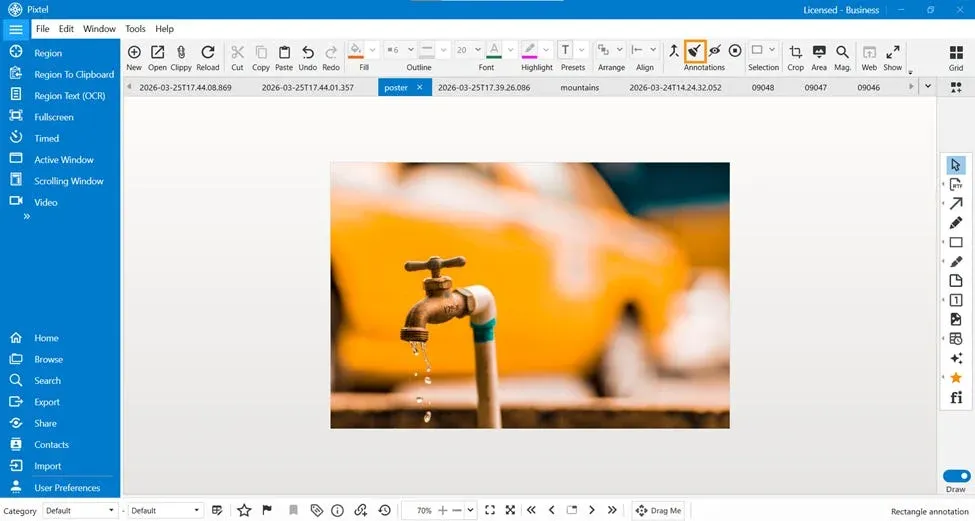
Remove All Annotations Instantly
If you want to remove all annotations at once:
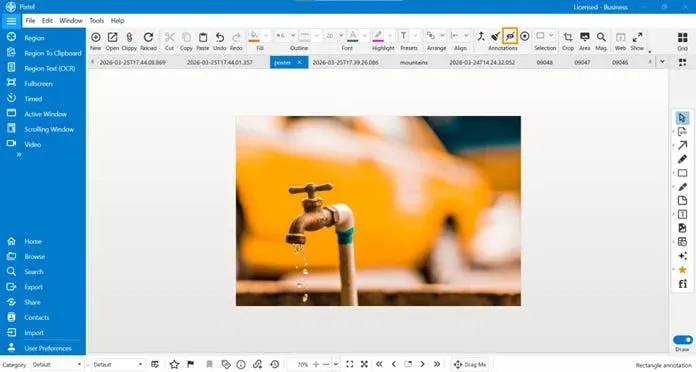
- Click on the Annotations option from the toolbar
- Select Remove All Annotations
Alternatively, you can use the shortcut:
- Alt + Delete
This helps you clean the image instantly without removing each annotation manually.
Hide All Annotations Without Deleting
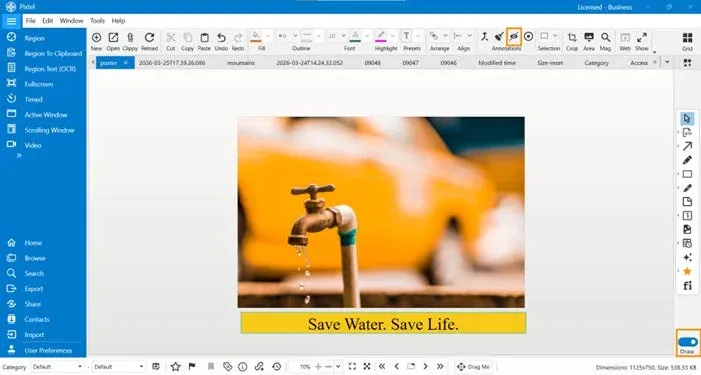
Sometimes you may want to view the original image without losing your annotations. In such cases:
- Use the Hide All Annotations option
This temporarily hides all annotations while keeping them intact, allowing you to switch between annotated and original view.
Why Use Pixtel for Annotations?
Pixtel makes annotation management effortless by offering:
- Easy toggle between annotated and original views
- One-click option to clear all annotations
- Keyboard shortcuts for a faster workflow
- Flexible editing without affecting the original image
Annotations are a powerful way to enhance screenshots, but managing them should never be complicated. With Pixtel, you can remove all annotations or hide all annotations effortlessly — giving you complete control over your images.
Whether you are working on documentation, tutorials, or quick edits, Pixtel ensures your workflow remains smooth and efficient.
Related reading:
- How to Annotate Images in Pixtel →
- Flatten Annotations in Pixtel: A Complete Guide →
- Editing & Highlighting Images in Pixtel →
Capture once and use it forever. It isn’t just a tool — it’s Pixtel.
👉 Download Pixtel · 🎥 Follow us on YouTube · 📘 Read Detailed Documentation
'%3e%3cpath%20d='M6.49988%200.862305L0.380969%206.98121C-0.127315%207.4895%20-0.127315%208.31107%200.380969%208.81936C0.889253%209.32764%201.71083%209.32764%202.21911%208.81936L5.19992%205.83855V15.7C5.19992%2016.4176%205.781%2017%206.49988%2017C7.21875%2017%207.79984%2016.4176%207.79984%2015.7V5.83855L10.7806%208.81936C11.0341%209.07285%2011.3669%209.20024%2011.6997%209.20024C12.0325%209.20024%2012.3653%209.07285%2012.6188%208.81936C13.1271%208.31107%2013.1271%207.4895%2012.6188%206.98121L6.49988%200.862305Z'%20fill='white'/%3e%3c/g%3e%3cdefs%3e%3cclipPath%20id='clip0_1_2'%3e%3crect%20width='13.0002'%20height='16.8995'%20fill='white'%20transform='translate(-0.000244141%200.100533)'/%3e%3c/clipPath%3e%3c/defs%3e%3c/svg%3e)