

Perform Operations on a Selected Image Area in Pixtel
Have you ever wanted to perform quick operations on a specific part of an image after capturing it?
With Pixtel, you can easily manipulate or extract information from any portion of your screenshot. Instead of opening another editing tool, Pixtel lets you perform several actions directly inside the application.
Open the Image in Pixtel
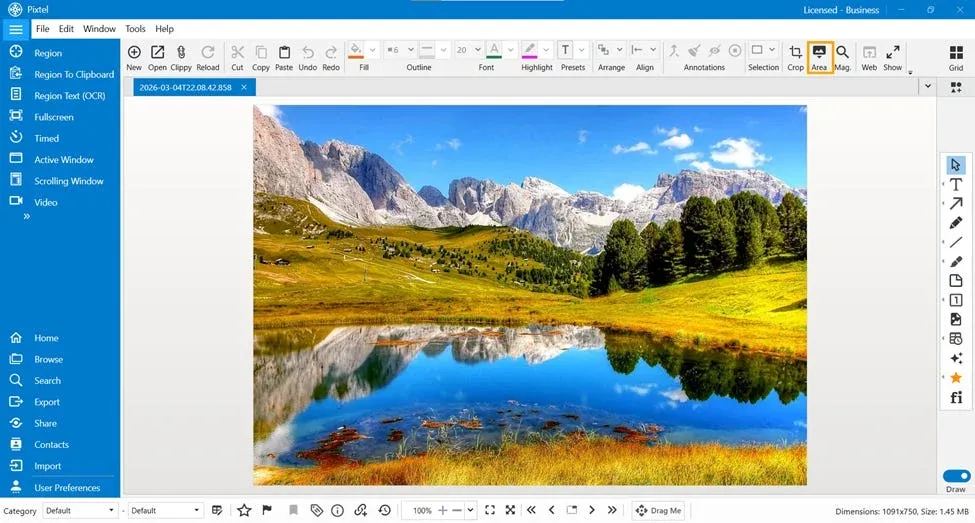
After capturing a screenshot using Pixtel or importing an image, it will automatically open in a new Pixtel tab.
To begin:
- Click on the Area tool from the toolbar.
- Select the specific region of the image you want to work with.
- Right-click on the selected area to open the operations menu.
Once the menu appears, Pixtel provides several powerful options you can use instantly.
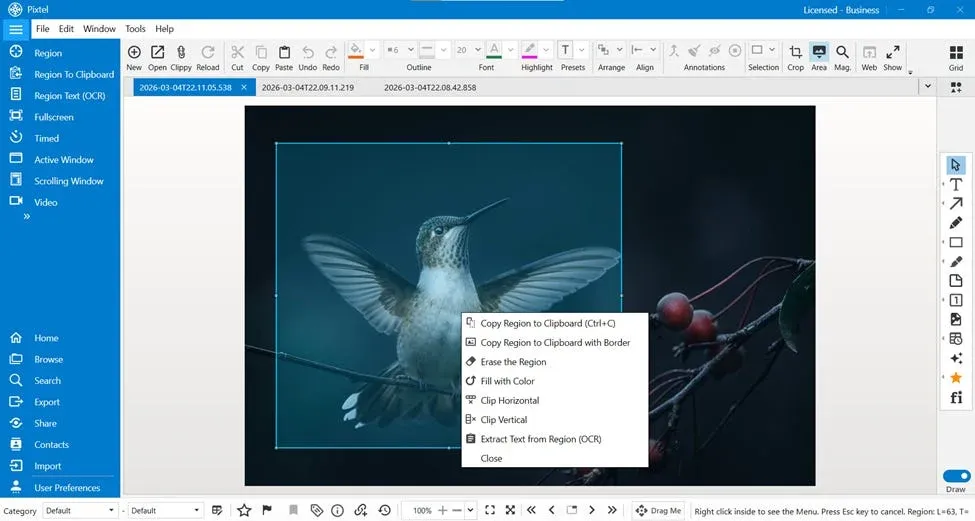
Copy Region to Clipboard
This option allows you to copy only the selected portion of the image directly to your clipboard.
You can then paste it anywhere such as:
- Documents
- Chat applications
- Emails
- Presentations
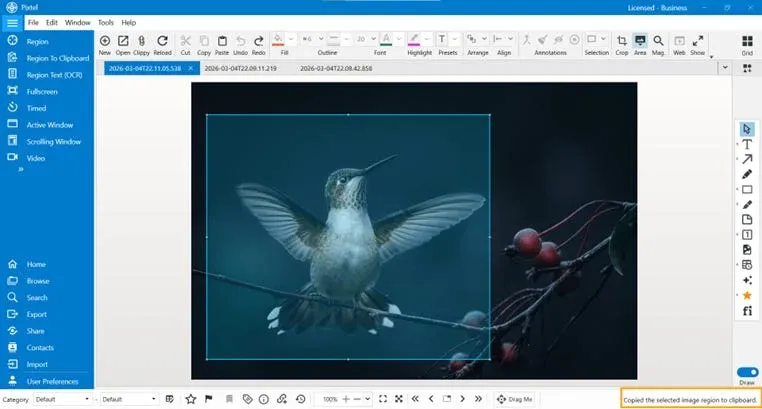
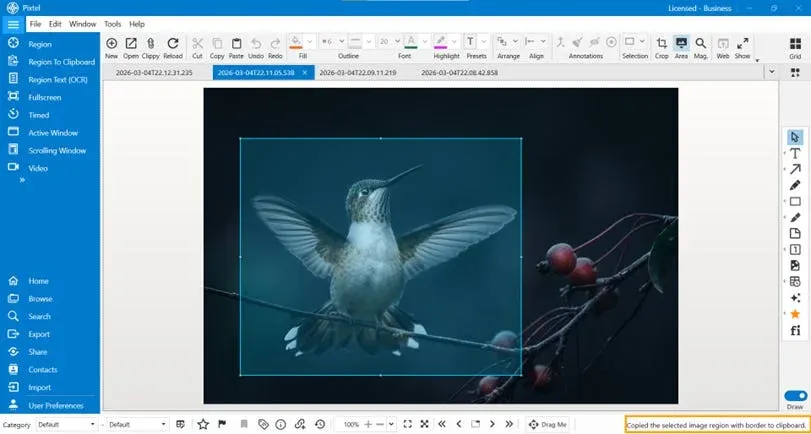
Copy Region to Clipboard with Border
If you want the copied region to have a visual border, you can choose this option.
This is useful when you want to highlight the selected portion before sharing it.
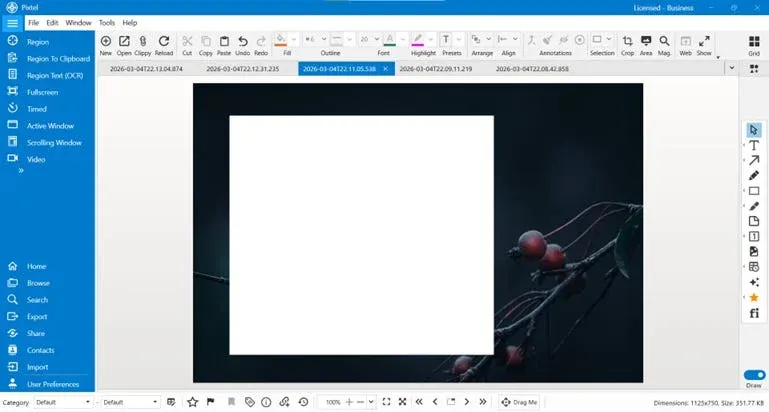
Erase the Region
The Erase Region option removes the selected area from the image.
This is helpful when you want to:
- Remove sensitive information
- Hide unnecessary details
- Clean up parts of the screenshot
Fill the Region with Color
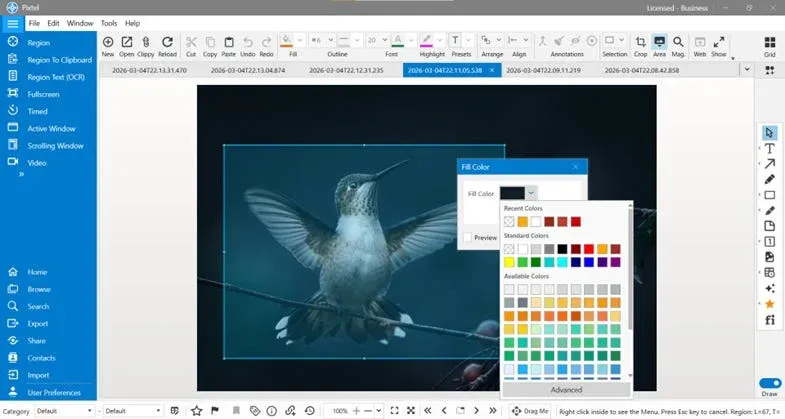
You can also fill the selected region with a specific color.
After selecting this option, a color selection window appears where you can choose from multiple color options.
You can choose from:
- Recent Colors
- Standard Colors
- Available Colors
- Advanced Color Selection
This is useful for highlighting, masking, or annotating parts of an image.
Clip Horizontal
The Clip Horizontal option trims the image horizontally based on the selected area.
This helps when you want to remove unwanted portions from the left or right side of the image.
Clip Vertical
Similarly, Clip Vertical trims the image vertically using the selected region.
This is helpful for removing unnecessary content from the top or bottom of the screenshot.
Extract Text from Region (OCR)
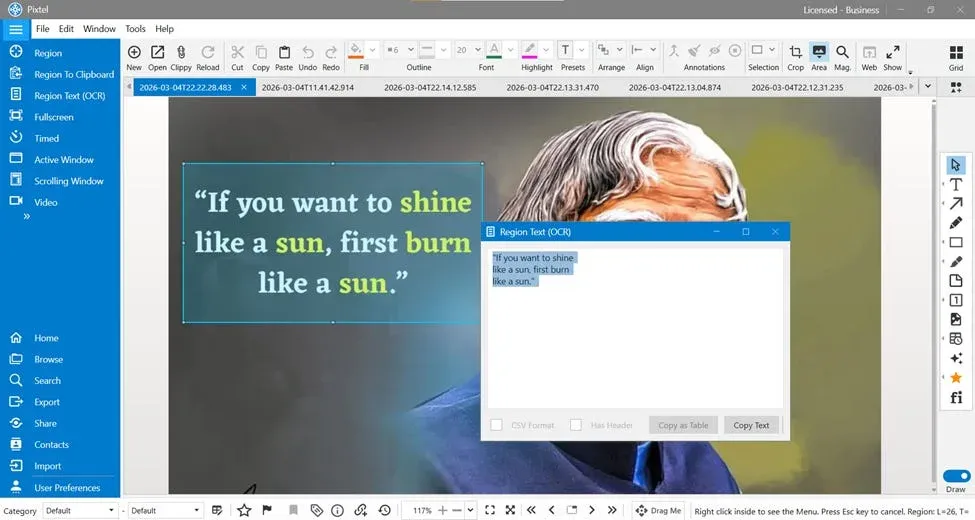
If the selected area contains text, Pixtel can automatically extract it using OCR (Optical Character Recognition).
Steps:
- Select the region containing text.
- Right-click and choose Extract Text from Region (OCR).
Pixtel will instantly convert the text from the image into editable text, which you can copy and use anywhere.
This feature is extremely useful for:
- Extracting text from screenshots
- Capturing information from images
- Converting image text into editable content
Close the Operations Menu
If you do not want to perform any operation, simply click Close to exit the menu.
Pixtel makes it incredibly easy to perform quick operations on any part of an image after capturing or importing it. Instead of opening a separate editing application, you can simply select a region, right-click, and apply the required action instantly.
Whether you want to copy a specific portion, erase sensitive information, fill an area with color, clip the image vertically or horizontally, or extract text using OCR, Pixtel provides all these powerful features in one place.
Related reading:
- Editing Specific Areas of an Image Using the Selection Tool →
- Cropping and Magnifying Images in Pixtel →
- How to Perform Image Operations in Pixtel: Resize, Enhance & Transform →
Capture once and use it forever. It isn’t just a tool — it’s Pixtel.
👉 Download Pixtel · 🎥 Follow us on YouTube · 📘 Read Detailed Documentation
'%3e%3cpath%20d='M6.49988%200.862305L0.380969%206.98121C-0.127315%207.4895%20-0.127315%208.31107%200.380969%208.81936C0.889253%209.32764%201.71083%209.32764%202.21911%208.81936L5.19992%205.83855V15.7C5.19992%2016.4176%205.781%2017%206.49988%2017C7.21875%2017%207.79984%2016.4176%207.79984%2015.7V5.83855L10.7806%208.81936C11.0341%209.07285%2011.3669%209.20024%2011.6997%209.20024C12.0325%209.20024%2012.3653%209.07285%2012.6188%208.81936C13.1271%208.31107%2013.1271%207.4895%2012.6188%206.98121L6.49988%200.862305Z'%20fill='white'/%3e%3c/g%3e%3cdefs%3e%3cclipPath%20id='clip0_1_2'%3e%3crect%20width='13.0002'%20height='16.8995'%20fill='white'%20transform='translate(-0.000244141%200.100533)'/%3e%3c/clipPath%3e%3c/defs%3e%3c/svg%3e)