

Flatten Annotations in Pixtel: A Complete Guide
When working with screenshots or imported images, annotations play a crucial role in highlighting important details. In daily workflows, it’s common to add multiple annotations — whether it’s text, shapes, arrows, or highlights — to make visuals more meaningful and informative.
Pixtel makes this process smooth and flexible. You can either capture images directly using its wide range of capture modes or import existing images from your local system. Once your image is ready, you can freely annotate both inside the image area and even outside the canvas.
But what happens when you want all those annotations to become a permanent part of the image?
That’s where the Flatten Annotations feature comes in.
What is Flatten Annotations?
Flattening annotations means merging all your added elements into the image itself. Once flattened, the annotations are no longer editable — they become part of the final image.
This is especially useful when:
- You want to share the image without editable layers
- You’ve added annotations outside the canvas and want them included
- You’re finalizing the image for export or upload
How to Use Flatten Annotations in Pixtel?
Follow these simple steps to flatten your annotations:
1. Capture or Import an Image
- Use Pixtel’s capture options to take a screenshot
- Or import an image using the import feature or use New Image option.
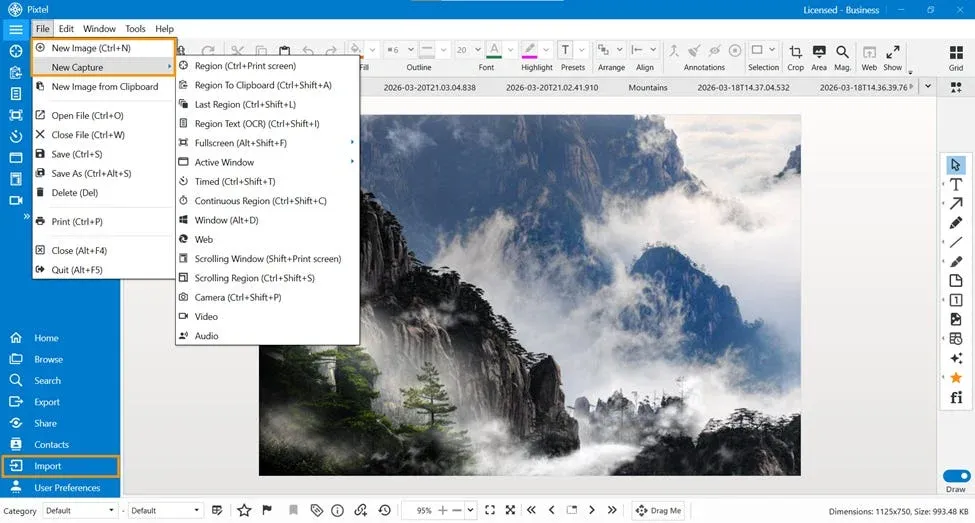
2. Add Annotations
- Enable Draw Mode
- Add annotations anywhere:
- Inside the image
- Outside the canvas
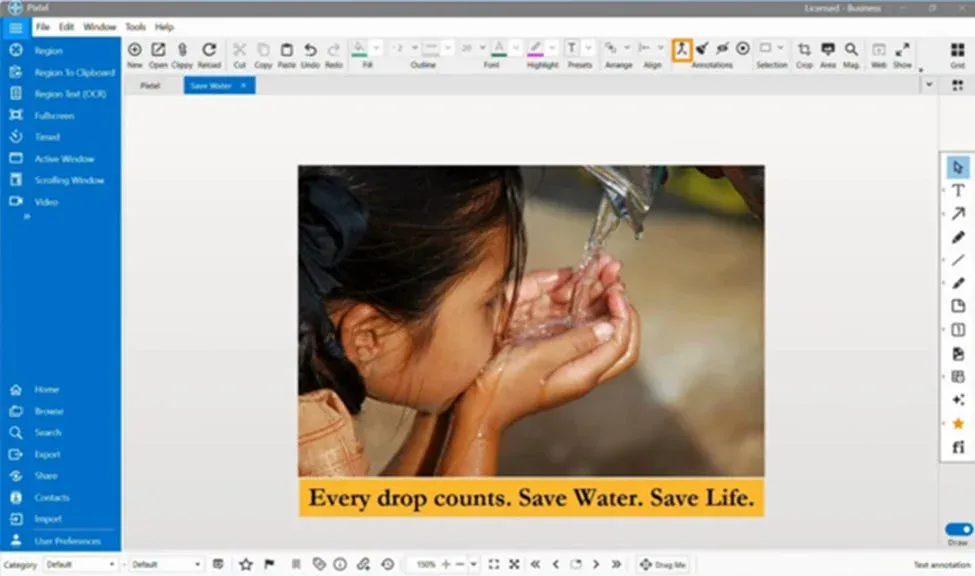
3. Open Flatten Option
You can access the flatten feature in two ways:
- Right-click on the canvas → Select Flatten Annotations
- Or use the toolbar option → Select Flatten Annotations from the Annotations
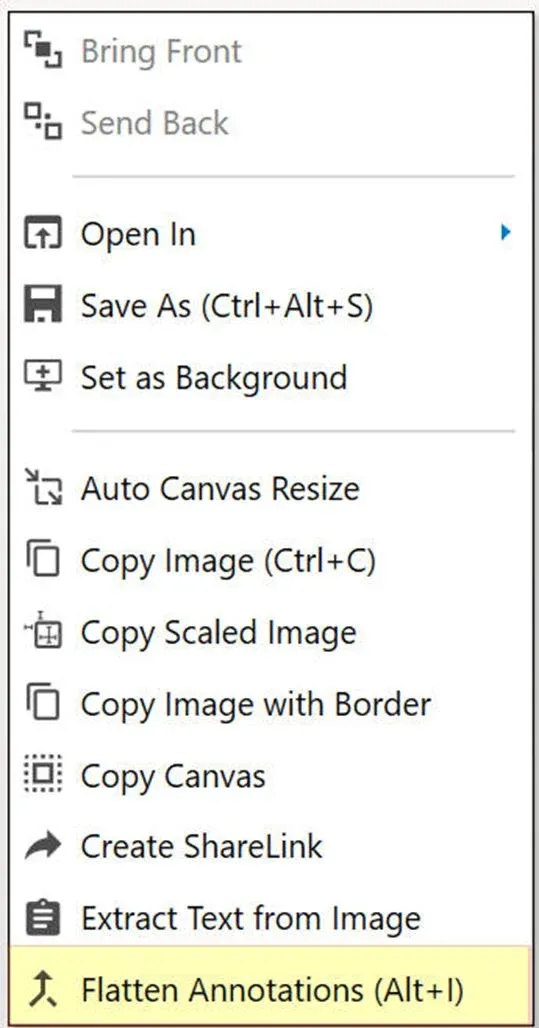
4. Choose Flatten Type
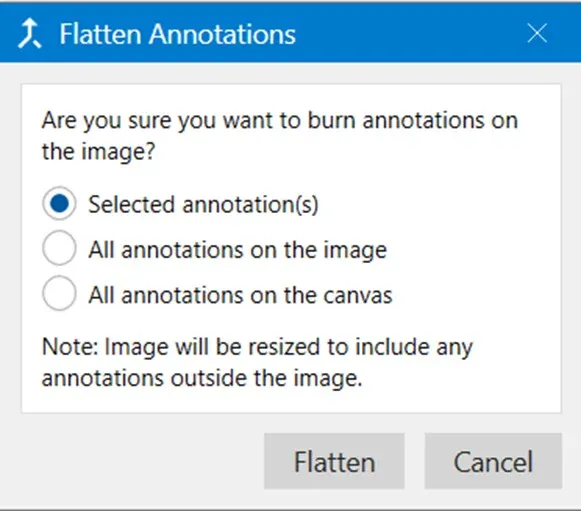
Once you click the option, a pop-up will appear with the following choices:
- **Selected annotation(s)**Flatten only the annotations you choose
- All annotations on the imageMerge only annotations within the image boundaries
- All annotations on the canvasInclude annotations both inside and outside the image
5. Confirm Flatten
Click Flatten to apply your selection.
Important Note
If you have annotations placed outside the image area:
- The image will automatically resize
- This ensures all annotations are included in the final output
Why Use Flatten Annotations?
Flattening helps you:
- Finalize your edits before sharing
- Preserve all visual elements in one file
- Avoid accidental changes to annotations
- Ensure consistency across platforms
The Flatten Annotations feature in Pixtel is essential for turning your annotated visuals into polished, shareable images. Whether you’re working with simple highlights or complex multi-layer annotations, this feature ensures everything is merged seamlessly into one final output.
Once flattened, your image is ready to use — clean, complete, and professional.
Related reading:
- How to Annotate Images in Pixtel →
- Pixtel Annotation Guide: Edit, Remove, and Clear All Annotations →
- Editing & Highlighting Images in Pixtel →
Capture once and use it forever. It isn’t just a tool — it’s Pixtel.
👉 Download Pixtel · 🎥 Follow us on YouTube · 📘 Read Detailed Documentation
'%3e%3cpath%20d='M6.49988%200.862305L0.380969%206.98121C-0.127315%207.4895%20-0.127315%208.31107%200.380969%208.81936C0.889253%209.32764%201.71083%209.32764%202.21911%208.81936L5.19992%205.83855V15.7C5.19992%2016.4176%205.781%2017%206.49988%2017C7.21875%2017%207.79984%2016.4176%207.79984%2015.7V5.83855L10.7806%208.81936C11.0341%209.07285%2011.3669%209.20024%2011.6997%209.20024C12.0325%209.20024%2012.3653%209.07285%2012.6188%208.81936C13.1271%208.31107%2013.1271%207.4895%2012.6188%206.98121L6.49988%200.862305Z'%20fill='white'/%3e%3c/g%3e%3cdefs%3e%3cclipPath%20id='clip0_1_2'%3e%3crect%20width='13.0002'%20height='16.8995'%20fill='white'%20transform='translate(-0.000244141%200.100533)'/%3e%3c/clipPath%3e%3c/defs%3e%3c/svg%3e)