

Editing Specific Areas of an Image Using the Selection Tool in Pixtel
When working with images, we often need to modify only a specific part of the image instead of applying changes to the entire image. For example, you may want to remove an unwanted object, fill a background area with color, or apply an effect only to a certain region.
To make this possible, Pixtel provides Selection tools in the toolbar. These tools allow you to select a particular region of an image and apply editing operations only to the selected portion.
This makes image editing more precise and helps avoid affecting other parts of the image.
Enabling the Selection Tools
Before using the selection features, you need to switch the editor mode.
Steps to enable selection
- Open your image in Pixtel Editor.
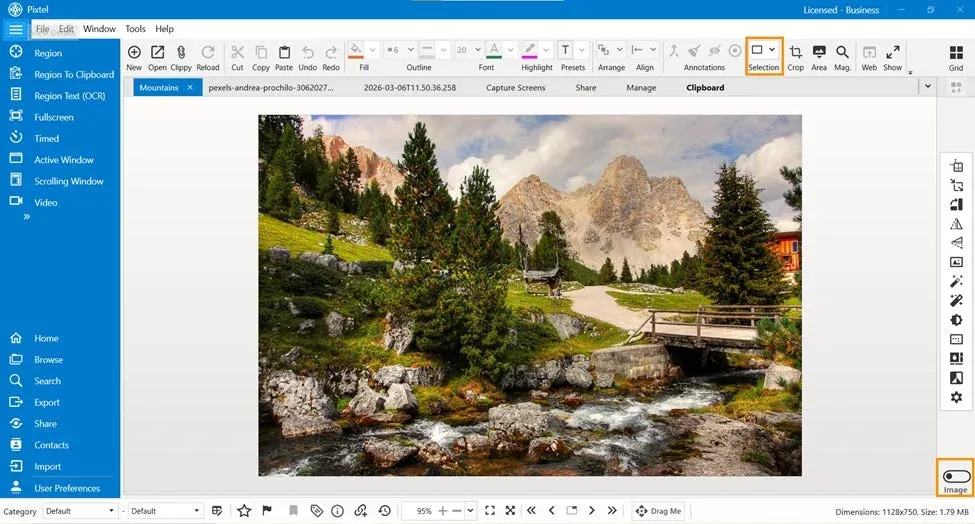
- Switch from Draw Mode to Image Mode.
- Once Image Mode is enabled, the Selection options become active in the toolbar.
- Click on the Selection dropdown to view the available selection tools.
After selecting the desired option, you can simply drag or trace over the image to select the region you want to edit.
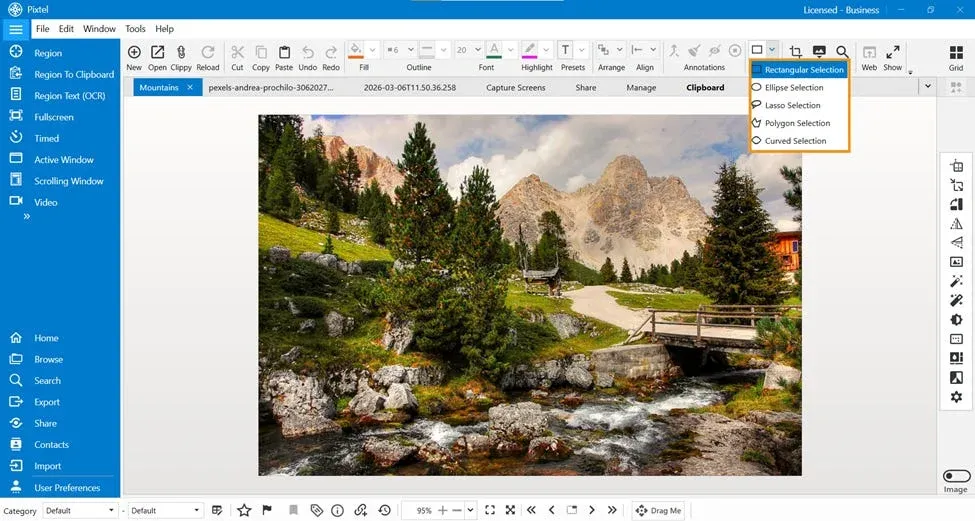
Available Selection Options in Pixtel
Pixtel provides multiple selection types so you can select areas of different shapes and complexities.
Rectangular SelectionThis tool allows you to select an area in a rectangular shape. It is useful when selecting box-shaped regions, backgrounds, or specific sections of an image.
Ellipse SelectionThis option helps select circular or oval-shaped areas. It is helpful when editing round objects or circular regions in the image.
Lasso SelectionThe lasso tool allows you to create a freehand selection by drawing around the area you want to edit. This is useful when selecting irregular shapes or objects that do not follow a fixed pattern.
Polygon SelectionWith the polygon selection tool, you can create selections using straight-line segments. This is helpful for selecting objects with clear edges or angular shapes.
Curved SelectionThe curved selection tool helps select regions that follow smooth curves. It is useful when working with shapes that have rounded or flowing edges.
Using these different tools, you can accurately define the region of the image you want to work on.
Applying Operations to the Selected Region
Once a region is selected, any image operation you perform will be applied only to that selected area while the rest of the image remains unchanged.
You can make use of many editing options available in Pixtel, such as:
- Filling the selected area with a color
- Removing or hiding a portion of the image
- Applying color effects
- Adjusting brightness or contrast
- Applying filters or image effects
- Replacing colors in a specific region
- Enhancing or modifying only the selected object
This gives you much more control over how edits are applied.
Example: Filling a Selected Area with Color
One simple example of using the selection tool is removing or covering an unwanted part of the image by filling it with color.
Steps:
- Choose any Selection tool from the toolbar.
- Select the region you want to modify in the image.
- Go to the Image tab.
- Click Color Effects → Fill Color.
- Pixtel will automatically suggest the dominant color from the image, but you can change it if needed.
Once applied, the selected region will be filled with the chosen color.
The Selection tools in Pixtel make it easy to edit specific parts of an image with precision. By selecting only the required region, you can apply different image operations without affecting the rest of the picture. With multiple selection options like rectangular, ellipse, lasso, polygon, and curved selection, Pixtel provides flexible ways to work with images and perform accurate edits efficiently.
Related reading:
- Perform Operations on a Selected Image Area in Pixtel →
- Cropping and Magnifying Images in Pixtel →
- Editing Screenshots in Pixtel: Cut, Copy, Paste, Undo & Redo →
Capture once and use it forever. It isn’t just a tool — it’s Pixtel.
👉 Download Pixtel · 🎥 Follow us on YouTube · 📘 Read Detailed Documentation
'%3e%3cpath%20d='M6.49988%200.862305L0.380969%206.98121C-0.127315%207.4895%20-0.127315%208.31107%200.380969%208.81936C0.889253%209.32764%201.71083%209.32764%202.21911%208.81936L5.19992%205.83855V15.7C5.19992%2016.4176%205.781%2017%206.49988%2017C7.21875%2017%207.79984%2016.4176%207.79984%2015.7V5.83855L10.7806%208.81936C11.0341%209.07285%2011.3669%209.20024%2011.6997%209.20024C12.0325%209.20024%2012.3653%209.07285%2012.6188%208.81936C13.1271%208.31107%2013.1271%207.4895%2012.6188%206.98121L6.49988%200.862305Z'%20fill='white'/%3e%3c/g%3e%3cdefs%3e%3cclipPath%20id='clip0_1_2'%3e%3crect%20width='13.0002'%20height='16.8995'%20fill='white'%20transform='translate(-0.000244141%200.100533)'/%3e%3c/clipPath%3e%3c/defs%3e%3c/svg%3e)