

Cropping and Magnifying Images in Pixtel
When working with images, it’s common to either remove unwanted areas or highlight a specific part so viewers can focus on the important details. Pixtel provides simple tools that make this easy. Two useful tools for this purpose are Crop and Magnifier. Both help you focus on particular parts of an image, but they serve slightly different purposes.
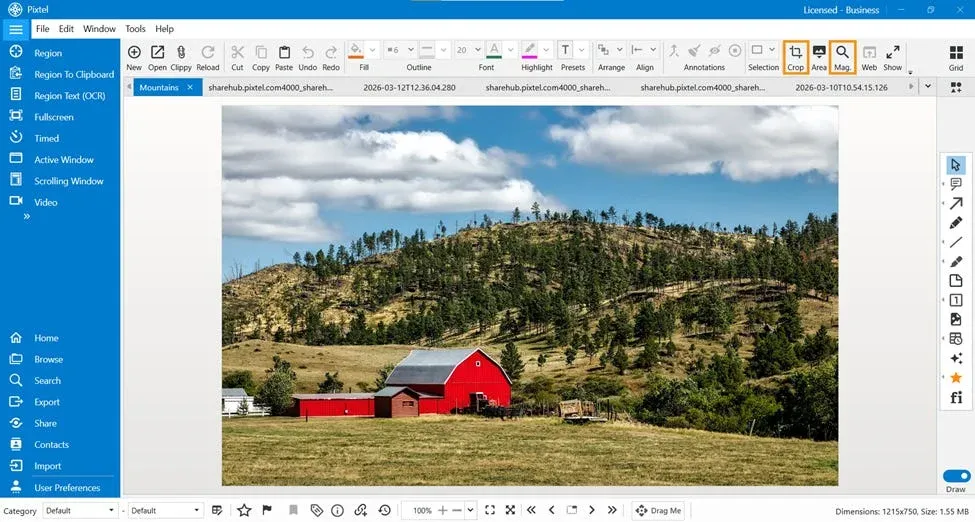
Cropping an Image in Pixtel
Sometimes an image contains extra areas that are not necessary for your explanation or presentation. In such cases, the Crop tool helps you keep only the portion of the image that matters.
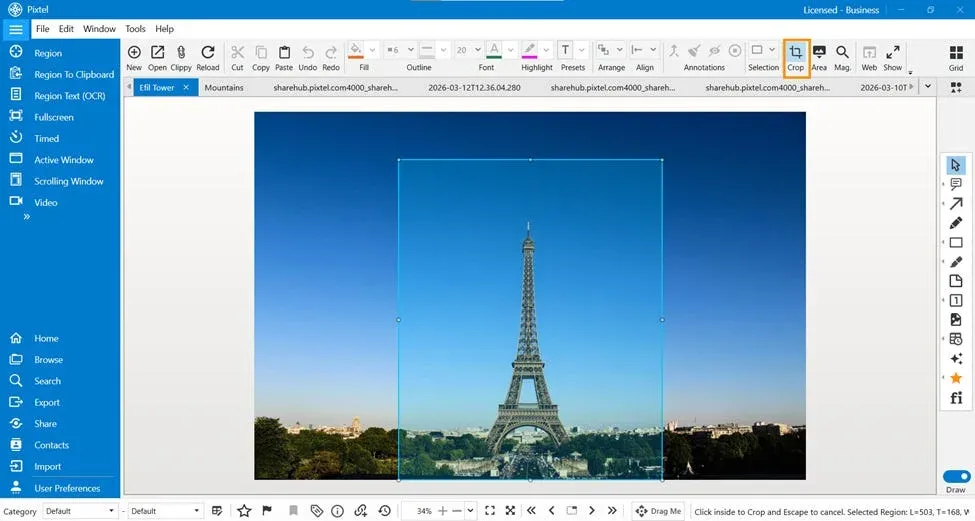
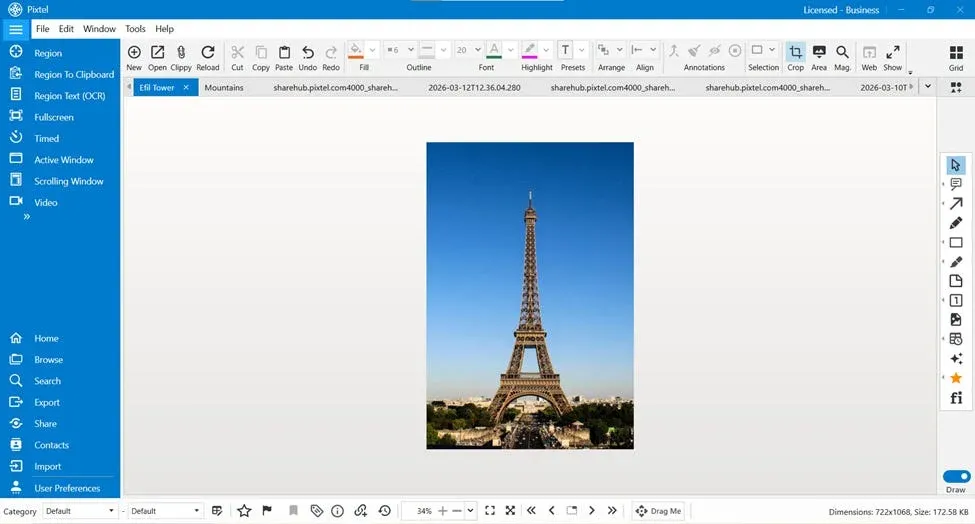
To use the crop feature, select the Crop option from the Pixtel toolbar. Once selected, click and drag over the area of the image you want to keep. You can adjust the selection to fit the exact region you need. After selecting the desired area, simply click on the selected region to apply the crop. The image will then be trimmed so that only the chosen portion remains.
This tool is very useful when you want to remove unnecessary parts of an image and focus only on the relevant content.
Magnifying a Specific Area
While cropping removes unwanted parts of an image, sometimes you may want to keep the entire image but highlight a specific detail. In such cases, the Magnifier tool is the perfect option.
To magnify a section of the image, select the Magnifier tool from the Pixtel toolbar and click on the area you want to highlight. The selected region will appear magnified, making it easier for viewers to notice important details within the image.
This is especially helpful when explaining something in a screenshot, demonstrating a feature, or drawing attention to a small but important section.
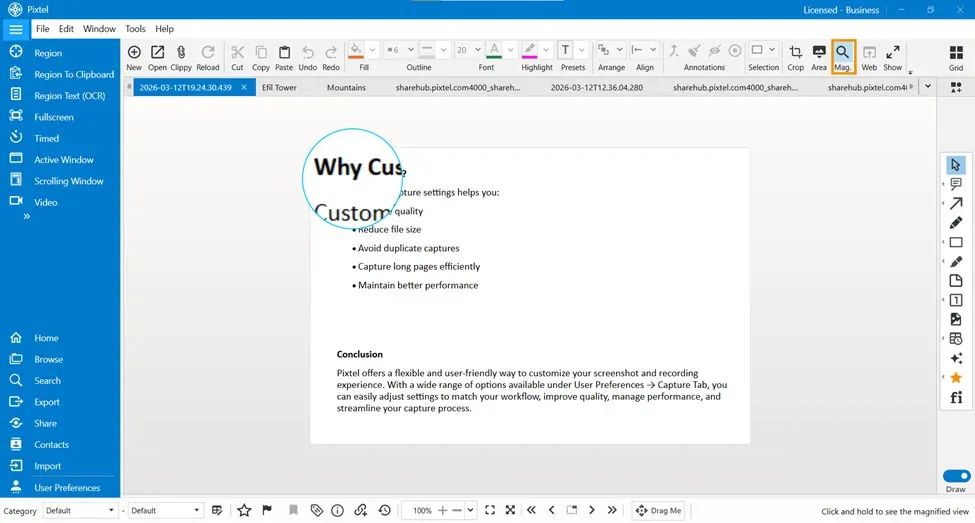
Both Crop and Magnifier tools in Pixtel help you focus on important areas within an image. While the Crop tool removes unwanted sections and keeps only the selected part, the Magnifier tool highlights and zooms into a specific area without removing the rest of the image. Using these tools effectively can make your visuals clearer, more focused, and easier to understand.
Related reading:
- Editing Screenshots in Pixtel: Cut, Copy, Paste, Undo & Redo →
- How to Perform Image Operations in Pixtel: Resize, Enhance & Transform →
- Editing Specific Areas of an Image Using the Selection Tool →
Capture once and use it forever. It isn’t just a tool — it’s Pixtel.
👉 Download Pixtel · 🎥 Follow us on YouTube · 📘 Read Detailed Documentation
'%3e%3cpath%20d='M6.49988%200.862305L0.380969%206.98121C-0.127315%207.4895%20-0.127315%208.31107%200.380969%208.81936C0.889253%209.32764%201.71083%209.32764%202.21911%208.81936L5.19992%205.83855V15.7C5.19992%2016.4176%205.781%2017%206.49988%2017C7.21875%2017%207.79984%2016.4176%207.79984%2015.7V5.83855L10.7806%208.81936C11.0341%209.07285%2011.3669%209.20024%2011.6997%209.20024C12.0325%209.20024%2012.3653%209.07285%2012.6188%208.81936C13.1271%208.31107%2013.1271%207.4895%2012.6188%206.98121L6.49988%200.862305Z'%20fill='white'/%3e%3c/g%3e%3cdefs%3e%3cclipPath%20id='clip0_1_2'%3e%3crect%20width='13.0002'%20height='16.8995'%20fill='white'%20transform='translate(-0.000244141%200.100533)'/%3e%3c/clipPath%3e%3c/defs%3e%3c/svg%3e)