

How to Perform Image Operations in Pixtel: Resize, Enhance, and Transform Like a Pro
Working with visuals has never been easier. Whether you’re preparing screenshots for presentations, creating documentation, or enhancing creative content, Pixtel’s Image Operations give you complete control to resize, enhance, and transform images — all within a single, powerful workspace.
With smart selection tools and intuitive editing options, Pixtel helps you make every image pixel-perfect.
Accessing Image Operations in Pixtel
To begin performing image operations:
- Open Media Tabs — Launch Pixtel and either capture a new image or open an existing one using any capture mode.
- Toggle Image Mode — At the bottom-right corner, switch to Draw to Image Mode.
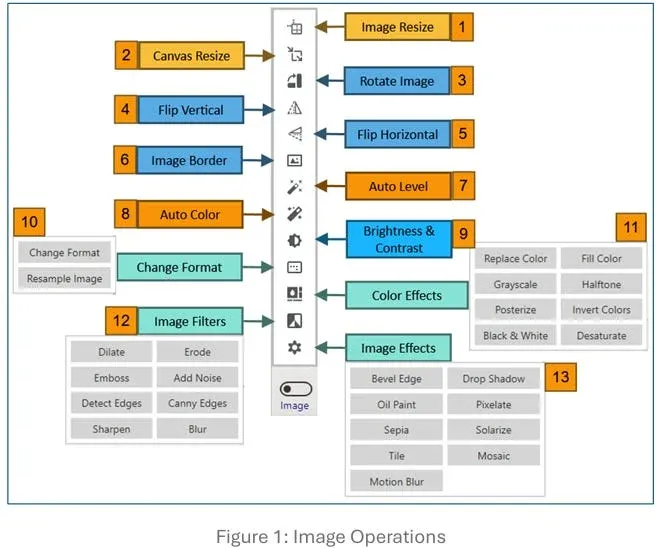
- Access Image Operations — A full suite of tools appears, including Resize Image, Resize Canvas, Color Effects, Filters, Image Effects, and more.
How to Resize and Adjust the Canvas?
Perfect the dimensions of your visuals effortlessly:
- Resize Image — Adjust the overall image size while preserving proportions for clean, distortion-free scaling.
- Resize Canvas — Expand or reduce the canvas size without altering the actual image content. Ideal for adding padding, framing, or background adjustments.
How to Rotate and Flip Images?
Reorient your visuals exactly the way you want:
- Rotate Image — Instantly rotate images by 90°, 180°, or enter a custom rotation angle.
- Flip Image — Use Flip Horizontal or Flip Vertical to mirror your image for layout adjustments, comparisons, or creative effects.
How to Add Borders and Auto-Fix Images?
Enhance your captures with one-click improvements:
- Add Borders — Create clean edges or decorative frames around your images.
- Auto Level — Automatically balance brightness, contrast, and tone for optimal clarity.
- Auto Color — Instantly correct and enhance colors for natural, vibrant results.
How to Enhance Brightness and Contrast?
Fine-tune the look and feel of your screenshots:
- Brightness & Contrast — Manually adjust lighting and tonal balance to enhance clarity, especially for captures taken in poor lighting or high-contrast environments.
How to Change Image Format and Resample?
Control quality, format, and precision:
- Change Format — Convert your image’s pixel format to various supported types for compatibility or optimization.
- Resample Image — Resize images using advanced sampling methods for superior quality preservation.
How to Apply Color Effects?
Transform the mood and tone of your visuals with built-in color operations:
- Available Effects — Grayscale, Posterize, Invert Colors, Desaturate, Black & White, Replace Color, Fill Color, and more.These tools help you create artistic or technical visuals with ease.
How to Use Image Filters?
Add creative or technical finishing touches to your images:
- Available Filters — Dilate, Erode, Emboss, Detect Edges, Sharpen, Add Noise, Canny Edges, and others.These filters help refine details, highlight contours, or create unique visual styles.
How to Add Image Effects?
Give your images presentation-ready polish with instant effects:
- Available Effects — Bevel Edge, Drop Shadow, Pixelate, Oil Paint, Sepia, Solarize, Tile, Mosaic, Motion Blur. Whether you’re preparing a slide deck or enhancing UI visuals, Pixtel’s effects help you achieve a professional finish instantly.
How to Select Image Areas Precisely?
Apply edits only where needed with precise selection tools:
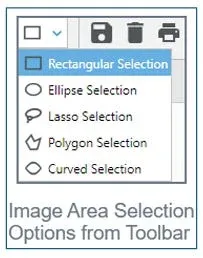
- Selection Options — Rectangular, Ellipse, Lasso, Polygon, and Curved selections. Easily highlight specific areas to apply effects, filters, or adjustments selectively.
Pixtel’s Image Operations Suite is your one-stop solution for enhancing, transforming, and perfecting every image. From resizing and rotating to applying artistic filters and auto-enhancing visuals — Pixtel gives you full creative control without leaving the app.
Whether you’re creating documentation, designing presentations, or editing creative assets, Pixtel makes image editing fast, accurate, and effortless.
Resize. Enhance. Transform. Just Pixtel It.
Call to Action
Download Pixtel Now · Watch the Full Image Operations Tutorial on YouTube · Explore More in the Documentation
Related reading:
'%3e%3cpath%20d='M6.49988%200.862305L0.380969%206.98121C-0.127315%207.4895%20-0.127315%208.31107%200.380969%208.81936C0.889253%209.32764%201.71083%209.32764%202.21911%208.81936L5.19992%205.83855V15.7C5.19992%2016.4176%205.781%2017%206.49988%2017C7.21875%2017%207.79984%2016.4176%207.79984%2015.7V5.83855L10.7806%208.81936C11.0341%209.07285%2011.3669%209.20024%2011.6997%209.20024C12.0325%209.20024%2012.3653%209.07285%2012.6188%208.81936C13.1271%208.31107%2013.1271%207.4895%2012.6188%206.98121L6.49988%200.862305Z'%20fill='white'/%3e%3c/g%3e%3cdefs%3e%3cclipPath%20id='clip0_1_2'%3e%3crect%20width='13.0002'%20height='16.8995'%20fill='white'%20transform='translate(-0.000244141%200.100533)'/%3e%3c/clipPath%3e%3c/defs%3e%3c/svg%3e)