

Instantly Share Screenshots Without Saving Using Pixtel’s Drag Me Option
Sharing screenshots is part of everyday work — whether you’re reporting bugs, collaborating with teammates, or sending quick visual explanations.But traditionally, the process is slow and repetitive:
- Capture or select files
- Save them manually
- Search through folders
- Upload or attach them one by one
This constant switching slows you down and breaks your workflow
Pixtel eliminates these extra steps with its powerful Drag Me option.
What Is the Drag Me Option in Pixtel?
The Drag Me Option is a smart feature in Pixtel that lets you drag and drop your edited screenshot instantly — without saving it first.
Once your screenshot is ready, you can simply drag it from Pixtel and drop it wherever you need:
- Any application
- Any website
- Any local folder on your machine
No extra steps. No interruptions.
Drag and Drop a Single Media File Without Saving
Step 1: Capture or Import an Media File
- Capture an image, video, or audio using Pixtelor
- Import an existing media file using the Import option
The file automatically opens in a new Pixtel tab.
Step 2: Annotate or Edit the Image
Before sharing, you can:
- Highlight important areas
- Draw shapes or arrows
- Blur sensitive information
- Crop, resize, or perform other image operations
Step 3: Drag and Drop Instantly
Once editing is complete:
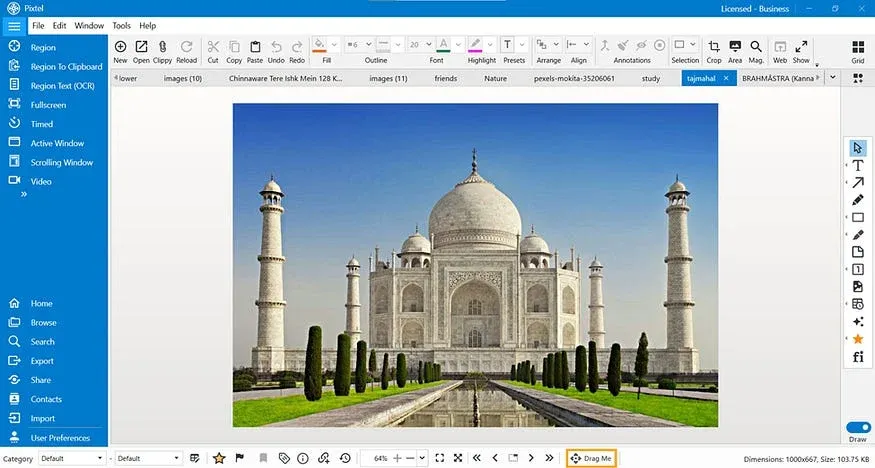
- Locate the Drag Me option in the Pixtel status bar
- Click, drag, and drop the image directly into:
- Chat applications (Example: Teams, WhatsApp Web)
- Emails
- Project tools (Example: Jira, Trello, Notion)
- Browsers or web forms
- Any local directory on your machine
Drag and Drop Multiple Media Files at Once Using Grid View
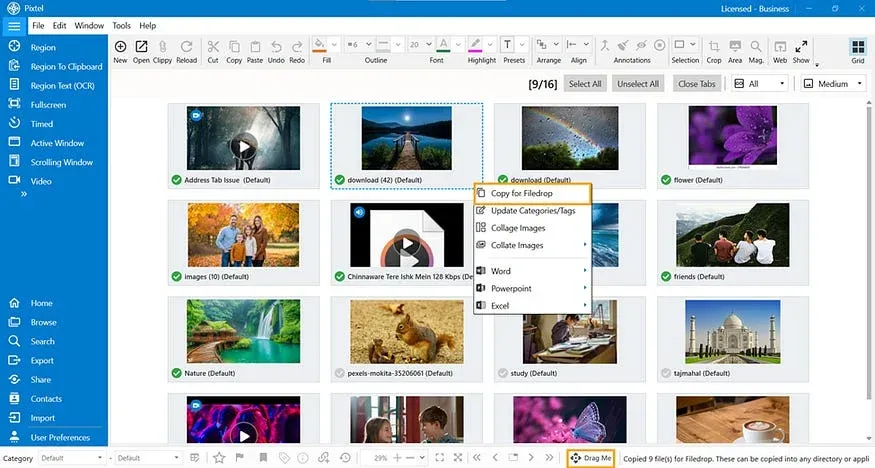
Step 1: Switch to Grid View
- Navigate to Grid View in Pixtel
- All your media files will be displayed in a grid layout
Step 2: Select Multiple Media Files
- Select the media files you want to share
- Right-click on the selection
- ChooseCopy for Filedrop
Step 3: Drag and Drop Multiple Files
- Once selected, the Drag Me option in the status bar gets enabled
- Click and drag it
- Drop all selected media files at once into:
- Applications
- Websites
- Emails
- Or any local folder on your machine
No need to save the file manually.
Stop wasting time saving files just to share them.
Drag it. Drop it. Done.
With Pixtel, you can capture images, videos, or audio, apply edits, and instantly share them using the Drag Me option — without saving anything first. From a single screenshot to multiple media files, Pixtel lets you drag and drop exactly what you need, exactly where you need it.
Related reading:
- How to Share Captures Effortlessly with Pixtel →
- How to Share Images Using Share Link in Pixtel →
- Print Your Screenshots Easily with Pixtel →
Capture once and use it forever. It isn’t just a tool — it’s Pixtel.
👉 Download Pixtel · 🎥 Follow us on YouTube · 📘 Read Detailed Documentation
'%3e%3cpath%20d='M6.49988%200.862305L0.380969%206.98121C-0.127315%207.4895%20-0.127315%208.31107%200.380969%208.81936C0.889253%209.32764%201.71083%209.32764%202.21911%208.81936L5.19992%205.83855V15.7C5.19992%2016.4176%205.781%2017%206.49988%2017C7.21875%2017%207.79984%2016.4176%207.79984%2015.7V5.83855L10.7806%208.81936C11.0341%209.07285%2011.3669%209.20024%2011.6997%209.20024C12.0325%209.20024%2012.3653%209.07285%2012.6188%208.81936C13.1271%208.31107%2013.1271%207.4895%2012.6188%206.98121L6.49988%200.862305Z'%20fill='white'/%3e%3c/g%3e%3cdefs%3e%3cclipPath%20id='clip0_1_2'%3e%3crect%20width='13.0002'%20height='16.8995'%20fill='white'%20transform='translate(-0.000244141%200.100533)'/%3e%3c/clipPath%3e%3c/defs%3e%3c/svg%3e)