

How to Share Images Using Share Link in Pixtel
Sharing annotated screenshots or captures is often the final step in your workflow — and Pixtel makes it seamless with its Create Share Link feature. Whether you want to share an image via a web URL or send a direct image link, Pixtel gives you full control in just one click.
Watch the tutorial: https://youtu.be/af6ijjNV_DQ
How to Create a Share Link in One Click Using Pixtel
Once you’ve finished editing or annotating an image in Pixtel:
- Click the “Create Share Link” icon located on the status bar at the bottom of the image tab.
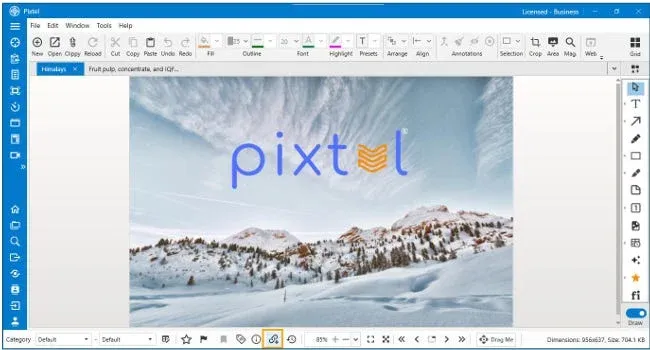
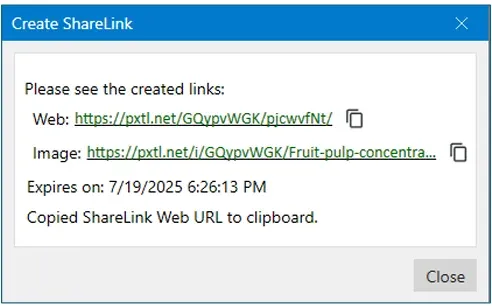
A popup will instantly appear with the following options:
- Web Link: Opens the image in a Pixtel-hosted viewer.
- Image Link: Direct link to the image file.
- Expiration Date: Default is 7 days.
The Web URL is automatically copied to your clipboard for quick and easy sharing.
⚙️ How to Create a Share Link with Auto-Delete Option
If you want more control over how long your shared link remains accessible:
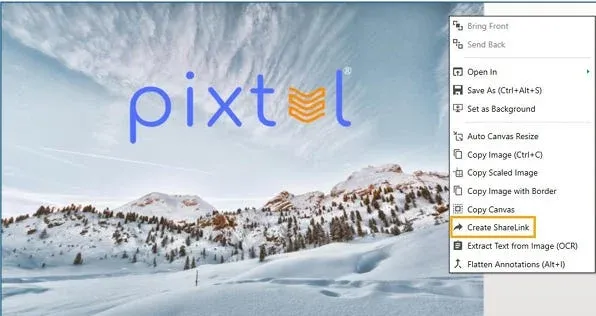
- Right-click on the image in Pixtel.
- From the context menu, select “Create Share Link.”
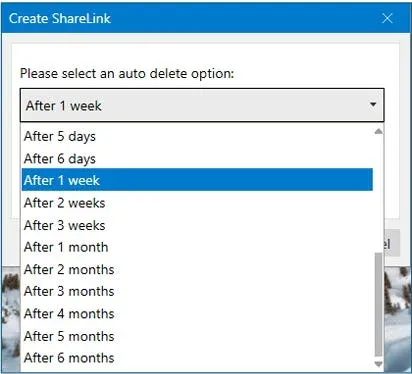
In the popup window:
- Choose an Auto-Delete setting — from “Don’t auto-delete” to “After 6 months.”
- Links are generated in the same way (Web Link, Image Link, and Expiration).
- The Web URL is still automatically copied to your clipboard for convenience.
✅ Conclusion
Pixtel’s Create Share Link feature provides two fast and flexible ways to share your images —
- A one-click icon for instant sharing, and
- A right-click option with advanced auto-delete controls.
From automatically copying web URLs to customizing expiration durations, Pixtel makes sharing annotated captures fast, secure, and effortless.
✨ Effortless Sharing. One Click. Just Pixtel It.
🎯 **
Related reading:
- How to Share Captures Effortlessly with Pixtel →
- Instantly Share Screenshots Without Saving Using Pixtel's Drag Me Option →
- From Screenshot to Cloud: Uploading to Dropbox with Pixtel →
Capture once and use it forever. It isn’t just a tool — it’s Pixtel.**
📣 Call-to-Action
Download Pixtel · Watch the Full Tutorial on YouTube · Read Detailed Documentation
'%3e%3cpath%20d='M6.49988%200.862305L0.380969%206.98121C-0.127315%207.4895%20-0.127315%208.31107%200.380969%208.81936C0.889253%209.32764%201.71083%209.32764%202.21911%208.81936L5.19992%205.83855V15.7C5.19992%2016.4176%205.781%2017%206.49988%2017C7.21875%2017%207.79984%2016.4176%207.79984%2015.7V5.83855L10.7806%208.81936C11.0341%209.07285%2011.3669%209.20024%2011.6997%209.20024C12.0325%209.20024%2012.3653%209.07285%2012.6188%208.81936C13.1271%208.31107%2013.1271%207.4895%2012.6188%206.98121L6.49988%200.862305Z'%20fill='white'/%3e%3c/g%3e%3cdefs%3e%3cclipPath%20id='clip0_1_2'%3e%3crect%20width='13.0002'%20height='16.8995'%20fill='white'%20transform='translate(-0.000244141%200.100533)'/%3e%3c/clipPath%3e%3c/defs%3e%3c/svg%3e)