

How to Snip Only What You Need — Pixtel Screen Capture Tutorial
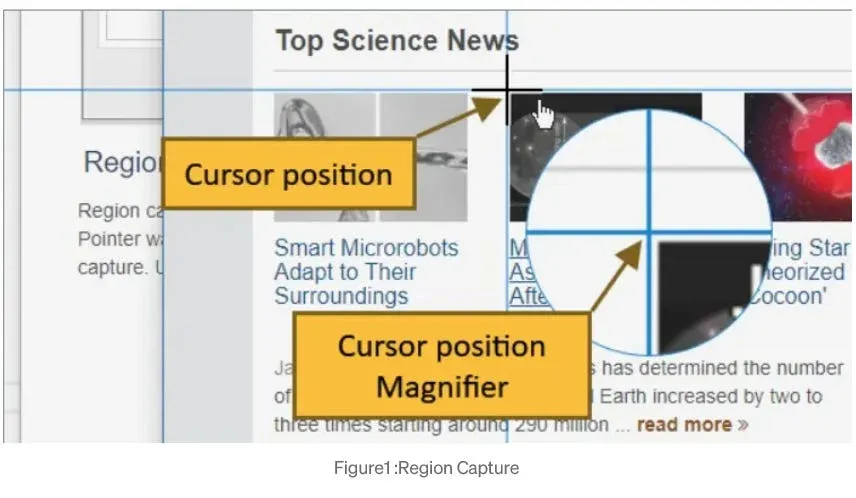
Capturing only what you need on your screen shouldn’t be complicated. With Pixtel’s Region Capture, you can select a specific portion of your screen quickly and accurately, whether it’s a chart, bug report, or tutorial snippet. Pixtel gives you pixel-by-pixel precision, optional mouse pointer inclusion, and easy editing — all in one tool.
Watch the tutorial: https://youtu.be/DfamOYlxu3o
How to Capture a Region Using Pixtel?
1. Initiate Capture
- Open Pixtel.
- Select Region Capture from the home bar.
- Navigate to the webpage or document you want to capture.
2. Define Your Area
- Click and drag to select the desired region.
- Pixtel instantly captures it and opens the image in a new tab.
3. Edit and Enhance the Capture
- Use Pixtel’s annotation tools to highlight, blur, or mark your screenshot.
- Export in your preferred format: PNG, JPG, or others.
How to Manage Region Capture Preferences
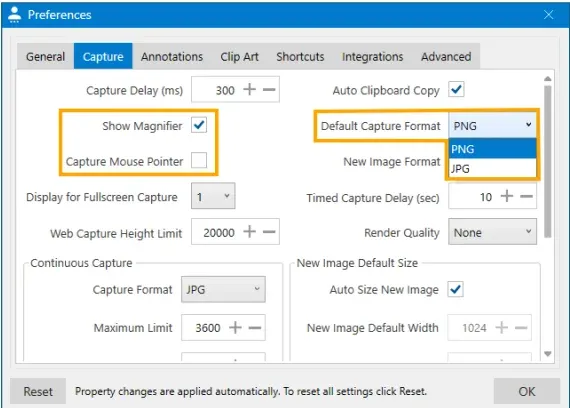
Customize Pixtel to fit your workflow:
- Show Magnifier: Zoom in around your cursor for pixel-level precision.
- Capture Mouse Pointer: Include your cursor for tutorials or guides.
- Default Capture Format: Automatically save screenshots in PNG, JPG, or your preferred format.
Using Shortcut Keys for Quick Capture
No need to switch apps — use Pixtel’s shortcut keys:
- Ensure Pixtel is running in the background.
- Navigate to the area you want to capture.
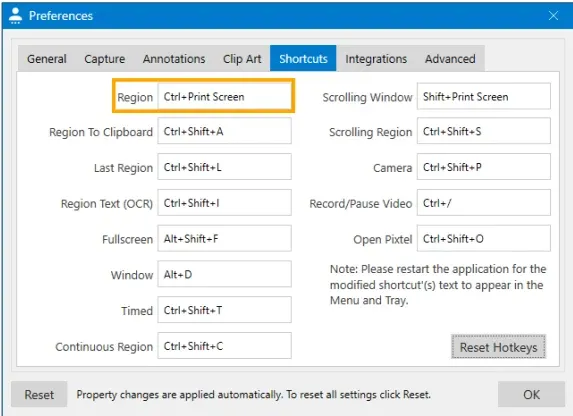
- Press
Ctrl + PrtScrto start the region capture. - To configure a custom shortcut:
- Open User Preferences → Shortcuts
- Press your preferred combination and click OK.
Revisit the Original Website from Captured Images
- Pixtel saves the original webpage URL with your screenshot.
- To revisit: Open the image → click the Web option in the toolbar → launch your browser directly to the original page.
Why Pixtel Stands Out?
- Pixel-Perfect Selection: Precision with crosshair and magnifier.
- Customizable Preferences: Tailor captures to your workflow.
- Shortcut Keys: Capture instantly without switching apps.
- Web Revisit Feature: Save and track the original URL of your screenshot.
Capture once and you can use it forever. It isn’t just a tool, It’s Pixtel
- 👉 Download Pixtel
- 📹 Watch the full tutorial: Region Capture
Related reading:
'%3e%3cpath%20d='M6.49988%200.862305L0.380969%206.98121C-0.127315%207.4895%20-0.127315%208.31107%200.380969%208.81936C0.889253%209.32764%201.71083%209.32764%202.21911%208.81936L5.19992%205.83855V15.7C5.19992%2016.4176%205.781%2017%206.49988%2017C7.21875%2017%207.79984%2016.4176%207.79984%2015.7V5.83855L10.7806%208.81936C11.0341%209.07285%2011.3669%209.20024%2011.6997%209.20024C12.0325%209.20024%2012.3653%209.07285%2012.6188%208.81936C13.1271%208.31107%2013.1271%207.4895%2012.6188%206.98121L6.49988%200.862305Z'%20fill='white'/%3e%3c/g%3e%3cdefs%3e%3cclipPath%20id='clip0_1_2'%3e%3crect%20width='13.0002'%20height='16.8995'%20fill='white'%20transform='translate(-0.000244141%200.100533)'/%3e%3c/clipPath%3e%3c/defs%3e%3c/svg%3e)