

How to Capture Region to Clipboard Using Pixtel — Complete Guide
Ever wanted to quickly snip a specific part of your screen without saving multiple screenshots? With Pixtel’s Region to Clipboard feature, you can capture exactly what you need, copy it to the clipboard, annotate it, and share instantly — all without cluttering your files.
With Clippy, Pixtel’s built-in clipboard manager, you can organize, view, and enhance your captures effortlessly.
Watch the tutorial: https://youtu.be/BpmhBJ5S1mo
How to Capture Region to Clipboard
Step 1: Select the Capture Area Open Pixtel and choose Region to Clipboard. Navigate to the webpage, document, or app you want to capture.
Step 2: Capture the Region Drag to select the area. Pixtel automatically copies it to your clipboard and stores it in the Clipboard tab.
Step 3: Access the Clipboard Tab
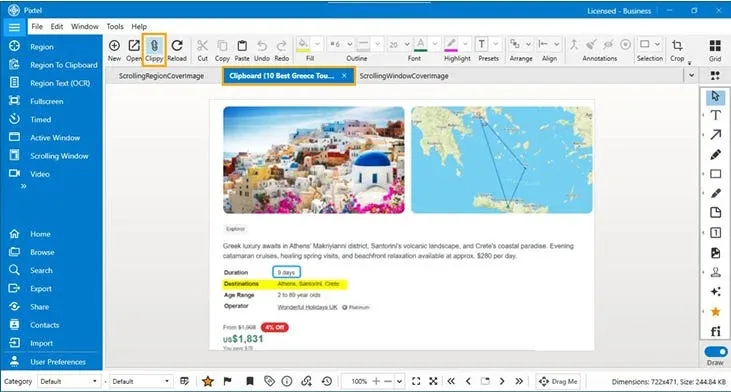
- Click the Clippy icon in the toolbar to view your latest capture.
- Pixtel opens a new tab labeled “Clipboard” with the source window or website name.
- Add annotations such as text, arrows, or highlights.
Click the Clippy icon again to toggle back to your other capture tabs.
How to Share Annotated Screenshots?
Sharing your annotated screenshots is simple:
- Press
Ctrl+Cin the Clipboard tab after adding annotations. - Switch to your target application — notes, email, or any sharing app.
- Press
Ctrl+Vto paste and share your annotated screenshot instantly.
Capture Faster with Shortcut Keys
Save time with keyboard shortcuts:
- Make sure Pixtel is running in the background.
- Navigate to the area you want to capture.
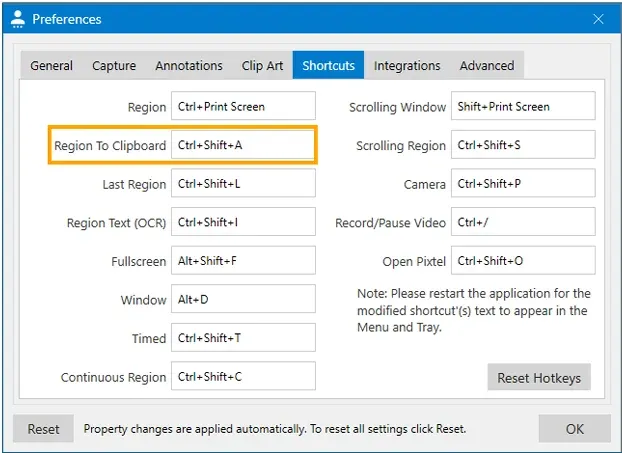
- Press
Ctrl+Shift+Ato instantly capture the region.
To customize the shortcut: Go to User Preferences → Shortcuts, set your key combination, and click OK.
Why Use Pixtel’s Region to Clipboard Feature
Pixtel is perfect for:
- Quick, one-time captures without saving files
- Annotating screenshots with text, arrows, and highlights
- Sharing images instantly across apps
- Keeping your workflow organized and clutter-free
Skip saving unnecessary screenshots. Capture, annotate, and share directly from the clipboard with Pixtel — fast, easy, and efficient.
Related reading:
- How to Snip Only What You Need — Pixtel Screen Capture Tutorial →
- How to Capture Continuous Region Using Pixtel →
- 4 Easy Ways to Capture Screenshots in Pixtel →
Capture once and use it forever. It isn’t just a tool — it’s Pixtel.
👉 Download Pixtel · 🎥 Watch the Tutorial on YouTube · 📘 Read Detailed Documentation
'%3e%3cpath%20d='M6.49988%200.862305L0.380969%206.98121C-0.127315%207.4895%20-0.127315%208.31107%200.380969%208.81936C0.889253%209.32764%201.71083%209.32764%202.21911%208.81936L5.19992%205.83855V15.7C5.19992%2016.4176%205.781%2017%206.49988%2017C7.21875%2017%207.79984%2016.4176%207.79984%2015.7V5.83855L10.7806%208.81936C11.0341%209.07285%2011.3669%209.20024%2011.6997%209.20024C12.0325%209.20024%2012.3653%209.07285%2012.6188%208.81936C13.1271%208.31107%2013.1271%207.4895%2012.6188%206.98121L6.49988%200.862305Z'%20fill='white'/%3e%3c/g%3e%3cdefs%3e%3cclipPath%20id='clip0_1_2'%3e%3crect%20width='13.0002'%20height='16.8995'%20fill='white'%20transform='translate(-0.000244141%200.100533)'/%3e%3c/clipPath%3e%3c/defs%3e%3c/svg%3e)