

How to Organize and Present Multiple Screenshots Using Pixtel
Capturing multiple screenshots is easy.The real challenge begins after that.
When you have many images open, arranging them in the right order, removing unnecessary screenshots, and presenting only what matters becomes time-consuming. Switching between files or exporting images to another tool interrupts your workflow.
**Real problem:**There is no simple way to organize, clean up, and present multiple screenshots directly after capturing them.
How Pixtel Solves This Problem
Pixtel provides a smooth, built-in workflow that lets you:
- Arrange screenshots in the exact order you want
- Remove unwanted images in bulk
- Instantly present selected screenshots as a slideshow
All of this happens inside Pixtel, without exporting or using external tools.
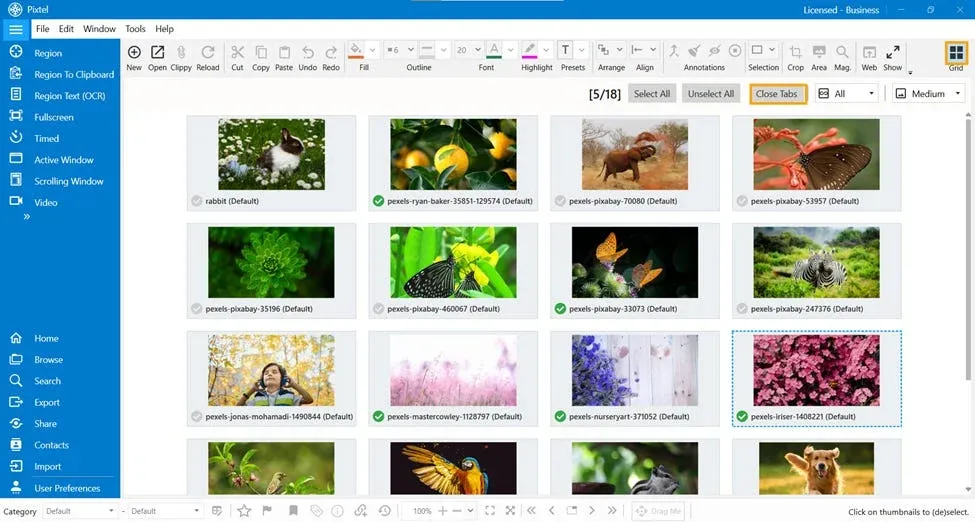
Organize Screenshots Using Grid View :
After capturing multiple screenshots:
- Switch to Grid View in Pixtel
- All captured images appear in a single, visual grid
- Simply rearrange the screenshots to match the order you want to present
This helps you build a clear visual story — step by step — before starting the presentation.
Remove Multiple Screenshots at Once
Not every screenshot needs to be shown.
Using Grid View, you can:
- Select multiple screenshots at the same time
- Click Close Tabs
- Instantly remove unwanted images
This ensures that only necessary and relevant screenshots remain for your presentation.
Present Screenshots Instantly Using Slideshow
Once your screenshots are arranged and cleaned up:
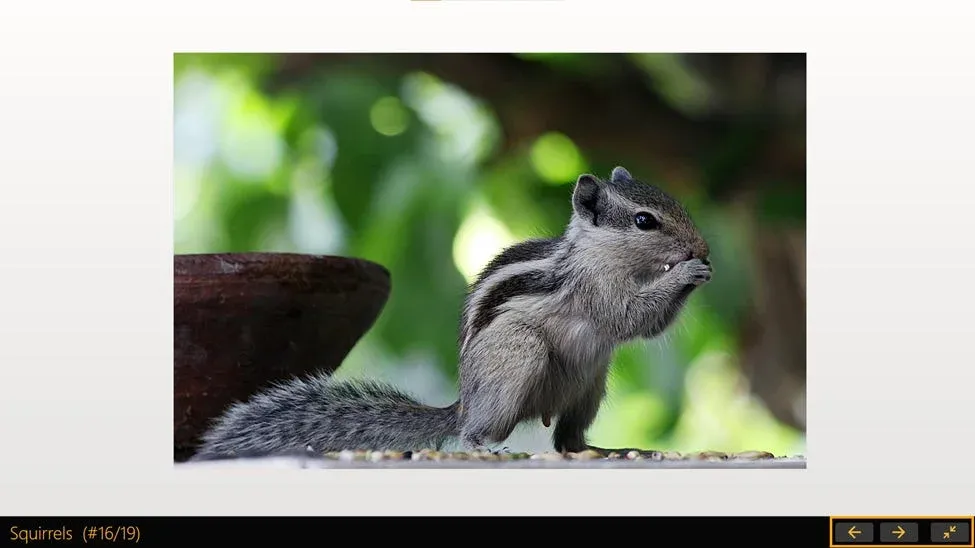
Click the Show (Slideshow) icon from the toolbar
During the slideshow, you can:
- Use Right / Left arrow keys to navigate slides
- Click Minimize to exit the slideshow anytime
This makes live demos, reviews, and walkthroughs smooth and distraction-free.
Customize Tabbed-View Using User Preferences
When handling many screenshots, performance and clarity matter.
Pixtel lets you control this easily:
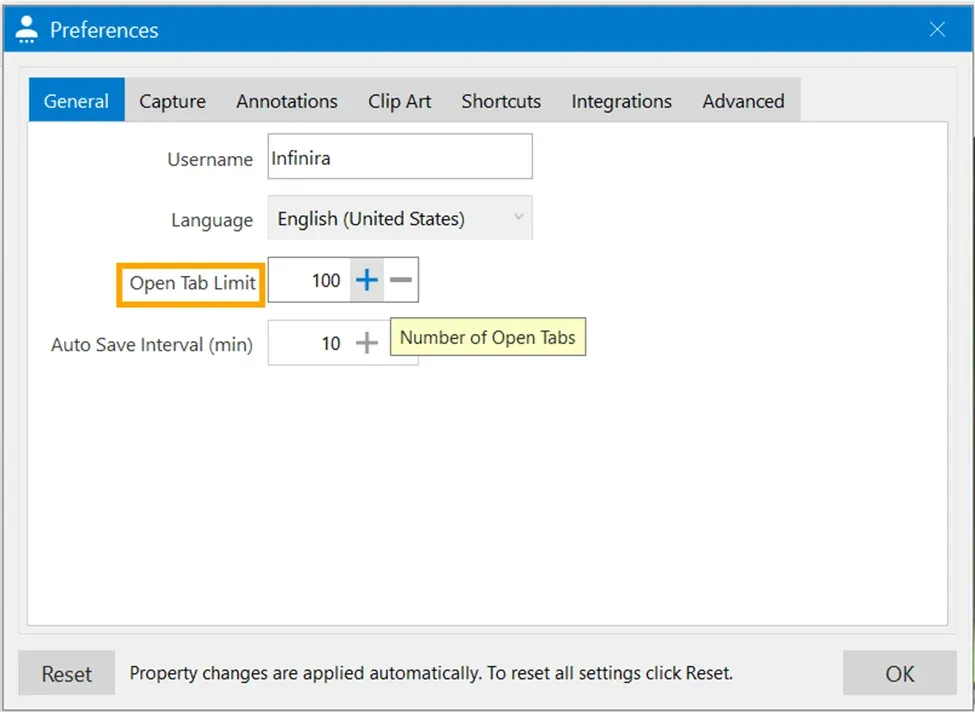
- Open User Preferences
- Navigate to the General tab
- Adjust the Open Tab Limit — configurable up to 500 tabs
This flexibility ensures a smooth slideshow experience even when working with large screenshot sets.
With Pixtel, managing and presenting multiple screenshots is no longer a hassle.
From capturing, to organizing in Grid View, to cleaning up unwanted images, and finally presenting via Slideshow, Pixtel gives you full control at every step.
Related reading:
- Create Stunning Image Layouts with Pixtel Collage & Collate →
- How to Manage Multiple Screenshots Effortlessly in One Place →
- Work Faster with Pixtel's Tabbed Approach →
Capture once and use it forever. It isn’t just a tool — it’s Pixtel.
👉 Download Pixtel · 🎥 Follow us on YouTube · 📘 Read Detailed Documentation
'%3e%3cpath%20d='M6.49988%200.862305L0.380969%206.98121C-0.127315%207.4895%20-0.127315%208.31107%200.380969%208.81936C0.889253%209.32764%201.71083%209.32764%202.21911%208.81936L5.19992%205.83855V15.7C5.19992%2016.4176%205.781%2017%206.49988%2017C7.21875%2017%207.79984%2016.4176%207.79984%2015.7V5.83855L10.7806%208.81936C11.0341%209.07285%2011.3669%209.20024%2011.6997%209.20024C12.0325%209.20024%2012.3653%209.07285%2012.6188%208.81936C13.1271%208.31107%2013.1271%207.4895%2012.6188%206.98121L6.49988%200.862305Z'%20fill='white'/%3e%3c/g%3e%3cdefs%3e%3cclipPath%20id='clip0_1_2'%3e%3crect%20width='13.0002'%20height='16.8995'%20fill='white'%20transform='translate(-0.000244141%200.100533)'/%3e%3c/clipPath%3e%3c/defs%3e%3c/svg%3e)