

How to Highlight Screenshots Clearly Using Smart Pencil in Pixtel
When sharing screenshots, explaining what exactly needs attention is often difficult.Text descriptions can be confusing, and freehand drawings on screenshots usually look rough and unclear.
Users need a way to:
- Highlight important areas clearly
- Draw shapes quickly
- Avoid spending time fixing imperfect drawings
Pixtel solves this problem with its Smart Pencil feature.
Using Smart Pencil, you can highlight screenshots and draw freely, and Pixtel will automatically detect and convert your drawing into the nearest geometrical shape — making annotations clean, clear, and professional.
Step 1: Open an Image in Pixtel
You can start in either of the following ways:
- Capture an image using Ctrl + Print Screen with Pixtel’s Region Capture Or
- Import an existing image using the Import option
Once captured, the image will automatically open in a new Pixtel tab.
Step 2: Switch to Draw Mode
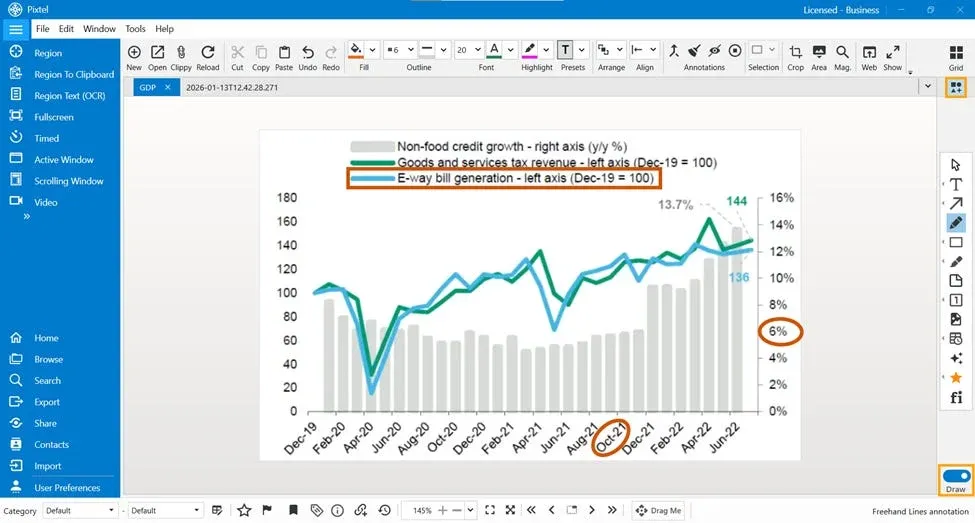
From the toolbar, toggle to Draw Mode to enable annotation tools.
Step 3: Enable Smart Pencil
Click the Smart Pencil icon to enable intelligent drawing.
Once enabled, Pixtel automatically recognizes what you draw and converts it into the nearest geometrical shape.
Step 4: Draw and Highlight the Screenshot
Now draw freely on the image.
When Smart Pencil is enabled, Pixtel automatically analyzes your drawing and converts it into the nearest geometrical shape, even if the drawing is rough.
For example
- Draw a rough box → Converted into a rectangle
- Draw a rough loop → Converted into a circle
- Draw a rough triangle → Converted into a triangle
You can use these shapes to clearly highlight UI elements, mark issues, or guide attention in the screenshot.
Step 5: Save or Share the Annotated Image
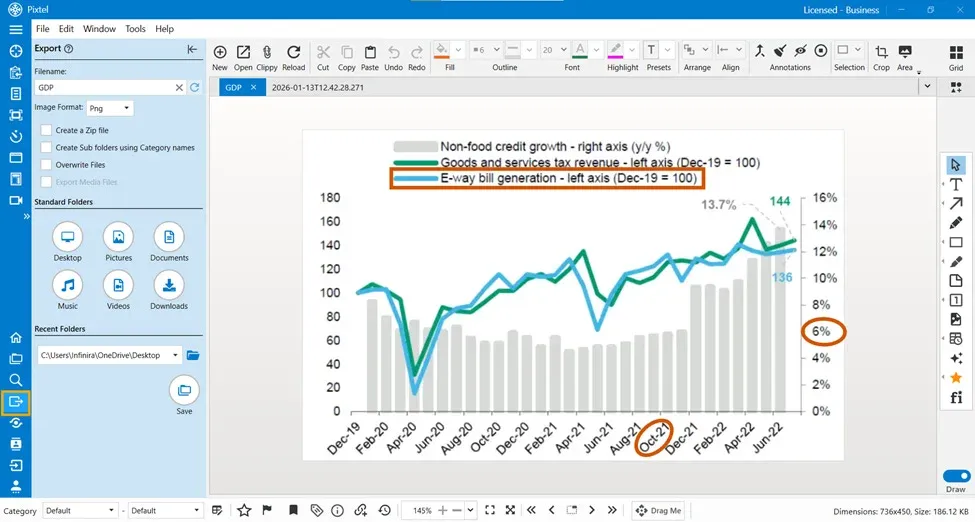
After highlighting and annotating the screenshot, Pixtel gives you flexible options to save or share the image based on your needs:
- Save the image using multiple export options
- Export to standard folders such as Desktop, Pictures, Documents, Music, Videos, Downloads
- Or choose a custom folder where you want to store the image
or
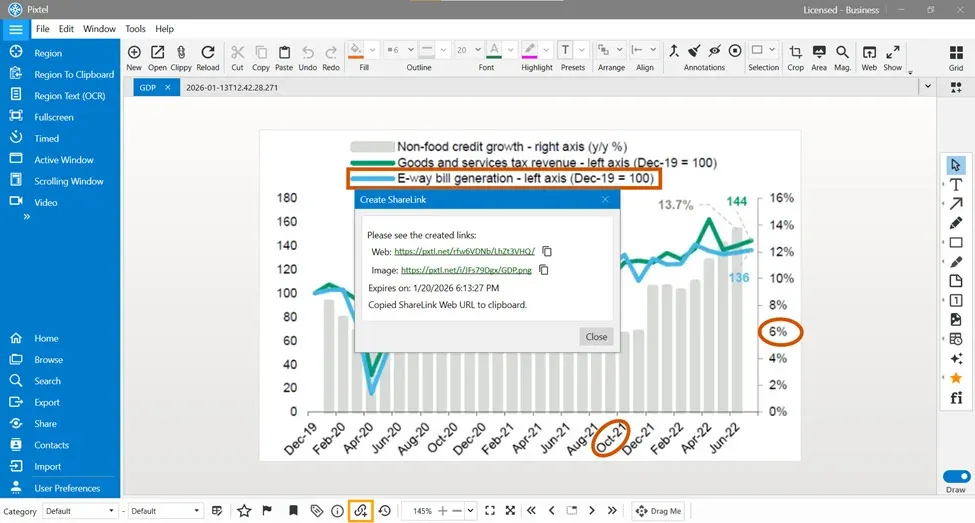
- Share the image instantly by generating a Share Link
- No file download required
- Simply copy and share the link with your team
This flexibility allows you to either store annotated screenshots locally or share them quickly as a link, depending on your workflow.
With Smart Pencil in Pixtel, you can highlight screenshots and draw naturally, while Pixtel automatically detects and converts your drawings into clean geometrical shapes.
This ensures every screenshot you share is clear, accurate, and easy to understand — solving the problem of unclear visual communication.
Related reading:
- Editing & Highlighting Images in Pixtel →
- How to Annotate Images in Pixtel →
- Ranking and Highlighting Steps in Screenshots Using Pixtel →
Capture once and use it forever. It isn’t just a tool — it’s Pixtel.
👉 Download Pixtel · 🎥 Follow us on YouTube · 📘 Read Detailed Documentation
'%3e%3cpath%20d='M6.49988%200.862305L0.380969%206.98121C-0.127315%207.4895%20-0.127315%208.31107%200.380969%208.81936C0.889253%209.32764%201.71083%209.32764%202.21911%208.81936L5.19992%205.83855V15.7C5.19992%2016.4176%205.781%2017%206.49988%2017C7.21875%2017%207.79984%2016.4176%207.79984%2015.7V5.83855L10.7806%208.81936C11.0341%209.07285%2011.3669%209.20024%2011.6997%209.20024C12.0325%209.20024%2012.3653%209.07285%2012.6188%208.81936C13.1271%208.31107%2013.1271%207.4895%2012.6188%206.98121L6.49988%200.862305Z'%20fill='white'/%3e%3c/g%3e%3cdefs%3e%3cclipPath%20id='clip0_1_2'%3e%3crect%20width='13.0002'%20height='16.8995'%20fill='white'%20transform='translate(-0.000244141%200.100533)'/%3e%3c/clipPath%3e%3c/defs%3e%3c/svg%3e)