

How to Import and Export Captures in One Place with Pixtel
Importing and exporting media files is essential for productivity, organization, and collaboration. With Pixtel, you can:
- Import images, videos, and audio files quickly.
- Annotate captures to highlight key details.
- Export files in multiple formats including BMP, JPEG, PNG, TIFF, WebP, and Pi.
- Save files across devices or share them instantly.
Pixtel combines all these features in one platform, making media management simple and efficient.
Watch the tutorial: https://youtu.be/dJ_Tq-yQbzw
How to Import Media Files in Pixtel?
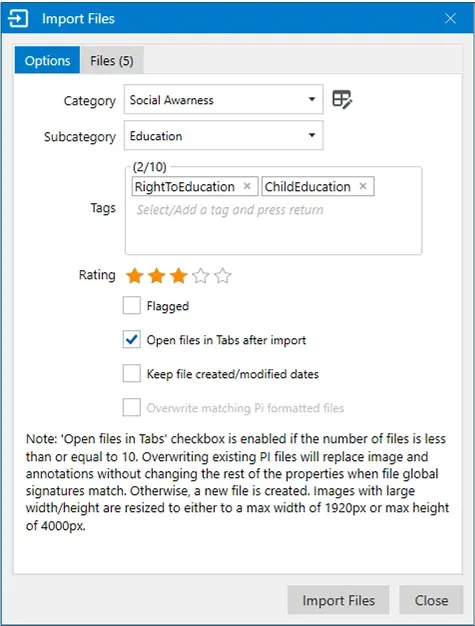
Step 1: Open Import Panel
- Go to Home bar → Import to add images, videos, or audio files.
- Alternatively, use ‘Open’ to import media directly.
Step 2: Access Imported Files
- Imported media opens in tabs, ready for annotation, organization, or sharing.
How to Export Captures in Pixtel?
Step 1: Open Export Panel
- Once editing or annotating is complete, click Export in the Home bar.
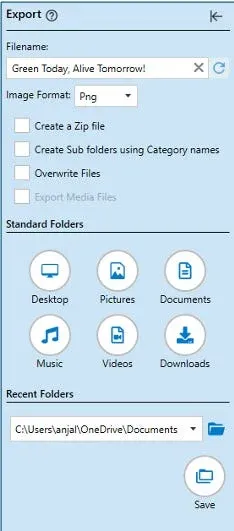
- The Export flyout panel displays all options in one place.
Step 2: Set Filename
- Default filenames use the capture’s display name but can be edited.
- For multiple captures in Grid view, Pixtel auto-generates a timestamped filename, editable if needed.
Step 3: Choose File Format
- By default, Pixtel sets the export format to match the original file.
- Options include BMP, JPEG, PNG, TIFF, WebP, Pi, or Any.
- Choose Pi to retain annotations; other formats will flatten annotations.
Exporting Video and Audio Files
- Open the video or audio file in a new tab.
- Set the filename in the Export panel.
- Export Media Files is enabled by default.
- Export only a thumbnail by unchecking this option and selecting the desired image format.
- Save directly to standard folders or recent folders for quick access.
Export Multiple Files as a Zip
- Switch to Grid view and select multiple captures.
- Choose Zip file option.
- Optionally create subfolders for organized archives.
- Click Save to generate a zipped package for sharing.
Overwrite Existing Files
- Enable Overwrite in the Export panel to replace files with the same name automatically.
- This ensures only the latest versions are saved without clutter.
Export to Standard or Recent Folders
- Standard Folders: Click Desktop, Documents, or other preset folders to save files.
- Recent Folders: Select from your 20 most recently used folders, or choose a new folder using the folder icon.
Pixtel simplifies importing, annotating, and exporting media files in one place. Save time, stay organized, and focus on your work without the hassle of managing files across multiple tools.
✨ Import. Annotate. Export. Just Pixtel It. Capture once, use it forever. It isn’t just a tool—it’s Pixtel.
Related reading:
- Export Images and Videos to Standard Folders with One Click →
- How to Convert and Export Images in Multiple Formats with Pixtel →
- Copy & Paste Images into Pixtel — No Download Needed →
👉 Download Pixtel · 🎥 Follow us on YouTube · 📘 Read Detailed Documentation
'%3e%3cpath%20d='M6.49988%200.862305L0.380969%206.98121C-0.127315%207.4895%20-0.127315%208.31107%200.380969%208.81936C0.889253%209.32764%201.71083%209.32764%202.21911%208.81936L5.19992%205.83855V15.7C5.19992%2016.4176%205.781%2017%206.49988%2017C7.21875%2017%207.79984%2016.4176%207.79984%2015.7V5.83855L10.7806%208.81936C11.0341%209.07285%2011.3669%209.20024%2011.6997%209.20024C12.0325%209.20024%2012.3653%209.07285%2012.6188%208.81936C13.1271%208.31107%2013.1271%207.4895%2012.6188%206.98121L6.49988%200.862305Z'%20fill='white'/%3e%3c/g%3e%3cdefs%3e%3cclipPath%20id='clip0_1_2'%3e%3crect%20width='13.0002'%20height='16.8995'%20fill='white'%20transform='translate(-0.000244141%200.100533)'/%3e%3c/clipPath%3e%3c/defs%3e%3c/svg%3e)