

How to Export Images from Pixtel to Microsoft Word, PowerPoint, and Excel Effortlessly
Pixtel’s MS Office Export feature lets you easily export images, screenshots, and other visuals directly into Microsoft Word, PowerPoint, and Excel. Whether you’re preparing a report, presentation, or data sheet, Pixtel helps you streamline your workflow—no need for manual copying or formatting.
Watch the tutorial: https://youtu.be/g8RdZMfdaEA
How to Export Images to Microsoft Office Using Pixtel
Step 1: Open and Prepare Your Image
- Launch Pixtel and open the image or screenshot you want to export.
- Annotate, crop, or enhance the image as needed before sharing.
Step 2: Access Office Export Options
- Go to the Home Bar and click Share.
- Select Office Export from the available sharing options
Export Images from Pixtel to Microsoft Word
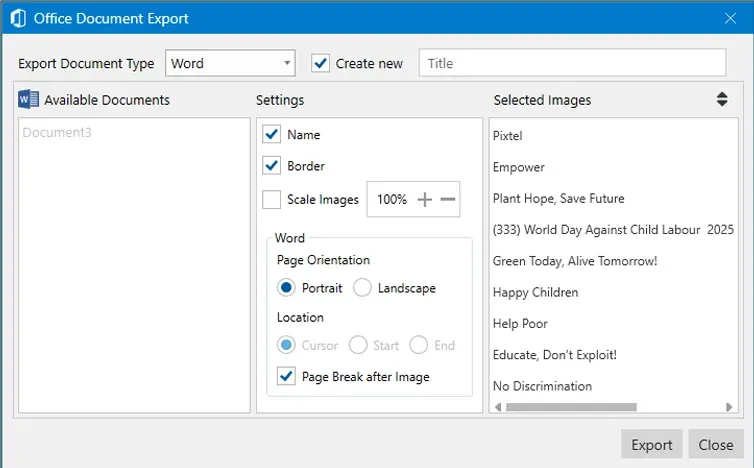
- Choose Word in the Office Export menu.
- If no documents are open, click Create New to make a new Word file.
- Enter a document title for your new file.
- Choose from the Available Documents list to insert images into an existing file.
- In Settings, adjust options like Name, Border, and Image Scaling.
- For new documents, select Page Orientation (Portrait or Landscape).
- Click Export to automatically insert the selected images into your Word document.
Export Images from Pixtel to Microsoft PowerPoint
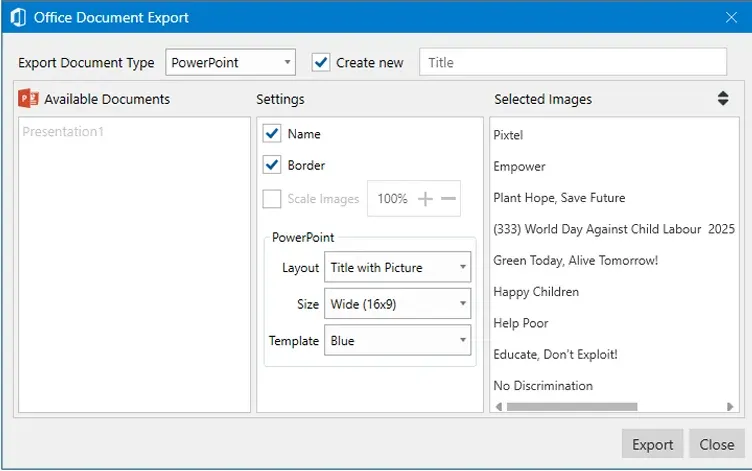
- Click PowerPoint under export options.
- In the export window, configure Layout, Slide Size, and Template.
- Select images to include and click Export.
- Your PowerPoint presentation opens automatically, ready for review or editing.
Export Images from Pixtel to Microsoft Excel
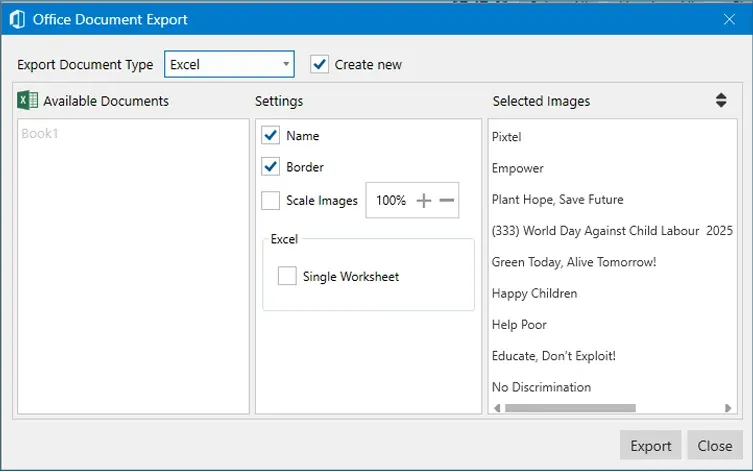
- Choose Excel from the Office Export window.
- Decide whether to export all images to one worksheet or separate them by sheet.
- Click Export to generate your Excel workbook with all selected images inserted automatically.
How to Export Multiple Images at Once
- Switch to Grid View to select multiple images.
- Right-click and choose Export to New Word, PowerPoint, or Excel.
- For 3 or fewer images, Pixtel generates the document instantly.
- For more than 3 images, an Office Document Export window appears—adjust layout, size, or formatting as needed.
- Click Export to create your complete file or presentation.
Pixtel’s MS Office Export feature helps you integrate visuals directly into Word, PowerPoint, and Excel in seconds. It eliminates repetitive tasks, enhances productivity, and ensures your documents look polished and professional.
✨ Effortless Office Exports. One Click. Just Pixtel It.
🎯 **
Related reading:
- Export Images to Word Documents Easily with Pixtel →
- Create and Export PowerPoint Presentations Easily with Pixtel →
- How to Convert and Export Images in Multiple Formats with Pixtel →
Capture once and use it forever. It isn’t just a tool—it’s Pixtel.**
👉 Download Pixtel · 🎥 Watch the Full Tutorial on YouTube · 📘 Read Detailed Documentation
'%3e%3cpath%20d='M6.49988%200.862305L0.380969%206.98121C-0.127315%207.4895%20-0.127315%208.31107%200.380969%208.81936C0.889253%209.32764%201.71083%209.32764%202.21911%208.81936L5.19992%205.83855V15.7C5.19992%2016.4176%205.781%2017%206.49988%2017C7.21875%2017%207.79984%2016.4176%207.79984%2015.7V5.83855L10.7806%208.81936C11.0341%209.07285%2011.3669%209.20024%2011.6997%209.20024C12.0325%209.20024%2012.3653%209.07285%2012.6188%208.81936C13.1271%208.31107%2013.1271%207.4895%2012.6188%206.98121L6.49988%200.862305Z'%20fill='white'/%3e%3c/g%3e%3cdefs%3e%3cclipPath%20id='clip0_1_2'%3e%3crect%20width='13.0002'%20height='16.8995'%20fill='white'%20transform='translate(-0.000244141%200.100533)'/%3e%3c/clipPath%3e%3c/defs%3e%3c/svg%3e)