

How to Customize Capture Options in Pixtel
When using Pixtel, the default capture settings work great for most users. But if you want more control over screenshots, scrolling captures, or video recordings, you can easily customize everything from User Preferences → Capture Tab.
This short guide explains all important capture settings — including their maximum limits — in a simple and clear way.
How to Access Capture Settings?
- Open Pixtel
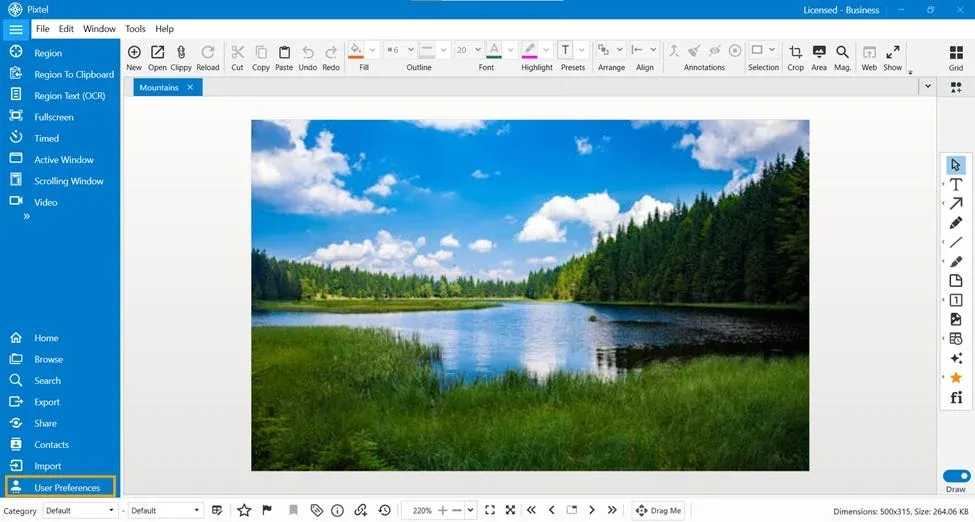
- Click User Preferences from the Home Bar
- Go to the Capture tab
- Adjust settings as needed
1️⃣ General Capture Settings
These control normal screenshot behavior.
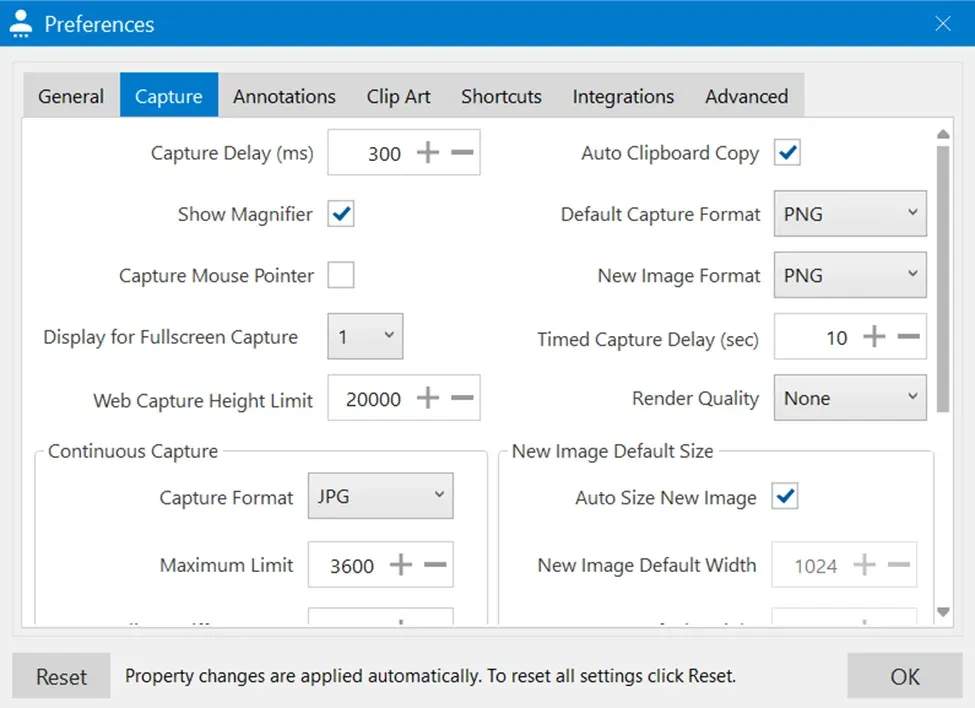
- Capture Delay — Add delay before capture (Max: 5000 ms)
- Auto Clipboard Copy — Automatically copies image after capture
- Show Magnifier — Helps with precise area selection
- Capture Mouse Pointer — Includes cursor in screenshot
- Default Format — Choose PNG (high quality) or JPG (smaller size)
- Web Capture Height Limit — Capture long pages (Max: 30000)
2️⃣ Continuous Capture
Used for automated screenshot sequences.
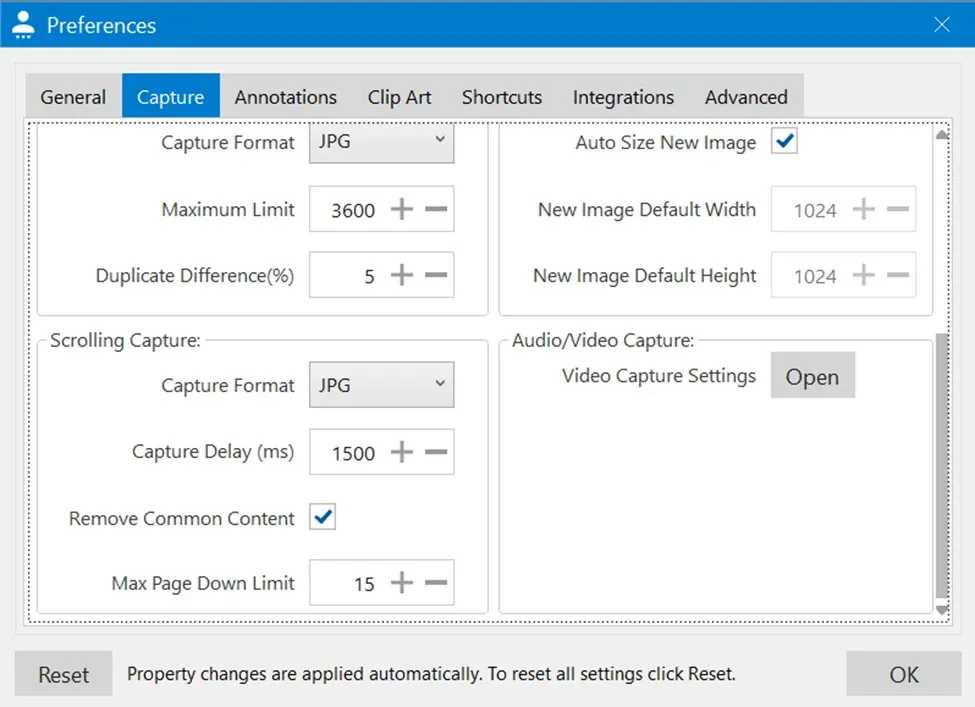
- Format — PNG or JPG
- Maximum Limit — Up to 10000 images per session
- Duplicate Difference (%) — Prevents saving identical images.
3️⃣ Scrolling Capture
Perfect for long websites and documents.
- Format — PNG or JPG
- Capture Delay — Delay between scroll steps
- Maximum Scrolling Limit — Up to 100 scroll sections
- Remove Common Content — Removes repeated headers/footers
4️⃣ New Image Default Size
- Set custom Width & Height
- Enable Auto Size
- Useful for templates and consistent layouts
5️⃣ Video Capture Settings
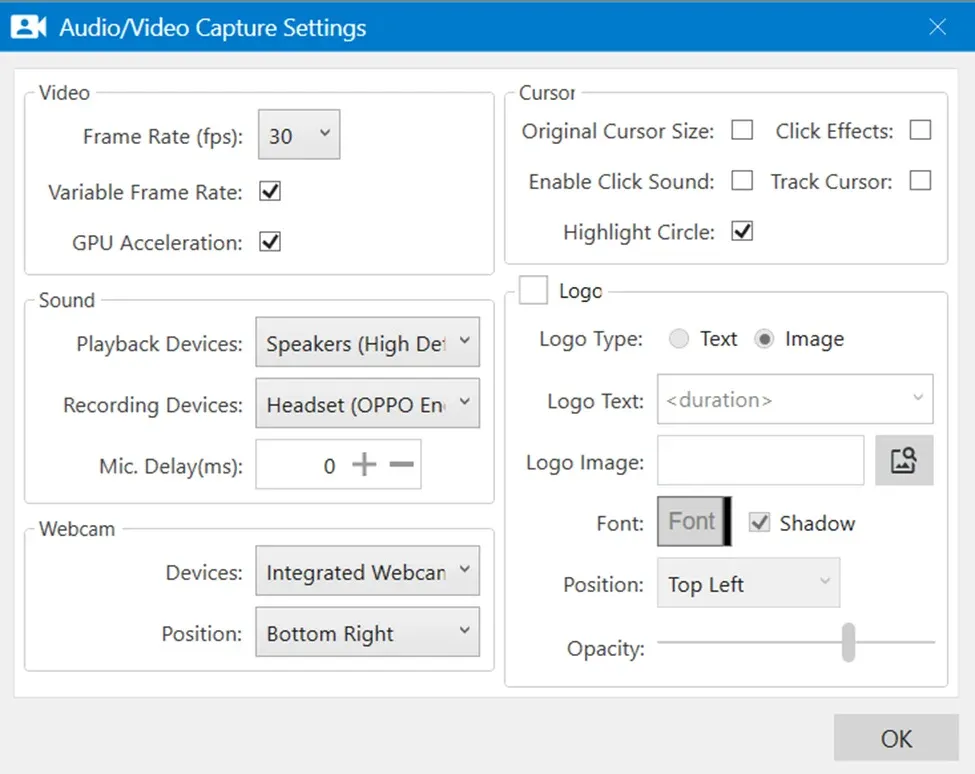
Inside Video Capture Settings, you can configure:
🎥 Video
- Frame Rate (30 fps recommended)
- Variable Frame Rate
- GPU Acceleration
🔊 Sound
- Select system audio
- Select microphone
- Adjust Mic Delay
🖱 Cursor Effects
- Click effects
- Click sound
- Highlight circle
🏷 Logo (Branding)
- Add Text or Image
- Choose position (Top Left, Bottom Right, Center, etc.)
- Adjust opacity for watermark effect
📷 Webcam
- Select webcam device
- Choose overlay position
Why Customize?
Customizing capture settings helps you:
- Improve quality
- Reduce file size
- Avoid duplicate captures
- Capture long pages efficiently
- Maintain better performance
Conclusion
With adjustable capture delays, expansive web capture heights, high-volume continuous capture, and multi-section scrolling, Pixtel gives you powerful control in one place.
Start customizing today to make your screen capturing smarter and more efficient.
Related reading:
- 4 Easy Ways to Capture Screenshots in Pixtel →
- Customize Your Workflow with Pixtel User Preferences →
- How to Capture Delayed Screenshots with Pixtel →
Capture once and use it forever. It isn’t just a tool — it’s Pixtel.
👉 Download Pixtel · 🎥 Follow us on YouTube · 📘 Read Detailed Documentation
'%3e%3cpath%20d='M6.49988%200.862305L0.380969%206.98121C-0.127315%207.4895%20-0.127315%208.31107%200.380969%208.81936C0.889253%209.32764%201.71083%209.32764%202.21911%208.81936L5.19992%205.83855V15.7C5.19992%2016.4176%205.781%2017%206.49988%2017C7.21875%2017%207.79984%2016.4176%207.79984%2015.7V5.83855L10.7806%208.81936C11.0341%209.07285%2011.3669%209.20024%2011.6997%209.20024C12.0325%209.20024%2012.3653%209.07285%2012.6188%208.81936C13.1271%208.31107%2013.1271%207.4895%2012.6188%206.98121L6.49988%200.862305Z'%20fill='white'/%3e%3c/g%3e%3cdefs%3e%3cclipPath%20id='clip0_1_2'%3e%3crect%20width='13.0002'%20height='16.8995'%20fill='white'%20transform='translate(-0.000244141%200.100533)'/%3e%3c/clipPath%3e%3c/defs%3e%3c/svg%3e)