

Create and Export PowerPoint Presentations Easily with Pixtel
Creating a PowerPoint presentation can sometimes take extra effort — capturing screenshots, arranging images, and organizing slides properly. Instead of doing everything manually, Pixtel makes the process quick and simple.
With Pixtel, you can capture screenshots or import images, make necessary edits, and export them directly into a PowerPoint file. The slides are generated neatly, saving you time and effort.
Capture or Import Images
Capturing screenshots using Pixtel or importing images using the Import option.Once added, the images will open in a new Pixtel tab and will be ready for export.
Export Images to PowerPoint
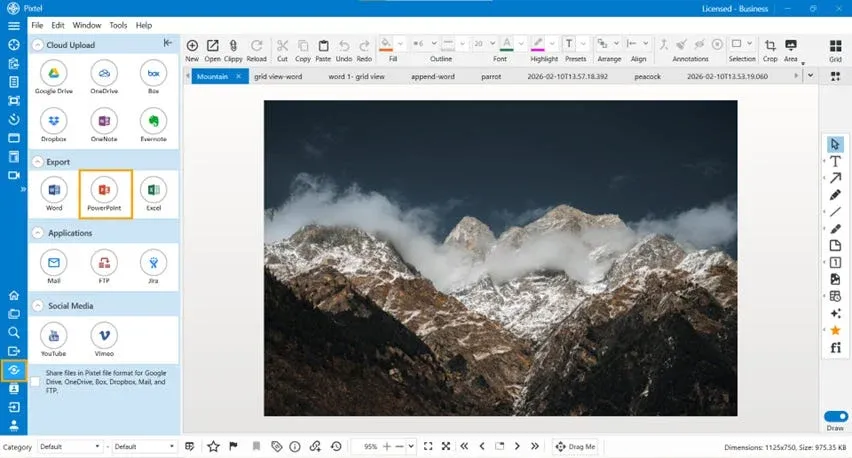
From the Home Bar, select the Share option.Under Export, choose PowerPoint.
The selected images will be displayed in the Selected Images area so you can review them before exporting.
Create a New PowerPoint Presentation
You can create a new PowerPoint presentation by providing a suitable title and configuring the export settings. While creating a new PPT, Pixtel allows you to enable or disable borders for the slides.
Configure PowerPoint Layout and Design
Pixtel provides multiple options to customize your presentation:
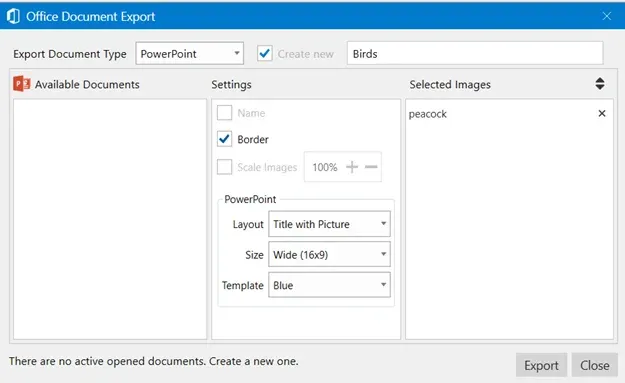
Slide Layout Options
- Title with Picture
- Picture with Caption
- Full Slide Picture
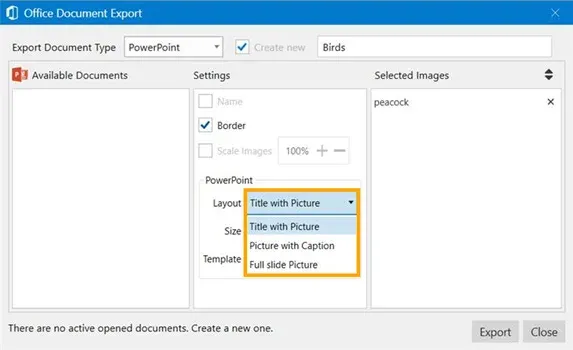
Slide Size Options
- Wide (16:9)
- Regular
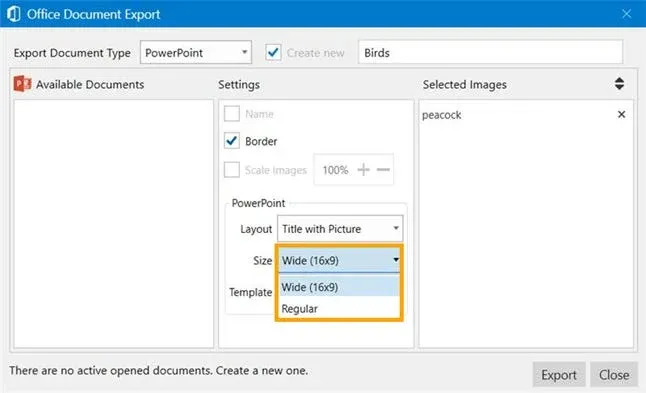
Template Color Options
- Blue
- Green
- Orange
- Red
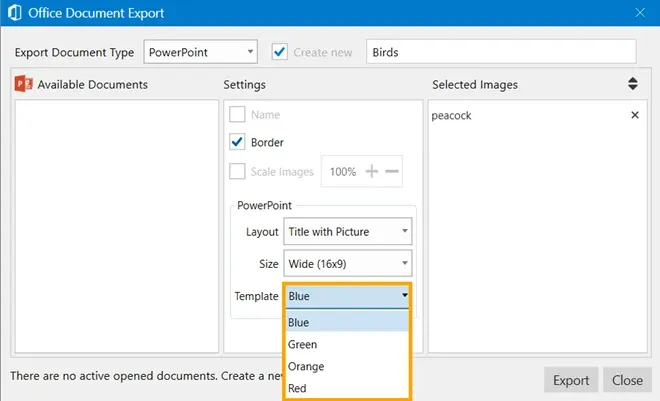
Once all configurations are set, click Export to export all the selected images into the PowerPoint presentation.
Append Images to an Existing PowerPoint
If you want to append images to an existing PowerPoint presentation:
- Open the required PowerPoint presentation
- Open the image you want to append in Pixtel
- Select Share → Export → PowerPoint
- All available PowerPoint presentations will be displayed
- Select the presentation you want to append images to
While appending images, you can configure the border option.After confirming the settings, click Export to append the images to the existing presentation.
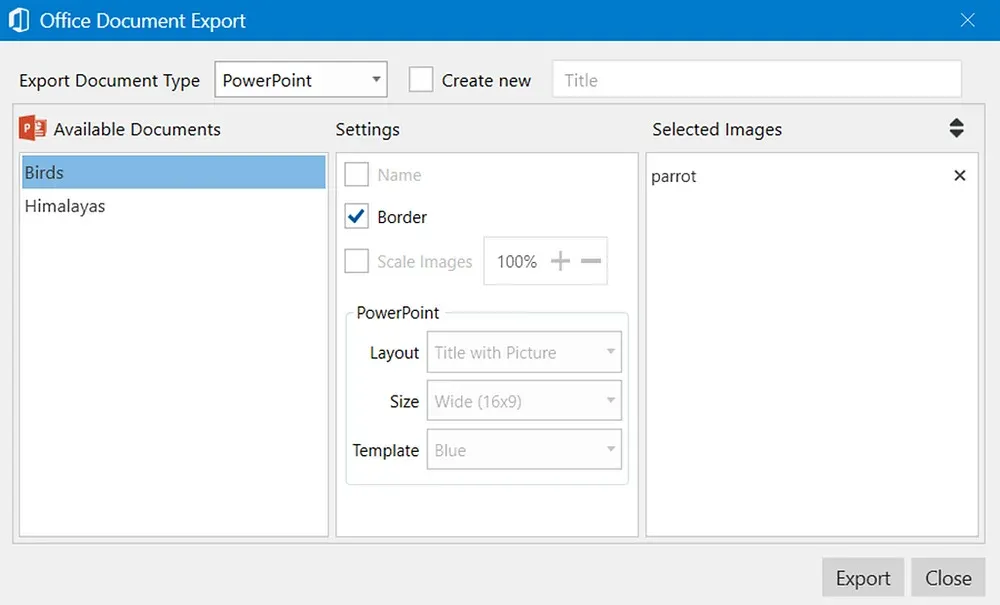
Create or Append Multiple Images at Once
To create or append multiple images into a PowerPoint at once:
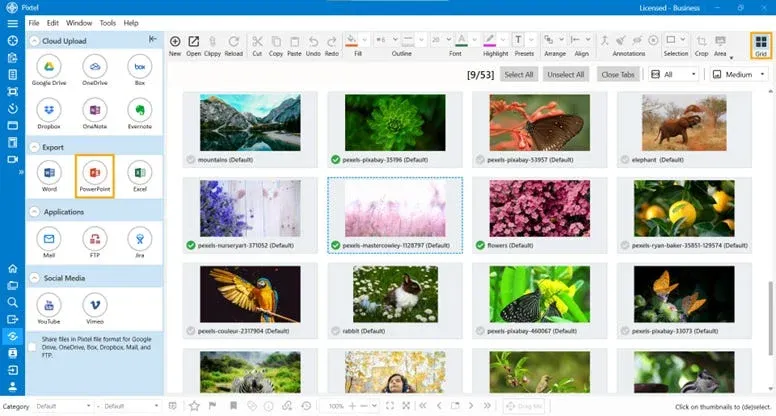
- Switch to Grid View
- Select the images you want to include
- From the Home Bar, click Share
- Under Export, select PowerPoint
- Choose whether to create a new presentation or append to an existing one
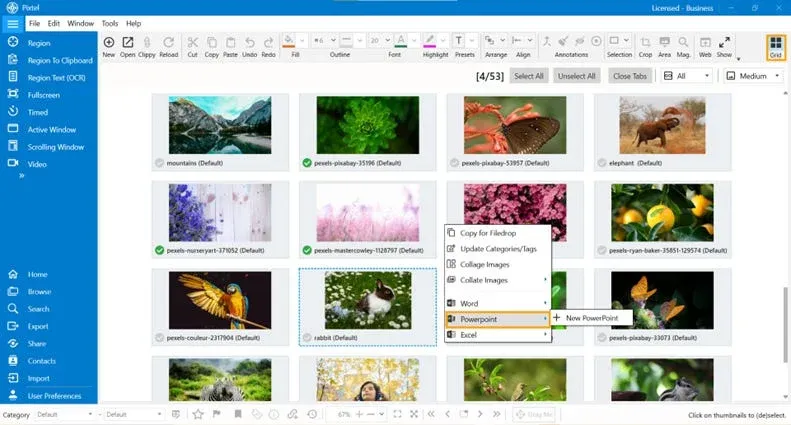
Alternatively, you can right-click on the selected images and choose PowerPoint to proceed with the export.
Creating PowerPoint presentations with Pixtel is fast, flexible, and efficient. Whether you’re building a brand-new presentation or adding images to an existing one, Pixtel provides multiple layout, size, and template options to match your needs. With bulk image export and direct PowerPoint integration, you can transform your visuals into structured slides in just a few clicks — no manual copy-paste, no repetitive formatting.
Related reading:
- How to Export Images to Microsoft Word, PowerPoint, and Excel →
- Export Images to Word Documents Easily with Pixtel →
- How to Share Captures Effortlessly with Pixtel →
Capture once and use it forever. It isn’t just a tool — it’s Pixtel.
👉 Download Pixtel · 🎥 Follow us on YouTube · 📘 Read Detailed Documentation
'%3e%3cpath%20d='M6.49988%200.862305L0.380969%206.98121C-0.127315%207.4895%20-0.127315%208.31107%200.380969%208.81936C0.889253%209.32764%201.71083%209.32764%202.21911%208.81936L5.19992%205.83855V15.7C5.19992%2016.4176%205.781%2017%206.49988%2017C7.21875%2017%207.79984%2016.4176%207.79984%2015.7V5.83855L10.7806%208.81936C11.0341%209.07285%2011.3669%209.20024%2011.6997%209.20024C12.0325%209.20024%2012.3653%209.07285%2012.6188%208.81936C13.1271%208.31107%2013.1271%207.4895%2012.6188%206.98121L6.49988%200.862305Z'%20fill='white'/%3e%3c/g%3e%3cdefs%3e%3cclipPath%20id='clip0_1_2'%3e%3crect%20width='13.0002'%20height='16.8995'%20fill='white'%20transform='translate(-0.000244141%200.100533)'/%3e%3c/clipPath%3e%3c/defs%3e%3c/svg%3e)