

Export Images to Word Documents Easily with Pixtel
Clear documentation is essential in day-to-day work, especially from a QA and bug-reporting perspective, where screenshots help explain issues accurately. With Pixtel, you can capture or import images and export them directly into a Word document in a simple and structured way, making reports easier to understand and share.
How to Export Images to Word Using Pixtel?
Capture or Import Images
Capturing screenshots using Pixtel or importing existing images using the Import option.The images will open in a new Pixtel tab and are ready for export.
Export Images to Word
From the Home Bar, select the Share option.Under Export, choose Word.
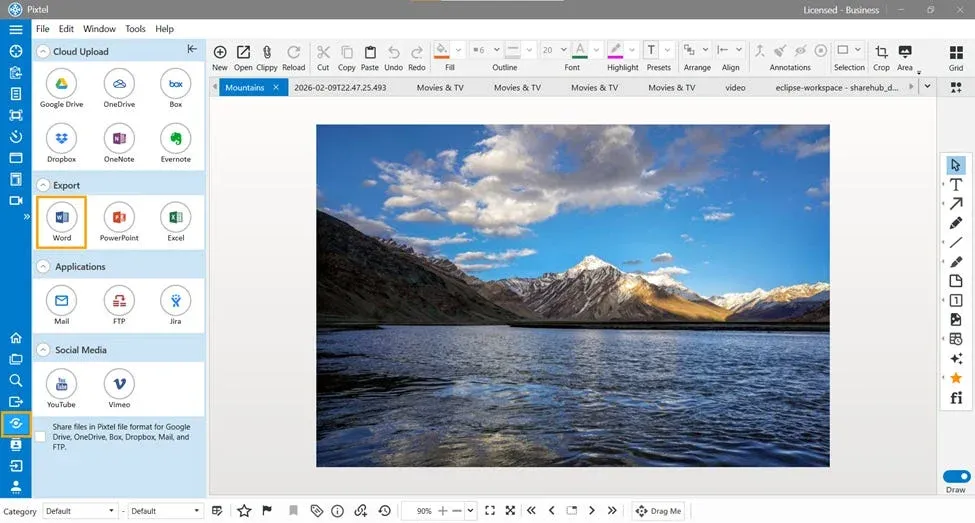
Create a New Word Document
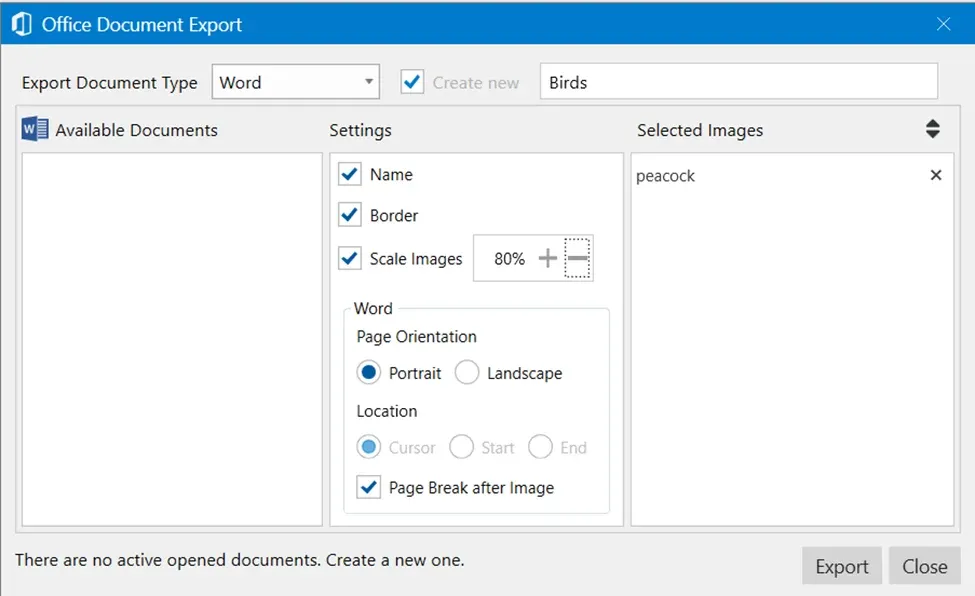
Select the option to create a new Word document and provide a suitable title name. Pixtel will create a new document and export the selected images based on the configured settings.
Configure Export Settings
While exporting to Word, you can configure the following settings:
- Name — Set the document name
- Border — Enable or disable image borders
- Scale Image Percentage — Adjust the image size
- Page Orientation — Choose Portrait or Landscape
- Page Break After Image — Add a page break after each image
On the right side, you can view a preview of the selected images to verify everything before exporting.
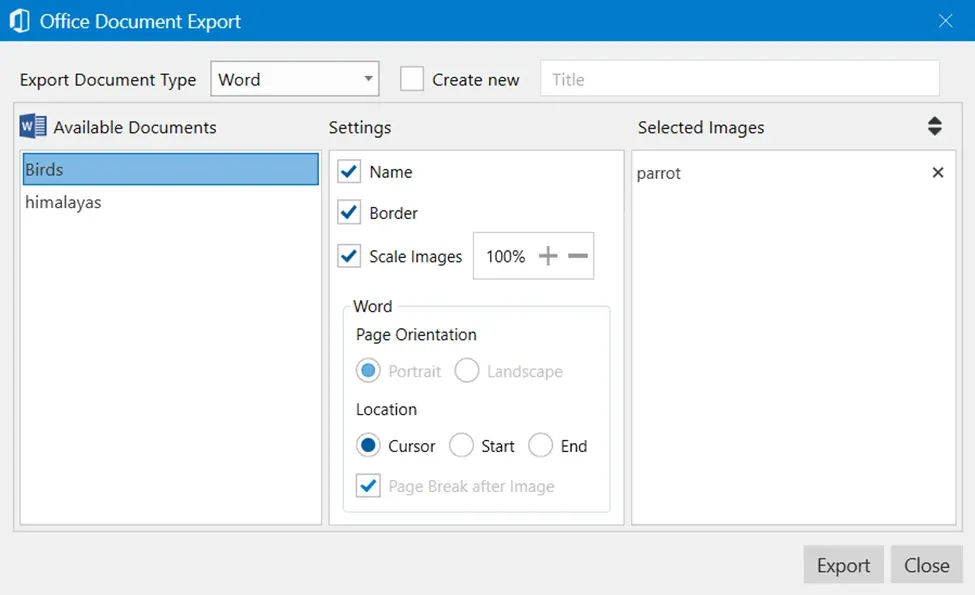
Append Images to an Existing Word Document
If you want to append images to an existing Word document:
- Open the required Word document
- In Pixtel, select Share → Export → Word
- All available Word documents will be displayed
- Select the document you want to append the images to
Image Placement Options
You can choose where the images should be placed in the document:
- Cursor — Places the image at the current cursor position
- Start — Places the image at the beginning of the document
- End — Places the image at the end of the document
Note: When appending images, Page Orientation and Page Break After Image options will be disabled.
Export Multiple Images Together
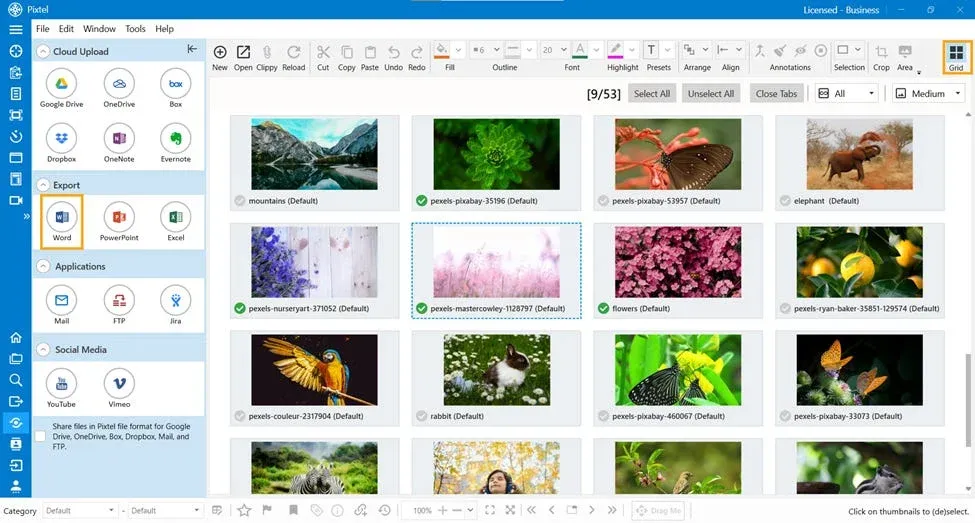
To export multiple images in one go:
- Switch to Grid View
- Select the images you want to export
- Choose Share → Word
- Configure the export settings
- Click Export
Alternatively, you can quickly create a new Word document by using the Right Click Export optionand selecting Word.
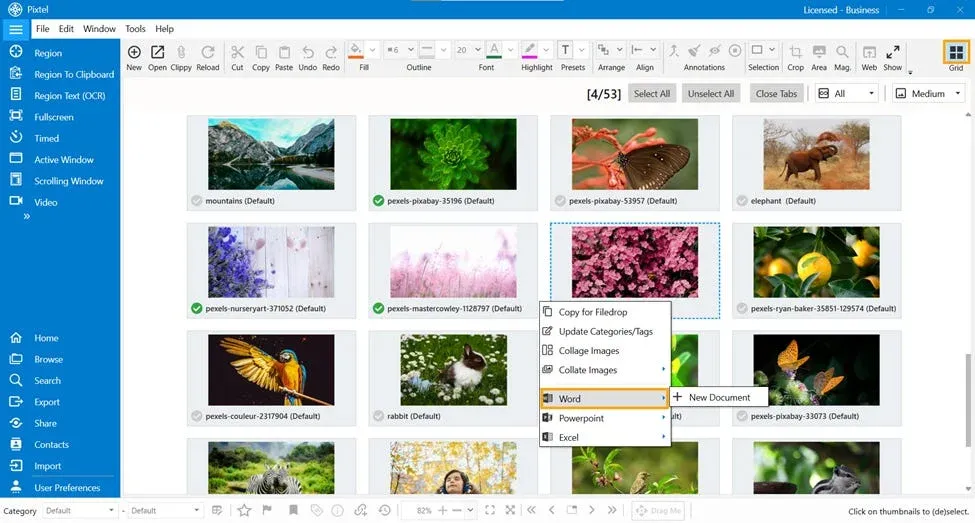
Exporting images to Word using Pixtel helps teams create clean, structured documentation with minimal effort. From a QA perspective, this feature is especially useful for preparing bug reports, test case evidence, and issue documentation with clear visual references. With flexible export options, image previews, and support for bulk exports, Pixtel makes Word-based reporting faster, clearer, and more professional.
Related reading:
- How to Export Images to Microsoft Word, PowerPoint, and Excel →
- Create and Export PowerPoint Presentations Easily with Pixtel →
- How to Convert and Export Images in Multiple Formats with Pixtel →
Capture once and use it forever. It isn’t just a tool — it’s Pixtel.
👉 Download Pixtel · 🎥 Follow us on YouTube · 📘 Read Detailed Documentation
'%3e%3cpath%20d='M6.49988%200.862305L0.380969%206.98121C-0.127315%207.4895%20-0.127315%208.31107%200.380969%208.81936C0.889253%209.32764%201.71083%209.32764%202.21911%208.81936L5.19992%205.83855V15.7C5.19992%2016.4176%205.781%2017%206.49988%2017C7.21875%2017%207.79984%2016.4176%207.79984%2015.7V5.83855L10.7806%208.81936C11.0341%209.07285%2011.3669%209.20024%2011.6997%209.20024C12.0325%209.20024%2012.3653%209.07285%2012.6188%208.81936C13.1271%208.31107%2013.1271%207.4895%2012.6188%206.98121L6.49988%200.862305Z'%20fill='white'/%3e%3c/g%3e%3cdefs%3e%3cclipPath%20id='clip0_1_2'%3e%3crect%20width='13.0002'%20height='16.8995'%20fill='white'%20transform='translate(-0.000244141%200.100533)'/%3e%3c/clipPath%3e%3c/defs%3e%3c/svg%3e)