

How to Capture Delayed Screenshots with Pixtel — A Complete Guide
Sometimes the perfect screenshot doesn’t happen instantly. Maybe a dropdown takes a second to appear, or a tooltip shows up only after hovering.In such cases, timing is everything — and that’s where Pixtel’s Timed Capture feature shines.
With Timed Capture, you can schedule screenshots to happen after a short delay, ensuring you never miss the exact frame you want.Whether you’re documenting UI behavior, software workflows, or web animations — Pixtel lets you capture the moment with precision.
What Is Timed Capture in Pixtel?
Timed Capture allows you to take a screenshot after a custom delay.It’s designed for situations where the content takes a moment to appear on screen — like dropdowns, pop-ups, or hover effects.
This feature is perfect for:
- Capturing transitions and animations
- Documenting software interactions
- Recording delayed UI behavior
- Preparing clean, precise screenshots without rushing
How to Use Pixtel’s Timed Capture?
1. Initiate Capture
Open Pixtel, and select Timed Capture from the home bar.Then, navigate to the webpage, app, or document you want to capture.
2. Prepare Your Screen
Arrange the screen exactly how you want it to appear.Pixtel will automatically take the screenshot after the set delay — no clicks needed at the last moment.
3. Edit and Enhance
Once the screenshot is captured, use Pixtel’s built-in tools to:
- Annotate your image
- Highlight key areas
- Crop, blur, or resize
- Export or share your final capture
With Pixtel, you can go from capture to share-ready in seconds.
How to Customize Timed Capture Delay Preferences?
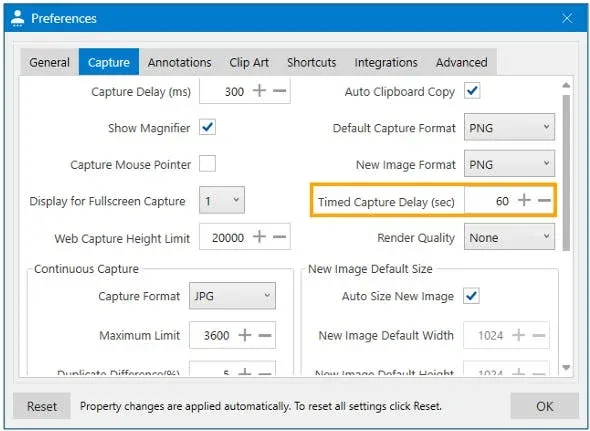
Pixtel makes it simple to control how long it waits before taking a screenshot.
To adjust your delay:
- Open User Preferences in Pixtel.
- Go to the Capture tab.
- Locate the Timed Capture section.
- Set your preferred delay time — up to 60 seconds.
Pixtel will automatically capture your screen once the timer runs out, letting you prepare exactly what needs to be shown.
Capture Using Shortcut Keys
No need to switch windows or click buttons — Pixtel’s keyboard shortcuts make capturing even faster.
Here’s how to use it:
- Make sure Pixtel is running in the background.
- Navigate to the area you want to capture.
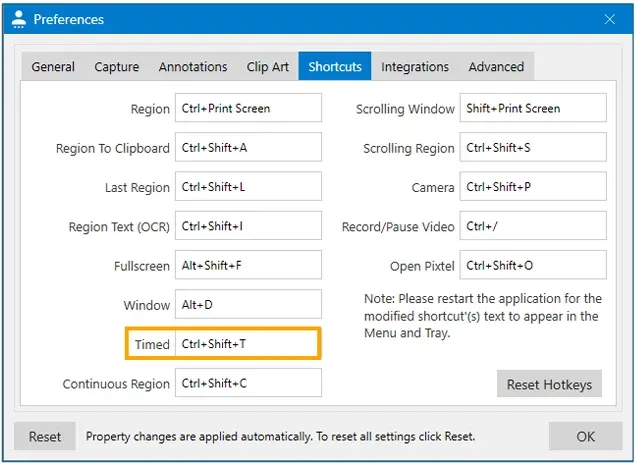
- Press Ctrl + Shift + T to start the timed capture instantly.
- To change the shortcut key:Open User Preferences → ShortcutsEnter your preferred key combinationClick OK to apply
Now, you can trigger timed screenshots anytime, from any app.
Capturing the right on-screen moment can be tricky when dropdowns, pop-ups, or animations appear after a delay.With Pixtel’s Timed Capture, you never have to rush — just set your delay, prepare your screen, and let Pixtel handle the timing for you.
Related reading:
- 4 Easy Ways to Capture Screenshots in Pixtel →
- How to Customize Capture Options in Pixtel →
- Capture the Same Screen Area Instantly with Pixtel's Last Region →
Capture once and use it forever. It isn’t just a tool — it’s Pixtel.
👉 Download Pixtel · 🎥 Watch the Tutorial on YouTube · 📘 Read Detailed Documentation
'%3e%3cpath%20d='M6.49988%200.862305L0.380969%206.98121C-0.127315%207.4895%20-0.127315%208.31107%200.380969%208.81936C0.889253%209.32764%201.71083%209.32764%202.21911%208.81936L5.19992%205.83855V15.7C5.19992%2016.4176%205.781%2017%206.49988%2017C7.21875%2017%207.79984%2016.4176%207.79984%2015.7V5.83855L10.7806%208.81936C11.0341%209.07285%2011.3669%209.20024%2011.6997%209.20024C12.0325%209.20024%2012.3653%209.07285%2012.6188%208.81936C13.1271%208.31107%2013.1271%207.4895%2012.6188%206.98121L6.49988%200.862305Z'%20fill='white'/%3e%3c/g%3e%3cdefs%3e%3cclipPath%20id='clip0_1_2'%3e%3crect%20width='13.0002'%20height='16.8995'%20fill='white'%20transform='translate(-0.000244141%200.100533)'/%3e%3c/clipPath%3e%3c/defs%3e%3c/svg%3e)