

How to Capture Continuous Region Using Pixtel
Capturing continuous screen activity is a must for creators, developers, and professionals who need to document real-time visual changes — whether it’s recording video frames, tracking UI transitions, or monitoring dashboards.
With Pixtel’s Continuous Region Capture, you can automatically capture screenshots at regular intervals, filter out duplicates, and organize everything effortlessly — all from a fixed screen area.
Watch the tutorial: https://youtu.be/ZrA_tVvJc_Y
What Is Continuous Region Capture?
Pixtel’s Continuous Region Capture lets you record screen changes from a defined area over time. It automatically takes screenshots based on your selected interval, intelligently skips duplicates, and stores the results neatly — making it ideal for documenting processes, UI behavior, or application states.
How to Capture Continuous Region Using Pixtel
1. Access the Capture
Open Pixtel, go to File → New Capture → Continuous Capture Window,or press Ctrl + Shift + C to launch Continuous Region Capture.
2. Select the Capture Area
Click and drag your cursor to select the region of the screen you want to monitor.This area remains fixed during the session — ideal for recording presentations, live dashboards, or video sequences.
3. Set the Capture Interval
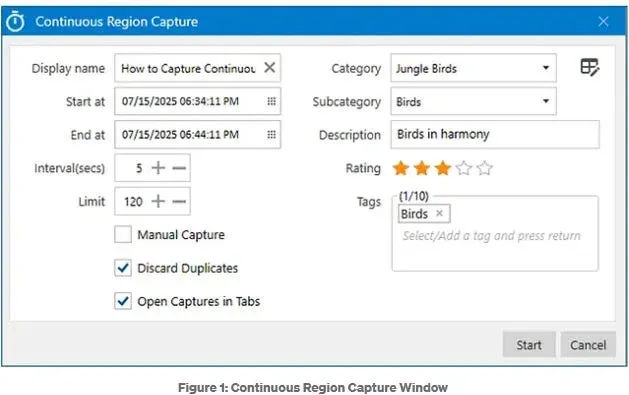
Specify how frequently Pixtel should capture screenshots by entering the interval in seconds.
4. Choose Capture Mode
- Auto Mode: Pixtel captures screenshots automatically based on your set interval.
- Manual Mode: Capture anytime by clicking the Snapshot button.
5. Organize with Metadata
Add details like Category, Subcategory, Tags, and Description for easier organization, search, and filtering later.
6. Avoid Duplicate Captures
Pixtel uses smart detection to find and discard duplicate screenshots using a customizable Duplicate Difference (%) threshold. This ensures efficiency and saves disk space.
7. Manage Tabs Efficiently
Enable Open in Tabs to view each screenshot in a separate tab, or use navigation arrows to scroll through captures in a single tab.
8. Edit and Enhance Captures
When the session ends, Pixtel automatically opens the screenshots for you to review, annotate, edit, and export in your preferred format.
How to Use Auto and Manual Capture
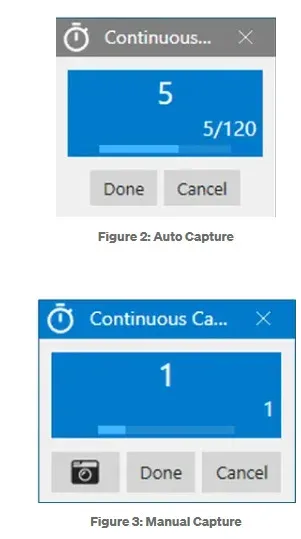
Auto Capture:
- Pixtel automatically captures the selected region at your defined interval.
- A small counter appears at the bottom-right of your screen while capturing.
- Once complete, Pixtel displays the total number of images captured.
Manual Capture:
- If you’ve enabled manual mode, a floating Snapshot window appears.
- Click Snapshot anytime to capture the region instantly.
How to Review and Navigate Captured Images
Once your session ends:
- Screenshots are automatically named using the window or website title, followed by sequential prefixes (CC1, CC2, CC3, etc.) for easy sorting.
- Pixtel opens the first image in a new tab by default.
- Use navigation arrows to move through images in the same tab.
- Click Open in Tabs to open each image separately for detailed review.
How to Manage Continuous Region Capture Preferences
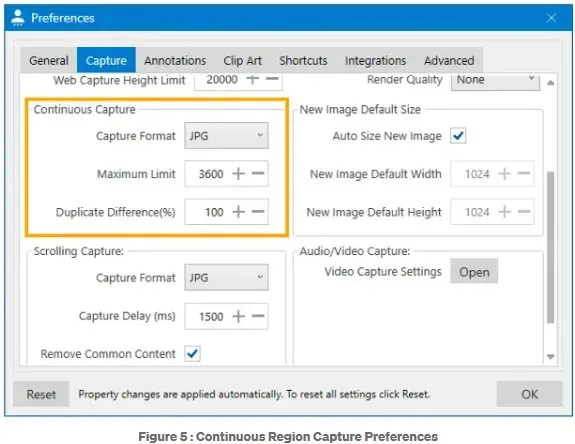
Customize how Pixtel captures continuous regions via
User Preferences → Capture → Continuous Capture.
Key Options:
- Capture Format: Choose between JPG (default) or PNG for higher quality.
- Maximum Limit: Define how many images Pixtel should capture per session (default: 3600).
- Duplicate Difference (%): Set how similar images must be before they’re considered duplicates (default: 5%, up to 100%).
These preferences let you fine-tune performance, storage, and quality according to your workflow.
Why Use Pixtel for Continuous Region Capture?
Pixtel isn’t just another screen capture tool — it’s a complete productivity platform designed for professionals.
- Capture continuous screen activity automatically.
- Eliminate redundant screenshots with duplicate detection.
- Organize and tag captures with rich metadata.
- Review, edit, and export without switching tools.
Whether you’re creating tutorials, tracking UI performance, or analyzing screen-based changes — Pixtel keeps it effortless and accurate.
With Pixtel, you can capture, organize, and manage continuous screenshots without any interruptions.Stay focused on your content — Pixtel handles the rest.
**
Related reading:
- How to Snip Only What You Need — Pixtel Screen Capture Tutorial →
- Capture the Same Screen Area Instantly with Pixtel's Last Region →
- How to Capture Region to Clipboard Using Pixtel →
Capture once and use it forever.** It isn’t just a tool — it’s Pixtel.
👉 Download Pixtel · 🎥 Watch the Full Tutorial on YouTube · 📘 Read Detailed Documentation
'%3e%3cpath%20d='M6.49988%200.862305L0.380969%206.98121C-0.127315%207.4895%20-0.127315%208.31107%200.380969%208.81936C0.889253%209.32764%201.71083%209.32764%202.21911%208.81936L5.19992%205.83855V15.7C5.19992%2016.4176%205.781%2017%206.49988%2017C7.21875%2017%207.79984%2016.4176%207.79984%2015.7V5.83855L10.7806%208.81936C11.0341%209.07285%2011.3669%209.20024%2011.6997%209.20024C12.0325%209.20024%2012.3653%209.07285%2012.6188%208.81936C13.1271%208.31107%2013.1271%207.4895%2012.6188%206.98121L6.49988%200.862305Z'%20fill='white'/%3e%3c/g%3e%3cdefs%3e%3cclipPath%20id='clip0_1_2'%3e%3crect%20width='13.0002'%20height='16.8995'%20fill='white'%20transform='translate(-0.000244141%200.100533)'/%3e%3c/clipPath%3e%3c/defs%3e%3c/svg%3e)