

How to Capture Scrolling Region Using Pixtel — Complete Guide
Looking for a way to capture scrollable content, long webpages, or chat threads without taking multiple screenshots? With Pixtel’s Scrolling Region Capture, you can capture a specific scrollable section of any window — like a chat box, code panel, or embedded frame — and Pixtel will automatically scroll through that section, stitching it into a high-quality, continuous screenshot.
This feature helps you capture only what matters, avoiding clutter while keeping every detail intact
Watch the tutorial: https://youtu.be/ScLISwjrVig
How to Capture Scrolling Region Using Pixtel
- Select the Capture Area: Open Pixtel and choose Scrolling Region Capture from File → New Capture.
- Define the Scrolling Region: Navigate to your target window, drag to outline the scrollable area, and confirm the selection.
- Start the Capture: Pixtel automatically scrolls through the content and stitches everything into a single full-page screenshot.
- Edit and Enhance: Use Pixtel’s annotation and editing tools to crop, highlight, or export your screenshot in your preferred format (PNG, JPG, or PDF).

Configure the Maximum Page Size for Capture
Need to limit how much of a page gets captured? You can easily set a maximum page size for your scrolling capture:
- Open User Preferences in Pixtel.
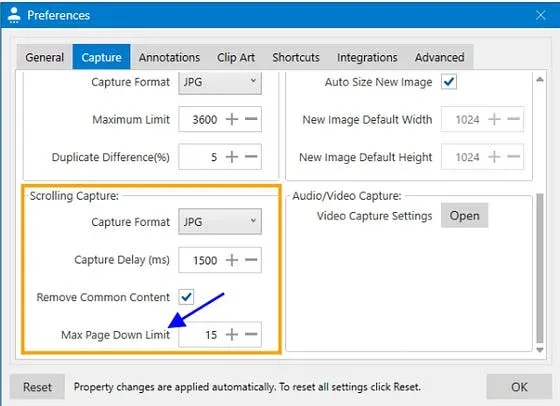
- Go to the Capture section and locate Scrolling Capture → Max Page Down Limit.
- Set your preferred limit — Pixtel will stop capturing once this size is reached.
How to Stop Scrolling Capture in the Middle
Sometimes you might want to stop before the scroll ends. With Pixtel, it’s simple:
- Press the Esc key during the capture to stop immediately.
- Pixtel will save the screenshot up to that point automatically.
Capture Scrolling Screenshots with Shortcut Keys
Tired of switching between menus? Use keyboard shortcuts for instant captures:
- Make sure Pixtel is running in the background.
- Open the window or area you want to capture.
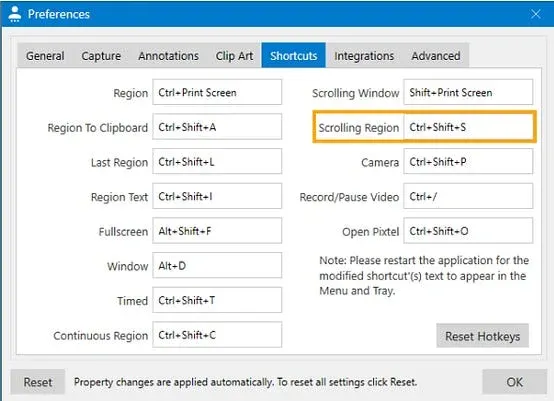
- Press Ctrl + Shift + S to start the scrolling capture.
- To customize, go to User Preferences → Shortcuts, select your key combination, and click OK to apply it.
Revisit the Original Website from Your Capture
Every scrolling screenshot captured with Pixtel automatically stores the original webpage URL inside the image metadata.
- Open your captured image in Pixtel.
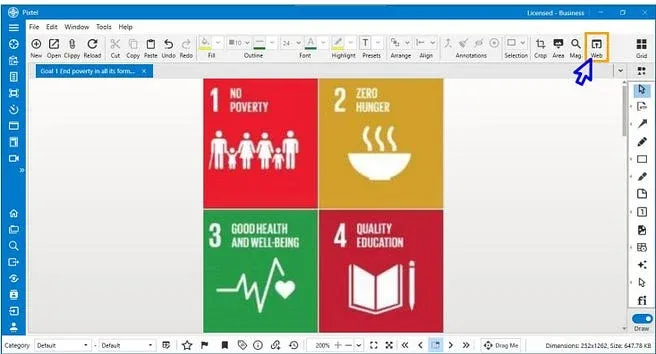
- Click on the Web option in the toolbar.
- Pixtel will open your browser and take you directly to the original webpage.
Pixtel makes scrolling screenshots effortless, giving you precision, customization, and flexibility in every capture. From defining your region to revisiting the original source, it’s built to streamline your workflow.
Scroll smarter. Capture faster. Just Pixtel it.
Related reading:
- How to Capture Scrolling Window with Pixtel →
- How to Capture a Web Page Using Pixtel →
- How to Capture Continuous Region Using Pixtel →
Capture once and use it forever. It isn’t just a tool — it’s Pixtel.
👉 Download Pixtel · 🎥 Watch the Full Tutorial on YouTube · 📘 Read Detailed Documentation
'%3e%3cpath%20d='M6.49988%200.862305L0.380969%206.98121C-0.127315%207.4895%20-0.127315%208.31107%200.380969%208.81936C0.889253%209.32764%201.71083%209.32764%202.21911%208.81936L5.19992%205.83855V15.7C5.19992%2016.4176%205.781%2017%206.49988%2017C7.21875%2017%207.79984%2016.4176%207.79984%2015.7V5.83855L10.7806%208.81936C11.0341%209.07285%2011.3669%209.20024%2011.6997%209.20024C12.0325%209.20024%2012.3653%209.07285%2012.6188%208.81936C13.1271%208.31107%2013.1271%207.4895%2012.6188%206.98121L6.49988%200.862305Z'%20fill='white'/%3e%3c/g%3e%3cdefs%3e%3cclipPath%20id='clip0_1_2'%3e%3crect%20width='13.0002'%20height='16.8995'%20fill='white'%20transform='translate(-0.000244141%200.100533)'/%3e%3c/clipPath%3e%3c/defs%3e%3c/svg%3e)