

Favorite Icons in Pixtel: Design Faster Without Leaving Your Workspace
When editing screenshots, adding icons is often essential to make your visuals clearer and more engaging. But the usual process can be frustrating — you search multiple websites, download SVG or PNG files, import them, and then continue editing.
It breaks your flow.
Pixtel removes that friction entirely with its Favorite Icons feature, letting you access and use icons directly within your workspace.
🚀 A Smarter Way to Use Icons
Instead of switching between tools and websites, Pixtel brings everything into one place.
You can:
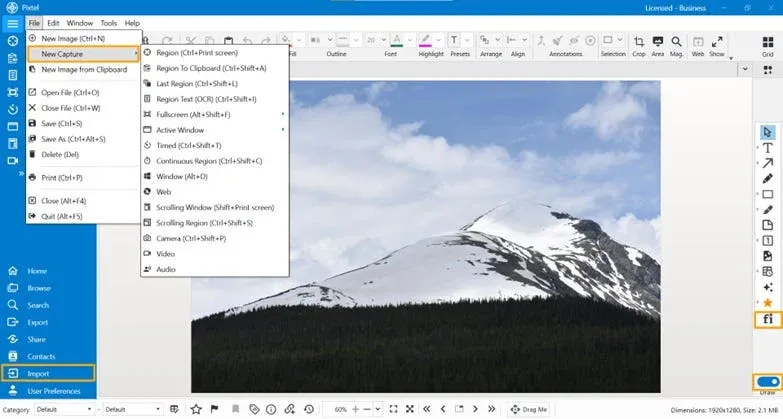
- Capture a screenshot using Pixtel
- Or upload an image through the Import option
- Enable Draw Mode to start editing
- Open the Icon Pack directly within the editor
Everything you need is already there — simple, fast, and efficient.
🎯 Accessing the Icon Packs
Once you enable Draw Mode, select the Select an Icon.
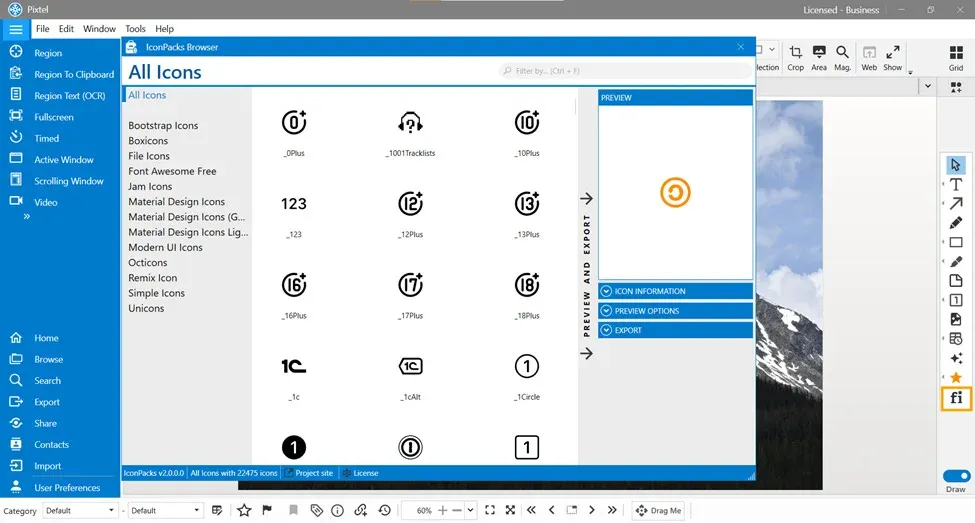
This opens the Icon Packs Browser, where you can explore a wide variety of icons from different libraries.
You can:
- Browse through multiple icon categories
- View all available icons in one place
- Search for a specific icon using the search bar
This eliminates the need to manually hunt for icons online.
🔍 Selecting and Using Icons
Choosing an icon is straightforward:
- Click on any icon you like
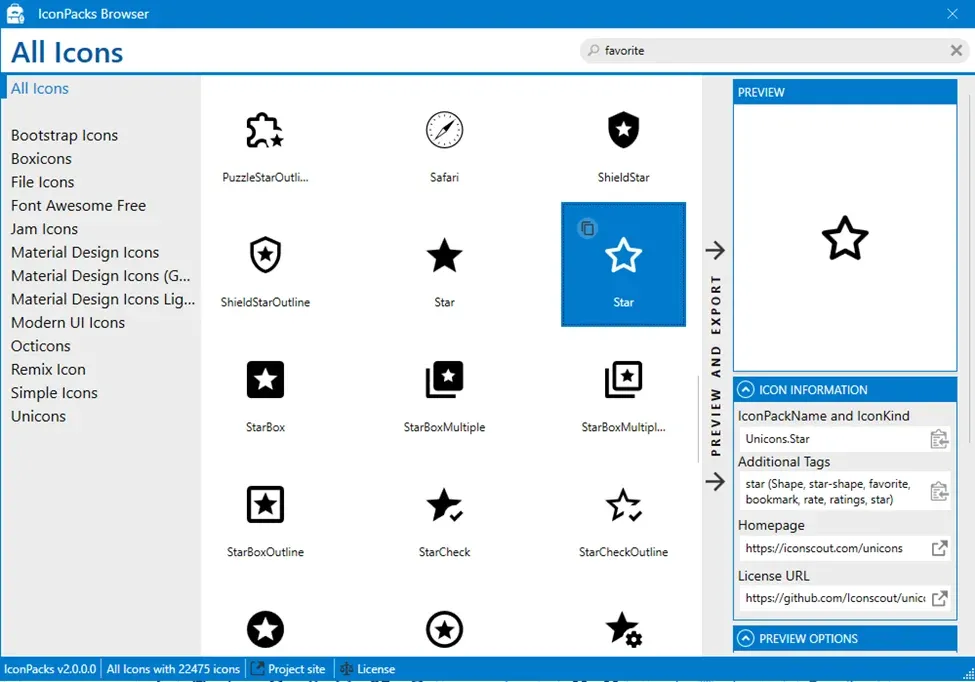
- Instantly preview it on the right side
- Copy or insert it into your screenshot
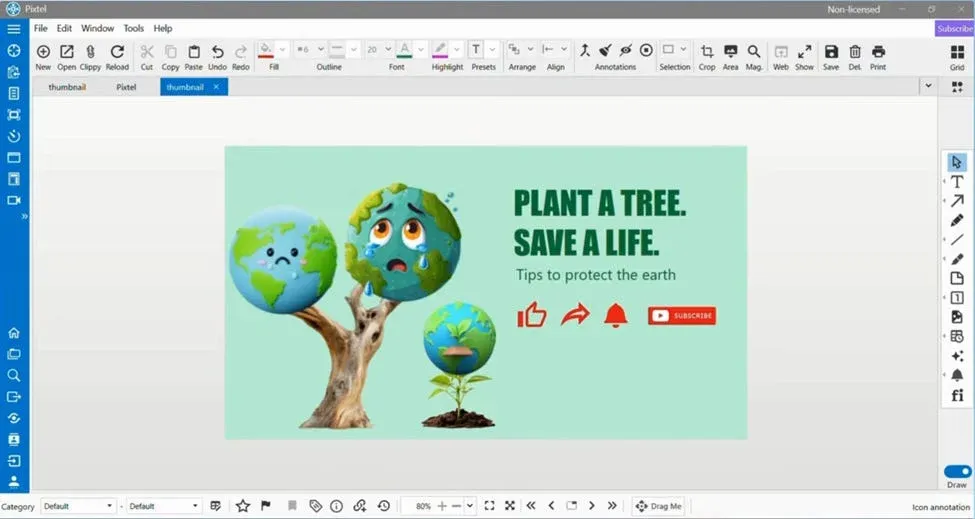
Once selected, the icon becomes part of your editing canvas, ready to be resized, positioned, or styled.
🎨 Adjust Icon Colors Directly from the Toolbar
Once you’ve added an icon to your workspace, you might want to match it with your design or highlight specific elements.
Pixtel makes this very easy.
Simply select the icon on your canvas, and then go to the color options available in the toolbar. From there, you can quickly change the icon’s color to suit your needs.
🧾 Icon Information at Your Fingertips
Pixtel doesn’t just give you icons — it also provides useful details about them.
When you select an icon, you’ll see:
- Icon Pack Name & Icon Type
- Additional Tags (to understand usage and context)
- Homepage Link
- License URL
This ensures you always have clarity about the icon source and usage rights.
🎨 Customize Your Icons Easily
Pixtel allows you to tailor icons to match your design perfectly.
From the Preview Options, you can:
- Adjust the icon size
- Change the foreground color
- Modify the background color
This flexibility helps you maintain visual consistency across your screenshots and designs.
💾 Export in Multiple Formats
Once your icon is ready, exporting is quick and simple.
You can save your icons in formats like:
- PNG
- JPEG
- BMP
With just a click, Pixtel opens your file explorer so you can save the file exactly where you need it.
⚡ Quick Access with Favorite & Recently Used Icons
Pixtel also makes repeated work effortless.
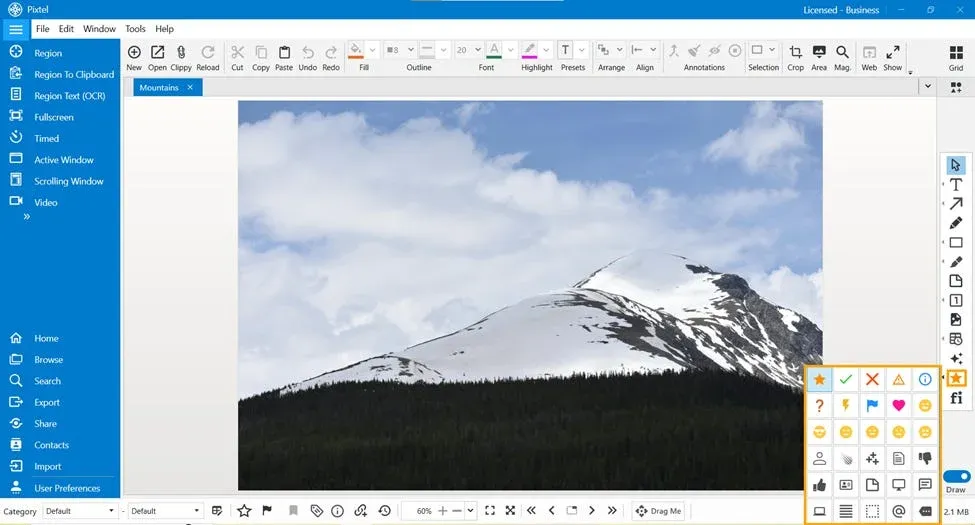
At the top of the Favorite Icons section, you’ll find a dropdown menu that shows your recently used icons.
This means:
- No need to search again
- No need to browse entire icon packs
- Just pick from your recent icons instantly
It’s a small feature that saves a lot of time — especially when working on multiple screenshots or consistent designs.
✨ Why This Feature Matters
The Favorite Icons feature in Pixtel simplifies what used to be a multi-step, time-consuming process.
Instead of:
- Searching online
- Downloading icons
- Importing files
You can now do everything inside Pixtel — faster, cleaner, and without interruptions.
🏁 Conclusion
Pixtel’s Favorite Icons feature is not just convenient — it transforms your workflow.
By bringing icon discovery, customization, and export into a single interface, it helps you stay focused on what really matters: creating clear and impactful visuals.
If you regularly work with screenshots, tutorials, or documentation, this feature will quickly become an essential part of your process.
Related reading:
- Clip Art / Images in Pixtel: From Capture to Custom Sources →
- How to Annotate Images in Pixtel →
- Customizing Shape and Line Properties in Pixtel →
Capture once and use it forever. It isn’t just a tool — it’s Pixtel.
👉 Download Pixtel · 🎥 Follow us on YouTube · 📘 Read Detailed Documentation
'%3e%3cpath%20d='M6.49988%200.862305L0.380969%206.98121C-0.127315%207.4895%20-0.127315%208.31107%200.380969%208.81936C0.889253%209.32764%201.71083%209.32764%202.21911%208.81936L5.19992%205.83855V15.7C5.19992%2016.4176%205.781%2017%206.49988%2017C7.21875%2017%207.79984%2016.4176%207.79984%2015.7V5.83855L10.7806%208.81936C11.0341%209.07285%2011.3669%209.20024%2011.6997%209.20024C12.0325%209.20024%2012.3653%209.07285%2012.6188%208.81936C13.1271%208.31107%2013.1271%207.4895%2012.6188%206.98121L6.49988%200.862305Z'%20fill='white'/%3e%3c/g%3e%3cdefs%3e%3cclipPath%20id='clip0_1_2'%3e%3crect%20width='13.0002'%20height='16.8995'%20fill='white'%20transform='translate(-0.000244141%200.100533)'/%3e%3c/clipPath%3e%3c/defs%3e%3c/svg%3e)