

Clip Art / Images in Pixtel - From Capture to Custom Sources
Working with images in Pixtel is not limited to inserting visuals — you can capture, import, edit, and manage image sources without ever breaking your flow. Everything begins inside Pixtel and stays there.
Start by Getting Your Image into Pixtel
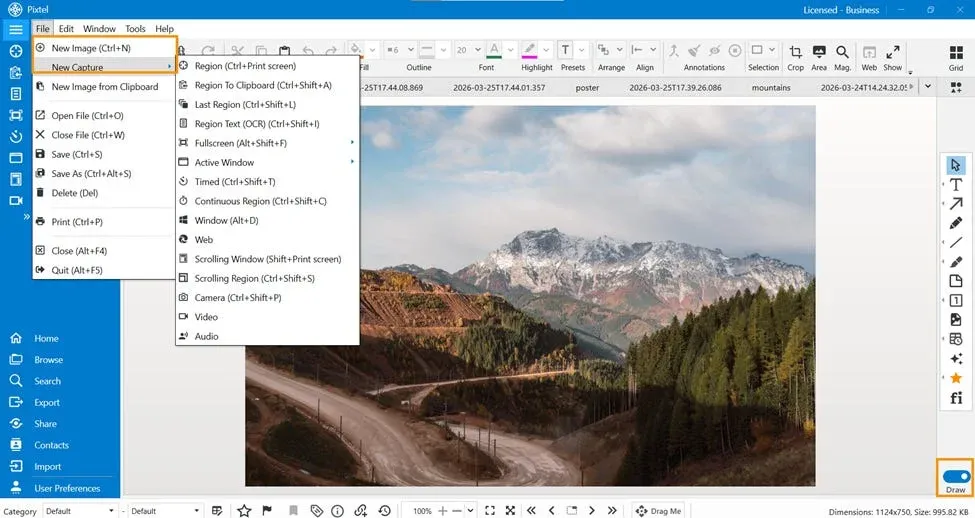
Before using Clip Art, you can first bring an image into your workspace in multiple ways:
- Capture a screenshot using Pixtel’s capture options
- Import an image from your system
- Open it directly in your workspace for editing
This gives you a base image to work on — whether it’s a screen capture, design draft, or reference image.
Switch to Draw Mode
Once your image is open:
- Toggle to Draw Mode
- This enables editing tools and access to additional visual elements
Use Clip Art / Images
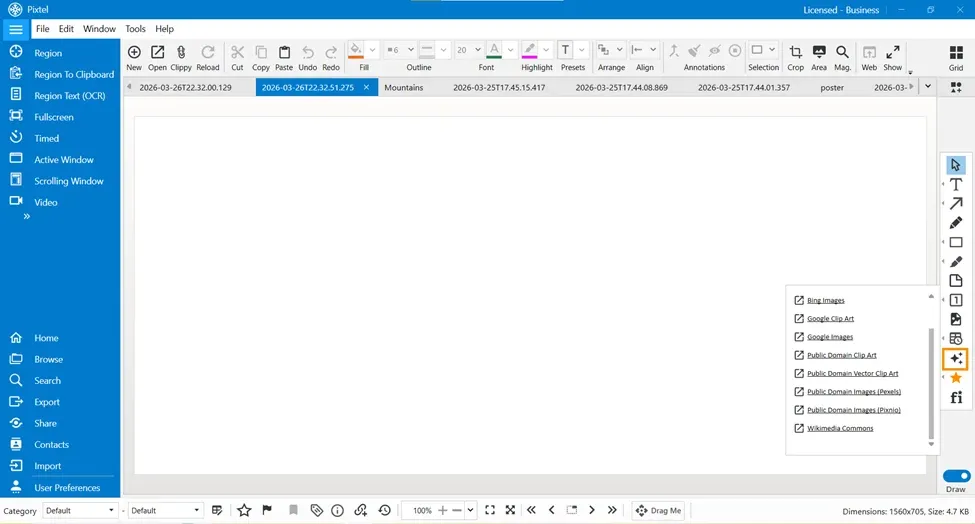
- Click on Clip Art / Images
- You’ll see a list of default image sources
When you click on any source, it opens in a browser window where you can browse images.
From there:
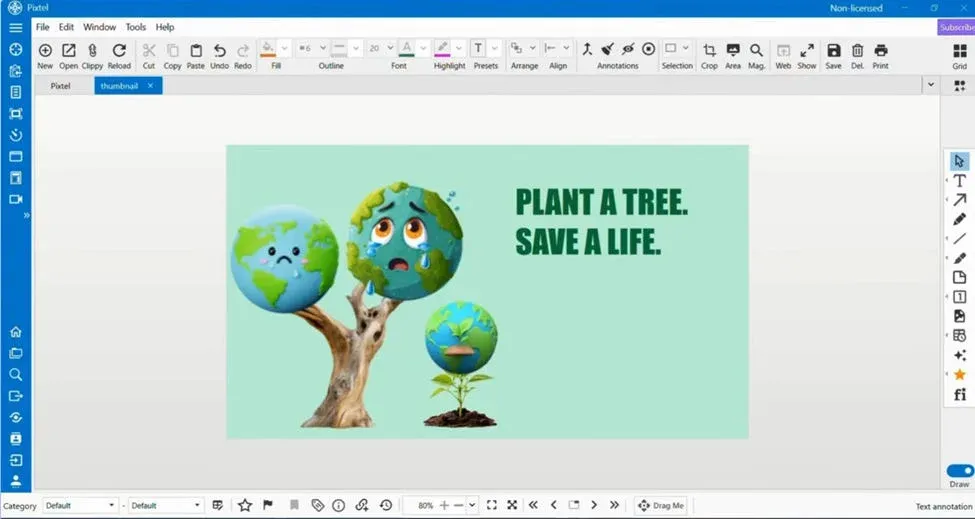
- Simply drag and drop images into Pixtel
- They will be placed directly onto your canvas
Add Custom Image Sources for Quick Access
If you frequently use a specific website or asset library, Pixtel lets you add it for faster access.
How to Add a Source
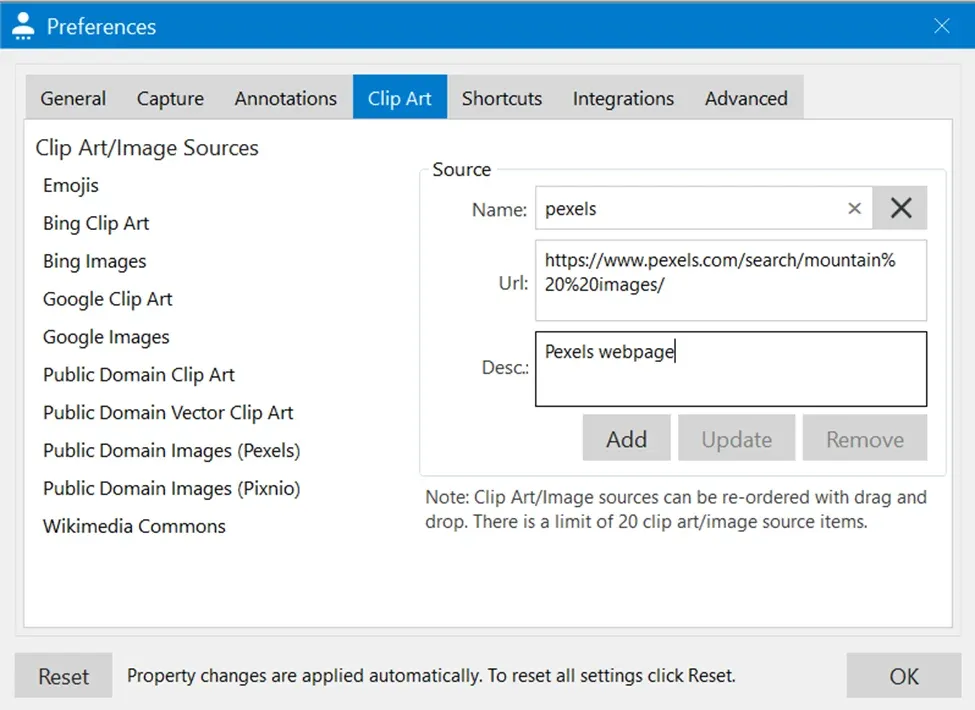
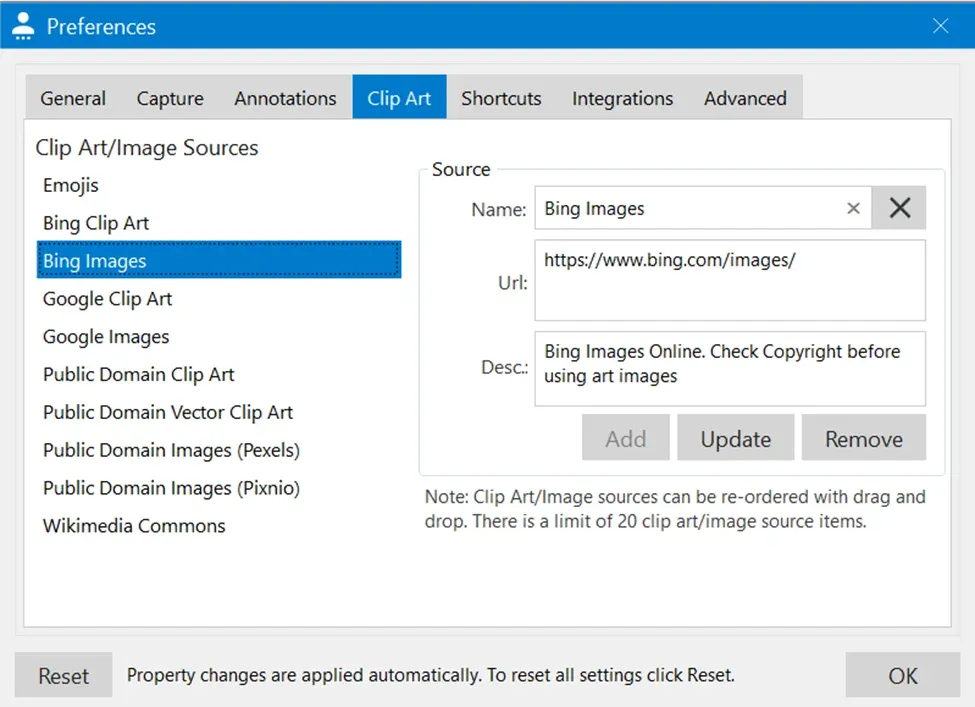
- Go to User Preferences
- Navigate to the Clip Art tab
- Enter:
- Name –easy for identification
- URL — Source link
- Description — Optional details
- Click Add
The new source will now appear in your Clip Art list for future use.
Update or Remove Sources Anytime
Pixtel gives you full control over your sources:
- To update the source → Modify details → Click Update
- To remove the source → Click Remove
- You can also reorder sources as needed
All changes are applied instantly — no extra saving required.
Why This Workflow Stands Out
Pixtel brings everything together:
- Capture or import images
- Instantly access online image sources
- Drag and drop directly into your design
- Customize your own sources for repeated use
It eliminates the usual back-and-forth between tools and keeps your work focused.
Pixtel transforms how you handle images — from the moment you capture or import them, to enhancing them with external visuals and managing your own image libraries.
The entire flow becomes:
Capture / Import → Draw Mode → Clip Art / Images → Drag & Drop → Manage Sources
What makes it powerful is not just adding images — but the ability to control where they come from, how quickly you access them, and how seamlessly you use them.
Once you set up your custom sources and start using drag-and-drop, image handling stops being a task — and becomes part of your creative rhythm.
Related reading:
- Favorite Icons in Pixtel: Design Faster Without Leaving Your Workspace →
- How to Annotate Images in Pixtel →
- New Image Feature in Pixtel: Create Custom Designs Instantly →
Capture once and use it forever. It isn’t just a tool — it’s Pixtel.
👉 Download Pixtel · 🎥 Follow us on YouTube · 📘 Read Detailed Documentation
'%3e%3cpath%20d='M6.49988%200.862305L0.380969%206.98121C-0.127315%207.4895%20-0.127315%208.31107%200.380969%208.81936C0.889253%209.32764%201.71083%209.32764%202.21911%208.81936L5.19992%205.83855V15.7C5.19992%2016.4176%205.781%2017%206.49988%2017C7.21875%2017%207.79984%2016.4176%207.79984%2015.7V5.83855L10.7806%208.81936C11.0341%209.07285%2011.3669%209.20024%2011.6997%209.20024C12.0325%209.20024%2012.3653%209.07285%2012.6188%208.81936C13.1271%208.31107%2013.1271%207.4895%2012.6188%206.98121L6.49988%200.862305Z'%20fill='white'/%3e%3c/g%3e%3cdefs%3e%3cclipPath%20id='clip0_1_2'%3e%3crect%20width='13.0002'%20height='16.8995'%20fill='white'%20transform='translate(-0.000244141%200.100533)'/%3e%3c/clipPath%3e%3c/defs%3e%3c/svg%3e)