

Editing Screenshots in Pixtel Using Cut, Copy, Paste, Undo, and Redo
Screenshots play an important role in our day-to-day work. Whether we want to explain a workflow, report an issue, document a process, or highlight specific details on the screen, screenshots help communicate information quickly and clearly.
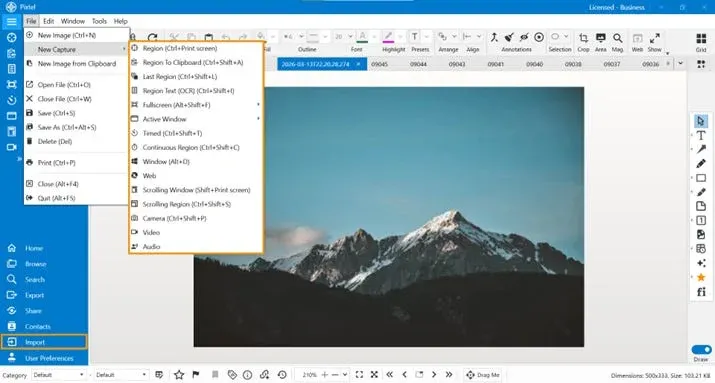
With Pixtel, capturing and editing screenshots becomes simple because everything can be done within a single platform. Pixtel provides 12+ capture modes, allowing users to capture screens in different ways based on their needs. You can capture the screen directly using Pixtel or import an existing image from your local folder and start editing it in the editor.
Once the image is available in the editor, Pixtel provides several useful editing tools that help you quickly modify the screenshot. Options like Cut, Copy, Paste, Undo, and Redo make editing easy and flexible while working with captured images.
Capturing or Importing an Image
To start editing, you first need an image in the Pixtel editor. There are two simple ways to do this.
You can capture a screenshot directly using Pixtel, which offers more than 12 capture modes to capture full screen, a specific region, a window, or other screen elements.
Alternatively, if you already have an image saved on your computer, you can import it from your local folder. Once the image is uploaded, it will open in the Pixtel editor where you can begin editing it.
Using Cut, Copy, and Paste Options
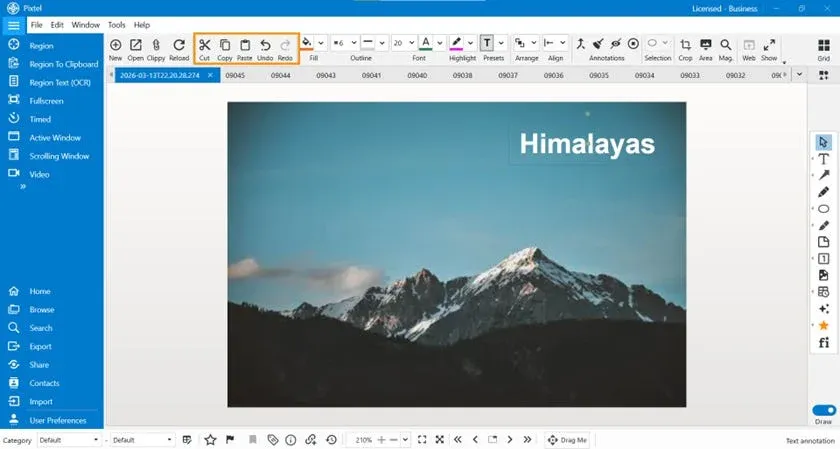
After capturing or importing the image, you can select a specific portion of the screenshot. When a region of the image is selected, Pixtel provides options such as Cut, Copy, and Paste.
These options allow you to easily modify the image:
- Cut helps remove a selected part of the image.
- Copy allows you to duplicate the selected region.
- Paste lets you place the copied or cut section back onto the canvas.
These features are helpful when you want to rearrange parts of the image or reuse certain sections within the same screenshot.
Managing Changes with Undo and Redo
While editing the image, you may sometimes want to revert a change or restore a previous action. Pixtel provides Undo and Redo options to make this process simple.
- Undo allows you to go back to the previous step if a change was made by mistake.
- Redo allows you to restore an action that was undone.
These options give you the flexibility to experiment with edits without worrying about making mistakes.
Adding Annotations Using Draw Mode
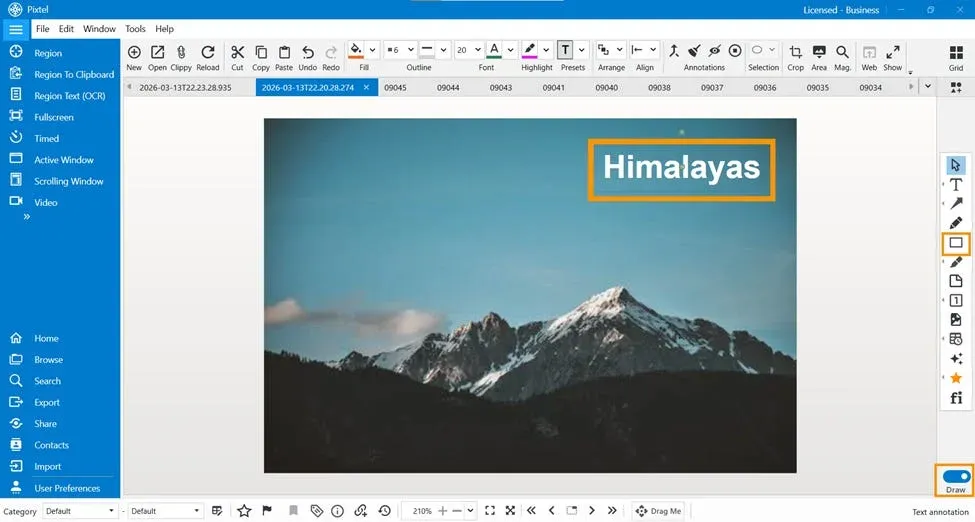
If you want to highlight important areas in the screenshot, you can enable Draw Mode in Pixtel. Once draw mode is toggled on, you can apply different types of annotations such as arrows, shapes, highlights, and text.
Annotations make screenshots more informative and easier to understand, especially when sharing instructions, reporting issues, or creating documentation.
Pixtel makes it easy to edit screenshots with simple options like Cut, Copy, Paste, Undo, and Redo. These tools help you quickly modify parts of an image and manage your edits without difficulty. You can capture a screenshot using Pixtel or import an image from your local folder and start editing it right away.
Related reading:
- Editing & Highlighting Images in Pixtel →
- Cropping and Magnifying Images in Pixtel →
- Editing Specific Areas of an Image Using the Selection Tool →
Capture once and use it forever. It isn’t just a tool — it’s Pixtel.
👉 Download Pixtel · 🎥 Follow us on YouTube · 📘 Read Detailed Documentation
'%3e%3cpath%20d='M6.49988%200.862305L0.380969%206.98121C-0.127315%207.4895%20-0.127315%208.31107%200.380969%208.81936C0.889253%209.32764%201.71083%209.32764%202.21911%208.81936L5.19992%205.83855V15.7C5.19992%2016.4176%205.781%2017%206.49988%2017C7.21875%2017%207.79984%2016.4176%207.79984%2015.7V5.83855L10.7806%208.81936C11.0341%209.07285%2011.3669%209.20024%2011.6997%209.20024C12.0325%209.20024%2012.3653%209.07285%2012.6188%208.81936C13.1271%208.31107%2013.1271%207.4895%2012.6188%206.98121L6.49988%200.862305Z'%20fill='white'/%3e%3c/g%3e%3cdefs%3e%3cclipPath%20id='clip0_1_2'%3e%3crect%20width='13.0002'%20height='16.8995'%20fill='white'%20transform='translate(-0.000244141%200.100533)'/%3e%3c/clipPath%3e%3c/defs%3e%3c/svg%3e)