

Create Stunning Image Layouts with Pixtel Collage & Collate
In our day-to-day work, we capture multiple screenshots for reporting issues, preparing documentation, sharing updates, or creating presentations. But managing and sharing them one by one can become confusing and time-consuming.
That’s where Pixtel’s Collage and Collate options make a real difference.
Instead of sending multiple images separately, you can combine them into a single, well-structured visual. Whether it’s for professional documentation or presentation purposes, Pixtel helps you organize your screenshots quickly and efficiently.
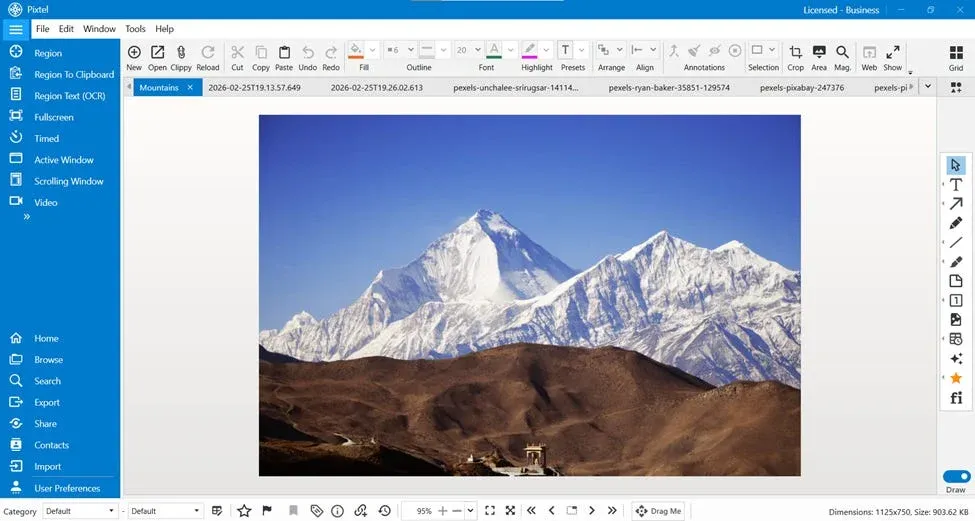
How to Import and Open Images in New Tabs
Pixtel gives you flexibility to either capture screenshots directly or import existing images.
📌 Capture Images
- Use Pixtel to capture screenshots.
- Captured images are automatically saved.
- Each capture opens in a new Pixtel tab, making it easy to work on multiple images at the same time.
📌 Import Images
If you already have images stored on your system:
- Open Pixtel.
- Import the images into the application.
- Each imported image opens in its own tab.
- You can switch between tabs and edit them as needed.
This tab-based approach helps you manage multiple images without confusion.
Switch to Grid View to See All Images
When you are working with multiple screenshots, switching between tabs can take time. That’s why Pixtel provides Grid View.
In Grid View:
- You can see all images together.
- You can easily compare them.
- Selecting multiple images becomes simple.
Grid View makes image organization much faster and more convenient.
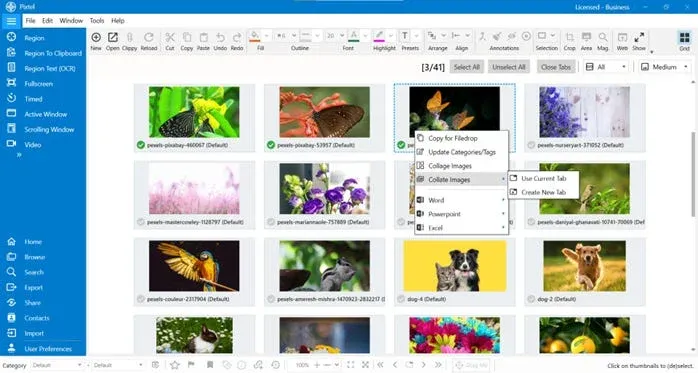
Select Images — Choose Collage or Collate
Once you are in Grid View:
- Select the images you want to combine.
- Right-click on the selected images.
- You will see two options:
- Collage
- Collate
Collage Option (2–12 Images)
The Collage option allows you to combine 2 to 12 images into a single layout.
It is perfect for:
- Comparison visuals
- Presentation slides
- Social sharing
- Visual summaries
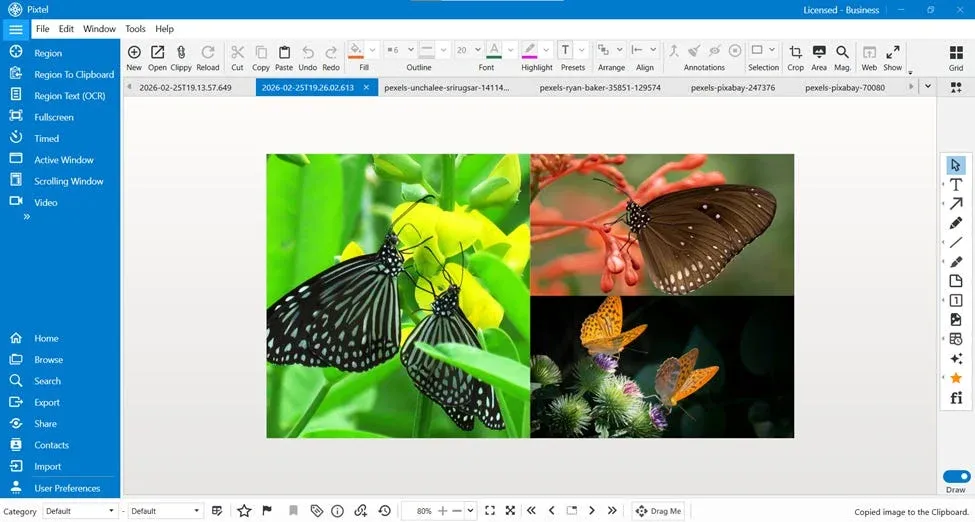
Pixtel arranges the selected images neatly into one combined image.
Collate Option (Up to 20 Images)
The Collate option allows you to merge up to 20 images in a sequence.
This is ideal for:
- Step-by-step guides
- Process documentation
- Bug reports
- Training materials
Collate Offers Two Flexible Options:
✅ Collate into New Tab
- The combined output opens in a new Pixtel tab.
- Your existing working images remain unchanged.
✅ Collate into Working Tab
- The collated output replaces the current working tab.
- Useful when you want to continue editing in the same workspace.
You can also add meaningful text to make your collated image more informative and professional.
Why Use Pixtel Collage & Collate?
✔ Saves time
✔ Organizes multiple screenshots easily
✔ Perfect for documentation and presentations
✔ Clean and professional output
✔ Flexible tab-based workflow
Managing multiple screenshots doesn’t have to be complicated. With Pixtel’s Collage and Collate features, you can quickly combine, organize, and present your visuals in a structured and professional way.
Switch to Grid View, select your images, and choose Collage or Collate — that’s all it takes to transform multiple screenshots into one powerful visual.
Related reading:
- How to Organize and Present Multiple Screenshots Using Pixtel →
- New Image Feature in Pixtel: Create Custom Designs Instantly →
- How to Manage Multiple Screenshots Effortlessly in One Place →
Capture once and use it forever. It isn’t just a tool — it’s Pixtel.
👉 Download Pixtel · 🎥 Follow us on YouTube · 📘 Read Detailed Documentation
'%3e%3cpath%20d='M6.49988%200.862305L0.380969%206.98121C-0.127315%207.4895%20-0.127315%208.31107%200.380969%208.81936C0.889253%209.32764%201.71083%209.32764%202.21911%208.81936L5.19992%205.83855V15.7C5.19992%2016.4176%205.781%2017%206.49988%2017C7.21875%2017%207.79984%2016.4176%207.79984%2015.7V5.83855L10.7806%208.81936C11.0341%209.07285%2011.3669%209.20024%2011.6997%209.20024C12.0325%209.20024%2012.3653%209.07285%2012.6188%208.81936C13.1271%208.31107%2013.1271%207.4895%2012.6188%206.98121L6.49988%200.862305Z'%20fill='white'/%3e%3c/g%3e%3cdefs%3e%3cclipPath%20id='clip0_1_2'%3e%3crect%20width='13.0002'%20height='16.8995'%20fill='white'%20transform='translate(-0.000244141%200.100533)'/%3e%3c/clipPath%3e%3c/defs%3e%3c/svg%3e)