

Resize Canvas Easily with Pixtel
While editing images, there are situations where users may need additional space around the image for annotations, design adjustments, text placement, or layout modifications. Simply resizing the image may affect image quality or distort the original content. In such cases, resizing the canvas becomes an important feature.
Pixtel simplifies this process with its built-in Resize Canvas feature. This feature allows users to increase or adjust the canvas area surrounding an image without changing the actual image dimensions. With flexible positioning and canvas customization options, Pixtel helps users manage image layouts easily and efficiently.
Whether you are working with screenshots, imported visuals, presentations, or documentation, Pixtel makes canvas resizing simple and user-friendly.
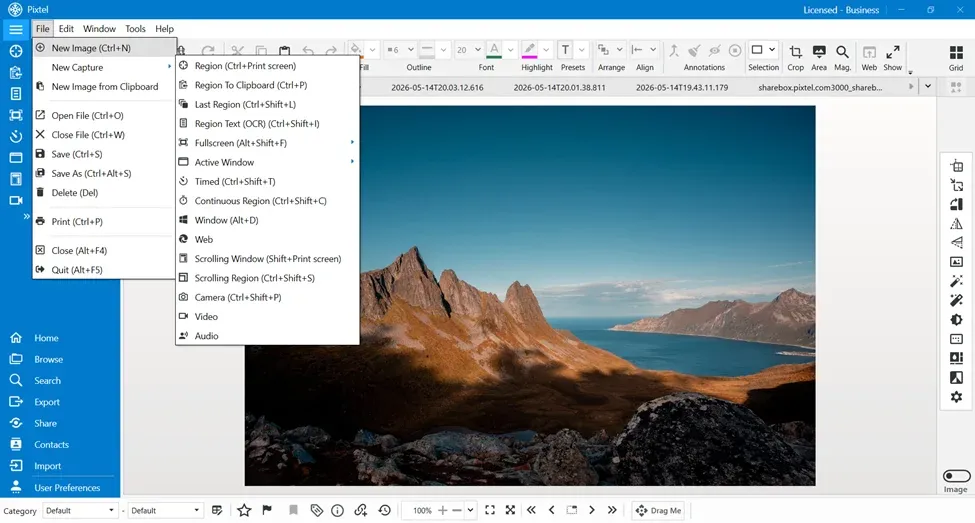
How to Upload Images in Pixtel
Getting started with image editing in Pixtel is simple. You can:
- Import images directly from your system
- Capture screenshots using Pixtel's built-in capture options
Once you capture or upload an image, it opens in a new Pixtel tab where you can start editing immediately.
Accessing the Resize Canvas Feature
To use the Resize Canvas feature in Pixtel:
- Switch to Image Mode
- Navigate to the image editing options
- Select Resize Canvas
- The Resize Canvas dialog box opens
Users can then configure canvas size, image positioning, and background color settings.
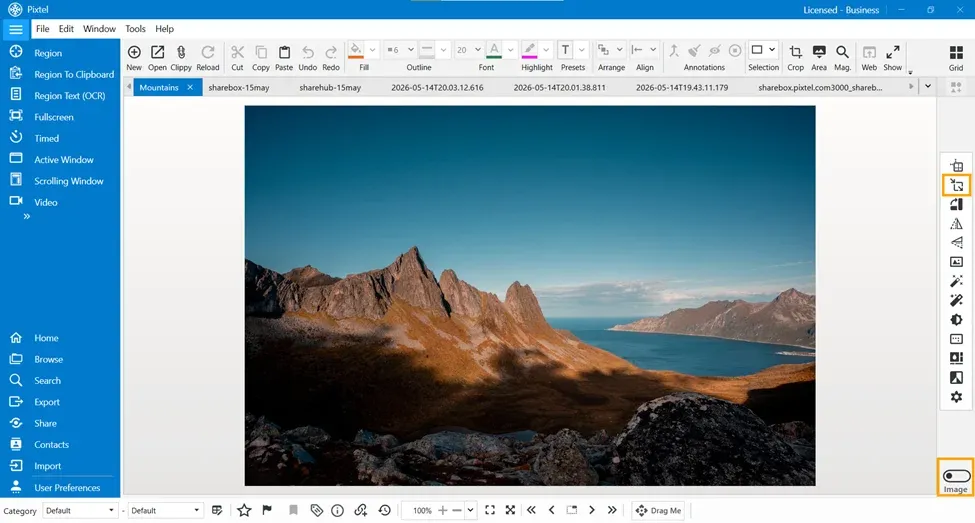
Resize Canvas Feature in Pixtel
The Resize Canvas feature helps users expand or adjust the canvas area around an image without modifying the actual image content.
This feature is useful for:
- Adding extra editing space
- Creating margins around images
- Preparing images for presentations
- Adding annotations or labels
- Adjusting layouts for documentation
- Improving visual alignment
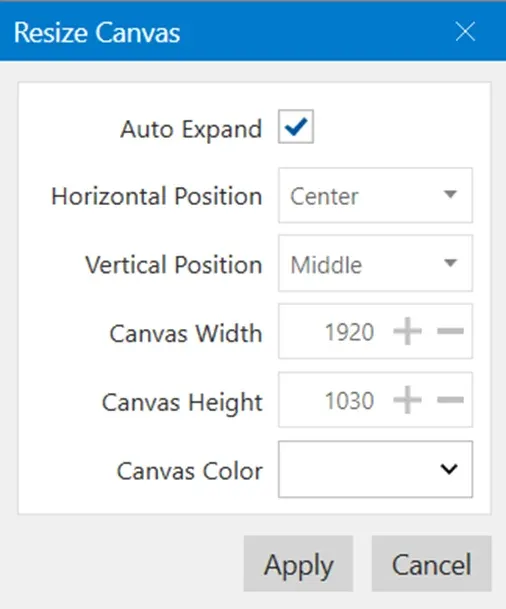
Auto Expand Option
Pixtel provides an Auto Expand option that automatically increases the canvas area based on the selected settings.
Benefits of Auto Expand:
- Simplifies canvas adjustment
- Quickly creates additional workspace
- Reduces manual resizing effort
When enabled, the application automatically manages canvas expansion more efficiently.
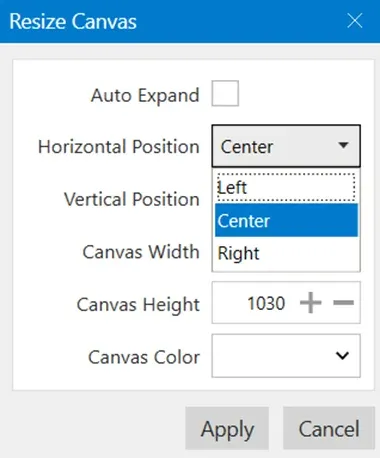
Horizontal Position Option
The Horizontal Position setting determines how the image is aligned horizontally within the resized canvas.
Available alignment options may include:
- Left
- Center
- Right
Benefits:
- Better layout control
- Easier image positioning
- Improved presentation alignment
For example, selecting Center keeps the image aligned evenly within the expanded canvas.
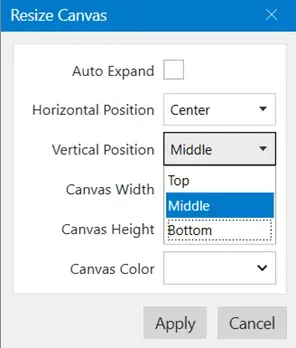
Vertical Position Option
The Vertical Position setting controls image placement vertically inside the canvas.
Available options may include:
- Top
- Middle
- Bottom
Benefits:
- Flexible image alignment
- Better visual organization
- Improved spacing management
Selecting Middle keeps the image vertically centered inside the canvas.
Canvas Width and Height
Users can manually adjust:
- Canvas Width
- Canvas Height
These values determine the amount of additional space added around the image. Increasing these values expands the overall canvas area without stretching or resizing the image itself.
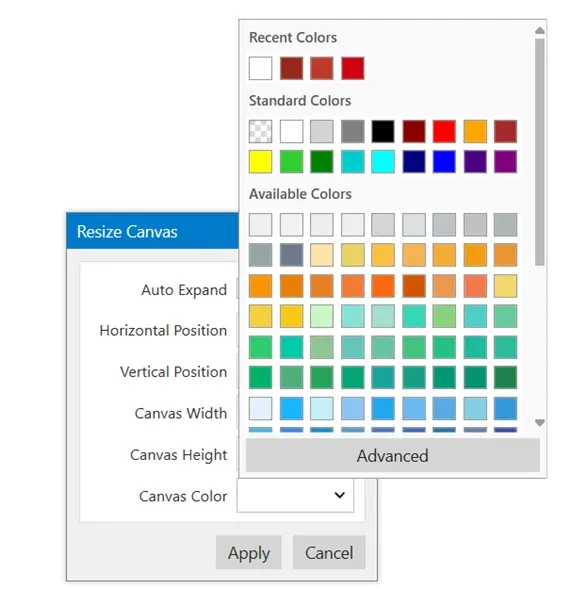
Canvas Color Option
Pixtel allows users to select a Canvas Color for the newly added background area.
Benefits of Canvas Color:
- Improves visual appearance
- Matches design requirements
- Creates clean presentation layouts
- Helps highlight image content
Users can choose suitable background colors depending on their project or documentation needs.
Apply Button
Once the required settings are configured, click the Apply button and the canvas resize changes are applied immediately. This helps users quickly finalize their layout adjustments.
Conclusion
Pixtel provides a simple and efficient way to manage image layouts using the Resize Canvas feature. With options like Auto Expand, image positioning controls, canvas dimension adjustments, and customizable background colors, users can easily create cleaner and more professional image layouts without modifying the original image quality.
Combined with easy image uploading and built-in editing tools, Pixtel streamlines the image editing workflow and helps users create well-organized visual content with ease.
Related reading:
- Resize Images Easily with Pixtel →
- Change Format and Resample Image Features in Pixtel →
- How to Perform Image Operations in Pixtel →
Capture once and use it forever. It isn't just a tool — it's Pixtel.
'%3e%3cpath%20d='M6.49988%200.862305L0.380969%206.98121C-0.127315%207.4895%20-0.127315%208.31107%200.380969%208.81936C0.889253%209.32764%201.71083%209.32764%202.21911%208.81936L5.19992%205.83855V15.7C5.19992%2016.4176%205.781%2017%206.49988%2017C7.21875%2017%207.79984%2016.4176%207.79984%2015.7V5.83855L10.7806%208.81936C11.0341%209.07285%2011.3669%209.20024%2011.6997%209.20024C12.0325%209.20024%2012.3653%209.07285%2012.6188%208.81936C13.1271%208.31107%2013.1271%207.4895%2012.6188%206.98121L6.49988%200.862305Z'%20fill='white'/%3e%3c/g%3e%3cdefs%3e%3cclipPath%20id='clip0_1_2'%3e%3crect%20width='13.0002'%20height='16.8995'%20fill='white'%20transform='translate(-0.000244141%200.100533)'/%3e%3c/clipPath%3e%3c/defs%3e%3c/svg%3e)