

Edit Features in Pixtel: Simplify Image Editing and Annotation Management
Image editing becomes faster and more efficient with the Edit menu in Pixtel. The Edit toolbar provides essential options that help users modify images, manage annotations, and improve their editing workflow. Whether you need to undo changes, duplicate annotations, copy content, or flatten annotations, Pixtel provides everything in one convenient location.
Let's explore the available Edit features in Pixtel.
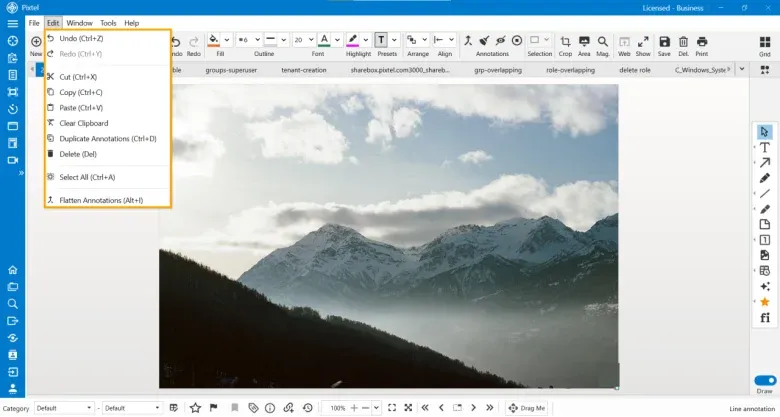
Undo Changes Quickly
Accidentally removed an annotation or made an unwanted modification? Pixtel allows users to instantly reverse their previous action using the Undo feature.
- Edit → Undo
- Shortcut: Ctrl + Z
This option helps users work confidently while editing images.
Redo Actions Easily
If you accidentally undo something important, Pixtel lets you restore it immediately with the Redo feature.
- Edit → Redo
- Shortcut: Ctrl + Y
Redo improves flexibility during image editing and annotation management.
Cut Selected Elements
The Cut option removes selected annotations or image elements and stores them temporarily in the clipboard.
- Edit → Cut
- Shortcut: Ctrl + X
This feature is useful when reorganizing annotations or moving content within an image.
Copy Content for Faster Editing
Pixtel allows users to duplicate selected content without removing the original item.
- Edit → Copy
- Shortcut: Ctrl + C
Copy makes it easier to reuse annotations, shapes, or text across images.
Paste Copied Elements
Once content is copied or cut, users can quickly insert it anywhere using the Paste option.
- Edit → Paste
- Shortcut: Ctrl + V
Paste helps improve editing speed and reduces repetitive work.
Clear Clipboard
The Clear Clipboard feature removes temporarily stored copied content from the clipboard. This helps keep editing sessions clean and organized.
Duplicate Annotations Instantly
Pixtel provides a dedicated feature to quickly create multiple copies of annotations.
- Edit → Duplicate Annotations
- Shortcut: Ctrl + D
This feature is especially useful while creating documentation, tutorials, or marking multiple sections in screenshots.
Delete Unwanted Elements
Users can remove selected annotations or objects using the Delete feature.
- Edit → Delete
- Shortcut: Del
Delete helps maintain clean and organized images.
Select Everything at Once
Pixtel allows users to quickly select all available elements inside the image workspace.
- Edit → Select All
- Shortcut: Ctrl + A
This saves time while managing multiple annotations or objects.
Flatten Annotations
The Flatten Annotations feature permanently merges annotations into the image itself.
- Edit → Flatten Annotations
- Shortcut: Alt + I
Flattening annotations is useful before exporting or sharing final images.
Conclusion
The Edit menu in Pixtel provides powerful tools that simplify image editing and annotation management. Features like Undo, Redo, Cut, Copy, Paste, Duplicate Annotations, Delete, Select All, and Flatten Annotations help users work faster and more efficiently. Whether you are editing screenshots, preparing documentation, or creating tutorials, these tools help improve productivity and make image management easier. By using the Edit features effectively, users can create polished and professional visuals directly inside Pixtel.
Related reading:
- Flatten Annotations in Pixtel: A Complete Guide →
- Editing Screenshots in Pixtel Using Cut, Copy, Paste, Undo, and Redo →
- Arrange Annotations in Pixtel: Organize Your Image Elements Easily →
Capture once and use it forever. It isn't just a tool — it's Pixtel.
'%3e%3cpath%20d='M6.49988%200.862305L0.380969%206.98121C-0.127315%207.4895%20-0.127315%208.31107%200.380969%208.81936C0.889253%209.32764%201.71083%209.32764%202.21911%208.81936L5.19992%205.83855V15.7C5.19992%2016.4176%205.781%2017%206.49988%2017C7.21875%2017%207.79984%2016.4176%207.79984%2015.7V5.83855L10.7806%208.81936C11.0341%209.07285%2011.3669%209.20024%2011.6997%209.20024C12.0325%209.20024%2012.3653%209.07285%2012.6188%208.81936C13.1271%208.31107%2013.1271%207.4895%2012.6188%206.98121L6.49988%200.862305Z'%20fill='white'/%3e%3c/g%3e%3cdefs%3e%3cclipPath%20id='clip0_1_2'%3e%3crect%20width='13.0002'%20height='16.8995'%20fill='white'%20transform='translate(-0.000244141%200.100533)'/%3e%3c/clipPath%3e%3c/defs%3e%3c/svg%3e)