

Color Effects in Pixtel: Easily Transform Image Colors
Editing colors in images often requires advanced tools like Photoshop and a good understanding of color adjustments. From replacing specific colors to converting images into artistic styles, traditional editing can be complex and time-consuming.
Pixtel makes this process simple. With built-in color effects, you can quickly modify and enhance image colors in just a few clicks — no design skills required. Whether you’re editing screenshots or imported images, Pixtel provides fast and effective color editing options.
How to Upload Images in Pixtel?
Getting started with image editing in Pixtel is simple. You can:
- Import images directly from your system
- Capture screenshots using Pixtel’s built-in capture options
Once you capture or upload an image, it opens in a new Pixtel tab where you can start editing immediately.
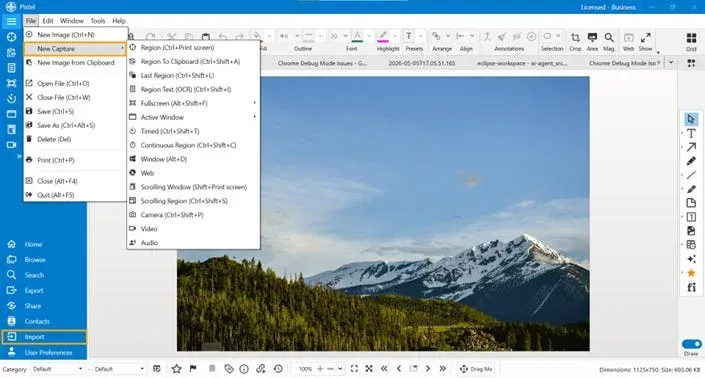
Accessing Color Effects
To use color effects:
- Switch to Image Mode
- Navigate to the Color Effects option
- Click to open the effects panel
Pixtel offers multiple color effects that can be applied instantly to your images.
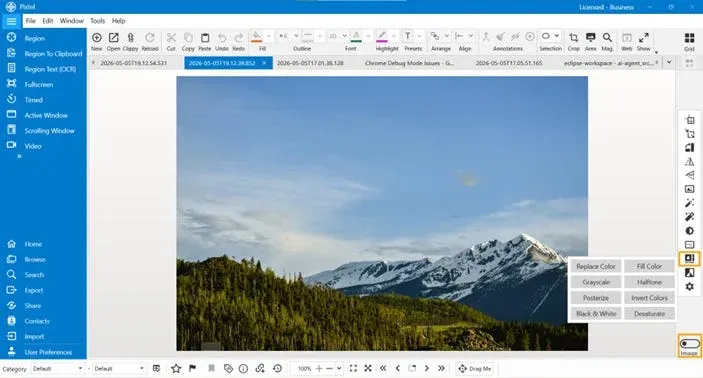
Color Effects in Pixtel
Replace Color
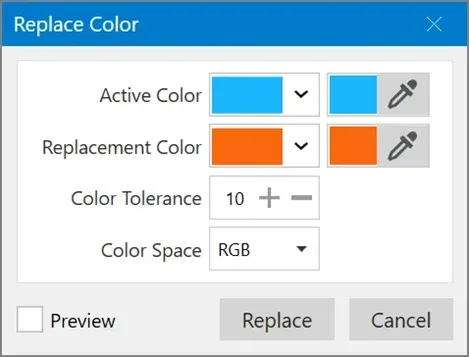
Replace Color allows you to select a specific color in the image and replace it with another color. It opens a dialog where you can adjust the color tolerance to target similar shades.Best for: Changing specific colors in logos, backgrounds, or objects.
Replace Color — Options Explained
When you select the Replace Color effect in Pixtel, a dialog box opens with several options that help you control how colors are replaced in the image.
- Active Color This is the color in the image that you want to replace. You can either select it manually or pick it directly from the image using the color picker tool.
- Replacement Color This is the new color that will replace the selected active color. You can choose any color based on your requirement.
- Color Tolerance This controls how closely related colors are also replaced.
- A low value replaces only the exact color
- A higher value replaces similar shades as well
- Color Space This defines how colors are interpreted (e.g., RGB). It helps ensure accurate color replacement based on the selected mode.
- Preview Enables you to see the changes before applying them. This helps in adjusting settings without affecting the original image immediately.
- Replace Applies the selected changes to the image.
- Cancel Closes the dialog without applying any changes.
Fill Color
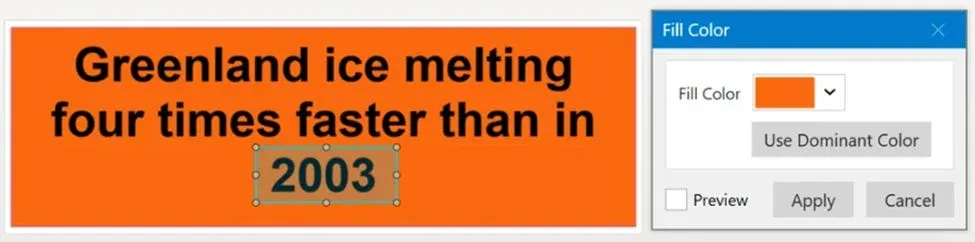
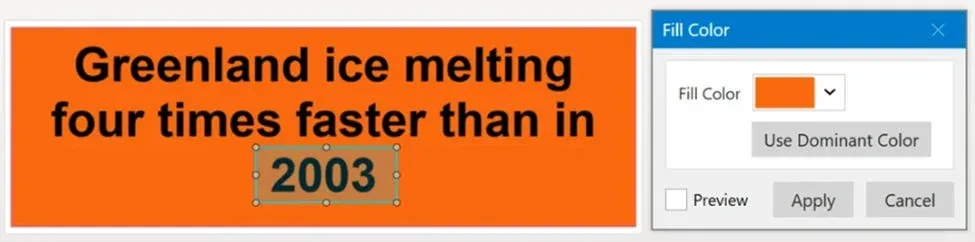
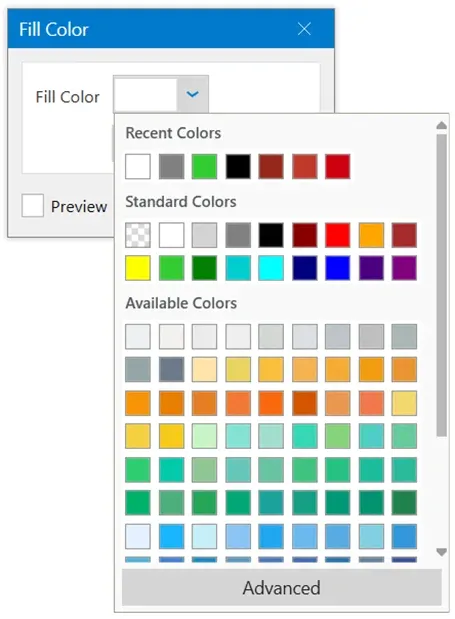
Fill Color fills an entire image or a selected region with a chosen color. The tool can automatically detect a dominant color and suggest it as the fill value.Best for: Highlighting sections or replacing background colors.
Grayscale
Grayscale converts the image into shades of gray, removing all color information. This effect applies to the entire image.Best for: Simplifying visuals or creating a classic look.

Halftone
Halftone converts the image into a pattern of dots, similar to printed newspaper images. It can be applied to the full image or selected areas.Best for: Creative and print-style effects.

Why Use Pixtel for Color Effects?
Pixtel makes color editing simple and accessible without needing complex tools.
- No technical skills required
- Quick and easy to use
- Apply effects to full image or selected regions
- Perfect for screenshots and quick edits
Pixtel provides a powerful set of color effects that make image editing easy and efficient. From replacing colors to converting images into grayscale or halftone styles, everything can be done in just a few clicks.
These tools help you create visually appealing content without the need for advanced editing software.
Related reading:
- Color Effects in Pixtel: Posterize, Invert, Black & White →
- Image Effects in Pixtel: Edit Images Instantly Without Photoshop →
- Image Filters in Pixtel: Enhance Images Effortlessly →
Capture once and use it forever. It isn’t just a tool — it’s Pixtel.
👉 Download Pixtel · 🎥 Follow us on YouTube · 📘 Read Detailed Documentation
'%3e%3cpath%20d='M6.49988%200.862305L0.380969%206.98121C-0.127315%207.4895%20-0.127315%208.31107%200.380969%208.81936C0.889253%209.32764%201.71083%209.32764%202.21911%208.81936L5.19992%205.83855V15.7C5.19992%2016.4176%205.781%2017%206.49988%2017C7.21875%2017%207.79984%2016.4176%207.79984%2015.7V5.83855L10.7806%208.81936C11.0341%209.07285%2011.3669%209.20024%2011.6997%209.20024C12.0325%209.20024%2012.3653%209.07285%2012.6188%208.81936C13.1271%208.31107%2013.1271%207.4895%2012.6188%206.98121L6.49988%200.862305Z'%20fill='white'/%3e%3c/g%3e%3cdefs%3e%3cclipPath%20id='clip0_1_2'%3e%3crect%20width='13.0002'%20height='16.8995'%20fill='white'%20transform='translate(-0.000244141%200.100533)'/%3e%3c/clipPath%3e%3c/defs%3e%3c/svg%3e)