

Camera Feature in Pixtel - Capture Images Instantly
Capturing images using external camera applications often interrupts your workflow. Switching tools, adjusting settings, and importing files manually can slow you down.
The Camera feature in Pixtel solves this by allowing you to capture images directly within the application, while giving you full control over camera devices, resolutions, and frame rates.
Find the Camera Option from the Menu Bar
You can easily access the Camera feature from the Menu Bar in Pixtel.
Steps:
- Open Pixtel
- Go to the Menu Bar
- Click on Camera
- The Camera panel opens instantly
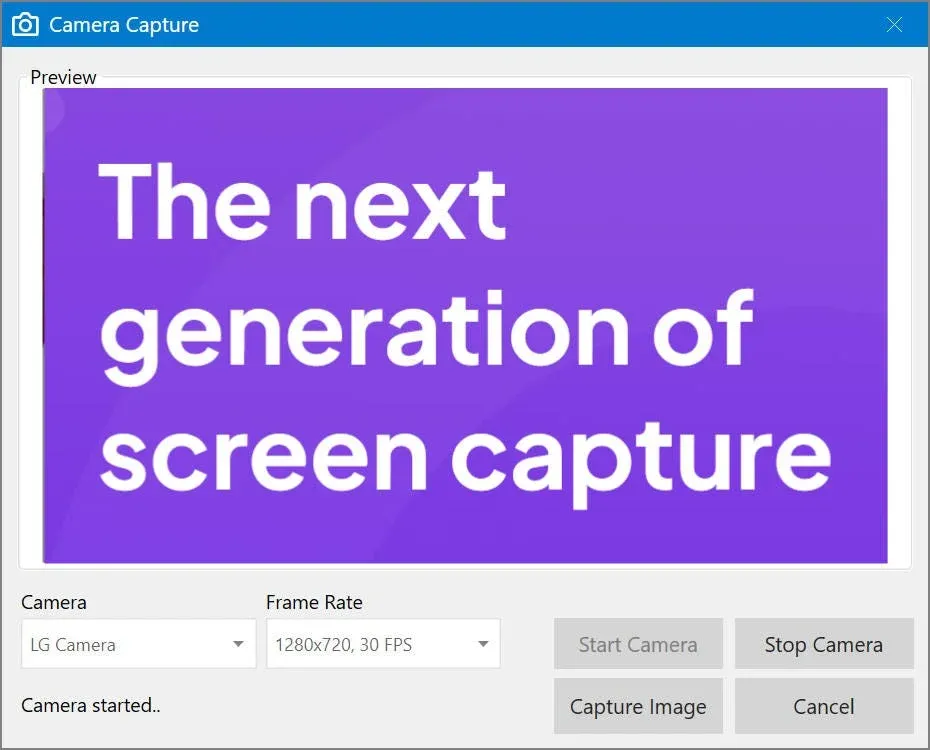
When the Camera panel opens, Pixtel automatically displays all the available camera options connected to your system, making it easy to select the right device.
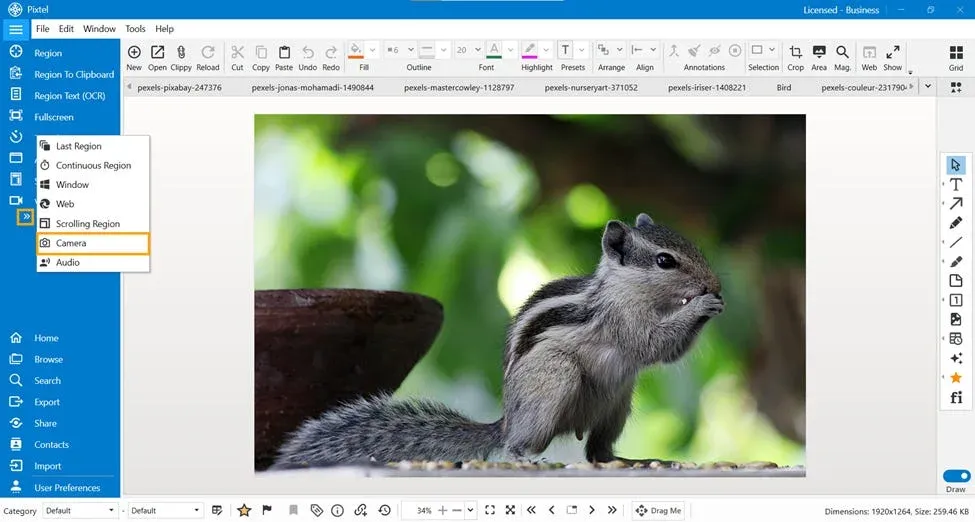
How to Use the Camera Feature
Once the Camera panel is open, you can start capturing images in just a few steps.
By default, Pixtel uses the Integrated Webcam.
Step-by-Step Guide:
- Select the required camera device from the options
- Choose your preferred resolution and frame rate
- Click Start Camera to begin the camera
- Click Capture Image to take a snapshot
- Use Stop Camera to stop the feed or Cancel to exit
After capturing, the image opens automatically in a new Pixtel tab, ready for annotation, editing, or sharing.
Available Camera Resolutions & Frame Rates
Pixtel provides multiple resolution and FPS options to suit different capture needs.
- 640 × 480–30 FPS
- 640 × 360–30 FPS
- 352 × 288–30 FPS
- 320 × 240–30 FPS
- 424 × 240–30 FPS
- 176 × 144–30 FPS
- 160 × 120–30 FPS
- 1280 × 720–11 FPS
- 960 × 540–30 FPS
These options help balance image quality and performance effectively.
Camera Shortcut for Quick Access
You can instantly open the Camera feature using the default shortcut:
Ctrl + Shift + P
This allows faster access without navigating through the Menu Bar.
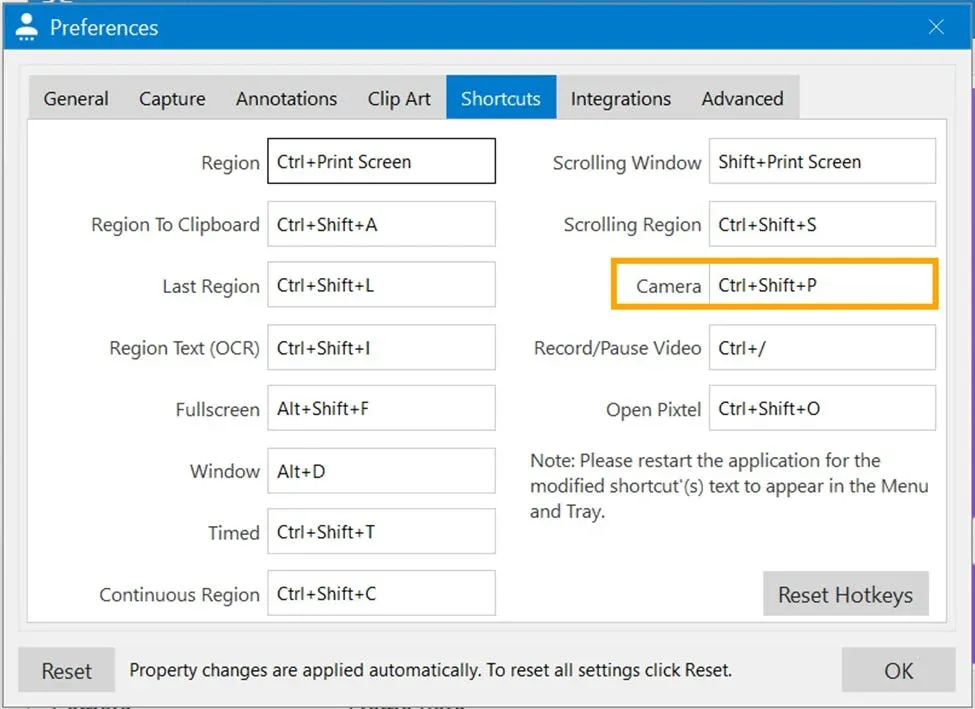
Customize the Camera Shortcut
You can also customize the Camera shortcut based on your preference.
Steps to Customize:
- Open User Preferences
- Navigate to Shortcuts
- Locate the Camera field
- Select the shortcut you want
- Click OK
The shortcut will be applied immediately.
The Camera feature in Pixtel offers a smooth and flexible image-capturing experience. With automatic detection of available camera devices, By default, Pixtel uses the Integrated Webcam; configurable frame rates, and customizable shortcuts, Pixtel ensures you capture images quickly — without disrupting your workflow.
Related reading:
- How to Record Your Screen Effortlessly with Pixtel →
- 4 Easy Ways to Capture Screenshots in Pixtel →
- How to Customize Capture Options in Pixtel →
Capture once and use it forever. It isn’t just a tool — it’s Pixtel.
👉 Download Pixtel · 🎥 Follow us on YouTube · 📘 Read Detailed Documentation
'%3e%3cpath%20d='M6.49988%200.862305L0.380969%206.98121C-0.127315%207.4895%20-0.127315%208.31107%200.380969%208.81936C0.889253%209.32764%201.71083%209.32764%202.21911%208.81936L5.19992%205.83855V15.7C5.19992%2016.4176%205.781%2017%206.49988%2017C7.21875%2017%207.79984%2016.4176%207.79984%2015.7V5.83855L10.7806%208.81936C11.0341%209.07285%2011.3669%209.20024%2011.6997%209.20024C12.0325%209.20024%2012.3653%209.07285%2012.6188%208.81936C13.1271%208.31107%2013.1271%207.4895%2012.6188%206.98121L6.49988%200.862305Z'%20fill='white'/%3e%3c/g%3e%3cdefs%3e%3cclipPath%20id='clip0_1_2'%3e%3crect%20width='13.0002'%20height='16.8995'%20fill='white'%20transform='translate(-0.000244141%200.100533)'/%3e%3c/clipPath%3e%3c/defs%3e%3c/svg%3e)